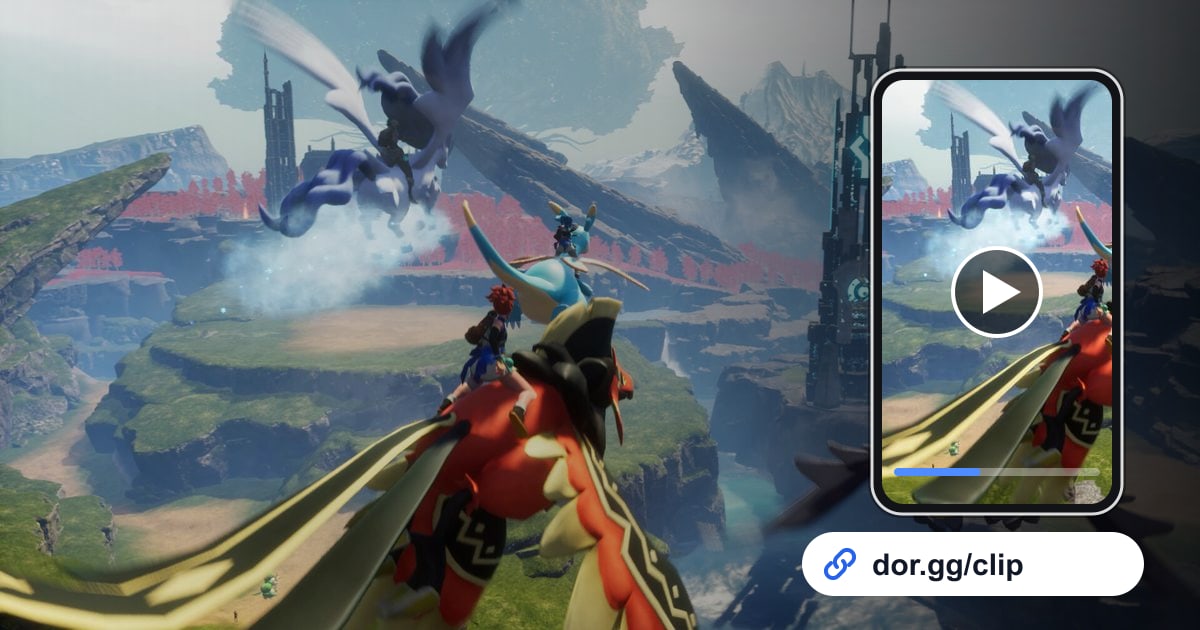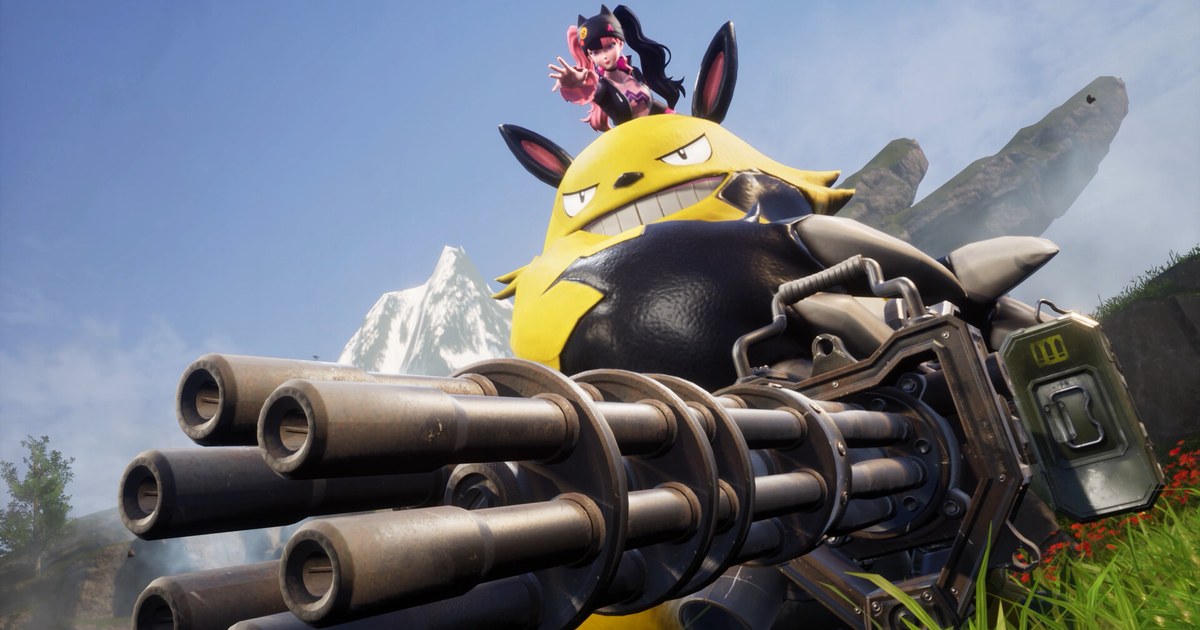

The short answer is to separate turning recording on from choosing the scenes. Install DOR, launch Palworld, and the app notices the game and starts recording by itself. When you quit, the recording lands in My Clips in the app.
You pick the scenes later, at your own pace, and trim only the parts you need.
Palworld is full of moments that arrive without warning, such as a Pal capture, a boss or tower fight, a base finally coming together, or a ridiculous accident on a multiplayer server, so pressing a record button in the moment is easy to miss.
If everything is already recorded, you can trim afterwards and miss nothing. You can also find Palworld specific guidance on the DOR Palworld page. This guide assumes you play Palworld on a PC through Steam.
The answer: leave auto recording on, trim scenes after you finish
A single Palworld session can run for hours, so aiming only for clips from the start means some scenes slip away. The default approach is to let auto recording keep the whole session and trim only the scenes worth saving once you are done.
The rule for trimming is simple: include both the moment just before and the result. Start before you throw the Pal Sphere and end when the capture result shows. Start as you walk up to the boss and end when the reward appears.
For a base, end after a slow lap around the finished layout. A clip that only shows the result does not explain why the scene mattered. You can read more about cutting a section in how to trim game clips. The table below shows where to start and end for each kind of scene.
From recording to saving, step by step
- 1Install the recorder and launch PalworldInstall DOR, then start Palworld from Steam as usual. When the app detects the game, recording begins automatically, so you do not need to press a record button. Right after installing, check once in the DOR app that Palworld is picked up.
- 2Play as you normally wouldLeave your settings alone while recording and just play. When something worth keeping happens, note roughly how many minutes in you are. That makes the moment easy to find in the video later.
- 3Quit the game and open My ClipsWhen you close Palworld, the recording is collected in My Clips in the app. Open that day's session video and jump to the time you noted.
- 4Trim only the section you need and save itSet the start and end using the table above, trim the section and choose the ratio. 16:9 suits uploads as they are, 9:16 suits Shorts and Reels, and 1:1 suits social feeds. Vertical video is covered step by step in how to make vertical game videos.
- 5Polish it in the studio if you want toTo join several scenes or add text, BGM and effect templates, edit in DOR Studio (dor.gg/studio), then export an mp4 or share a dor.gg link.
Where to trim each Palworld scene
| Scene | Start trimming | Stop trimming |
|---|---|---|
| Rare Pal capture | Just before you throw the Pal Sphere | Right after the capture success or failure shows |
| Boss Pal fight | As you approach and the fight is about to begin | Right after the boss falls and the reward appears |
| Tower challenge | At the tower entrance as the challenge begins | Right after you defeat the tower boss |
| Finished base | The last placement before it is complete | After a slow lap around the base with your Pals working |
| Multiplayer accident | A few seconds before it goes wrong | Right after your friends finish reacting |
| Event on a long trip | Where the event starts, not the travel before it | Where the event ends |
Check these before you save
- The trimmed section includes both the moment before and the result
- You played the saved clip once from start to finish
- You picked the right ratio (16:9, 9:16 or 1:1) for where you will post it
- The sound is neither too quiet nor too loud
- You liked the videos you want to keep so they stay out of the cleanup
Auto recording Palworld with DOR
DOR is a free Windows game recording app. When you launch a supported game, it detects the game automatically and records the whole session from launch to exit, and the recordings are collected in My Clips.
For Palworld, let auto recording keep the whole session, then trim the scenes you want in the app and save them as 16:9, 9:16 or 1:1. Free recording quality is 720p or 1080p at 30 or 60 fps, with 1080p at 30 fps as the default. 1440p, 4K, 120 fps and 144 fps are available in DOR Pro.
Voice is captured with game sound and your microphone on a single track. Storage is only tidied up, oldest videos first, when the space set aside for full play videos (5 GB by default) is exceeded, and recent recordings and liked videos are kept.
Editing such as joining videos or adding text, BGM and effect templates happens in DOR Studio, and you export an mp4 or share a dor.gg link. Recordings and edits made with DOR carry no watermark.