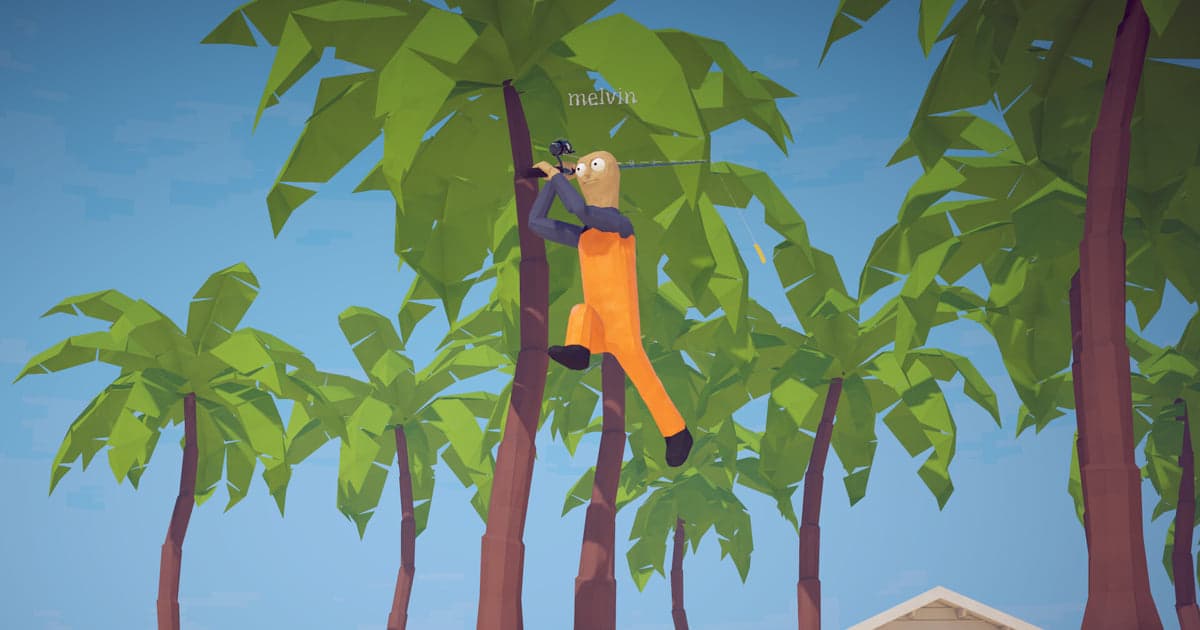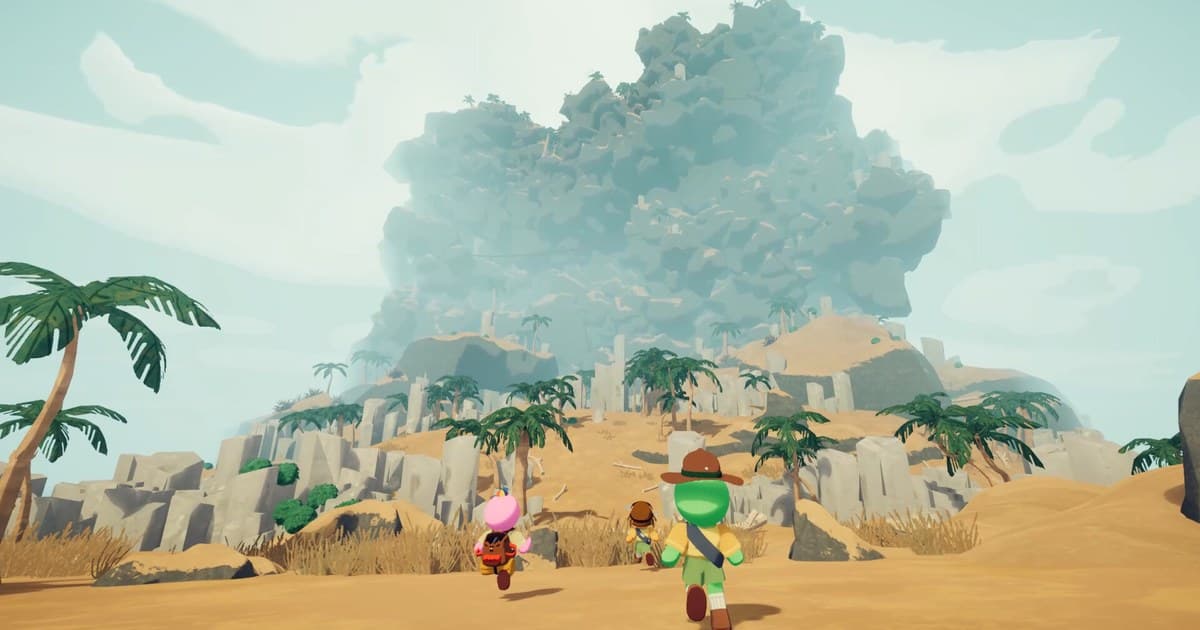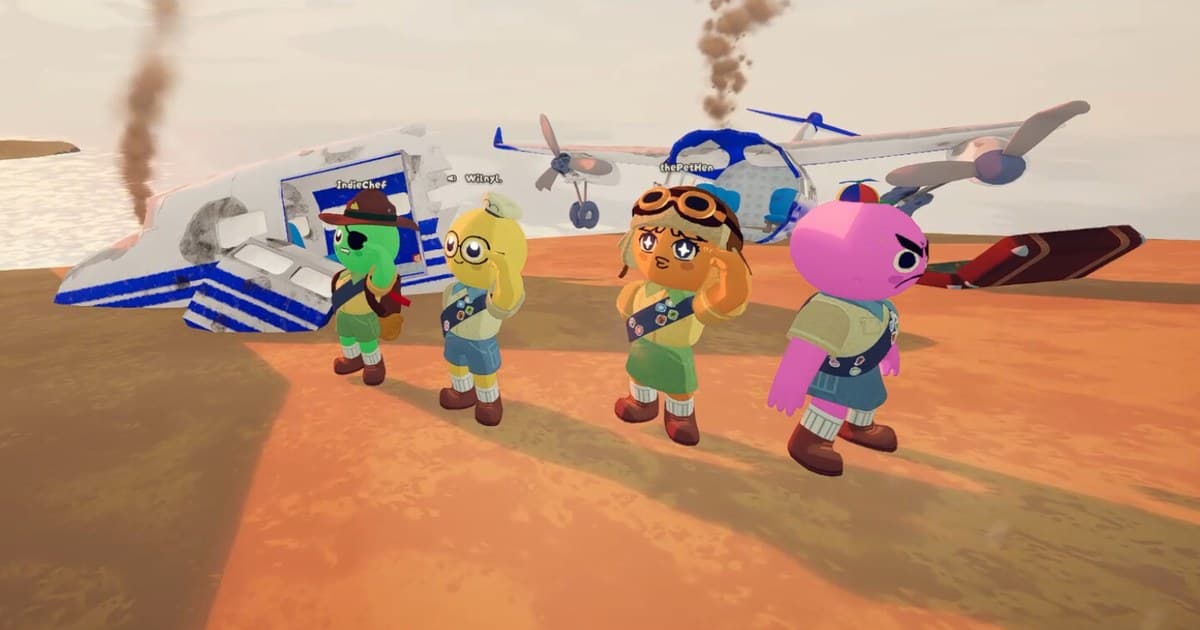
When you line up a PEAK session, the first question is how many players actually fit in one run. Four of you are in the group chat, a fifth person wants in, and someone asks whether two of you can share a PC and split the screen. Searches for peak game how many players, peak game max players, peak game multiplayer limit and peak game split screen are all circling the same number, and the number comes straight from the store page. Checked on October 16, 2026, PEAK's Steam store page says multiplayer is friends-only and that you can invite up to three other scouts through Steam to climb together. That is four players in total, counting you. This guide pins that number down, goes through what the store's listed features do and do not include, explains how far a mod that claims to raise the lobby limit can be trusted, and then sets up recording so the fall nobody witnessed still ends up on video. If you are still short of three climbing partners, start with our guide to finding game friends and parties.
Bottom line: four players in total, and split screen is not among the listed features
By the store's own wording, a PEAK lobby is you plus three invited scouts, so four in total. The multiplayer paragraph states that play is friends-only and that you invite up to three other scouts through Steam. If a fifth person turns up, the practical answer is to rotate or split into two groups rather than hunt for a way to stretch the lobby. Climbing alone is also a supported option: Single-player is in the listed features, and the store text pairs online co-op with offline single player. What you should not plan for is two people on one PC. As of October 16, 2026 there is no split screen entry in PEAK's listed features, and no Remote Play Together either, so you cannot stream the game to a friend who has not bought it. On the Steam version, four climbers therefore means four PCs and four copies. Since a friend may buy it and then find that the heights or the controls are not for them, it is worth pointing them to the Steam refund rules and how to request one in advance. Mods that claim to raise the player limit do circulate in the community, but PEAK has no Steam Workshop entry in its listed features, so such mods are distributed outside the store and sit outside what the developers officially support or guarantee. Plan your group and your schedule around the official number, four.
Setting up a four-player run and keeping four points of view
- 1Count the slots first: you plus threeCap the group at four before anything else. The store text says you invite up to three other scouts, so the host plus three is the ceiling. If five or more of you are keen, do not look for a way to widen the lobby. Split into two groups attacking the same island, or have one person sit out and swap in for the next run. The map rotates every 24 hours and you can retry the same island several times within a day, so a rotation still lets everyone climb the same terrain.
- 2Drop the one-PC and Remote Play plansSplit screen and Remote Play Together are not among PEAK's listed features. Open the feature list on the Steam store page and you will see Single-player, Multi-player, Co-op, Online Co-op, Steam Achievements, full controller support, Steam Trading Cards, DualShock and DualSense controller support and Family Sharing, and nothing about a shared screen. Two controllers on one living-room PC is therefore not a setup to prepare for. Plan instead for four machines, each with its own copy of the game.
- 3Treat lobby-size mods as outside official supportOne search will turn up talk of mods that raise the player limit. PEAK has no Steam Workshop entry in its listed features, though, so those mods are distributed outside the store and fall outside what the developers officially support or guarantee. This guide does not point you at any particular mod or explain how to install one. If you have to commit to a group of five or more, build the schedule around rotating players rather than around a mod holding up.
- 4Finish your DOR settings before launchingDOR starts recording as soon as PEAK launches, so resolution, frame rate, clip length and the hotkey are all set before you start the game. The defaults are 1080p at 30 fps, 30-second clips and F8 for clips. Whoever wants the group's voices on their recording should leave Record All Sounds on, which puts every PC sound including a Discord call into the single audio track; turn it off and you get the game window's audio plus your mic. The four of you do not need identical settings, but anyone who plans to line up views later should match clip lengths.
- 5Have all four record while you climb the same runDOR detects the PEAK.exe process, starts recording, and stops when the game closes. On a personal PC this Full gameplay recording is on by default, and you can turn it off or on for PEAK alone under Settings > Game; in internet cafes it is off by default. With all four of you recording, a single run leaves four session videos, one on each PC. Before you set off, check free space on each recording drive: DOR warns you below 30GB and will not start, or stops, below 20GB.
- 6Press F8 for each accident, then Like it and merge the viewsRight after someone drops or the whole party slides off a ledge, press F8 and the last 30 seconds are saved as a separate clip while the session recording carries on; you can choose 15, 30, 45 or 60 seconds. You mark what matters with F8, or cut it out of the session video afterwards. When you stop playing, Like (bookmark) the clips you want to keep, and if you want the same moment from several people in one video, merge them in DOR Studio in your browser.
PEAK player count and split screen: what the store lists (checked October 16, 2026)
| Item | What the Steam store page lists | What it means for your group and your recording |
|---|---|---|
| Max players | Multiplayer is friends-only, and you invite up to three other scouts through Steam to climb together. | Four players in total, counting you. A fifth person cannot join the same run, so rotate or let them spectate. |
| Playing solo | Single-player is in the listed features, and the store text pairs online co-op with offline single player. | A solo climb is a supported way to play, and it is the simplest run to record when you want to learn a route or item spots. |
| Split screen (two on one PC) | As of October 16, 2026 there is no split screen or shared screen entry in the listed features. | Do not plan around two people sharing one PC and one screen. Every player needs their own PC and their own copy. |
| Remote Play Together | Not in the listed features. | You cannot expect to stream the game to a friend who has not bought it. Fill the four slots with people who own a copy. |
| Steam Workshop and Steam Cloud | Neither appears in the listed features. | A mod that claims to raise the lobby limit is distributed outside the store, with no official support or guarantee. Do not assume your saves follow your account. |
| Family Sharing | Family Sharing is in the listed features. | It shares a library, not a lobby. The player cap in one run is still four. |
Before the four of you start climbing
- The group is capped at four (you plus three invited scouts), and a fifth person is set up to rotate in or spectate.
- All four have a Windows PC and their own copy of PEAK (split screen and Remote Play Together are not in the listed features).
- Resolution, frame rate, clip length and the hotkey were set before launching PEAK (defaults: 1080p at 30 fps, F8 for the last 30 seconds).
- Anyone who wants the group's voices left Record All Sounds on, and everyone agreed to check for other people's voices and names before exporting a video.
- Each recording drive has at least 30GB free (below 20GB, recording does not start or it stops).
- Everyone will Like (bookmark) or trim the moments worth keeping right after the session.
Keeping all four points of view with DOR: automatic session recording plus F8
DOR is a free Windows PC app. Launch PEAK (PEAK.exe) and DOR detects it, recording everything from launch to exit as one video. On a personal PC this Full gameplay recording is on by default, and you can turn it off or on for PEAK alone under Settings > Game; in internet cafes it is off by default. Because four scouts spread out across a cliff, the accident usually happens off your own screen. With all four of you recording, one run leaves four videos, so you can see from someone else's view who grabbed what and why the rope came loose. For more on putting several people's views into one video, see DOR party clips. Press F8 while recording and the last 30 seconds are saved as a separate clip, with 15, 30, 45 and 60 seconds to choose from. Since PEAK is recorded the whole time it runs, change clip length, resolution, frame rate and the hotkey before you launch it. The default quality is 1080p at 30 fps, 60 fps is selectable, and 1440p or above and 120 fps or above require Pro. Audio is saved as a single track: with Record All Sounds on you get every PC sound including a Discord call, and with it off you get the game window's audio plus your mic. Leave it on if you want your friends' reactions, and check a video for other people's voices and names before you take it out of the app. You save moments with F8 or cut them from the session video. Full gameplay videos are managed inside their own share of the disk, 5GB by default, so an earlier session's folder can be cleared once that share is full, taking any F8 clips you did not Like with it. Saved videos play back in My Clips, where Trim Section cuts them to 16:9, 9:16 or 1:1 and Export File takes them out; trimming needs you to be signed in to finish, and the Original export preset copies the file as it is. To merge four people's videos into one, or to add text and background music, open DOR Studio (dor.gg/studio) in your browser. DOR warns you when a drive has less than 30GB free and stops recording below 20GB, which matters when four people are each recording, so see the game recording low disk space fix guide for clearing room.