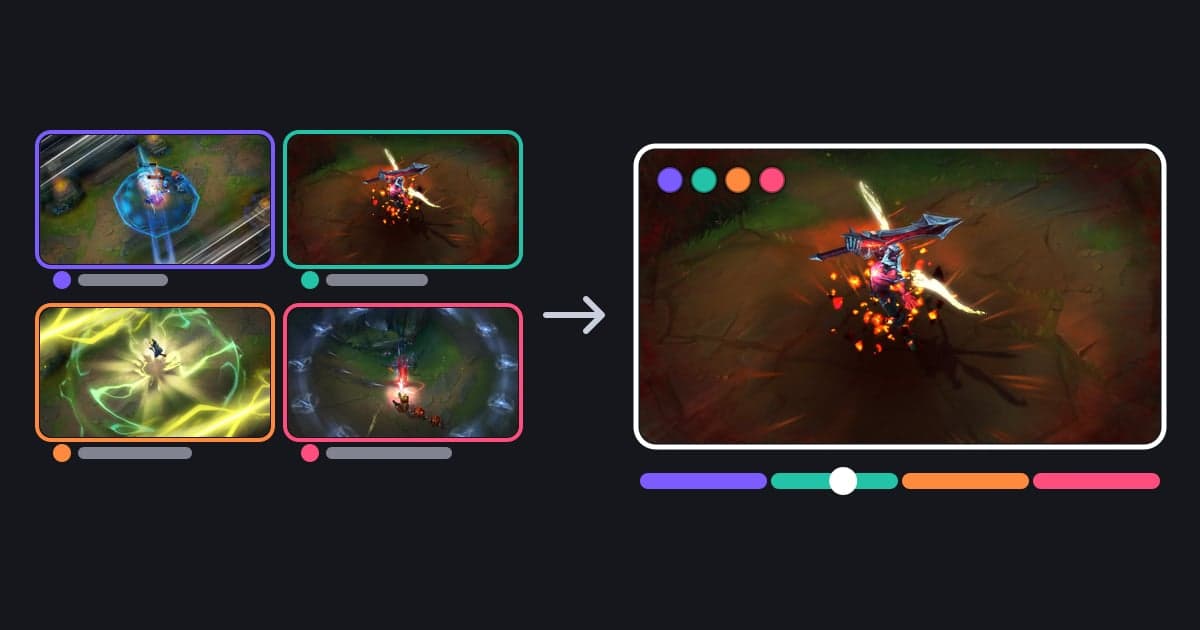
DOR Party Clip lets everyone who played a match together upload one clip from their own point of view, then joins those clips into a single highlight video. The best moments of a match you played with friends only half survive on your own screen: the teamfight your duo forced together, or the kills that went off at the same time from different angles in a 5-stack. Your recording can't show how your play looked from a friend's screen, or what your friend was doing on the other side of the map. Party Clip fills that gap after the match ends. Nobody has to go live or share a screen on Discord; it gathers the POVs each of you already recorded with DOR. It works in two games, Valorant and League of Legends, starting with DOR desktop app v1.4.0, released on July 24, 2026. This guide covers who it suits, how to make one step by step, how it compares with other ways to keep a match you played with friends, and what to check before you start.
Bottom line: it suits parties who want to gather everyone's POV after the match
Party Clip is for people who play Valorant or LoL with friends, a duo or a 5-stack and want to keep the best moments of a match as one video built from each player's POV. There are two requirements: you recorded that match with DOR, and at least two people, you included, were in the same party. Each player uploads from their own recording, so every party member who adds a POV also needs a DOR recording of that match. Discord screen sharing (Go Live) is live, so friends have to be in the same voice channel at that moment to watch, and a viewer can watch only one person's stream at a time. You can also drop your recording into Discord as an attachment, but Discord limits attachments by file size, not length, so a high-quality recording runs into the free-account limit after only a short stretch. Check Discord's official help center for the current limit. Party Clip gathers just 3 to 30 seconds from each player into a short highlight, and you can post the finished video to the DOR feed and share it as a dor.gg link. If you are still deciding whether you want to stream at all, start with Game Streaming vs Recording. If what you want is to stitch several clips from your own POV together with transitions, the approach in How to Merge Multiple Game Clips fits that job.
How to make a Party Clip
- 1Record the match with DOR on each PCEach player in the party plays with DOR running on their own PC. DOR detects supported games when they launch and records the full match automatically, so nobody has to press a record button. In Valorant, four queues are covered: Competitive, Unrated, Swiftplay and Custom, and DOR groups party members using the match's party data. Other modes such as Premier and Deathmatch are not covered. In LoL, DOR treats the players in your pre-game lobby as the party, and replays and spectated games are excluded. You need at least two people in the party, you included, and at least one clip from that match saved on your PC.
- 2Create a room from the Party Clips tab or the suggestion pop-upOpen the Party Clips tab on the clips screen of the DOR app to see the party matches saved on this PC. Pick a match and press Create Party Clip to open a room for it. When you launch the app and there is a match you played with your party in the last four days, a suggestion pop-up may ask whether you want to bring together the moments from the players you played with, and you can start from there too. The pop-up does not appear on PCs in Korean PC bangs (internet cafes). There is one room per match and party, and its participants are the party members from that match. If a friend already created the room, just join it; when a room is created, the other participants who use DOR get a notification.
- 3Invite your friends by DM or invite linkPress Invite in the room. Party members who have linked their Riot account to DOR can be picked from the list and invited by DOR DM. DMs stay inside DOR, so for friends marked Not on DOR, press Copy invite link and paste it into Discord or whatever group chat you use. A friend who opens the link in a PC browser can watch the clips already uploaded without installing DOR, but to add their own clip they need the DOR desktop app and a DOR recording of that match.
- 4Upload one clip of your ownEach player uploads one clip of their own from that match, from their own PC. DOR picks three recommended scenes from your clips based on their scores, and before you upload you can switch to another one of them with Change Scene; each option shows when it happened in the match. Trim the part you want to between 3 and 30 seconds. Your kills are marked on the trim bar, which makes it easier to line up the moment. Then press Upload Mine. You can't change your clip after uploading, so check the scene and the trim first. Uploading needs the DOR desktop app, a signed-in account and your recording of that match.
- 5Check where each clip falls on the match timelineThe match timeline in the editor shows roughly where in the match each uploaded clip happened; hold Tab over the video to bring it up. Valorant is shown by round and LoL by minute, so you can see at a glance whether your friends picked the same round or teamfight or different parts of the match. If the party was split across two teams, as in a custom game, team tabs appear so you can view each side separately.
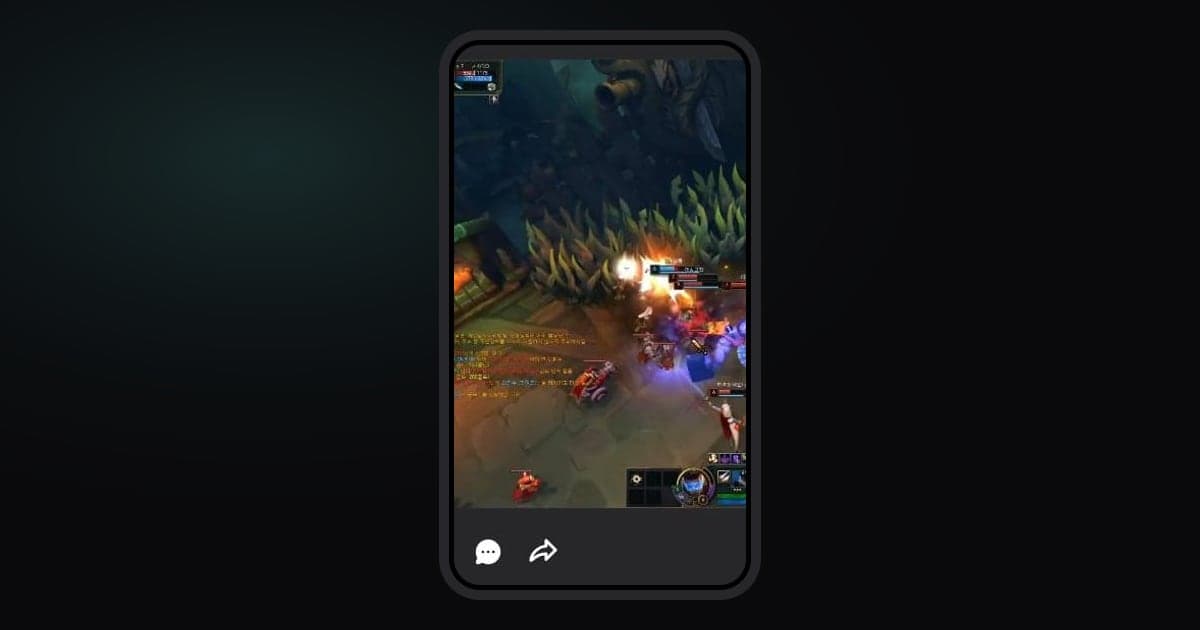
- 6Set the ratio, order and music under CreateCreate becomes available once at least one person has uploaded, so you don't have to wait for everyone. Only the clips uploaded at that point go in, though, so if you want every POV, check that your friends have uploaded before you go ahead. First pick the ratio: 16:9, 1:1 or 9:16. With 1:1, a square crop of the footage sits in the middle of a vertical frame. The video order follows match time by default, and you can drag clips to change it. Pick a track from DOR's music list and choose the section to use; the music is mixed with the game audio. Each clip gets the player's name card automatically, so viewers can tell whose POV they are watching. When everything is set, press Create; the processing steps are shown one by one, and you can cancel partway. Creating works only in the DOR desktop app, for a signed-in participant who has that match's recording on their PC.
- 7Save the mp4 and share it to the feedThe finished video is saved as an mp4 in the DOR save folder on the creator's PC, inside that match's folder, and you can also find it in that match's clip list as a Party Clip. When it is done, the DOR feed post window opens so you can post it right away and mention your party, and a feed post can be shared as a dor.gg link. You can also upload the mp4 file to YouTube or anywhere else. The finished video does not appear on the room link, so to show it to friends, send the feed link or the mp4 file.
Ways to keep a match you played together
| Method | Whose view you get and what you need | Things to watch for |
|---|---|---|
| Discord screen share (Go Live) | You watch one sharer's view live. You need a Discord voice channel and permission to share your screen. | Viewers must be in the same voice channel at that moment, and each viewer can watch one stream at a time. Stream quality depends on your account tier, so check Discord's help center. |
| Everyone streams, then cuts the VOD | You get one view per player who streamed. Each player needs an account on a streaming platform such as Twitch or YouTube and broadcast software set up. | Everyone has to stay live for the whole match, and whether VODs are kept, and for how long, depends on the platform and settings. You still download several VODs and edit them. |
| Each player attaches their recording on Discord | Each player's view arrives as a separate file. You need a recorder and a Discord server or group chat. | Discord limits attachments by file size, so high-quality footage passes the free-account limit after a short stretch. Check the current limit in the official help center. The views are not combined. |
| Re-record a friend's view from the in-game replay | Inside the replay you can watch from other players' views. You need the game client and a screen recorder. | Replays play only inside the game client, so to keep a video you record the playback again. Valorant replays expire when the patch changes, and LoL replay files stop opening after a patch. |
| Collect the files and merge them in an editor | You can pick any view you like from the original files your friends send. You need a way to transfer files and video editing software. | Full-match files are large and slow to transfer, and you find, trim, order and label every scene yourself. |
| DOR Party Clip | A 3 to 30 second clip from each party member's own view is joined into one video. Each party member needs the DOR desktop app and a DOR recording of that match. | It supports Valorant (four queues) and LoL only, each player uploads one clip that can't be changed afterwards, and a friend who did not record that match with DOR can't add their view. |
Check before you create
- You recorded the match with DOR in a party of two or more, and the friends adding their POV recorded it with DOR too.
- For Valorant, the match was Competitive, Unrated, Swiftplay or Custom; for LoL, it was a match you actually played (not a replay or a spectated game).
- At least one clip from that match is still in your current DOR save folder on this PC.
- You are signed in to the DOR desktop app (needed to upload and to create).
- You compared your pick against the three recommended scenes and trimmed it to 3 to 30 seconds (you can't change it after uploading).
- Friends who can't get a DOR DM have received the copied invite link.
- You chose the ratio for where it will be posted (16:9 for landscape videos, 9:16 for Shorts and Reels).
Keep matches with friends using DOR
DOR is a free Windows desktop app. It detects supported games when you launch them and records the full match as an mp4, using NVENC hardware encoding by default on NVIDIA GPUs, and it records game audio and your mic together. Automatic highlight clips are made in seven games. In League of Legends you get clips for kills, multikills from double kills up to pentakills, assists, deaths, objectives, turrets and the game end; in Valorant you get kill and death clips and round recordings. In Valorant's Competitive, Unrated and Swiftplay queues, kill clips are labeled double kill, triple kill and so on by the number of kills in a row, and when your team wins a round with an ace or a clutch, the last kill clip of that round gets an ace or clutch tag. In both games a POTG, that match's featured clip, is picked every match. You can also save any moment yourself with a hotkey. Party Clip works on top of the clips that build up on each player's PC, so if your party plays with DOR running on every PC, you can gather everyone's POV after the match. For how clips are saved in each game, see How to Clip Valorant and How to Record League of Legends. Uploading, changing scenes and creating all happen in the DOR desktop app; on a phone you only see a notice that Party Clips are made on PC.
 #Valorant