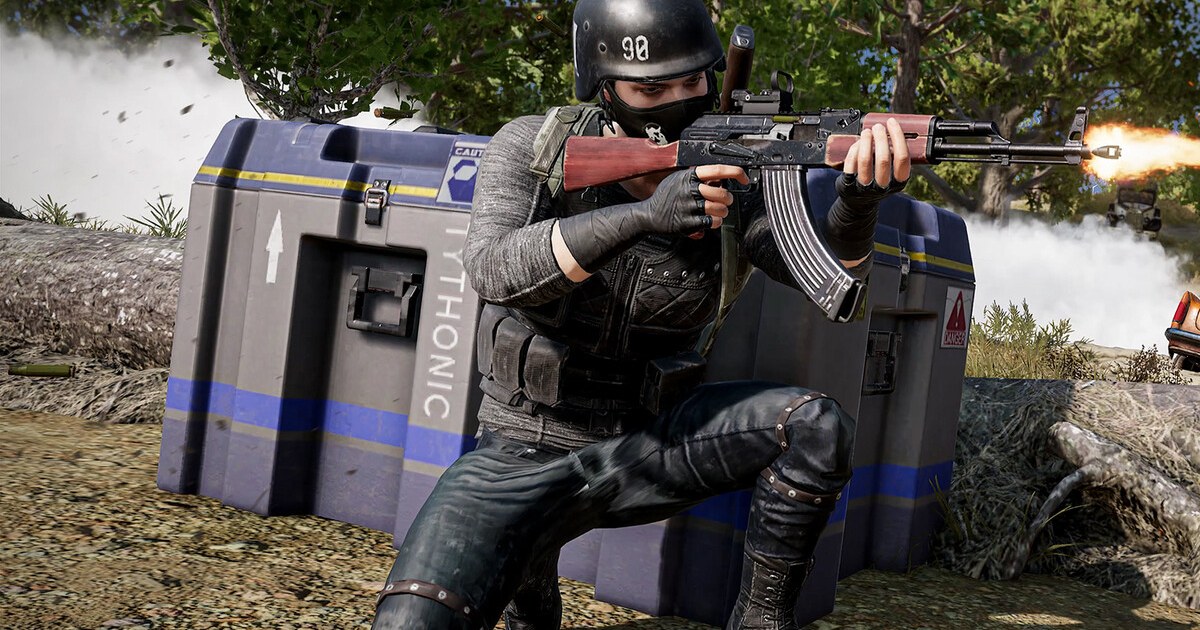
Here is the short answer: to make a PUBG highlight video, open the AI Highlight tool (called one click mad movie in the app), pick your clips, choose a template, and you are done. PUBG is one of the seven games that support this tool.
DOR records your match automatically and collects kills, knocks and deaths as event clips, so all you do is choose the moments you like and pick a template and aspect ratio. The chosen clips are joined into one video automatically from the game events, with music and effects added.
The tool is available in the desktop app, and if you close the window while it is working, the edit keeps going. How to record the match in the first place is covered in how to record PUBG gameplay, so this guide focuses on turning clips you already have into one mad movie.
The answer: pick clips, pick a template, set the ratio
A few of the best moments from one match are enough for a highlight. Press the AI Highlight button on the clips screen and the clips are selected for you and passed to the template window, or open the picker and choose each moment yourself.
In the template window you choose a template and music, and set the ratio to 16:9, 9:16 or 3:4. Wide video suits YouTube, and vertical video suits Shorts or Reels. Choose from the event clips collected in My Clips.
Full match recordings, round recordings, clips made by trimming a section, highlights you already made, and mixed game selections are best left out of the list so the tool does not stop you. If you want to start from collecting clips, read how to make a highlight reel from clips first.
How to make a PUBG highlight video
- 1Launch PUBG and play a match as usualWith DOR installed, launching PUBG is detected automatically and the whole match is recorded. Kills, knocks and deaths collect as event clips, and the full match collects as a video in My Clips. After the match, the app's automatic highlight analysis can also help you find moments.
- 2Skim My Clips for the moments you wantLook through this match's event clips in My Clips and decide which moments go into the mad movie. Three or four is plenty for the first one. Full recordings and clips made by trimming a section are not used by this tool, so stick to event clips.
- 3Press the AI Highlight button on the clips screenIn the desktop app, press the AI Highlight (one click mad movie) button on the clips screen. The per match button appears for matches of supported games on the official version. You can let it select clips automatically and jump to the template window, or open the picker and choose the moments yourself.
- 4Choose a template, music and ratioThe template you pick sets how many clips are needed. Maniac takes 3 to 6, Magazine 1 to 4, and FreezeZoom 1, so match your picks to it. Choose a song from the music list, then set 16:9, 9:16 or 3:4 for where you plan to post.
- 5Start the edit and check the resultOnce you start, a video with music and effects is edited automatically, and closing the window while it works does not stop the edit. The Default and AutoHighlight templates have a one minute limit setting; with it on, the video is fitted to 56 seconds on the free plan and 60 seconds on Pro.
- 6Polish and share itBefore posting, you can add text, BGM and effect templates such as shake zoom in DOR Studio (dor.gg/studio), then export an mp4 or share a dor.gg link. If you plan to post vertically, borrow the structure from how to make PUBG Shorts.
The 11 mad movie templates and how many clips each needs
| Template | Clips needed | Good to know |
|---|---|---|
| Default | Shown in the template window | Default ratio is 16:9 and you can turn the one minute limit on or off |
| AutoHighlight | Shown in the template window | Like Default, it has a one minute limit you can turn on or off |
| Maniac | 3 to 6 | Pick it when you want to gather several kill clips into one video |
| Magazine | 1 to 4 | Comes out as 9:16 vertical video, ready for Shorts |
| FreezeZoom | 1 | Works with just one clip |
| The other 6 | Varies by template | SkullMeme, Bow and Arrow, Life Force, Camera, Finale and Aim are shown in the template window for you to choose |
Check before you make your mad movie
- The clips you chose are event clips collected in My Clips
- You chose clips from one game only (PUBG)
- Your picks match the number of clips the template needs
- You chose the ratio for where you will post (16:9, 9:16 or 3:4)
- The one minute limit setting fits the length of the place you will post
From recording a PUBG match to a mad movie with DOR
DOR is a free Windows game recording app. When you launch a supported game, it detects it automatically and records the whole match, and recordings collect in My Clips.
In PUBG, kills, knocks and deaths collect as event clips, and after the match the automatic highlight analysis can help you review moments.
AI Highlight (one click mad movie) works in seven games: League of Legends, VALORANT, PUBG, FC Online, Fortnite, Counter-Strike and Overwatch, and it joins the clips you pick into one video with music and effects that fit the template.
When you want to go further, DOR Studio (dor.gg/studio) can merge videos, change the aspect ratio, add text, BGM, volume changes and effect templates such as shake zoom and punch zoom, then export an mp4 without a watermark or share a dor.gg link. Recording is free at 720p or 1080p and 30 or 60 fps, with 1080p at 30 fps as the default.