Here is the short answer: do not worry about cost up front. Pick two or three clips in the DOR app, make one AI Highlight, and decide whether to keep using it only if the Pro prompt appears. All you do is pick clips and a template, and music and effects are added automatically.
How many runs happen before a Pro prompt can change depending on the situation, so this guide gives no number and only covers behavior checked in the app as of November 24, 2026.
You also do not need to worry about a watermark: PC recordings, automatic event clips, DOR Studio edits and exports carry none. For the whole workflow of building a highlight video, see how to make a gaming montage, and for how clips get saved automatically, see how DOR saves auto highlight clips. This guide only covers what works the first time you try it and what to know in advance.
The answer: make one first, decide at the Pro prompt
There is one rule. Read the Pro prompt and decide only if you liked the result and want to keep making videos this way. Until a prompt shows up, there is nothing to decide in advance.
For the first run, choose your two or three best kill clips and use the default template; you will see the length and feel right away, and if it is not what you wanted you can swap the clips or the template and run it again.
If you want to add scenes to the automatic result, you can mix in manual joining in DOR Studio, like in how to merge game clips. For the differences between automatic highlight tools, see our clip software comparison.
How to make your first AI Highlight
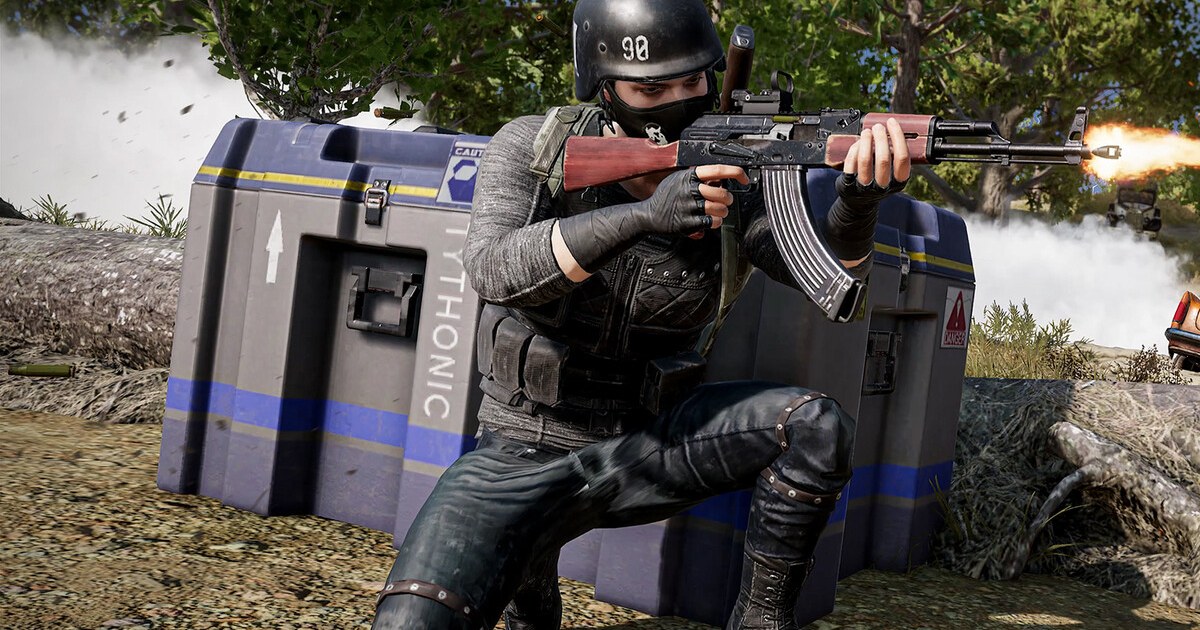
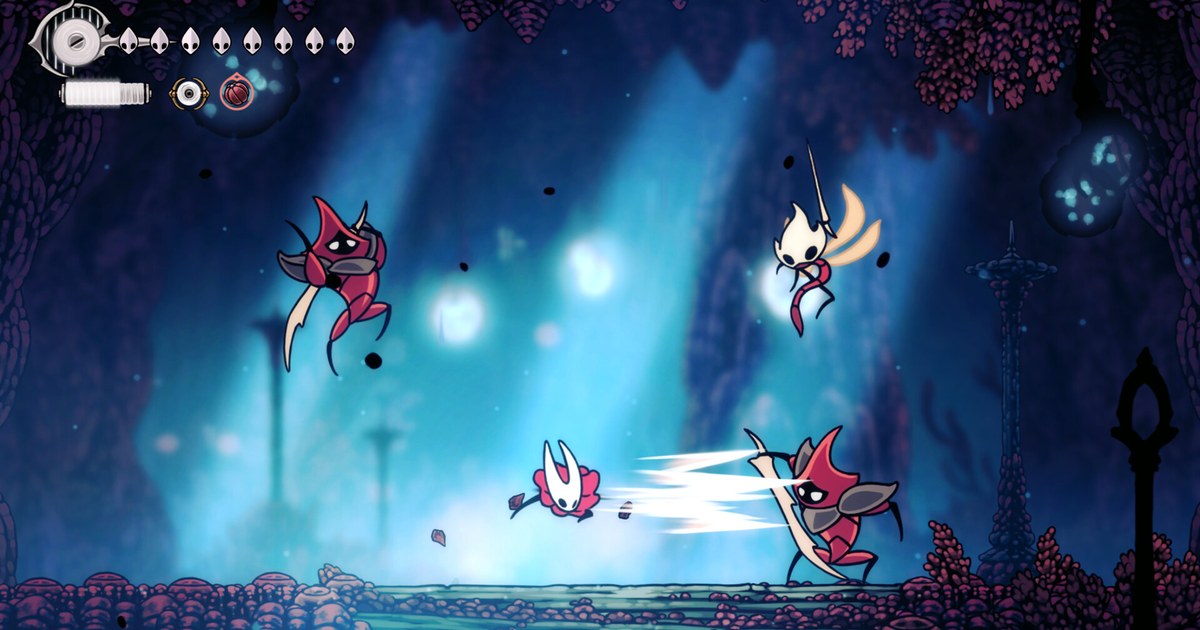
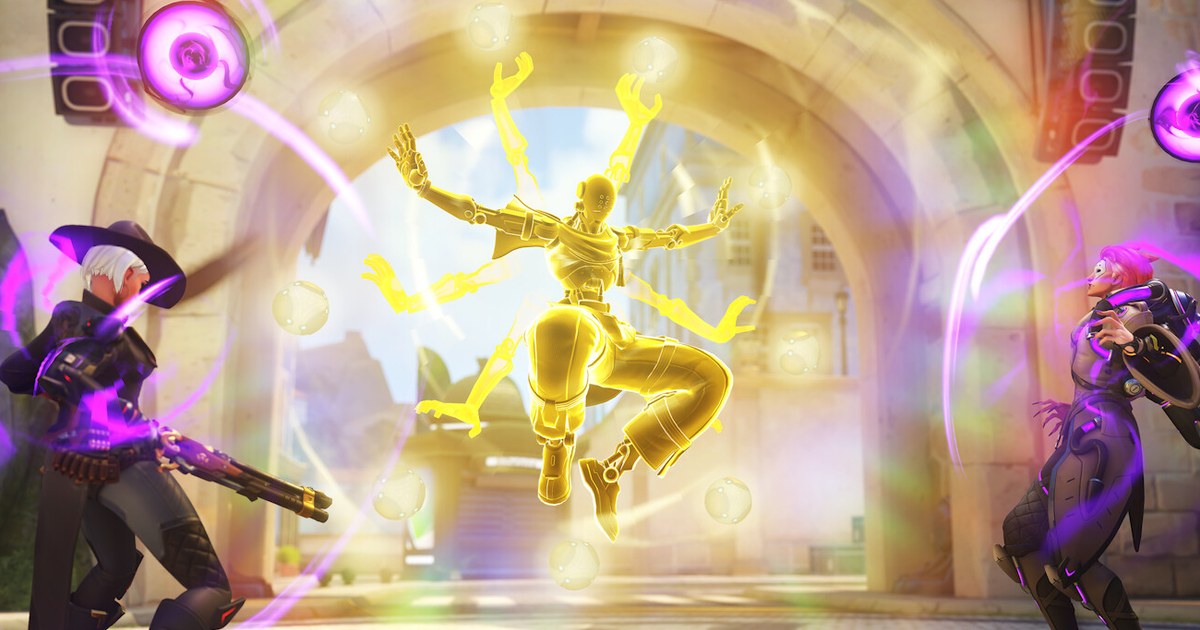
- 1Pick clips from a supported game in the DOR appAI Highlight starts in the desktop app. Choose event clips from League of Legends, VALORANT, PUBG, FC Online, Fortnite, CS2 or Overwatch yourself, or press the button in the clip list and let it select clips and open the template window. Full recordings and round recordings cannot be used, so choose clips saved as moments like kills.
- 2Choose a template and ratioThere are 11 templates, including Default, AutoHighlight, Maniac, Magazine and FreezeZoom, and each needs a different number of clips. The default template is a safe first choice. The ratio is 16:9 by default, and the Magazine template gives you a vertical 9:16 video for Shorts. The template window also shows a music list.
- 3Decide on the length limitThe Default and AutoHighlight templates have a choice between a 1 minute limit and no limit. With the limit on, the free result is cut to 56 seconds or less. Leave it off if you want a longer video. The limit is handy for Shorts or quick sharing.
- 4Start it and let it runOnce you start, the automatic edit runs. You can close the window while it works and the edit continues, so you can go play another match. A Pro prompt can appear during this step, so read what it says.
- 5Watch the result and decide whether to keep using itIf you like the result, export it as mp4 or share it with a dor.gg link. If you want to add scenes or text, keep editing in DOR Studio. Only if you were happy with the result and want to keep going do you need to look at the Pro prompt and decide.
What to know before your first AI Highlight
| Item | How it works | What to do |
|---|---|---|
| Where to start | You start in the DOR desktop app | Press the AI Highlight button on the clips screen in the app |
| Supported games | League of Legends, VALORANT, PUBG, FC Online, Fortnite, CS2 and Overwatch (7 games) | Check that event clips from these games are in My Clips |
| Choosing clips | Pick them yourself, or the list button selects them automatically | For the first run, pick just two or three good clips |
| Music and effects | Music and effects are added automatically, and the template window shows a music list | Run the default template, then change only the template if you do not like it |
| Length and ratio | The default is 16:9, and the Magazine template is vertical 9:16 | On the Default and AutoHighlight templates, turning on the 1 minute limit keeps the free result within 56 seconds |
| Clips you cannot use | Full recordings, round recordings, trimmed clips, finished highlights, and selections that mix games | Pick the original event clips saved automatically |
| Pro prompt | A Pro prompt can appear while you make one | Skip counting runs and read the prompt when it shows up |
| Watermark | DOR output has no watermark | Export or share a dor.gg link right away |
Check before you start
- The clips are event clips from the 7 supported games, not a full recording or round recording
- All clips come from one game, because selections that mix games cannot be used
- You matched the number of clips the template asks for
- On Default or AutoHighlight, you decided whether to turn on the 1 minute limit
- You decided to read the Pro prompt and choose at that point
Make your first AI Highlight with DOR
DOR is a free Windows game recording app. When you launch a supported game, it detects it automatically and records the whole match, and the recordings gather in My Clips.
For 7 games (League of Legends, VALORANT, PUBG, FC Online, Fortnite, CS2 and Overwatch), moments like kills and goals are saved as automatic highlight clips, and AI Highlight takes the clips you pick and joins them into one video with music and effects.
Install it, play a match, then press AI Highlight on the clips screen. You can finish the video in DOR Studio (dor.gg/studio) by adding text and BGM, then export an mp4 or share a dor.gg link. DOR output has no watermark. A Pro prompt can appear while it runs, so read it then and decide whether to keep using it.