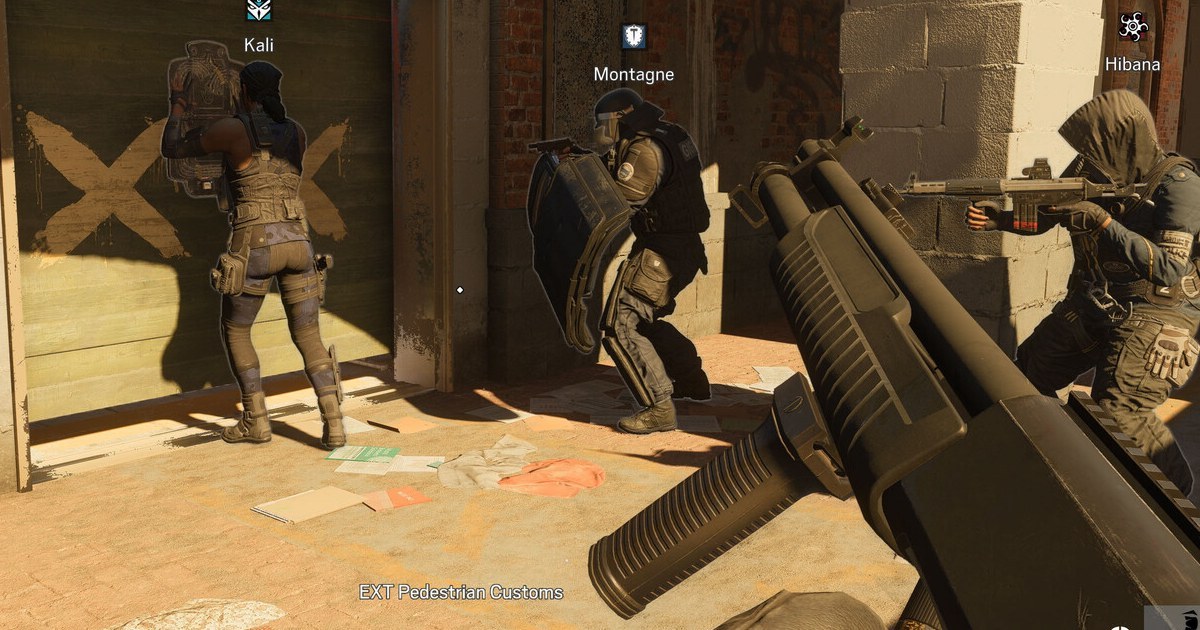
Here is the short answer: recording Rainbow Six Siege starts with installing DOR and launching the game. DOR detects supported games automatically, records the match, and collects the footage in My Clips. You do not press anything during play.
Once the match ends, trim only the round with the ace or 1vX clutch and save it. Siege rounds are short and a match is a long chain of them, so the surest way not to miss a highlight is to record the whole match first and choose later.
For saving clutches round by round, see how to save Rainbow Six clutch clips, and for turning recordings into improvement, see how to get better at Rainbow Six Siege. This guide covers only the path from installing to your first trimmed clip.
The answer: leave it on, then trim the round after the match
Rounds in Siege swing so much that you cannot know in advance which one will become a highlight. So let DOR handle recording match by match, and pick the moments you want to keep once the match is over.
A trimmed section is saved separately in My Clips while the original match video stays, so you can cut other rounds later. Free recording quality is 720p or 1080p at 30 or 60 fps, with 1080p at 30 fps as the default. If frame rate worries you, set up Rainbow Six Siege best settings first, then raise recording to 60 fps. Recording at 1440p, 4K, or 120 and 144 fps is available with DOR Pro.
From auto recording to a saved trim
- 1Install DOR and launch SiegeDOR is a free Windows app. After installing it, start Rainbow Six Siege and it is detected as a supported game and recording of the match begins. There is no record button to press.
- 2Play a match as usualJust play. When the match ends, the video is saved to My Clips in the app. Storage is only cleaned up, oldest videos first, when you go over the Full Play Video allowance (5GB by default), and your latest recordings and liked videos stay.
- 3Open the match in My Clips and find the momentOpen the match you just played in My Clips and jump to the round with the ace or clutch. Jotting down a rough time right after the match, while you remember it clearly, saves time when you look for it.
- 4Trim the section and choose a ratioUse the trim tool in the app to set the start and end and save. Pick 16:9, 9:16, or 1:1; 9:16 suits short form video. If you will send the clip through a messenger, check its file size limit first.
- 5Combine or share with a linkFor several moments, join them in DOR Studio (dor.gg/studio), add text or BGM, and export an mp4. To show it with one link, sharing a dor.gg link is fastest, and how to share Rainbow Six clutch videos with friends covers sending it to friends.
Where each Siege moment goes: a quick table
| Moment | How to save it | Suggested ratio |
|---|---|---|
| Ace round | Trim just that round from the match video and save it | 16:9 |
| 1vX defuser clutch | Save from when the clutch begins to the defuser being disabled | 16:9 or 9:16 |
| Wallbang kill | Trim a few seconds around the kill | 9:16 |
| Defuser deny | Trim from the moment you took position to the deny | 1:1 or 16:9 |
| Best moments of a match | Combine several trims in DOR Studio and export an mp4 | 16:9 |
| Send to a friend right away | Share a dor.gg link to the trimmed clip | Any |
Check before your first recorded match
- Did you install DOR and confirm recording starts when you launch Rainbow Six Siege
- Did you start with the default 1080p 30 fps quality
- After the match, can you see that match video in My Clips
- Did you trim the start and end of the round you want and save it separately
- Did you pick 16:9, 9:16, or 1:1 to match where you will post it
Auto record Siege with DOR and save only the round you want
DOR is a free Windows game recording app. When you launch a supported game, it detects it automatically and records the match, and recordings collect in My Clips. Siege is part of this auto recording, so focus on the match and trim the moment you want with the trim tool afterward.
Trimmed clips can be used without a watermark, and you can join several moments in DOR Studio, add effect templates, text, and BGM, then export an mp4 or share a dor.gg link. This information is as of November 24, 2026.