
Yes, Rainbow Six Siege has replays, and they are saved in the MatchReplay folder inside the game's installation directory.
On a Steam install the default is C:\Program Files (x86)\Steam\steamapps\common\Tom Clancy's Rainbow Six Siege\MatchReplay; on a Ubisoft Connect install it is C:\Program Files (x86)\Ubisoft\Ubisoft Game Launcher\games\[game folder]\MatchReplay, and both change if you installed to another drive.
Ubisoft's official help states that Match Replay files can only be saved when playing on PC, at the game's installation location, in the MatchReplay folder, so the location Ubisoft documents is the install folder, not the Documents\My Games path that gets passed around in forum threads (verified September 14, 2026).
Opening the folder will not give you an mp4 either. What is inside is replay data that only the Siege client can play back through the in-game Watch tab, so it cannot be uploaded to YouTube or opened in an editor as is, and Ubisoft does not offer an official viewer outside the game.
This guide covers the path for each install type and how to confirm it, the PC storage cap, the same-season playback rule, and how far a backup actually gets you. If what you really want is a video file, the conversion steps are in how to save Siege replays as video.
Bottom line: the files are local, but they die with the season
Two sentences cover it. Siege replays are stored locally in your MatchReplay folder, but they can only be played back during the season they were recorded in.
Ubisoft set that rule on the Y7S1 Operation Demon Veil season page: replays stay compatible through the entire season, are not deleted by patches or hotfixes, and can be played until the final day of the season. No later notice has changed it (verified September 14, 2026).
The current season is Year 11 Season 3, Operation Split Fire, which launched on September 1, 2026, so everything piling up in your folder right now stops working on the day Split Fire ends. The storage cap stacks on top of that.
On PC the Y11S2 Operation System Override season page raised the limit to 30 replays, and once the slots are full the oldest one is overwritten, which means a player grinding several ranked matches a day may find last week's games already gone. So the decision is simple.
If you only need to review a match this week, leave the MatchReplay folder alone. If it is a clutch or a disputed round you want to keep past the season, do not rely on the replay at all and record it as video.
Copying the folder elsewhere does not lift the season rule, so a backup only protects you from the overwrite, not from the reset. Cutting a single round out of a full recording is covered in how to trim game clips.
From confirming replays are on to backing them up
- 1Check that Match Replay is enabledMatch Replay is on by default, but if the Match Replay entry under the Settings icon → Options → General is set to Off, nothing gets saved. If your folder is empty or missing, start here.
- 2Play a PVP match to the endReplays are recorded automatically for PVP matches. On the PC we checked, the game was installed but had never played a match, and the MatchReplay folder did not exist yet, so a missing folder does not mean a broken install.
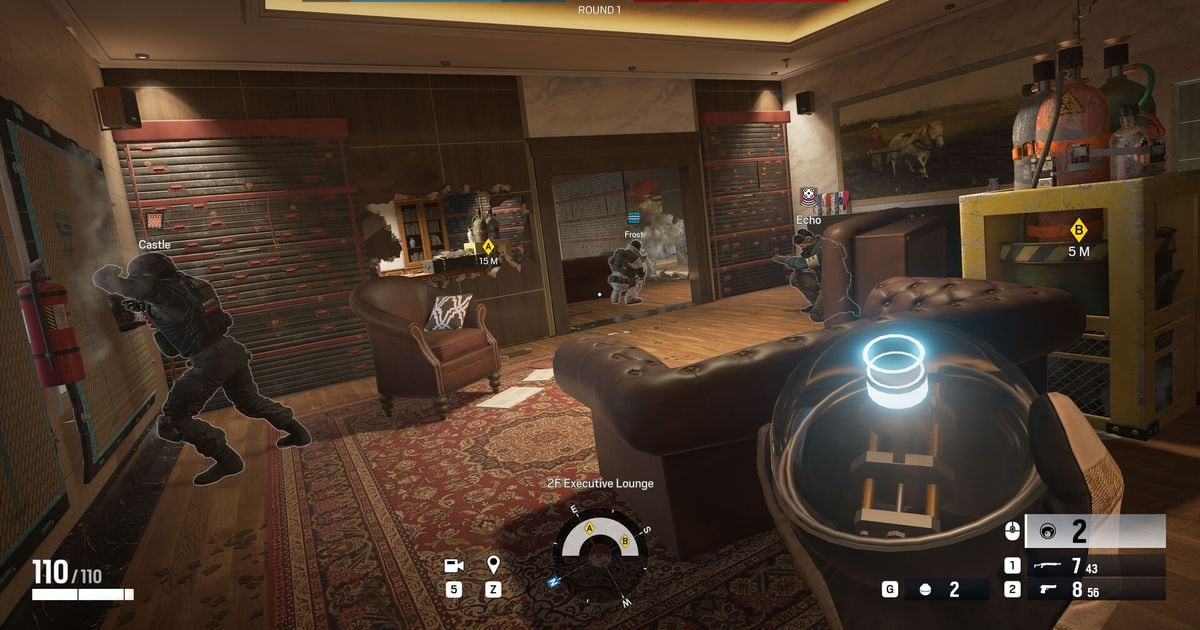
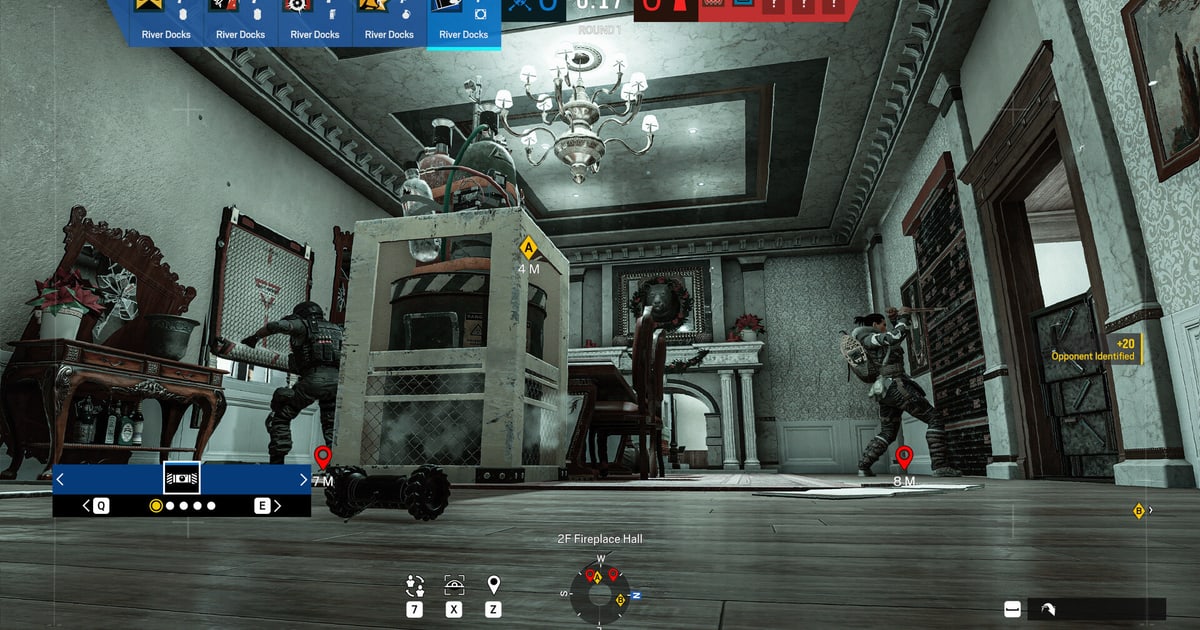
- 3Play it back from the in-game Watch tabSelect Watch on the main screen and pick the match. You can spectate in first person or top-down and from any player's angle; the controls are listed under the Spectator Cameras & Match Replay section of Customise Controls. The string of letters and numbers in the top-left corner when playback starts is the Match ID.
- 4Locate the install folderOn Steam, right-click the game in your library and choose Manage → Browse local files to open the install folder directly. On Ubisoft Connect, select the game in Library, then Manage → Properties, and use the path under Installation directory. If you installed to another drive, this is the reliable way to find it.
- 5Open MatchReplay and back it upInside the install folder, MatchReplay holds the replay data for each match. To keep something before the cap overwrites it, copy the whole folder somewhere else. Note that Ubisoft's help does not document backing up or moving replays, and wherever you open them, the same-season condition still applies.
- 6Turn the match into video before the season endsOnce Split Fire ends, this season's replays will no longer play. For anything you want to keep, either record your screen while watching the replay, or better, record the whole match as it happens. Check the official seasons page for the next season's start date.
Siege Match Replay storage at a glance (verified September 14, 2026)
| Item | Details | How to confirm / source |
|---|---|---|
| Steam install path | C:\Program Files (x86)\Steam\steamapps\common\Tom Clancy's Rainbow Six Siege\MatchReplay | Right-click the game in your Steam library → Manage → Browse local files |
| Ubisoft Connect install path | C:\Program Files (x86)\Ubisoft\Ubisoft Game Launcher\games\[game folder]\MatchReplay | Ubisoft Connect → Library → select the game → Manage → Properties → Installation directory |
| File format | Siege client-only replay data (not an mp4 or other video file) | Plays only through the in-game Watch tab; no official external viewer |
| PC storage cap | Up to 30 replays (Y11S2 System Override season page); the help article still says 12 | Oldest is overwritten when full; count your actual slots in the Watch tab |
| Playback window | Until the final day of the same season (currently Y11S3 Operation Split Fire, launched September 1, 2026) | Y7S1 Demon Veil season page; no later change announced |
| Console | Last 2 hours or up to 12 matches; replay files cannot be accessed | Y7S1 Demon Veil season page and the official help article |
Before your replays disappear
- Confirmed the Match Replay entry under Options → General is not set to Off
- If the MatchReplay folder is missing, confirmed at least one PVP match has been played
- Opened the real install path via Browse local files (Steam) or Installation directory (Ubisoft Connect)
- Copied the replays I need before hitting the PC cap (30, oldest overwritten first)
- Recorded must-keep matches as video before the last day of the season, knowing backups expire too
- Did all file work on PC, since console cannot access replay files
Keeping a match regardless of the season reset
Replays close when the season does, and backing up the folder does not change that. The only form that survives a season is a video file, and a video only exists if the match was recorded while you played it.
DOR is a free Windows desktop app that detects supported games automatically, so when you launch Rainbow Six Siege it records the full match from start to finish and keeps it in the in-app library.
Recording starts on its own when the game launches, so there is nothing to toggle mid-ranked; DOR records with NVENC hardware encoding on supported NVIDIA graphics cards such as the RTX series, and game audio and your mic are captured together, so the team comms during a clutch stay in the recording.
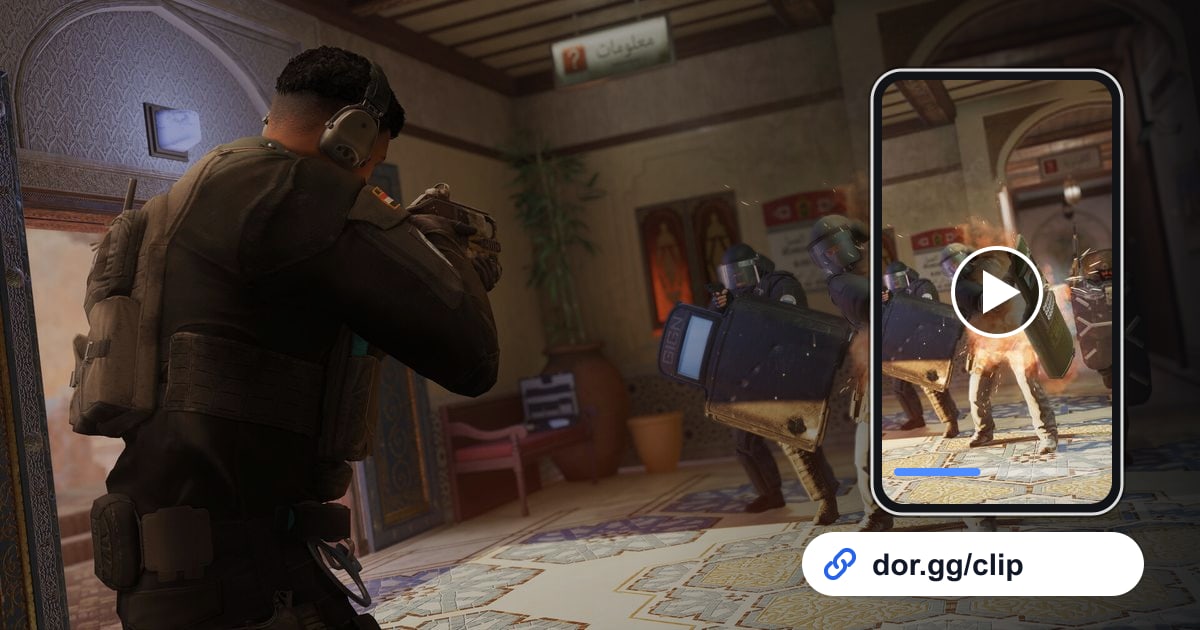
Siege is not one of the games DOR auto-clips, so for the round you want to keep, open the recording from the library, trim it yourself in the browser clip editor that needs no install, and send the dor.gg link so your squad can review it in a phone browser.
Whether Match Replay overwrites the slot at 30 or Split Fire ends, the video in the library stays. The setup walkthrough is in how to record Rainbow Six Siege clips.