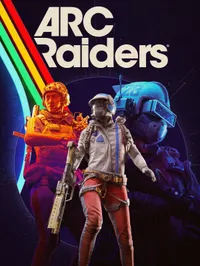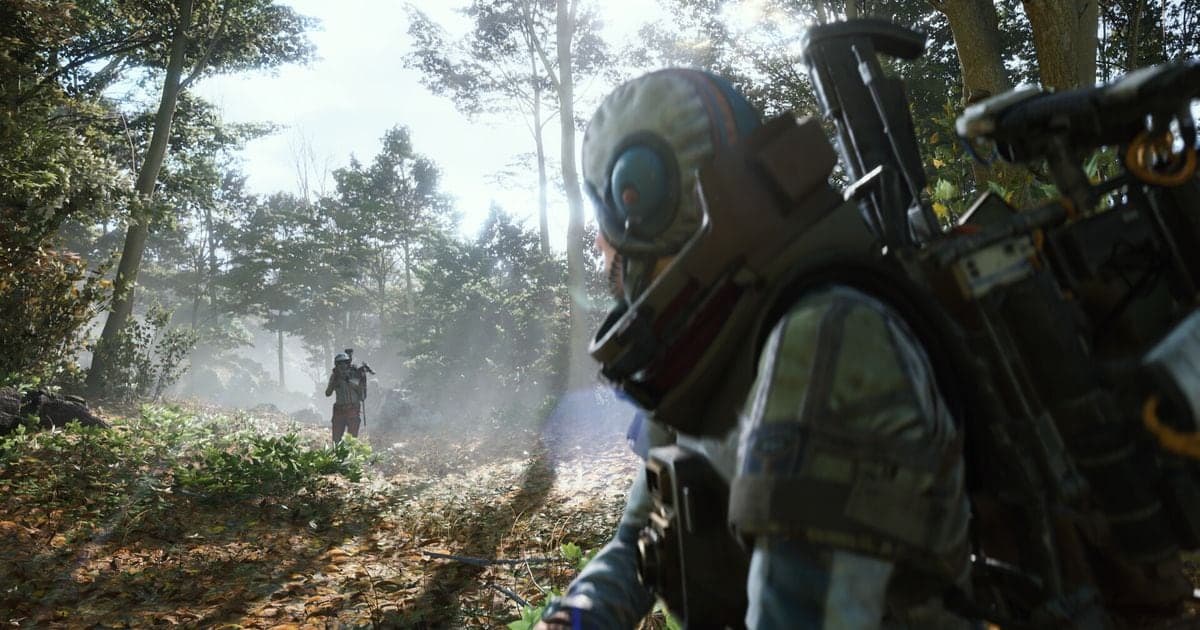
The easiest way to record ARC Raiders on PC is the Xbox Game Bar recording guide approach: press Windows key+Alt+R in-game. If you want finer control, use OBS Studio, or the NVIDIA app if you have an NVIDIA graphics card. That said, we found no official statement from the game's site or its Live Update notes that any recording tool is guaranteed to work with ARC Raiders, so do a short test recording before a real match. This guide covers Windows PC (Steam or Epic Games Store) only, not consoles, and every tool detail is as checked on September 30, 2026.
Bottom line: which tool to try first
Start with Xbox Game Bar, and move to OBS Studio when you want to control audio layout or resolution yourself. Quality and PC load trade off against each other: higher resolution and frame rate generally mean larger files and more strain on the machine, and we give no figures because there is no official source for them here. If you pick OBS, the OBS recording settings guide helps you choose a direction. If you have an NVIDIA graphics card, the NVIDIA app is another option.
Recording steps for each tool
- 1Set your ground rules before recording — This guide assumes a Windows PC running the game through Steam or the Epic Games Store. Check system requirements on the Steam store page. The Steam page lists Kernel Level Anti-Cheat, and the official Ensuring Fair Play post describes Easy Anti-Cheat kernel-level protection. Neither mentions a recording software policy, so start with a test recording.
- 2Record with Xbox Game Bar — Press Windows key+I, search for xbox, and choose Enable Xbox Game Bar. In the game, press Windows key+G to show Game Bar, then Windows key+Alt+R to start and the same keys to stop. Windows key+Alt+M toggles the microphone during a recording. Files land in the Captures folder under Videos as MP4, with the app name, date, and time in the file name. Menu names are given in English because this follows Microsoft's English documentation.
- 3Record with the NVIDIA app — You need an NVIDIA graphics card; check NVIDIA's official system requirements for supported GPUs and driver conditions. NVIDIA's overview lists default hotkeys of Alt+Z (overlay panel), Alt+F9 (Record), Alt+Shift+F10 (save Instant Replay), and Alt+F1 (screenshot), but they can be changed, so confirm them in the app. NVIDIA's overview describes AV1 recording on GeForce RTX 40 series cards; check in the app whether your GPU supports it.
- 4Record with OBS Studio — Run Tools > Auto-Configuration Wizard, then add Game Capture from the + in the Sources dock. Its modes are capturing any fullscreen application, capturing a specific window, or selecting with a hotkey. Desktop audio and microphone are captured by default, so watch the Audio Mixer, check Settings > Output, and test a few minutes with Start Recording. If the screen is black, check running as administrator, windowed or borderless fullscreen, and turning off overlays and FPS counters.
- 5Check the file and keep only the moments you need — Play back your short test and confirm that both game audio and your microphone are present. If sound is missing, start with the tool's audio source settings. Find OBS files under File > Show Recordings and Game Bar files in Captures under Videos. If you recorded a whole match, trimming only the parts you want to share is easier to handle.
Recording methods compared (checked September 30, 2026)
| Method | What the official docs confirm | What to watch for in ARC Raiders |
|---|---|---|
| Xbox Game Bar (built into Windows) | Nothing to install. Open it with Windows key+G, start and stop recording with Windows key+Alt+R. Clips are saved as MP4 in the Captures folder under Videos. | The docs give no guarantee for this game. To include system sound, set the audio source to All under Capturing in Game Bar settings. |
| NVIDIA app (NVIDIA graphics cards) | Instant Replay keeps a rolling recording and saves a clip on trigger; Record captures continuously until you stop. Check NVIDIA's official system requirements for supported GPUs and Windows versions. | It works through an overlay, and we found no official statement confirming behavior in this game. If something breaks, turn the overlay off and try again. |
| OBS Studio | Choose a Game Capture, Window Capture, or Display Capture source and watch levels in the Audio Mixer. Use Start Recording, and open files via File > Show Recordings. | We found no dedicated guidance for this game in OBS's official Game Capture documentation. Running as administrator, using windowed mode, and overlay conflicts are checks from OBS's own troubleshooting page. |
| DOR (free Windows app) | Detects supported games, records the full match to mp4 automatically, and collects it in the in-app library. | For ARC Raiders it records full matches only. There are no automatic highlight clips, so you cut the moments yourself. |
Pre-recording checklist
- Confirm you are on Windows PC (Steam or Epic Games Store); consoles use different methods
- Make a short test recording before a real match and check the screen is not black
- Play it back and confirm both game audio and your microphone are present
- If a tool with an overlay causes trouble, turn the overlay off and retry
- Check the save location and the free space on that drive
If you would rather not press record every match
Pressing the record key at the start and end of every match is easy to forget. DOR, a free Windows app, automatically detects ARC Raiders, records the full match as an mp4, and keeps it in the in-app library. Its default encoding is NVENC hardware encoding, so on an NVIDIA graphics card a dedicated encoder handles the load, and game audio and your microphone are recorded together, so your own voice is in the file. ARC Raiders is not among the games with automatic kill or highlight clips, so none are generated. Trim the moments you want with Trim in the library (set start and end, 16:9, 9:16, or 1:1), or in DOR Studio, the browser editor with nothing to install, and share them as a dor.gg link.
Official sources and check date
The scope of the overlay advice comes from ARC Raiders Live Update 1.42.0, Game Bar shortcuts and save location from Microsoft Support on Xbox Game Bar, and NVIDIA app features from NVIDIA's GeForce overview. The supported GPUs and driver requirement for the NVIDIA app are listed on NVIDIA's official system requirements page for the app. OBS steps follow the quick start, Game Capture, and troubleshooting pages on obsproject.com. Everything is as checked on September 30, 2026; shortcuts and menus can change with updates, so reread the official page before you rely on it.