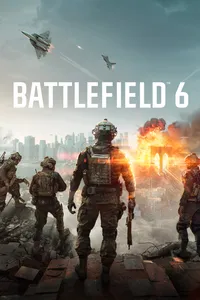
You can record Battlefield 6 on PC with the Xbox Game Bar built into Windows (Windows+Alt+R), the NVIDIA app overlay if you have an NVIDIA graphics card (Alt+F9), or OBS Game Capture if you want to set up the scene yourself, and separately from the recording tool, the game itself requires Secure Boot and TPM 2.0 because of its EA Javelin anticheat, so check those first. EA's official documents do not put recording tools on any allowed or banned list, so nobody can honestly promise that a specific tool is safe, and if a warning appears you follow its instructions to update or disable the software. This guide is current as of September 30, 2026, and it covers PC only, not consoles. For a closer look at the Windows built-in option, see how to record with Xbox Game Bar.
Bottom line: check the anticheat before choosing a tool
The order matters more than the tool. First confirm that Secure Boot and TPM 2.0 are on and that Battlefield 6 starts without a warning, then try the tools starting with the least setup: Game Bar needs no separate install, a graphics card tool adds sound source and quality options, and OBS lets you choose the capture source and its properties yourself. Higher quality means more GPU load and more disk space, but there is no official figure for the frame-rate drop or a recommended bitrate in Battlefield 6, so this guide gives none. If you have an NVIDIA card, decide your quality and audio options ahead of time with the NVIDIA game recording settings guide.
Steps from setup to recording
- 1Check Secure Boot and TPM 2.0 first — Press Windows+R, run msinfo32, and look in System Summary for BIOS Mode set to UEFI and Secure Boot State set to On. EA Help says Secure Boot needs a GPT disk, not MBR. For the full requirements, check EA's system requirements page, and leave storage for your recording files separate from the space the game itself needs.
- 2Read any anticheat warning before adding tools — Before you turn on a recorder, make sure the game starts without a warning. According to EA Help, the message EA Javelin Anticheat has detected incompatible software means that software is on a denylist for security reasons. If a version is blocked, update it and restart, and if that does not help, disable it. EA points to the software's maker for how to update or disable it. The examples in that document are driver-type tools, not recorders, and it says the list is not complete.
- 3Record with Xbox Game Bar — In the game, press Windows+G to show the Xbox Game Bar controls, press Windows+Alt+R to start recording, and press it again to stop. Windows+Alt+M turns the mic on or off during a recording. According to Microsoft's document, files are saved as MP4 in the Captures folder inside Videos, with the game name and date and time in the file name. For the audio option in capture settings, the document recommends All. It does not confirm fullscreen behavior, so verify with a test recording.
- 4Record with the NVIDIA app — With an NVIDIA graphics card, press Alt+Z to open the NVIDIA Overlay, then start recording with the Record button or Alt+F9 and press it again to stop. Instant Replay is a rolling recording, NVIDIA's launch-time news says it is saved with Alt+Shift+F10, and its length is set in the settings gear. The same gear lets you change hotkeys, sound sources, multitrack audio (a separate mic track), quality, and the disk usage limit. These keys come from NVIDIA's launch-time news post, so as of September 30, 2026 the current screen may look different, and because the Instant Replay save key may have changed with app updates, confirm it in the hotkey section of the settings gear.
- 5Record with OBS Game Capture — In OBS (the latest release as of September 30, 2026 is 32.2.2), add a source with the plus button, choose Game Capture, and set the mode to Capture any fullscreen application or Capture specific window. OBS's documentation calls Game Capture the most efficient way to add a game and says to try it first, and Use anti-cheat compatibility hook is on by default. If nothing is captured, run OBS as administrator and look for conflicting overlays or FPS counters, then press Start Recording. Encoder and bitrate settings are outside the scope of this guide.
- 6Make a short test recording and play it back — With any tool, record a minute or two, then play it back to check that the picture appears, that game sound and mic are both there, and that no anticheat warning showed up while recording. There is no official evidence for how each tool behaves in fullscreen versus borderless mode, so you have to test it yourself, and if a warning is unclear, EA Help is the most reliable place to ask.
Recording methods compared
| Method | What the official documents confirm | What to know for Battlefield 6 |
|---|---|---|
| Xbox Game Bar (built into Windows) | Windows+G shows the controls, Windows+Alt+R starts and stops recording, Windows+Alt+M toggles the mic, and files are saved as MP4 in the Captures folder inside Videos | Microsoft's document does not mention Battlefield 6. Check with a test recording whether it works in fullscreen. |
| NVIDIA app and Overlay (NVIDIA graphics card) | Alt+Z opens the overlay, Alt+F9 starts and stops recording, Instant Replay saves with Alt+Shift+F10 in the launch-time official news, and sound source, multitrack audio, quality, and disk usage limit can be adjusted | Based on the launch-time official news post, so the current screen and hotkeys may differ, and EA's documents say nothing about whether this tool is allowed. |
| OBS Studio Game Capture | Captures DirectX and OpenGL games directly, the anti-cheat compatibility hook is on by default, and some games need OBS run as administrator | OBS's anticheat test table (updated June 3, 2025) marks EA Anti-Cheat (Battlefield Series) as working, but that is not an EA approval and it is not a Battlefield 6 entry. |
| DOR (free Windows app) | Detects supported games automatically, records full matches automatically as mp4, and captures game sound and mic together | For Battlefield 6, DOR supports automatic full-match recording only, with no automatic highlight clips. |
Final checklist before you record
- I confirmed BIOS Mode is UEFI and Secure Boot State is On in msinfo32.
- I confirmed TPM 2.0 is enabled.
- Battlefield 6 connects without an anticheat warning.
- I closed the overlays and FPS counters that OBS documentation names as conflicts.
- I played back a short test recording and checked the picture, game sound, and mic.
- I left disk space for recordings on top of the space the game needs.
When setup is done and you just want every match saved
Once Secure Boot and TPM are sorted and you can get into a match, DOR is one option if you would rather save whole matches than remember a hotkey every round. DOR is a free Windows desktop app, and Battlefield 6 is a supported game, so it detects the game and saves the full match as mp4 automatically. Battlefield 6 gets automatic full-match recording only, with no highlight clips that cut kills for you, so you pick the moments yourself with trim in the app library (16:9, 9:16, or 1:1) or in DOR Studio, which opens in the browser, and share them with a dor.gg link. On NVIDIA graphics cards, NVENC hardware encoding is the default, and game sound and mic are recorded together so you can replay firefight audio alongside your own mic. EA's documents say nothing tool by tool about anticheat, so if any program, DOR included, triggers a warning, follow the check order above. For game details see the Battlefield 6 hub, and to choose a program see the Battlefield 6 clipping software comparison.
Official sources and check date
Everything here is current as of September 30, 2026. You can verify the anticheat warnings and denylist guidance on EA Help: EA Javelin anticheat on PC, the Secure Boot and TPM 2.0 requirements on EA: Battlefield 6 system requirements, and the Game Capture source on OBS documentation: Game Capture Source. EA's Season 4 anticheat update (August 28, 2026) re-reviewed the list of prohibited products and said it would enforce the previously relaxed part of the TPM 2.0 requirement from that day, and it names no recording software as prohibited or allowed. NVIDIA hotkeys come from NVIDIA's news post NVIDIA App Officially Released and Game Bar hotkeys from a Microsoft support document on recording with Xbox Game Bar, and screens can change with updates.