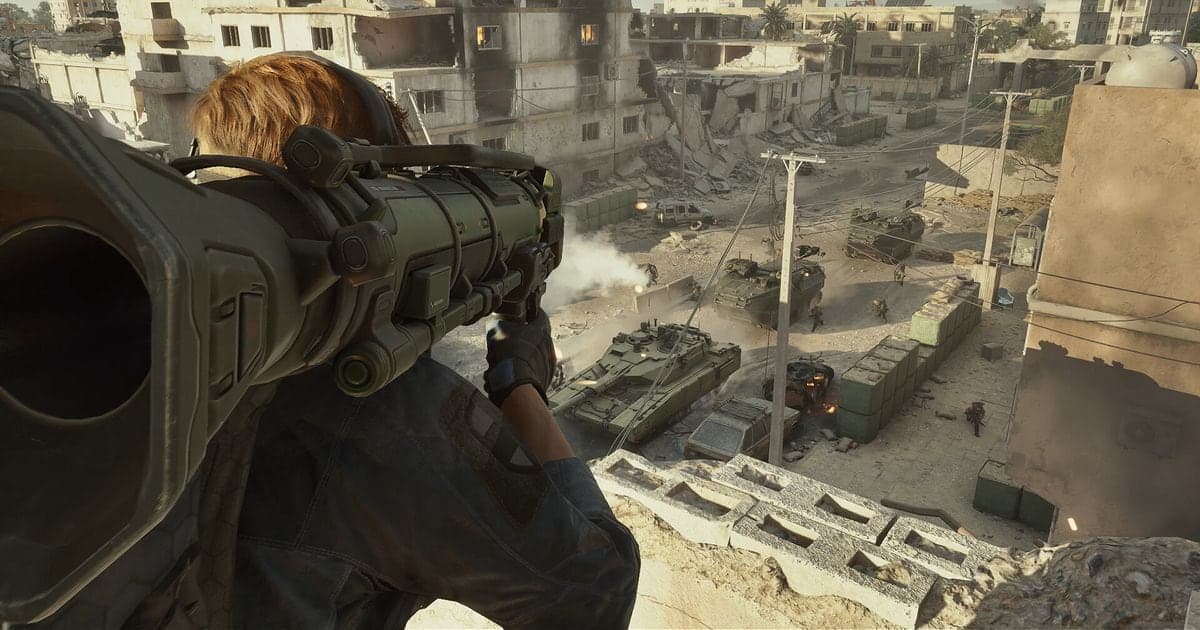
The easiest way to record Delta Force on PC is Xbox Game Bar, which is already in Windows: press Windows key + Alt + R to start and stop. The NVIDIA app, AMD Software and OBS Studio can do the same job. As checked on September 30, 2026, the official prohibited and not-recommended software list does not name any screen-recording program, but the list can change, so read the latest notice before you record. This guide covers only the PC (Windows) version installed through Steam, the Epic Games Store or the official executable, not the console or mobile versions. If you want to pick out the best moments afterwards, see our comparison of Delta Force clipping software.
Bottom line: Game Bar to start fast, OBS to tune everything
Xbox Game Bar needs the fewest steps because it ships with Windows. With an NVIDIA graphics card the NVIDIA app adds Record and Instant Replay, and with an AMD card AMD Software has a built-in Record feature. OBS Studio asks you to check Sources, the Audio Mixer and Settings > Output yourself, and in return you choose the capture source and output options, as its official Quick Start Guide describes. We found no official numbers comparing picture quality or system load between these tools, so we do not claim that one is better. Record a short test on your own PC and judge from that. When you get to OBS output options, continue with our OBS game recording settings guide.
Step-by-step: recording Delta Force on PC
- 1Record with Xbox Game Bar — Open Windows settings (Win+I), search for 'xbox' and turn on 'Enable Xbox Game Bar'. Win+G shows the Game Bar controls, and under Game Bar Settings > Capturing the 'All' option includes system audio. Start the game, press Windows key + Alt + R to begin recording, Windows key + Alt + M to toggle the microphone during recording, and Windows key + Alt + R again to stop. The MP4 is saved in Videos > Captures with the app name, date and time in the file name. Microsoft does not describe how these hotkeys behave inside Delta Force, so test them briefly first.
- 2Record with the NVIDIA app (GeForce cards) — Open the NVIDIA Overlay with Alt+Z or the button at the top right of the NVIDIA app window. 'Record' keeps capturing until you press it again (hotkey Alt+F9). 'Instant Replay' is a rolling recording: when something memorable happens, press Alt+Shift+F10 to save a clip. AV1 can be enabled from the settings cog at the top of the Alt+Z panel under 'Video capture'. These hotkeys come from NVIDIA's article dated November 12, 2024. We could not confirm that the automatic 'Highlights' feature supports Delta Force, so it is left out.
- 3Record with AMD Software (Radeon cards) — AMD Software: Adrenalin Edition has a built-in 'Record' feature for capturing gameplay. To set the hotkey, search for 'Hotkey' in AMD Software, open 'Hotkey Settings' and scroll to the Media Hotkeys section. Combinations must include CTRL and/or ALT. Other menu names and the save location can differ by driver version, so check AMD's official support article.
- 4Record with OBS Studio — Run the Auto-Configuration Wizard from the Tools menu, then add a capture source with the + in the Sources dock. OBS documentation describes Game Capture as Windows only and aimed at capturing 3D games with the highest performance. Check that the Audio Mixer meters move, review Settings > Audio and Settings > Output, then click Start Recording on the Controls dock. If the picture is black, OBS documentation suggests running OBS as administrator, using windowed or borderless fullscreen, and turning off overlays such as FPS counters. For games that do not allow hooking it recommends Window Capture or Display Capture. There is no official statement on whether Game Capture works with Delta Force.
- 5Test-record before a real match — Whichever tool you pick, do what the OBS guide advises and record for a few minutes before a real match. Play the file back to check that the picture is not black, that game sound was captured and, if you use a microphone, that your voice is there. If everything is fine, keep the same settings for your match.
Recording methods compared using official documentation (checked September 30, 2026)
| Method | Feature confirmed in official documentation | How to start |
|---|---|---|
| Xbox Game Bar (built into Windows) | Turn on 'Enable Xbox Game Bar' in Windows settings. Files are saved as MP4 in Videos > Captures. Choose 'All' under Capturing to include system audio. | Windows key + Alt + R (microphone toggle: Windows key + Alt + M) |
| NVIDIA app (GeForce graphics cards) | The NVIDIA Overlay offers 'Record' and 'Instant Replay' (a rolling recording), and AV1 can be enabled under Video capture. | Alt+Z overlay, Alt+F9 Record, Alt+Shift+F10 saves an Instant Replay clip |
| AMD Software: Adrenalin Edition | A built-in 'Record' feature captures gameplay, and media hotkeys are set in Hotkey Settings. | Search 'Hotkey' in AMD Software, then Media Hotkeys (combinations need CTRL and/or ALT) |
| OBS Studio | Free and open source, supports Windows 10 and 11. Offers Game Capture, Window Capture and Display Capture sources plus adjustable Output settings. | Start Recording on the Controls dock |
| DOR | A free Windows app that detects supported games and saves full matches as mp4. Delta Force has no automatic highlight clips. | Detects the game and records the full match automatically |
Pre-recording checklist
- Confirm you are playing the PC (Windows) version. Console and mobile versions are not covered here.
- List what not to run alongside your recorder. The official prohibited list includes analysis software such as Cheat Engine, virtual machines and key-simulating scripts. The not-recommended list includes remote-control and streaming tools (TeamViewer, Parsec, Sunshine and others) and frame capture tools such as RenderDoc.
- Check with a test file that game sound and your microphone are each recorded.
- Check the save folder and free drive space. Recordings pile up in addition to the space the game itself needs.
- Re-read the latest official prohibited and not-recommended list. We checked the version posted December 4, 2024 on September 30, 2026, and it may change.
If you want it recorded without any setup: DOR
If pressing a record button before every match gets tiring, DOR is an option: a free Windows app that detects supported games and saves the full match as an mp4. For Delta Force, DOR supports full-match automatic recording only, and it does not create automatic highlight clips of kills or similar moments. On an NVIDIA graphics card, NVENC hardware encoding is used by default, and DOR can record game sound and your microphone at the same time, which suits players who want their own voice and the match together. Afterwards you can use 'Trim' in the app library to set a start and end and export at 16:9, 9:16 or 1:1 to share by a dor.gg link, or cut in DOR Studio in the browser with nothing to install. See the Delta Force hub for what DOR supports in this game and how to trim game clips for cutting the moment you want. As with any recorder, check the latest official anti-cheat notice.
Official sources
Official material checked on September 30, 2026. The prohibited and not-recommended list is in the Steam announcement (posted December 4, 2024), the Xbox Game Bar procedure is on the Microsoft Support page, and the NVIDIA app hotkeys are in the NVIDIA GeForce news article (posted November 12, 2024). The OBS and AMD Software details come from their official documentation (the OBS Quick Start Guide and an AMD support article), and menu names can differ by version.