One way to record only game audio on a PC is to pick an audio source in OBS Studio, set the Video Encoder to Disable Encoder, and save to a file; if you already recorded video, extract the sound in an editor instead. Two conditions matter: you must decide whether you want the whole PC output or a single game, and you must make sure your microphone is not captured too. This guide covers Windows 11 as checked on October 6, 2026, and if nothing is captured at all, start with OBS desktop audio not recording.
Short answer: one game or the whole PC
If you need one game only, use the Application Audio Capture (BETA) source; if capturing everything the PC plays is fine, use Desktop Audio or Audio Output Capture. To save a sound-focused file, OBS offers Disable Encoder for the Video Encoder under Custom Output (FFmpeg), while Xbox Game Bar produces a video file and needs one extra step. If the result is silent, check devices and volume first in fix for no sound in game recordings.
Steps to record only the sound
- 1Decide how much sound you need — Game audio only can mean two things: everything coming out of your PC speakers, or the sound of one game window. Capturing everything also records Discord voices or a music app, so if you need one game, an app-level source is the safer choice.
- 2Check the Windows output device and app volume — Open Start > Settings > System > Sound and then Volume mixer. Microsoft documents that the Apps section shows per-app volume and the Output device, so confirm that the game sends its sound to the device you plan to record.
- 3Choose the sound source in OBS — In Settings → Audio, review the Desktop Audio device. OBS captures desktop audio and the microphone by default, so set Mic/Auxiliary Audio to Disabled. For one game, click + in Sources, add Application Audio Capture (BETA), pick the game window, and disable the global Desktop Audio to avoid echo, as the official guide advises.
- 4Change the output so video is skipped — In Settings → Output, set Output Mode to Advanced, open the Recording tab, and choose Custom Output (FFmpeg) as the Type. Keep FFmpeg Output Type on Output to File, enter a File path or URL, choose an audio-oriented Container Format, switch the Video Encoder to Disable Encoder, and set the Audio Encoder.
- 5Confirm with a ten-second test — Press Start Recording, play game sound for about ten seconds, then press Stop Recording. Watch the Audio Mixer meters move, then play the saved file and listen for only game sound, with no other apps and no microphone mixed in.
- 6Extract sound from a video you already have — In CapCut desktop, import the video, right-click the video track on the timeline, choose Extract Audio, then in Export at the top right choose Export Audio. Those English names come from CapCut official guidance. A Game Bar recording is an MP4 saved under Videos in the Captures folder.
What each method captures and what to check
| Method | What is captured | What to check |
|---|---|---|
| OBS Desktop Audio or Audio Output Capture | Everything sent to the chosen output device (game, chat apps, music) | OBS captures the microphone by default too, so review Mic/Auxiliary Audio. |
| OBS Application Audio Capture (BETA) | The sound of the app window you pick from the list | Needs Windows 10 version 2004 or later or Windows 11 and OBS Studio 28 or later. Some apps are not compatible because of how they output some of their audio, and the official guide describes a separate workaround for VALORANT and Call of Duty in-game voice chat. |
| OBS Custom Output (FFmpeg) with Disable Encoder | A file saved without video, focused on sound | OBS warns that it has no safeguards, so a test recording is essential. |
| Xbox Game Bar (Windows key+Alt+R) | An MP4 video with the audio you chose under Capturing | It is not a sound-only file, so you extract the audio afterwards. |
| CapCut desktop Extract Audio | The sound inside a video you already recorded | You need the source video, then choose Export Audio in Export. |
Pre-recording checklist
- Confirm Mic/Auxiliary Audio is Disabled, because OBS captures the microphone by default.
- Do not enable the global Desktop Audio and an app-level source together, since the same sound can overlap and echo.
- OBS shows a warning that Custom Output (FFmpeg) has no safeguards, so switch the Type back to Standard when you are done to protect your normal video settings.
- Xbox Game Bar records with Windows key+Alt+R, and you choose the audio scope under Capturing from All, game, enabled mic, apps or system.
- Application Audio Capture is not compatible with every app, because some apps output some of their audio in a way it cannot capture, and the official guide describes a separate workaround for VALORANT and Call of Duty in-game voice chat. If the sound you need is not captured, run the ten-second test first and switch to Desktop Audio if nothing is recorded.
- Game music and voice lines are copyrighted material, so check the game rules before you share or upload the audio.
If you want sound together with the screen
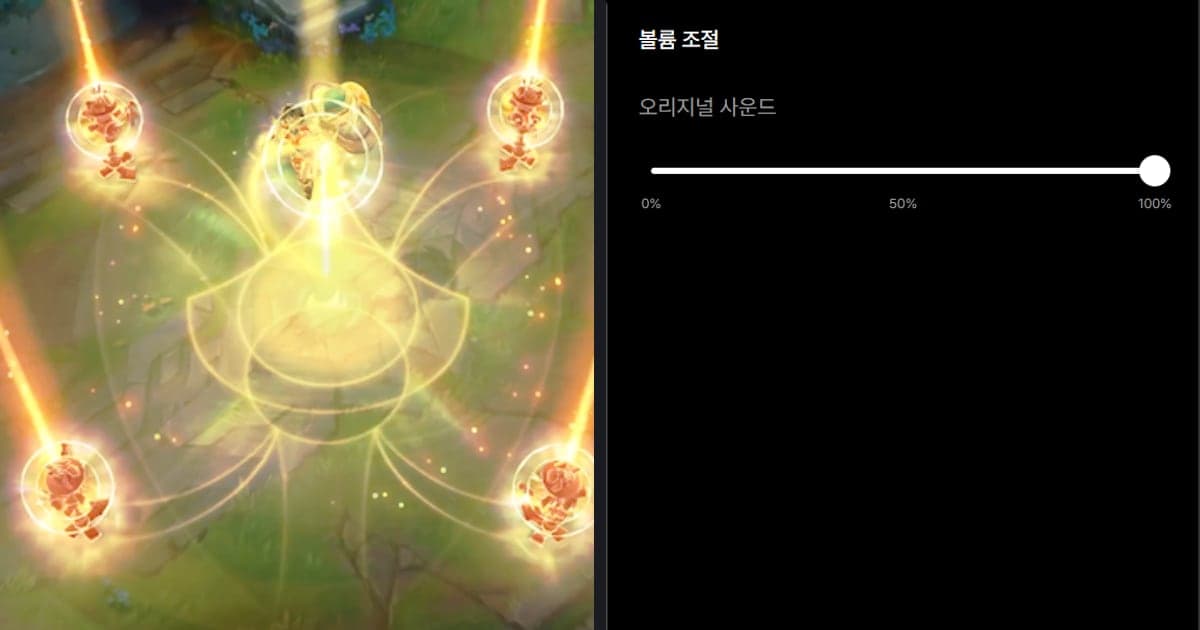
If what you want is a gameplay video that keeps the game sound, the recording step can be left to DOR. Once a supported game starts, DOR detects it and saves the full match as mp4, using NVENC hardware encoding on PCs with an NVIDIA graphics card. VALORANT (PC) supports full-match auto recording plus automatic kill and round highlight clips, so after a match you can trim the clip by start and end points in the app library to keep only the scenes you want. The flow for keeping game sound and your voice together continues in record game audio with your mic, and in the browser editor DOR Studio you can add background music, adjust volume, and download an mp4.
Official sources (checked October 6, 2026)
Checked against the OBS Studio guide Application Audio Capture Guide, the Microsoft support page Use a screen reader to record your screen with Xbox Game Bar (a screen-reader-oriented guide page), and the CapCut guide Extract audio from video. OBS menu names follow the OBS Studio English strings and can differ by version.