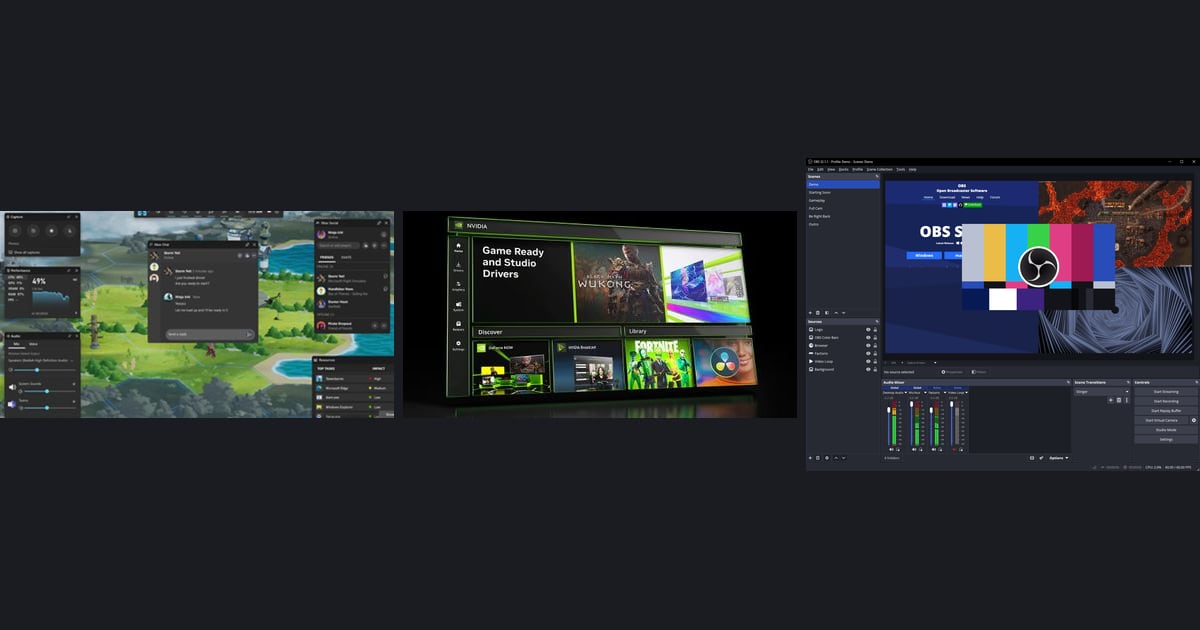

The fastest way to record gameplay without OBS is the Xbox Game Bar that ships with Windows: press Win+Alt+R and it records. If you would rather have nothing to press at all, DOR detects supported games and records the full match on its own.
And if you own a GeForce card, the NVIDIA App's Alt+Z overlay is one install away. This guide is for people who do not want to touch OBS's Scenes, Sources, Output Mode or Video Bitrate.
It compares the three options honestly on four axes (what you have to set up, whether recording starts by itself, whether clips are made for you, and what GPU each needs) and gives a three-to-four-step start procedure for each.
If this is your first recording at all, skim how to record PC games in five minutes first so the terms feel familiar. Every shortcut and requirement below was checked against Xbox and NVIDIA official support pages on 16 September 2026; anything I could not verify is left out.
The verdict: Game Bar if you press to record, NVIDIA App if you have GeForce, DOR if you want it automatic
The minimum procedure is this. First, if you need a recording right now with nothing installed, launch the game, press Win+G and check that the screen flashes twice, then use Win+Alt+R to start and stop (clips live in Widget Menu > Gallery).
Second, if you have a GeForce GTX 800 series or newer card on driver 551.52 or later, install the NVIDIA App and turn on Record (Alt+F9) or Instant Replay from the Alt+Z overlay.
Third, if you want to remove the act of pressing record entirely and you play a DOR-supported game such as League of Legends, Valorant or PUBG, install DOR and leave it running: it detects the game, records the full match to mp4, and in seven games it saves kills and similar moments as automatic highlight clips.
The boundary is clear, though: DOR records supported games only, so for anything outside that list, Game Bar, NVIDIA App or OBS is the answer.
How to start with each method
- 1Game Bar: check recording is allowedOpen Start > Settings > Gaming > Game bar and make sure 'Record game clips, screenshots, and broadcast using Game bar' is on. There is nothing to install. Clip recording needs a graphics card that supports Intel Quick Sync H.264 or newer, NVIDIA NVENC or AMD VCE; otherwise you get a message that the PC does not meet the hardware requirements for recording clips (screenshots work regardless).
- 2Game Bar: launch the game and press Win+GStart the game, then press the Windows logo key + G. In full-screen games Game Bar may not appear, but if the screen flashes twice the game has been recognised and you can go back to full screen. That is the order the official troubleshooting page gives. As of October 2024 some Game Bar features require Windows 10 version 22H2 or later, so on an older PC check Settings > System > About.
- 3Game Bar: start and stop with Win+Alt+RPress Windows logo key + Alt + R; the screen flashes to show recording has started, and pressing it again stops. If Game Bar is visible, Widget Menu > Capture > Start recording does the same. Win+Alt+M toggles the microphone. Finished clips are in Widget Menu > Gallery, and the folder is shown at the top of Settings > Gaming > Captures with an Open folder button.
- 4Game Bar: turn on background recording if you want the last momentsIn Windows Settings > Gaming > Captures, enable background recording and Win+Alt+G will save what just happened. It is off by default, records up to 30 minutes before stopping automatically, and the official note warns it uses PC resources and can affect game performance. Xbox Support's 'Troubleshoot Game Bar on Windows' page lists Game Bar's limits: one monitor at a time, and some games disable recording so clips come out blank.
- 5NVIDIA App: check the GPU and driver, then installAs checked on 16 September 2026, the NVIDIA App needs Windows 10 or 11, a GeForce RTX 20 to 50 series or GTX 800 to 1600 series card, and GeForce driver 551.52 or later (FAQ updated 24 Feb 2026). The same FAQ states GeForce Experience will no longer be supported, and the in-game overlay may not work properly on drivers older than 551.52.
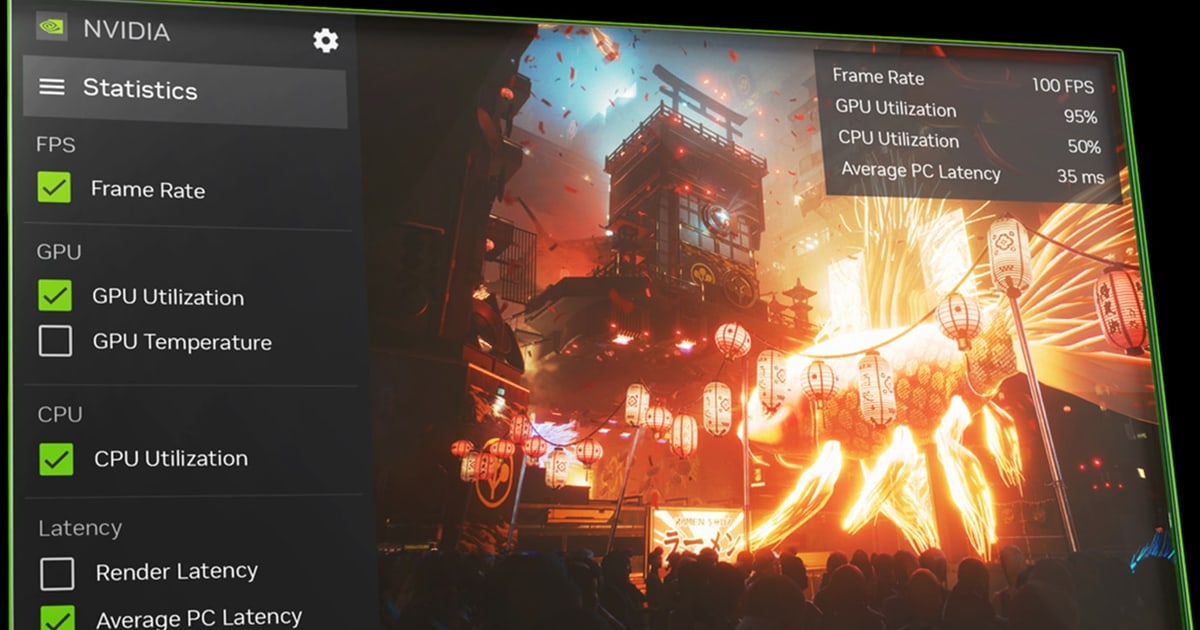
- 6NVIDIA App: Record or Instant Replay from the Alt+Z overlayPress Alt+Z in game to open the NVIDIA Overlay. Record (Alt+F9) captures your game, app or desktop until you press it again. Instant Replay keeps a rolling recording once enabled and saves the previous stretch when you hit the hotkey; check the save hotkey in the Settings cog at the top of the overlay, where clip length, save location and quality are also changed.
- 7NVIDIA App: Highlights only in compatible gamesNVIDIA Highlights automatically saves key moments, but only in compatible games. Check the NVIDIA App supported games and apps list on nvidia.com to see whether your game qualifies; if it does not, Instant Replay with a manual save is your route. Everything you capture appears in the Gallery inside the Alt+Z overlay after your first capture, sorted by game.
- 8DOR: install and leave it runningInstall DOR, the free Windows app, and keep it open. You never have to press a record button, and there are no scenes or sources to build. The one condition: if the game is not a supported game, nothing is recorded, so check that yours is supported first.
- 9DOR: launch the game and it detects and records the full matchLaunch a supported game and DOR detects it and records the full match to mp4, capturing game audio and your microphone together. On supported NVIDIA graphics cards such as the RTX series, it records with NVENC hardware encoding. In League of Legends, Valorant (including rounds), PUBG, FC Online, Fortnite, Counter-Strike and Overwatch, kills and similar highlights are saved as separate automatic clips.
- 10DOR: review, trim and share from the libraryWhen the match ends, open the in-app library to find the full recording and the automatic clips. Use trim to set a start and end, pick 16:9, 9:16 or 1:1 output, and share a dor.gg link that plays in a mobile browser.
The three ways compared (OBS shown for reference)
| Method | Setup needed · Auto start · Auto clips | Requirements · Limits |
|---|---|---|
| Xbox Game Bar (built into Windows) | Setup: none, nothing to install · Auto start: no, you press Win+Alt+R, and background recording is off by default · Auto clips: none, Win+Alt+G saves the last few moments manually | GPU with Intel Quick Sync H.264 or newer, NVIDIA NVENC or AMD VCE. One monitor at a time, some games block recording and produce blank clips, Game Bar is hidden in full-screen mode |
| NVIDIA App | Setup: install the app, enable Instant Replay in the overlay · Auto start: Instant Replay keeps a rolling recording once on, but saving is a hotkey · Auto clips: Highlights, compatible games only | GeForce GTX 800 series or newer plus driver 551.52 or later (checked 16 Sep 2026). Up to 4K 120 fps, AV1 on RTX 40 series. GeForce Experience is no longer supported |
| DOR (free) | Setup: install and leave it running · Auto start: detects supported games and records the full match to mp4 · Auto clips: kills and similar highlights in 7 games (LoL, Valorant, PUBG, FC Online, Fortnite, Counter-Strike, Overwatch) | Supported games only; unsupported games are not recorded. Auto clips only in those 7 games, other supported games get full-match recording. NVENC hardware encoding on supported NVIDIA cards such as the RTX series |
| OBS (reference) | Setup: you build Scenes and Sources and set Output Mode and Video Bitrate yourself · Auto start: no, Start Recording button · Auto clips: none | Most flexible because you add whatever source you want, but by far the most settings |
Before you record
- I checked whether my game is a DOR-supported game: LoL, Valorant, PUBG, FC Online, Fortnite, Counter-Strike and Overwatch get auto clips, while TFT, Roblox, Apex Legends and other supported games get full-match recording only
- In a full-screen game I pressed Win+G and saw the screen flash twice, so Game Bar recognises the game
- If I am using the NVIDIA App, my GeForce driver is 551.52 or later
- If I want Win+Alt+G to save the last moments, I turned on background recording in Windows Settings > Gaming > Captures (off by default, up to 30 minutes)
- I know where files go: Game Bar's Gallery and the Open folder button in Settings > Gaming > Captures, the NVIDIA App's Settings cog, or the DOR library
No settings, from recording to clips to sharing: when DOR fits and when it does not
If your goal is 'the game starts, recording starts, my best moments come out as clips and I share them', DOR covers the whole chain on its own.
It is a free Windows app: once installed and running it detects supported games and records the full match to mp4 with game audio plus microphone captured together, using NVENC hardware encoding on supported NVIDIA graphics cards such as the RTX series.
In seven games (League of Legends, Valorant including rounds, PUBG, FC Online, Fortnite, Counter-Strike and Overwatch) kills and similar highlights are saved to the library as separate automatic clips, while other supported games such as TFT, Roblox, Sudden Attack and Apex Legends get full-match auto recording.
How those moments are picked is explained in how automatic clip detection works.
From the library, trim sets a start and end and exports at 16:9, 9:16 or 1:1 with a dor.gg link for sharing, and the browser editor DOR Studio (no install, free) adds merging several videos, text, background music and effect templates before you download the mp4. The boundaries are just as clear.
DOR records supported games only, so an unsupported game needs Game Bar, the NVIDIA App or OBS, and automatic clips exist only in those seven games. Editing covers trimming, merging, aspect ratio, text and BGM; if you need precision editing beyond that, a dedicated editor is still required.