A good first option for recording Overwatch (formerly marketed as Overwatch 2) on a PC is the Xbox Game Bar built into Windows: press Windows key+Alt+R to start recording and press it again to stop. Picture quality and PC load trade off against each other, so use your graphics card's tool or OBS for finer control, or DOR if you want full matches and kill highlights saved automatically. This guide covers PC only and uses only details checked in official documentation on September 30, 2026. For rewatching past games inside the game, see the Overwatch replay guide; this page is about saving gameplay as a video file.
Bottom line: easy first, quality second
If this is your first time, start with the Xbox Game Bar and move to another tool only when quality or file size bothers you. Whatever the tool, raising quality makes files larger and gives your PC more work to do. AMD's official article says a higher bit rate increases file size, and the official OBS output guide says that in Simple mode any quality other than 'Same as stream' uses extra resources. You can keep going with quality and load settings in the game recording settings guide.
Recording steps
- 1Confirm your PC setup and graphics card — According to the official main page, Overwatch is available on PC, PlayStation, Xbox and Nintendo Switch; every method here assumes a Windows PC. If you have an NVIDIA card use the NVIDIA app; with AMD use AMD Software: Adrenalin Edition.
- 2Free up disk space — AMD's official article warns that gameplay video files can be very large and asks you to keep ample free space. If you plan to record a whole match, check the free space on the drive that holds your save folder first. Game Bar saves to Captures under Videos, and AMD's default is Videos\Radeon ReLive.
- 3Set up sound and microphone — Turn on 'Enable Xbox Game Bar' in Windows settings, then press Windows key+G to open it. Microsoft's article says choosing 'All' in the Capturing section of the Game Bar settings includes all computer sound, and Windows key+Alt+M toggles the microphone. If you use OBS, check your audio inputs in the Audio Mixer.
- 4Make a short test recording — Record a short clip before a real match and confirm that both picture and sound are captured. Game Bar uses Windows key+Alt+R, the NVIDIA app uses Alt+F9 (November 2024 news), and in OBS you add a Game Capture source and click Start Recording. If OBS shows nothing, the official troubleshooting page suggests running OBS as administrator, closing other overlay software, and using Window Capture for games that block hooking. Also check the Recording Format under Settings > Output.
- 5Record the match and check the file — Record your match and stop with the same key. Game Bar saves an MP4 in the Captures folder under Videos, with the game or app name and date and time in the file name. Play the file back to confirm sound and length. The official news describes in-game replays as the last 10 games in the Replays tab of your profile, kept for one patch only, with no mention of video export. It is an older article and current behavior may differ, so record any match you want to keep.
Recording methods compared
| Method | What official documents confirm | Worth knowing |
|---|---|---|
| Windows built-in (Xbox Game Bar) | Turn on 'Enable Xbox Game Bar' in settings, press Windows key+G to show it, and Windows key+Alt+R to start or stop recording. Windows key+Alt+M toggles the microphone, and clips are saved as MP4 in the Captures folder under Videos. | To include all computer sound, choose 'All' in the Capturing section of the Game Bar settings. Compatibility with Overwatch and any performance impact were not confirmed in the official documents, so run a test recording. |
| Graphics card tools (NVIDIA app, AMD Software: Adrenalin Edition) | In NVIDIA's November 2024 news, Record is Alt+F9, Instant Replay (saves the moment that just happened) is Alt+Shift+F10, and the overlay opens with Alt+Z. AMD lets you pick a Recording Profile (Low, Medium, High, Custom) under Record & Stream Settings, sets Instant Replay up to 20 minutes, and defaults to Videos\Radeon ReLive (article updated November 2024, based on version 23.9.1). | Each tool works with its own maker's graphics card. Hotkeys and options can change with updates, so check the current values in the overlay. AMD notes that a higher bit rate increases file size and that you need ample free space. |
| OBS Studio | Game Capture is Windows-only and is described as the most efficient way to add a DirectX or OpenGL game. MKV is the recommended recording format because it will not corrupt the whole file after an ungraceful stop, and Hybrid MP4 is available from OBS 30.2. | There are many settings to learn at first. The official troubleshooting page says some games need OBS run as administrator and some do not allow hooking; Overwatch is not listed there individually. |
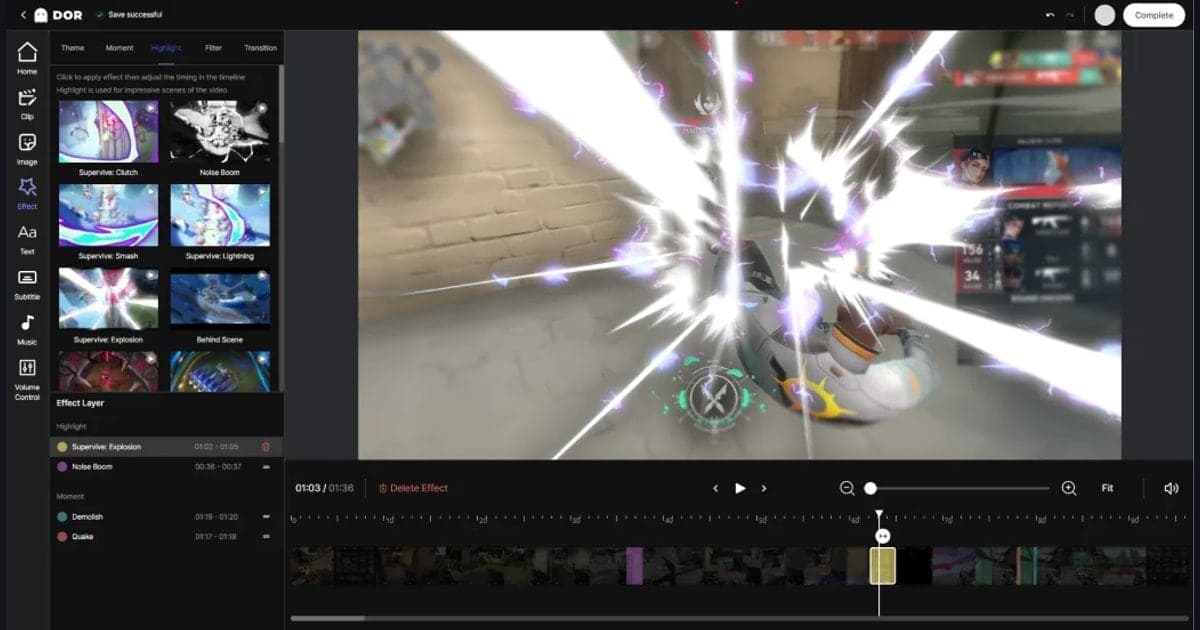
| DOR | Detects supported games automatically and records full matches to mp4. For Overwatch it also saves kill and other highlight clips automatically. On NVIDIA graphics cards NVENC hardware encoding is the default, and you review everything in the in-app library. | A free Windows desktop app, so it is not for consoles. Automatic clips only work for supported games. |
Pre-recording checklist
- I chose a tool for PC, not console or mobile.
- The drive with my save folder has plenty of free space.
- A test recording captured both game sound and microphone.
- I checked the current hotkeys in the tool's overlay or settings.
- I played the saved file back and checked picture, sound and length.
Keeping Overwatch with DOR
Overwatch is a game where DOR supports both automatic full-match recording and automatic kill highlight clips. Instead of pressing start and stop every match, you let DOR detect the supported game and review the mp4 results in its in-app library, which is a different workflow from the tools above. On NVIDIA graphics cards NVENC hardware encoding is used by default, and because game sound and microphone are recorded together, a match you played while calling out to teammates keeps your own voice for later review. You can read more about how kill clips come together in DOR auto highlight clips.
Official sources and check date
Checked on September 30, 2026. Game Bar shortcuts and save location come from Microsoft's Xbox Game Bar screen recording guide, NVIDIA app features and hotkeys from the NVIDIA app news post published in November 2024, and OBS Game Capture from the OBS Game Capture source page. The OBS output guide, Hybrid MP4 and Game Capture troubleshooting pages, and the replay news post on overwatch.blizzard.com were also consulted. AMD values come from its official article, updated November 2024 and based on version 23.9.1, and hotkeys and options may change with later updates. For in-game notes on recording Overwatch itself, check Blizzard's support pages directly.