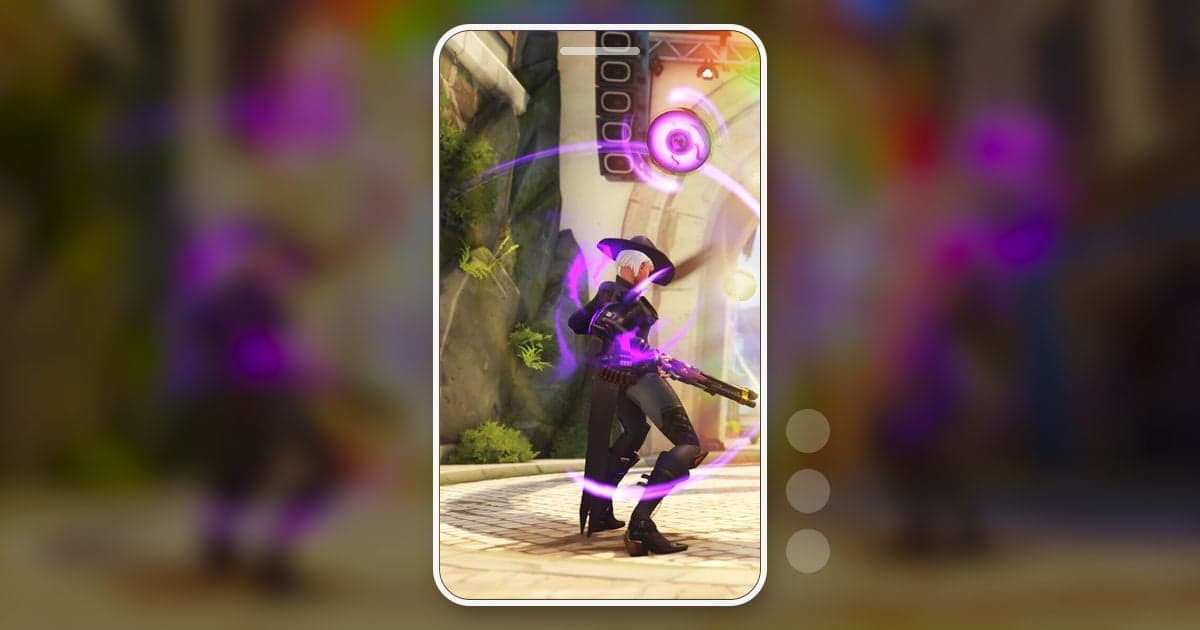
To make an Overwatch Short, pick one moment from a match, cut a tight start and end, rebuild the kill feed and health bar that a 9:16 crop throws away, and keep it to 3 minutes or less for YouTube Shorts. Four kinds of moments can carry a Short on their own: an ult combo such as Zarya's Graviton Surge followed by Genji's Dragonblade, a multikill where you take out several players in one team fight, a support save where Ana's Sleep Dart or Kiriko's Protection Suzu keeps a teammate alive on a sliver of health, and a funny moment such as an ult fired into empty air or a turn nobody saw coming. This guide covers only editing footage you already have into a vertical Short; finding an old match again is covered in how to watch Overwatch replays.
The short answer: one moment per Short, rebuild what the crop cuts
Put one moment in each Short and make the first second or two show what is about to happen. Edit in 9:16, but plan around the fact that a center crop drops the kill feed, the health bar and the ability icons. For a multikill, where the number of kills is the point, give the kill feed its own strip at the top; for a support save, where health is the point, tell the viewer the situation with on-screen text. General cropping for turning landscape clips vertical is covered in how to make a vertical 9:16 game video, and the first-3-second hook and the loop are covered in the pattern behind viral gaming Shorts.
How to edit an Overwatch Short, step by step
- 1Pick one moment per ShortAn ult combo can open on a full ult meter and the hero's ult voice line, so the first frame already builds anticipation. A multikill lives on the rhythm of kills landing one after another, and a support save needs the tension of a teammate about to die and the moment they survive in the same shot. A funny moment works best with as little setup as possible. If one match gave you several moments, make a separate Short for each instead of stacking them, so every Short gets a strong opening frame.
- 2Decide where the footage comes fromUlt combos and multikills involve kills, so searching by kill is fastest; with DOR, Overwatch kills and deaths are saved as automatic clips. Support saves and funny moments may involve no kill or death, so find them in the full-match recording or save a clip with a hotkey on the spot. Automatic in-game highlights and the Play of the Game are picked by the game, so they may not be the moment you actually want to post, and they live inside the client: to edit one, you first have to record it out to a video file from the highlights screen. They are also limited in how long and how many are kept and can disappear after a patch, so turn any moment you plan to use into a file the same day.
- 3Cut the start and end around the momentA Short has to hold viewers from the first frame, so unlike a review clip you send a friend, it cannot spend long on setup. Start an ult combo about a second before the first ult voice line so the ult lands within the first two seconds, and stop about a second after the last kill. Start a multikill just before the first kill and cut the stretches of walking between kills so the kills land closer together. Open a support save on the moment a teammate's health starts dropping fast and end when the rescued teammate fights back. Funny moments are the exception: include 2 to 3 seconds before the thing happens, or the joke does not land.
- 4Check what survives in 9:16If you keep the full height of a 1920x1080 frame and cut it to 9:16, you are left with about 608 pixels of width, roughly 32% of the original. With the default HUD layout and a centered crop, the crosshair and the fight around it, the ult meter at the bottom center, and the objective and timer at the top center mostly stay, while the kill feed at the top right, the health bar at the bottom left and the ability icons at the bottom right fall outside the frame. Recording at 2560x1440 leaves the same proportion. Play back the 9:16 export once and confirm the core of the moment is inside the frame.
- 5Rebuild the kill feed and health barFor a multikill, a split layout fits well: enlarge the kill feed area into a strip at the top of the 9:16 canvas and put the centered fight below it. You build this in an editor that lets you stack the same video on two tracks and change position and size, such as Premiere Pro or DaVinci Resolve. Without a split layout, write the result, such as '4 kills', as text near the top. For a support save where the health bar is cut off, text such as 'saved at 10 HP' tells the viewer what happened even in a vertical frame.
- 6Line up sound and effects with the ult line and the killsOverwatch heroes call out a voice line when they use their ultimate, so keeping that line at the start of an ult-combo Short lets viewers recognize the play by sound alone. If you add background music, keep it below the game audio so the voice line and kill sounds are not buried. Use a quick zoom or shake effect once, on the deciding kill, rather than on every kill, which keeps the moment easy to follow.
- 7Check the Shorts rules and Blizzard's policy before postingPer YouTube's help pages as checked on October 13, 2026, videos uploaded on or after October 15, 2024 that are square or vertical and up to 3 minutes long are classified as Shorts. How a Short with an active copyright claim is handled depends on its length, and the rule for Shorts over 1 minute changed on September 24, 2026, so past the 1-minute mark use only music you have clear rights to and check the current terms in YouTube's help. Blizzard's Video Policy limits use of Blizzard content to non-commercial purposes, does not allow charging viewers a fee to watch, and caps sponsor promotion at 10 seconds total per video. If you also post the same video to TikTok or Instagram Reels, check each platform's own help pages for length rules.
Overwatch HUD elements in a 9:16 crop
| HUD element | Default position (16:9) | What to do in a centered 9:16 crop |
|---|---|---|
| Kill feed | Top right | Cut off. For multikills, rebuild it with a top strip in a split layout or a kill-count text |
| Ult meter | Bottom center | Mostly stays. Start ult combos on a full meter |
| Health bar | Bottom left | Cut off. For saves, state the remaining health or the situation in text |
| Ability icons and cooldowns | Bottom right | Cut off. If an ability is the point, keep the stretch where the cast animation is visible a little longer |
| Objective and timer | Top center | Mostly stays. If the fight decides the point, show it through to the capture |
| Crosshair and target | Dead center | Stays. This is why the crop is centered |
Last look before you post an Overwatch Short
- The first second or two already hint at what is about to happen.
- For a multikill, the kill count is visible through a kill-feed strip or text.
- For a support save, the danger is clear even without the health bar.
- I played back the 9:16 export and the key action is inside the frame.
- Played at phone size, the enlarged kill feed and on-screen text are still readable.
- If it runs past 1 minute, it uses only music I have clear rights to, and any sponsor mention totals 10 seconds or less.
Making Overwatch Shorts with DOR
DOR is a free Windows app: launch Overwatch and it detects the game and records the full match as an mp4. On an NVIDIA graphics card, NVENC hardware encoding is the default, and game sound and your microphone are recorded together. In Overwatch, DOR detects kills and deaths and makes automatic clips, so ult combos and multikills can be found straight from the kill clips. It does not detect the in-game Play of the Game, and support saves or funny moments without a kill are cut from the full-match recording by hand or saved with a hotkey while you play. Once you have the moment, set the start and end with the trim tool in the app library and choose 9:16 as the output ratio. The library's text option works only in 1:1, so to put a kill count or situation text on a 9:16 video, continue in DOR Studio in your browser. With no install, the studio lets you fine-tune length, merge several clips, apply effect templates such as punch zoom and shake zoom, and adjust text, background music and volume, then download an mp4 or share a link. Videos used in the studio must be at least 3 seconds long and 500MB or smaller, and each project has a limit on the number of videos. For picking background music, see copyright-safe free music for game videos.
 #Overwatch