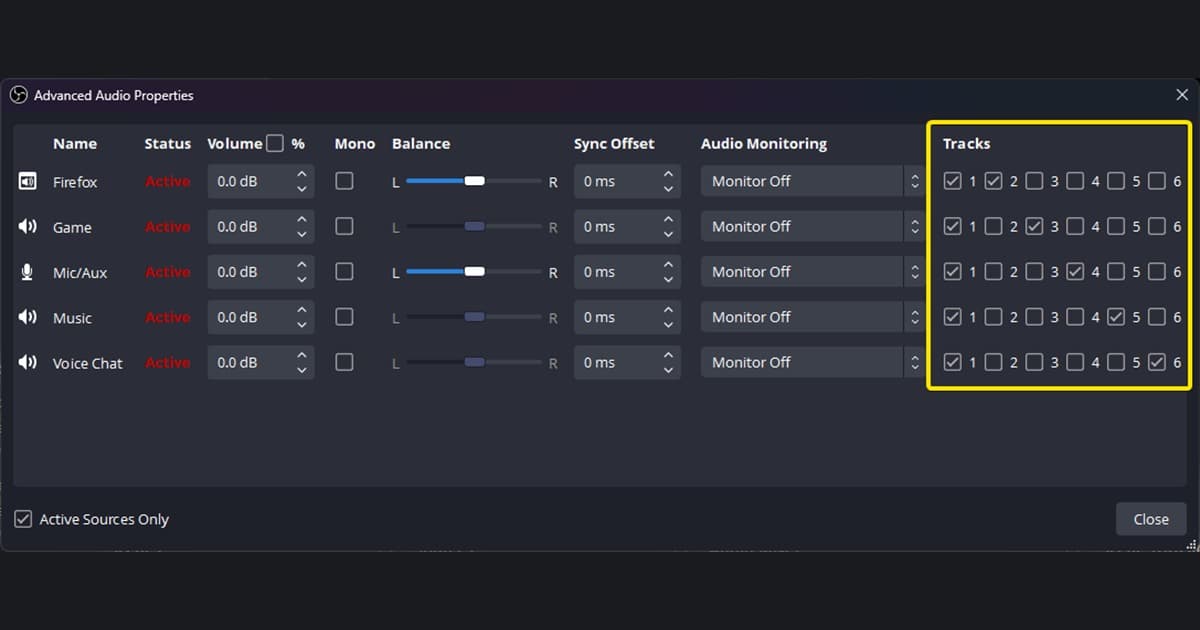
Once game and microphone audio are mixed into one track, you cannot independently mute a teammate or clean only your microphone. This guide covers source separation, track assignment, and file verification. For basic inputs, start with recording game and microphone audio; for call-specific consent and setup, see recording Discord call audio.
A practical track layout
| Track | Audio | Editing use |
|---|---|---|
| 1 | Full mix | Compatible playback and quick sharing |
| 2 | Game audio | Independent effects and music level |
| 3 | Your microphone | Noise cleanup and voice level |
| 4 | Discord/voice chat | Consent-aware editing or removal |
Configure separate recording tracks
- 1Remove duplicate capture — Do not let Desktop Audio and application capture record the same game twice.
- 2Add independent sources — Create separate sources for game audio, microphone, and the call app.
- 3Enable recording tracks — In Settings → Output → Recording, turn on every audio track you intend to store.
- 4Assign each source — In Advanced Audio Properties, check the full mix and that source’s isolated track.
- 5Use a safe container — Record to a format that supports the tracks and remux to MP4 afterward when needed.
- 6Verify in the editor — Import a short file and confirm independent waveforms and mute controls.
Isolated-track production versus fast clip production
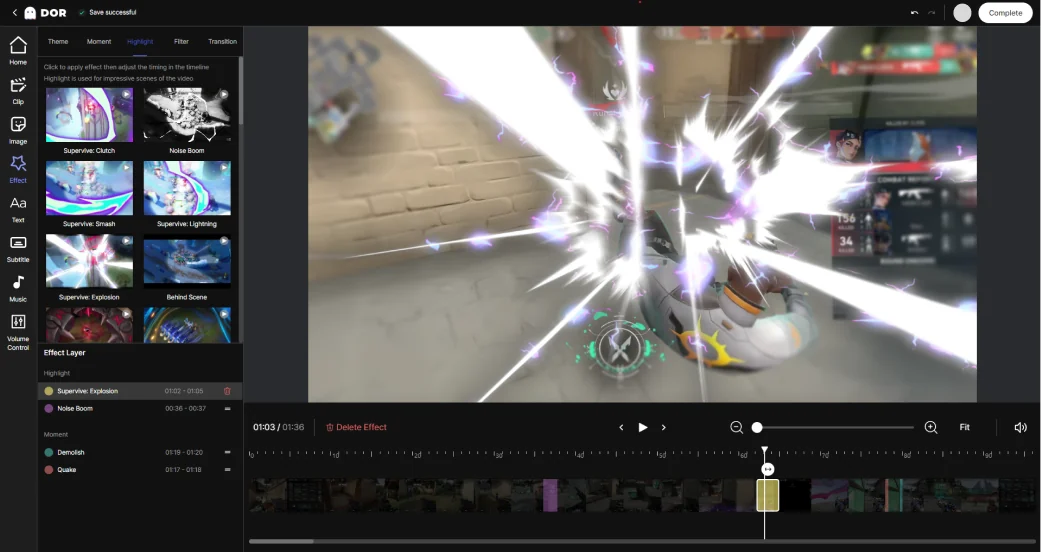
If isolated audio tracks are mandatory, OBS plus an editor that imports multiple tracks is the appropriate workflow. Do not assume DOR exports the same isolated tracks. For a separate workflow focused on automatically collecting and quickly reviewing supported-game moments, test DOR automatic game recording and the DOR browser clip editor. An example of that clip-first flow lives on the VALORANT clips page.
OBS explains output and assignments in its official multiple audio track recording guide. Its application audio capture guide covers per-app capture on Windows and duplicate-audio pitfalls. Obtain consent and check local rules before recording or publishing another person’s voice.