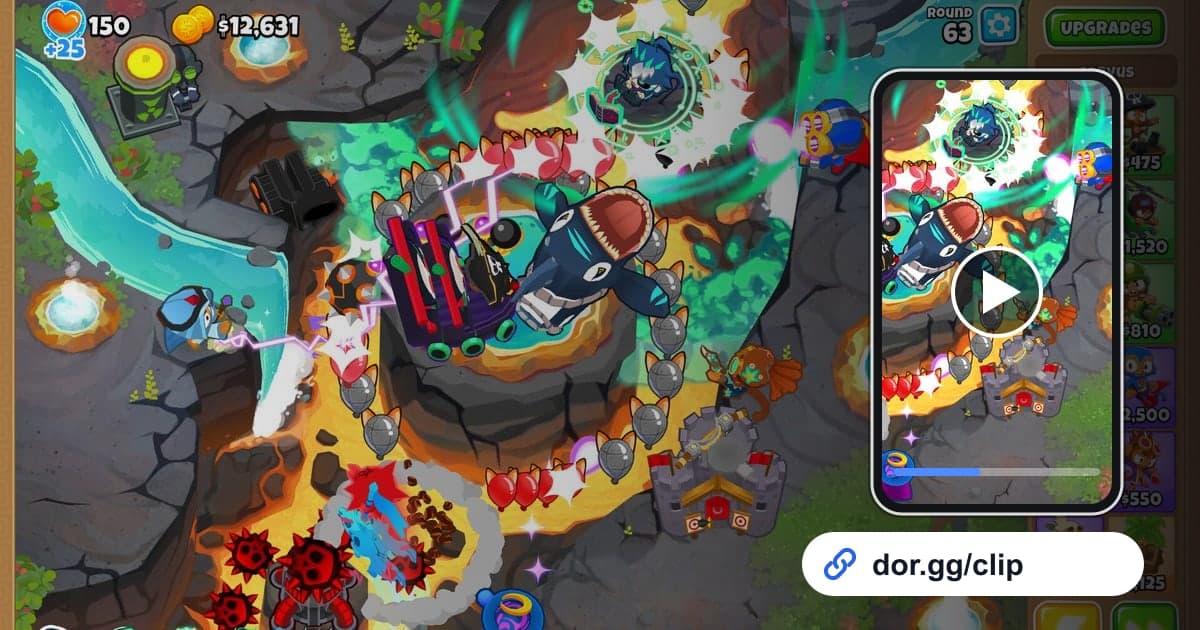
If you just beat a tough Bloons TD 6 map for the first time or took down a boss bloon, there are two things you might want to show a friend: proof that you did it, or how you did it. This guide covers one method: record Bloons TD 6 with DOR, trim the scenes to fit your purpose, and send them as a dor.gg link. Tower defense alternates between quiet setup stretches and moments when the screen floods with bloons, so the same game can become either a proof video or a strategy video depending on what you keep.
The bottom line
Play Bloons TD 6 on a PC with DOR installed, and every game you play while it is running lands in one video. If you just want proof, trim the last few rounds and the victory screen. If you want to teach the strategy, keep several pieces centered on the moments you place and upgrade towers. The basics of setting start and end points are in how to trim game clips.
How to send a Bloons TD 6 clear
- 1Install DOR and launch Bloons TD 6Install the free DOR app on your Windows PC and launch Bloons TD 6. Since the game became supported in the October 2026 app update, DOR detects it automatically and records it; the recording does not split when a game ends and runs continuously until you close Bloons TD 6.
- 2Decide on proof or strategy firstWhat you keep depends heavily on why you are sending it. A proof clip can run from the last round to the victory screen and stop there. A strategy clip needs several points in the game so your placement spots and upgrade order are visible. Deciding before you play also tells you what to note down when a tense moment hits.
- 3Use the map select screen as a dividerBecause several games are chained in one recording, the map select screen marks the boundary between games when you scrub through. If you retried a lot, count which map select screen came right before your winning attempt, and jot down the round number and real-world time of any close call so you can jump straight there.
- 4Trim the round milestones in the libraryOpen the recording in the library and set a start and end point in the trim tool. The whole map has to be visible for placement to make sense, so 16:9 is the default output ratio. For strategy, splitting the game into about three pieces, such as early setup, the first giant bloon, and the final round, makes it easy for a viewer to follow.
- 5Label towers with text in strategy videosMerge the pieces in DOR Studio, which opens in your browser, and add a short text line naming which tower you upgraded along which path. That way a friend can follow along without pausing. You can also lay down background music and adjust the volume in Studio.
- 6Send the link to your co-op crew or event friendsFor a game you cleared in 4-player co-op, paste the dor.gg link to the people you played with; for a boss event run, send it to a friend on the same event. They can open it straight away in a phone browser, no app install needed.
Bloons TD 6 scenes to keep by strategy phase
| Strategy phase | What it looks like in the recording | Who to send it to |
|---|---|---|
| Early setup | Placing your first towers while the round number is still low | A friend trying the same map for the first time |
| First giant bloon | The moment a huge blimp-shaped bloon first enters the screen | The friend who always leaks here |
| Upgrade combo | The panel where you pick an upgrade path | The friend who asked about your combo |
| Boss bloon kill | The boss bloon arriving and its health being chipped away | A friend running the same boss event |
| 4-player co-op game | Other players' towers spread across the map alongside yours | The co-op crew you played with |
| Clear proof | The final round and the victory screen that follows | The friend waiting to hear how it went |
| Painful loss | Right before your lives run out and the game over screen appears | A friend who will laugh with you |
Check before you send a proof clip
- At least 20GB of free disk space (below that, recording stops automatically)
- The trimmed section is the exact attempt that finally succeeded
- The victory screen is fully included in the proof clip
- In strategy clips, the upgrade panel stays on screen long enough to read
- In co-op games, it is fine for other players' names to be visible
- Any muttering or background noise on your mic is not distracting
What DOR does in Bloons TD 6
DOR is a free Windows desktop app. When you launch Bloons TD 6, it detects the game automatically and records it with full-session recording: everything from launch to exit is one mp4, with no per-game splitting and no automatic clips that pick out your victories, so you trim the sections to show yourself. Long play fills the disk quickly, and as the app settings note, recording stops automatically when free space drops below 20GB. On days you do not need recording, you can turn off just this game in the full-session recording group in settings, and a confirmation dialog appears when you do. With an NVIDIA graphics card, NVENC hardware encoding is the default, and game audio and your mic are recorded together. For a tour of the Studio screen, see the DOR browser clip editor, and for adding music to strategy videos, see how to add music to game videos.