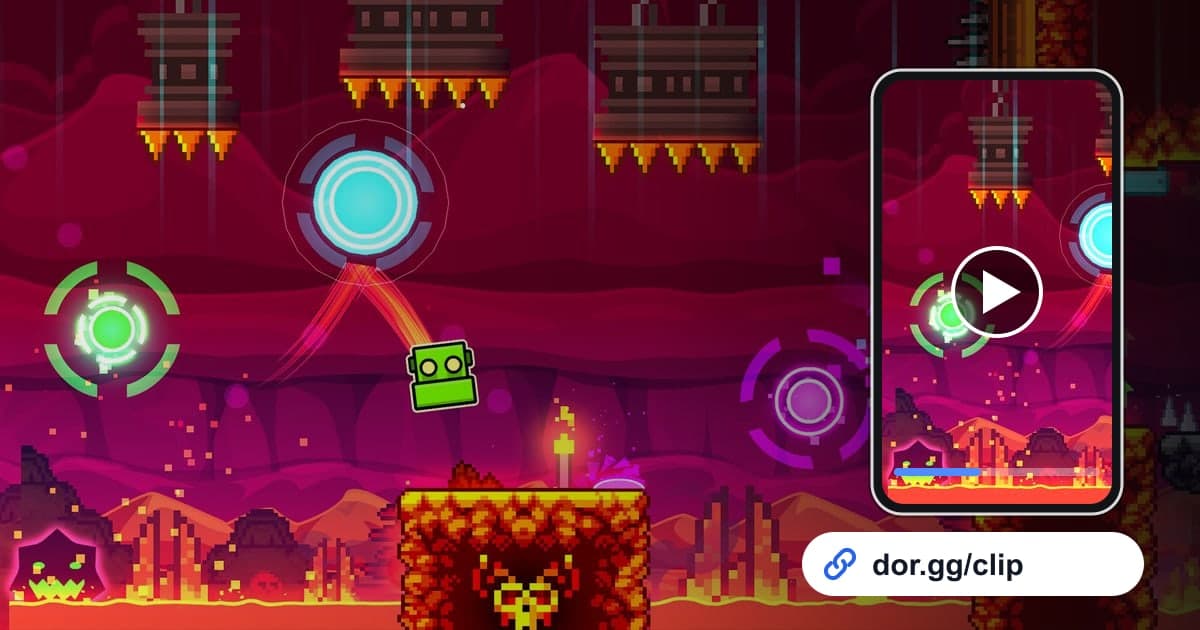
Geometry Dash is a rhythm-based action platformer where you jump, fly, and flip through spiky obstacles in time with the music. Hard levels can take dozens or even hundreds of deaths before you reach the end, and that one successful run is something friends rarely believe without seeing it. This guide shows how to record Geometry Dash with DOR, then find and trim only the clearing attempt or the stretch you finally got through without dying, and send it as a dor.gg link. Because failures pile up and recordings get long, it focuses on where to find the run that actually worked.
Every failed attempt is in the video too
DOR captures Geometry Dash as a full-session recording. From launch to exit, menus, practice, countless deaths, and the final success all run together in one video, and DOR does not detect a clear and turn it into a clip for you. That means you find the moment in the recording and trim it yourself. Attempts are short, so missing the start or end by even a second or two changes how the clip feels. Our guide on how to trim game clips covers precise cutting before you start.
Sending your Geometry Dash clear
- 1Install DOR and play like you normally doDOR is a free Windows app that detects Geometry Dash when it launches and starts recording automatically. Since you never know which attempt will be the one, recording from the very start is actually an advantage. Game music and your mic are captured together, so your reaction to the clear is saved too.
- 2Jot down the time right after you clearAfter a clear you will want to jump straight into the next level, but take a second to note the time on your phone, something like around 10:40 pm. In a recording with hundreds of attempts, that note is the fastest way back to the winning run.
- 3Narrow it down with the attempt counterWhen you close the game, the recording is saved as an mp4 and appears in the app library. Geometry Dash shows the attempt number at the start of every try, so look near the time you noted for the run where the number stops changing and play continues all the way to the end. That is your clear.
- 4Trim from the level start to the complete screenA clear that starts mid-level invites questions about whether you really beat it from the beginning. Set the start where the attempt number appears and the end just after the level complete screen, so the whole level is in the clip. If you only want to show off a flawless section, 10 seconds on either side of it is enough.
- 5Pick a ratio for whoever is watchingA full level works best in 16:9 so nothing gets cropped, while a short fail compilation or reaction clip that friends will watch on their phones is easier to view in 9:16 or 1:1. You can trim the same recording twice with different ratios.
- 6Send the link to a friend on the same levelWhen trimming finishes, you get a dor.gg link. Send it to a friend stuck on the same level and it doubles as a reference run, and they can play it right in a browser without downloading a file.
Where to find each moment and how to frame it
| Moment to show | Where it sits in the recording | Suggested ratio and length |
|---|---|---|
| First clear | From the final attempt counter to the level complete screen | 16:9, the full level |
| Fails right before the clear | The last few minutes when the attempt count climbs fast | 9:16, three or four deaths in about 30 seconds |
| Flawless section | The first attempt that got past your usual death spot | 1:1, about 10 seconds before and after that stretch |
| Practice mode progress | The part where you repeated one section in practice mode | 16:9, under a minute of your most-repeated section |
| Your own level | A full playthrough of a level you built in the level editor | 16:9, the whole level |
| Post-clear reaction | The cheering on your mic after the level complete screen | 9:16, from 2 seconds before the clear to the reaction |
Before you send the clear
- The clip starts at the beginning of the attempt and includes the whole level.
- The level complete screen is clearly visible at the end.
- You checked the game volume so the music comes through.
- You listened for any muttering or screaming on your mic that you would rather not share.
- On all-day practice sessions, you left well over 20GB of free space on your drive.
- If it is your own level, you included the level name in your message.
How DOR records Geometry Dash
DOR is a free Windows desktop app, and the October 2026 app update added Geometry Dash as a full-session recording game. When you launch it, DOR detects the game and saves everything until you quit as one mp4, using NVENC hardware encoding by default on PCs with an NVIDIA graphics card. Grinding one level for hours makes the recording just as long, and recording stops automatically when free space drops below 20GB. A clip trimmed in the library travels as a dor.gg address, and the person receiving it does not need to install anything. To stitch a few fails and the clear into one video, see how to merge game clips, and for shaping it into a vertical phone video, see how to make a vertical game video. The browser-based DOR Studio needs no install and lets you merge clips and add text such as your attempt count, then download an mp4 or share a link.