If you took down a world boss with your party in Diablo IV or tore through a Nightmare Dungeon with a freshly tuned build, record it with DOR, trim just the parts you need, and send them as a link. Diablo IV is Blizzard's action RPG: you play the campaign solo or with friends, and the endgame is about bosses, Helltides, the Forge, and seasonal content. It is playable on Windows PC. With the October 2026 app update it became a 'Full play recording' game in DOR, so when you launch it, DOR detects it automatically and keeps everything until you quit as one video. You tend to log in and hop between activities for hours, so this guide focuses on quickly locating each activity in the recording and trimming it to suit whoever will watch it.
After a Long Grind, Trim While Your Memory Is Fresh
Many Diablo IV sessions bounce nonstop between dungeons, Helltides, world bosses, and town chores, and a few days later it is hard to remember what happened when. That is why the fastest approach is to open today's recording in the library as soon as you quit and trim the scenes you want to send. For tips on choosing start and end points, see how to trim game clips. Piling up long raw recordings also fills the disk quickly, and recording stops automatically when free space drops below 20GB, which is one more reason to trim right away.
How to Pick Scenes From a Diablo IV Session and Send Them
- 1Confirm the game is set to record, then log inIn DOR settings, make sure Diablo IV is on in the 'Full play recording' group and that you have well over 20GB of free space, then launch the game. Auto-detection starts recording, and everything from the character select screen until you quit is kept.
- 2Note the time whenever you switch activitiesEach time you change activities, such as entering a Helltide, heading to a world boss, or starting a dungeon, jot down the time. Even in a recording that runs for hours you only need to check around those times, which cuts search time sharply.
- 3Skip the town choresTown scenes where you sort gear and trade with vendors are nearly static, so they stand out quickly when you scrub. Stop where combat begins and the screen fills with effects, then check what happens around it.
- 4Center boss fights on the final stretch of healthSending a whole world boss or dungeon boss fight means long, repetitive footage. Keep only the last minute, from when the boss's health is nearly gone to the moment it falls, and your friend is more likely to watch to the end.
- 5Use 9:16 for build showcases and 16:9 for party fightsDiablo IV uses a top-down view, so your character sits in the middle of the screen. A solo skill combo still reads well at 9:16, while several players surrounding a boss fit better in the wider 16:9.
- 6Share links with your party and clanWhen you finish the trim, a dor.gg link is created. Send the boss fight to the party members who fought with you, the vertical showcase to the friend curious about your build, and short scenes like a legendary drop to the clan chat.
Finding and Trimming Each Diablo IV Activity in the Recording
| Endgame activity | What you see in the recording | Length, ratio, and who gets it |
|---|---|---|
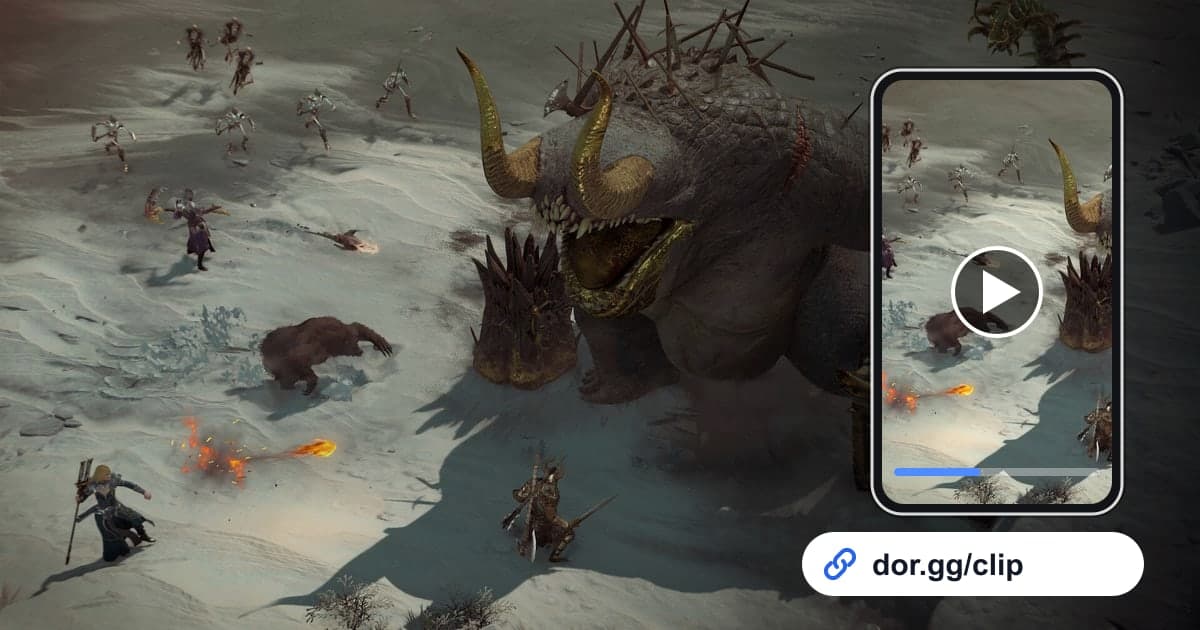
| World boss kill | Many player characters gathered at one spot | The last minute as the boss's health runs out, 16:9, for the party that waited with you |
| Helltide clear | The area's mood turns red and monsters swarm in | 30–60 seconds of sweeping a whole pack at once, 16:9 |
| Nightmare Dungeon run | Right after the loading screen at the dungeon entrance | 1–2 minutes of the final room's fight, for the party that ran it |
| Build showcase | You dive alone into a pack after setting up a new skill loadout | 15–30 seconds of the core combo, 9:16, for the friend who asked about the build |
| Legendary item drop | The moment an item with a different name color hits the ground | 15 seconds around the drop, for the clan chat |
| Finishing a weapon at the Forge | The stretch where you complete a weapon on the Forge screen | 10–20 seconds of the result screen, for a friend playing the same class |
Before You Send a Diablo IV Video
- Diablo IV is turned on under 'Full play recording' in settings.
- You cleared well over 20GB of free space before a long grind.
- You noted the time each time you switched activities.
- Town chores are cut out of the video.
- The boss fight video runs all the way to the kill.
- You picked 9:16 for build showcases and 16:9 for party fights.
How DOR Records Diablo IV
DOR is a free Windows desktop app. When you launch Diablo IV, it detects the game automatically and records one mp4 video until you quit; it does not cut boss kills or item drops into automatic highlights. Open the recording in the app library, set the start and end points with the trim tool, choose 16:9, 9:16, or 1:1, and a dor.gg link is created. How to shape a build showcase into a vertical video is covered in how to make a vertical game video. To weave scenes from several activities into one video, open the DOR Studio in your browser with no install, use merging, text, effect templates, and background music, then download an mp4 or share a link. Game sound and your mic are recorded together, so what you said to your party when the boss fell stays in too. If a recording is missing after a long session, check the save path and disk space with how to fix recordings not saving. When you don't want to record, turn the game off per game under 'Full play recording' in settings; a confirmation window appears when you do.