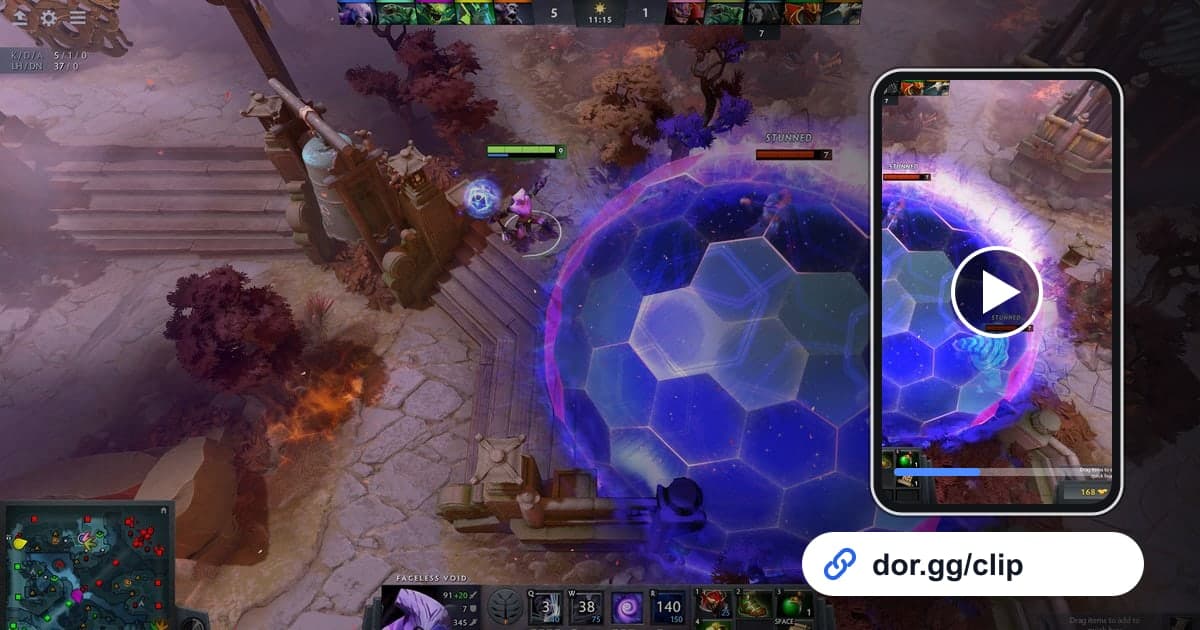
Dota 2 matches are long, and the teamfight that flipped the game might last only a few dozen seconds. To show your party that wipe again, you need a way to pull those seconds out of a long recording precisely. This guide covers only that: recording Dota 2 with the free Windows app DOR, picking out the moment you want, and sending it as a link. DOR's Dota 2 recording details are also on the Dota 2 game page.
How Dota 2 gets recorded
DOR records Dota 2 with whole-session recording. Everything from opening the client to closing it, including the queue, the draft, the match and the results screen, goes into one video; the file is not split per match, and kills are not saved as automatic clips. So finding and trimming moments yourself is the core of the workflow, and if you want to send several fights from one match as a single piece, pair it with merging multiple game clips.
Getting a moment out of a long Dota 2 session and sharing it
- 1Install DOR and start Dota 2Install DOR, a free Windows desktop app, and launch Dota 2; DOR detects the game automatically and starts recording. There is no record button to remember, so just form your party and queue as usual.
- 2Use the hero selection screen to find match boundariesIf you played several games in a row, they are all joined in one recording. Open the video in the library and skip through it looking for the hero selection screen; each time it appears, a new match begins.
- 3Narrow it down with the on-screen match clockDota 2 shows the match time at the top of the screen. If you remember roughly when in the match the fight happened, jump to an approximate spot in that match, then read the in-game clock and move back or forward until you land on the right moment.
- 4Trim from a few seconds before the initiationSet a start and end in the library trim tool. A teamfight is only fun to watch if you can see who went in first, so start a few seconds before the initiation and end right after the last kill. Pick a ratio of 16:9, 9:16 or 1:1.
- 5Join several fights from one match in the studioTo show the Roshan fight, a midgame teamfight and the final high-ground push together, trim each one, then merge them in DOR Studio in your browser. Adding text such as 'Roshan at 25 minutes' to each scene helps your party follow along.
- 6Post a single link in the party chatWhen trimming is done you get a dor.gg link. Paste it into the group chat or Discord channel where your five-stack hangs out, and everyone can open the same moment in a PC or phone browser without installing anything.
Where to look in the recording, by phase of a Dota 2 match
| Match phase | What to look for on screen | What to send your friends |
|---|---|---|
| A teamfight where you wiped all five enemies | A stretch where kill notifications stack up one after another | From a few seconds before the initiation to the last kill |
| Killing Roshan and taking the Aegis | Heroes gathering around the Roshan pit | From the first hits on Roshan to the moment someone picks up the Aegis |
| A back-and-forth fight at the Roshan pit | A fight that starts right after Roshan dies | Keep the Roshan kill and the fight that follows as one unbroken segment |
| A buyback that turned the game | The moment your team rejoins from the edge of a wipe | Start a little earlier so the bad position is visible |
| Breaking high ground and winning | The last building falling and the results screen appearing | From the final push fight to the victory screen |
| A draft your party laughed about | The hero selection screen | Only the short stretch where all five picks are visible |
Dota 2 checks before you share
- On days I queue many ranked games, I leave comfortably more than 20GB free on the recording drive.
- I know only my own screen is recorded, so fights I missed while dead or looking elsewhere are not in the video.
- I remember or wrote down which match the moment was in and roughly when in that match.
- The teamfight segment starts at the initiation.
- For a clip that shows the whole fight, I chose 16:9.
- My mic is connected because I want my own calls in the clip.
How DOR handles Dota 2 sharing, in short
DOR is a free Windows app. When you launch Dota 2 it detects the game and records until you exit, saving one mp4 in the app library. There are no per-match highlights or automatic clips, so you find moments in the recording and trim them yourself; more on picking start and end points is in how to trim game clips. Recordings are large and fill a disk quickly, and recording stops automatically when free space drops below 20GB. On NVIDIA graphics cards NVENC hardware encoding is the default, and game sound and your mic are recorded together, so your calls stay with the play. For balancing your mic against game audio, see recording game sound and mic together. Sharing comes down to one dor.gg link instead of a file transfer, and your teammates open it in a browser with no extra program.