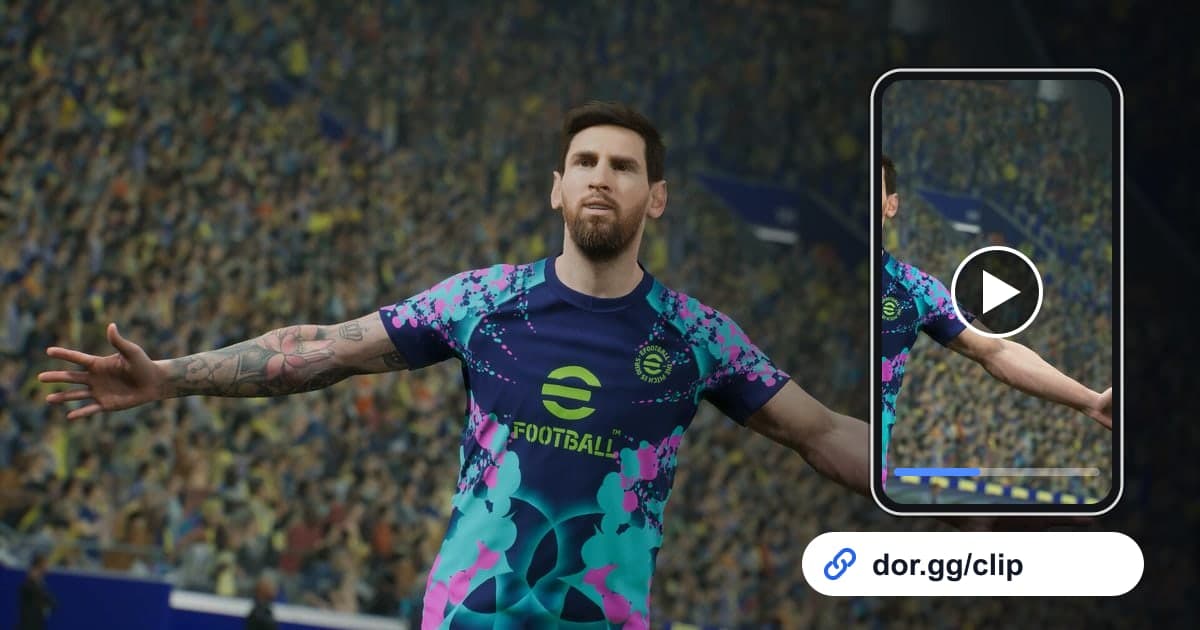
In a soccer game, the scene you want to show a friend usually fits in a few dozen seconds. A direct free kick bent over the wall, a finish at the end of a fast counterattack, a save your keeper made right before conceding, or a winner right before full time. This guide covers recording eFootball matches in full, then finding exactly that scene, trimming it, and sending it with a single link.
eFootball Has No Automatic Goal Clips
When you launch eFootball, DOR detects it automatically and saves everything until you quit as one video. Menus and squad management between matches are included, and there are no automatic clips that cut out the moment a goal goes in. So the key is finding goals quickly in the recording, and soccer gives you a great cue: every goal is followed by a center kickoff. The steps for setting a start and end are covered in How to Trim Game Clips.
From an eFootball Goal to a Shared Link
- 1Install DOR and launch eFootballWith DOR installed on your Windows PC, it detects eFootball the moment you start it and begins recording. There is no record button to press before a match, and everything from the menus to exit is captured continuously.
- 2Remember which match and roughly whenAfter several matches in a row, it is easy to forget which one a goal came from. Right after scoring, just remember something rough like the second half of the third match, and you narrow the search in the recording a lot.
- 3Find the center kickoff and rewindOpen the video in the library and look for a restart from the center circle during play. If it isn't the start of a half, a goal came right before it, so rewind from there to see the goal and the build-up leading to it.
- 4Start goals at the build-up and saves just before the shotIf a goal clip only has the final shot, nobody can see how the goal was made. Take it from where the passing move began to just after the ball hits the net. For saves, a short clip starting right before the opponent sets up to shoot keeps the tension.
- 5Pick a ratio in trim and create a linkIn the library's trim tool, set the start and end and choose 16:9, 9:16, or 1:1. When it finishes you get a dor.gg link to paste into the chat you share with friends who play soccer games.
- 6Send the whole match to the friend you playedIf you played a friend head to head, trimming from kickoff to the final whistle can be better than sending a single goal. It is a good way to rewatch each other's conceded goals and talk them over, and your friend plays it right in a browser without starting the game.
Where to Start Trimming by Goal or Scene Type
| Scene Type | Where to Start the Trim | Editing and Sharing Idea |
|---|---|---|
| Direct free kick goal | When the kicker stands over the ball after the foul | Show it in one go from the setup to the goal |
| Counterattack finish | From the pass that broke up the opponent's attack | Keep 16:9 to show how the space opened up |
| Long-range shot | Two or three touches before the shot | Cut it to 9:16 vertical for phones |
| Decisive save | When the opponent sets up to shoot | Drop it between goals to change the rhythm |
| Late winner | Where the tied score is still visible | Include the moment the score display changes |
| Match against a friend | Everything from kickoff to the final whistle | Send the link just to that friend to rewatch |
Check Before Sending a Goal Clip
- I confirmed which match the goal came from.
- The goal clip includes the build-up passes.
- The trim runs until just after the ball hits the net, so the result is clear.
- For a comeback goal, the moment the score display changes is included.
- I chose the ratio based on whether the viewer will watch on a phone.
- If I'm playing several matches, I have comfortably more than 20GB free.
Recording eFootball With DOR
DOR is a free Windows desktop app, and eFootball was added as a full-play recording game in the October 2026 app update. It detects the game launch automatically, saves everything until you quit as one mp4, and you can open the recording right away in the app library. With an NVIDIA graphics card, NVENC hardware encoding is the default. To collect goals from several matches into one video, DOR Studio opens in the browser with no install and lets you merge videos and work with effect templates, text, background music, and volume, and How to Merge Game Clips has tips on ordering them. For framing vertical shorts, see How to Make a Vertical Game Video. If long stretches of menu time are a concern, turn off just eFootball under Full-play recording in settings; a confirmation prompt appears when you do.