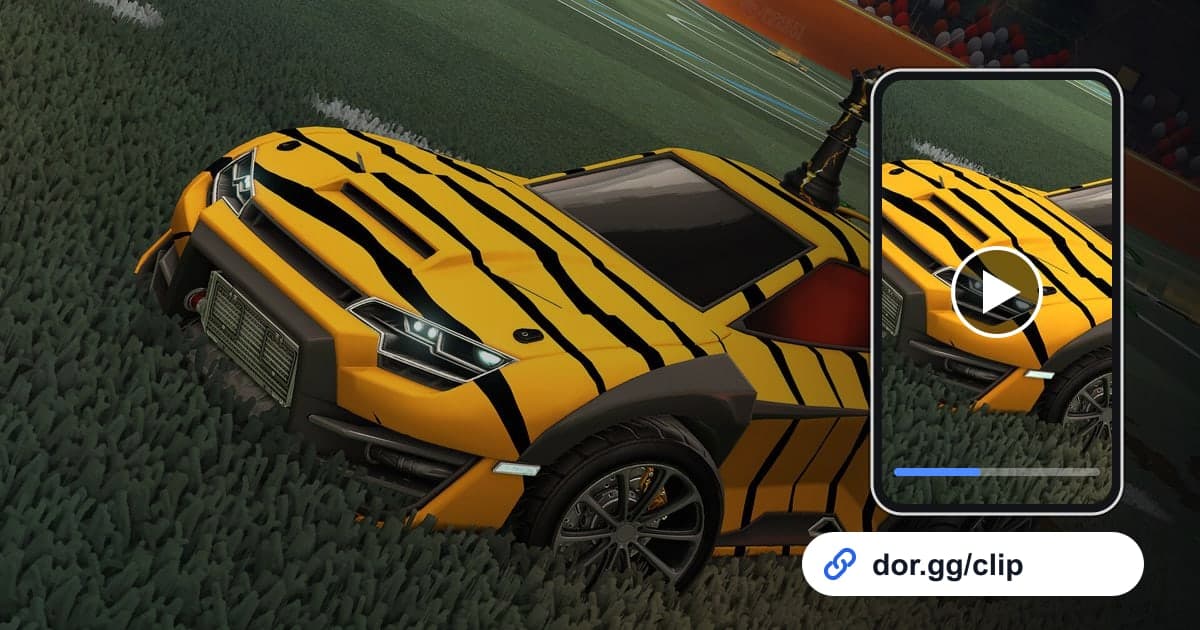
An aerial finished off a wall climb, or a golden goal that ends overtime, is over in seconds, and even your teammate often cannot recall exactly how it went in. This guide covers one method: record Rocket League with DOR, trim just those few seconds, and send them to teammates and friends as a dor.gg link. Matches are short, but you play many back to back, so the recording repeats similar kickoffs and goals dozens of times. That is why this guide focuses on cues for finding the right goal among all the repeats, and on how to shape a short goal clip so it looks good.
The Method at a Glance
Launch Rocket League and DOR starts recording automatically; close the game and every match you played that day stays in your library as one mp4. Find the kickoff countdown that follows a goal, scroll back past the scoring celebration, trim the few seconds before the ball goes in, and you have a one-goal video; the dor.gg link created when the trim finishes goes straight into team chat. How to combine several of the day's goals into one video is covered in How to Merge Multiple Game Clips.
Sending a Rocket League Goal to Your Teammates
- 1Keep DOR running and launch Rocket LeagueInstall the free DOR app on your Windows PC and launch Rocket League; the game is detected and recording starts automatically. Even if you switch between casual, competitive, and offline Season Mode, it all continues in one video until you quit.
- 2Remember which match the goal came inSome days you play more than ten matches, which makes them hard to tell apart in the recording. Just remember the order, like "fourth match, overtime," and later count the results screens that appear after each match to jump to the right one.
- 3Rewind a few seconds from the kickoff countdownAfter a goal, the celebration plays, both teams reset, and the kickoff countdown starts. Find the countdown within that match, scroll back past the celebration to the moment the ball went in, then go back another 10 to 20 seconds, and you will see the start of the play that set up the goal.
- 4Cut air plays vertical and wall plays wideOpen the session in your library and trim it by setting a start and end. An aerial that follows the ball into the sky fills a phone screen when cut to 9:16, while wall plays and passing sequences that use the whole side of the arena need 16:9 to show the movement. 1:1 suits quick kickoff goals.
- 5Paste the dor.gg link into team chatWhen the trim is done, a dor.gg link is generated. Send it to the teammates you played 2v2 or 3v3 with, and they can play it right in a browser, so there is no need to pass a file around for a goal that lasts a few seconds.
Rocket League Plays: How to Find Them and How to Edit Them
| Goal or play type | Sound or screen cue in the recording | Best ratio and editing |
|---|---|---|
| Aerial goal | Just before a post-goal kickoff countdown, while your car is in the air | Cut to 9:16 so car and ball share the frame, 10 to 20 seconds |
| Double tap off the wall | A backboard hit followed immediately by a second touch | Keep 16:9, about 15 seconds from the wall climb |
| Goal-line save | An opponent's shot bouncing away in front of the net as play continues | 16:9, 10 seconds from their shot setup to the clearance |
| Overtime golden goal | The screen where regulation ends and overtime begins | 20 to 30 seconds through the results screen, with an overtime text label |
| Goal straight off kickoff | A scoring celebration right after a countdown ends | Short 1:1 clip, 5 to 10 seconds from the countdown |
| Own goals and blunders | Your laughter or groans caught on your mic | About 20 seconds with generous padding to keep the reactions |
Before You Send a Rocket League Goal
- The clip includes the first touch that lifted the ball, not only the moment it goes in
- The video does not cut off before the goal celebration, leaving the result unclear
- In a vertical cut, the ball never leaves the frame
- For an overtime goal, the screen where overtime starts is visible
- Team voice or chat contains nothing awkward to share
- Before merging, each goal clip is trimmed to a similar length
How DOR Records Rocket League
Rocket League was added to DOR's supported games in the October 2026 app update, and it uses full-session recording. DOR, a free Windows desktop app, detects the game launch and puts every match from start to exit into one mp4 without splitting by match. This game has no automatic clips that detect goals or saves, so you find the moments yourself and cut them out with the trim tool in your library. For framing tips when making vertical shorts, see How to Make a Vertical (9:16) Game Video. To collect the day's goals and add effect templates, text, and background music, use DOR Studio, which opens in your browser with no install; the editor is explained in Edit Clips in Your Browser With No Install. On days with many matches the recording grows large and fills the disk quickly, and recording stops automatically when free space drops below 20GB.