When you finally reach the extract with a full bag, or drop without knowing where the shot came from, you want to show your Tarkov friends exactly what happened. This guide covers one method: record Escape from Tarkov with DOR, trim only the raid moment you want, and send it as a dor.gg link. Tarkov has long stretches of gearing up and moving quietly, and fights are decided in seconds, so most of a recording is tense silence. That is why this guide focuses on the boundaries that split a recording into raids, how long to cut depending on the purpose, and how to prepare a death clip for reviewing with a friend.
Key Points
Launch Tarkov and DOR starts recording automatically; close the game and one mp4 holding every raid from that day stays in your library. Find the raid you want by its loading and results screens, trim just the fight or extract inside it, and send the dor.gg link to a friend. How to keep recording steady on days you run raids back to back for hours is covered in How to Record Long Gameplay Sessions.
Sending a Tarkov Moment to Friends
- 1Install DOR and launch TarkovInstall the free DOR app on your Windows PC and launch Tarkov; the game is detected and recording starts automatically. Picking gear in your stash, waiting for a raid, and the raid itself all continue in one video until you quit.
- 2Write one line after each raidAfter several raids in a day, it is hard to remember which raid it was in the recording. Just note the order and result, like "third raid, extracted" or "fifth raid, died," and later you can count raid loading screens to go straight to it.
- 3Use gunfire as your cue inside a raidMost of a Tarkov raid is quiet movement and waiting, so the first gunshot within that raid is often where the moment to show begins. For extracts it works the other way: rewind a little from the raid results screen and you will see yourself stepping into the extract.
- 4Leave plenty of lead-in on a death clipTo work out with a friend where the shot came from, the moment you drop is not enough. Trim from one to two minutes before the death, including where you started your last move and where you heard footsteps, so the viewer can judge the angles and positions.
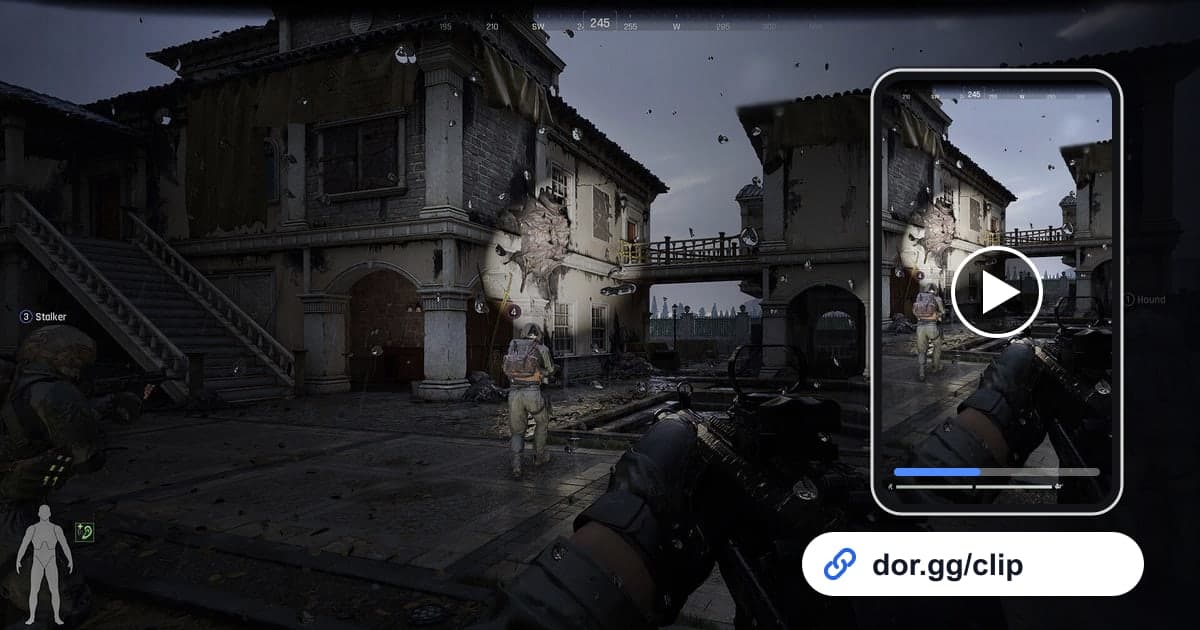
- 5Trim in your library and keep it at 16:9Open the session in your library and trim it by setting a start and end. Small silhouettes in the distance matter in Tarkov, and a vertical crop easily pushes enemies out of frame, so keep review clips at 16:9. A dor.gg link is created when the trim finishes.
- 6Paste the link into squad chatSend the dor.gg link to the friends you raid with, and they can play it right in a browser. Squadmates who were in the same raid can even open each other's links side by side to compare the same fight from different views.
Tarkov Raid Moments: Where to Find Them and Why to Send Them
| Raid moment | Cue to find it in the recording | Purpose and clip length |
|---|---|---|
| Extracting with expensive gear | Just before the raid results screen, as you step into the extract | To show off, the last 30 seconds to 1 minute before extracting |
| Firefight with a PMC | The first gunshot breaking the silence in the recording | To review, 1 to 2 minutes from 10 seconds before the first shot |
| Boss kill and loot | Gunfire from several shooters at once, then you start searching bodies | As a keepsake, 2 to 3 minutes from the fight through the loot check |
| Ambush in the dark | A long stretch without moving that suddenly breaks into gunfire | For tension, 40 to 60 seconds starting 20 seconds before the end of the wait |
| A death you cannot explain | The final moments just before the raid results screen | To get a second opinion, 1 to 2 minutes before the death |
| Scav run mishaps | The loading screen into a raid you entered as a Scav | For laughs, 20 to 40 seconds that keep the reactions |
Before You Send a Tarkov Clip
- Long stretches of stash or inventory screens do not drag the video down
- A death clip includes the route and sounds before you went down
- Squad voice chat contains no one's personal details or remarks that would be awkward to share
- The clip is cut at 16:9 so distant enemies stay visible
- You have at least 20GB of free disk space on days you run many raids
- An extract clip ends with the raid results screen so the success is clear
How DOR Records Tarkov
Escape from Tarkov became a DOR-supported game in the October 2026 app update and is captured with full-session recording. DOR, a free Windows desktop app, detects the game launch and saves your stash screens and every raid, from launch to exit, as one continuous mp4. It does not split the video by raid or detect kills and extracts to make highlights, so you find the moments yourself and cut them out with the trim tool in your library. For tips on fine-tuning the start and end by a few seconds, see How to Trim Game Clips. On NVIDIA graphics cards, NVENC hardware encoding is the default, and game sounds like footsteps and gunfire land in the same video as your mic during squad calls; check the volume balance in How to Record Game Sound and Mic Together. The more raids you run, the faster the disk fills, and recording stops automatically when free space drops below 20GB. To stop recording Tarkov only, turn the game off under the full-session recording group in settings; a confirmation dialog appears.