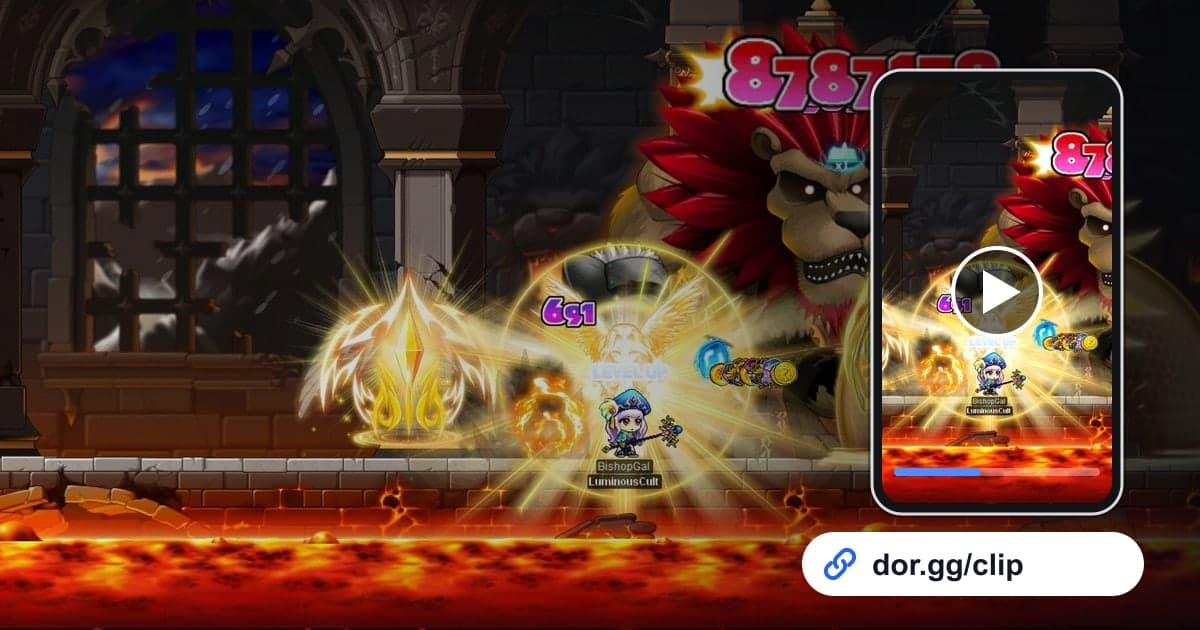
In MapleStory, the moments you want to show your guild or party are packed into a few dozen seconds out of hours of play: the final phase of a boss you just beat for the first time, a Star Force enhancement that succeeds or an item that gets destroyed, a first clear you pulled off together with guildmates. This guide explains one flow only: record MapleStory with DOR, find that moment in the long recording, trim it, and send it as a dor.gg link. Unlike games that end match by match, MapleStory tends to stay open for a long stretch once you launch it, so knowing how to find the moment and how to manage storage is the heart of this flow.
How MapleStory recording differs from other games
DOR supports MapleStory as full-session recording. Everything from the moment you launch the game to the moment you close it becomes one video, and beating a boss does not create a clip automatically. That leaves two things to prepare. First, manage free disk space, because the recording grows with the session. As the DOR app settings note, this mode fills the disk quickly, and recording stops automatically when free space falls below 20GB. Tips for capturing long sessions without stutter are collected in recording long gameplay. Second, mark for yourself roughly where in the recording the moment you want to share sits. Keep those two in mind and the rest is trimming and sending.
From recording prep to sharing with your guild
- 1Check free disk space before recordingOnce MapleStory is open it often runs for hours, so the recording file grows too. DOR recording stops automatically when free space drops below 20GB, so on a day with a boss schedule, first check the space on the drive where recordings are saved.
- 2Launch MapleStory and note the timeDOR detects MapleStory automatically when it launches and records it as one video until you exit. The 0:00 mark of the recording is the moment you launched the game, so noting that time gives you a reference for working out where a moment is later.
- 3When the moment happens, jot down just the timeThe moment you beat a boss for the first time or an enhancement succeeds, glance at your phone or PC clock and write down only the time. For example, if you launched at 8:00 p.m. and cleared at 9:40 p.m., look around the 1 hour 40 minute mark of the recording.
- 4After closing the game, jump to that point in the libraryWhen you exit the game, that session's recording stays in the library as an mp4. Open it, jump near the point you calculated from your note, then step a little forward and back to find the exact moment.
- 5Trim so only the clear remainsSet a start and end in the trim tool. A boss clear should start from the final phase and an enhancement video from just before you press the button, so viewers feel the tension with you. Choose an output ratio of 16:9, 9:16 or 1:1.
- 6Paste the dor.gg link into your guild group chatOnce the trim is done, you can share it as a dor.gg link. Paste the link into the messenger group or Discord channel where your guild gathers, and whoever receives it plays it right away in a browser, including a phone browser, with no app to install.
- 7Look at free space again before the next sessionAfter you have trimmed everything you want to share, decide whether to keep the long original. As multi-hour recordings pile up, you can hit the 20GB threshold in the middle of your next boss run and the recording will stop.
Clues for finding each MapleStory moment, and how much to keep
| Moment to share | Clue for finding it in a long recording | What to keep |
|---|---|---|
| First boss clear | The time you noted right after the clear | From the start of the final phase until the boss falls and you check the rewards |
| Star Force success | The time you started enhancing | From just before you press the enhance button to your reaction after the result |
| Item destroyed during enhancement | The time the result appeared | Short: a few seconds before the result and the reaction right after |
| Party boss with guildmates | The time you entered the boss | From entry to clear; if long, split it by phase |
| Failed boss attempt | The entry time of each attempt | The few dozen seconds of the phase right before you went down |
| The whole session that day | The time you launched the game | Keep the original untrimmed (check free disk space) |
Checks before posting to your guild
- The drive where recordings are saved still has 20GB or more of free space.
- I noted the time I launched the game and the time the moment happened.
- The moment the boss falls and the reward check are not cut off.
- The enhancement video includes a few seconds before the result appears.
- I checked that the character names and the guild chat or whispers on screen are fine to make public.
- Before sending it to guildmates, I opened the link myself and listened to make sure the sound plays.
How sharing MapleStory moments works in DOR
DOR is a free Windows desktop app: launch MapleStory and it detects the game automatically, records the entire session as a single mp4 until you close the game, and saves it to the app library. MapleStory has no automatic highlight clips, so you find and trim moments yourself; tips on placing the start and end are in how to trim game clips. In the library's trim tool, set the start and end, pick 16:9, 9:16 or 1:1, and share it as a dor.gg link. To gather several first clears into a guild record video, open DOR Studio in a browser with no install, merge the videos, work with text, background music, effect templates and volume, then download an mp4 or share a link. With an NVIDIA graphics card, NVENC hardware encoding is the default, and game sound and microphone are recorded together. If this is your first time making and sharing a video, also go through the first gaming video checklist.