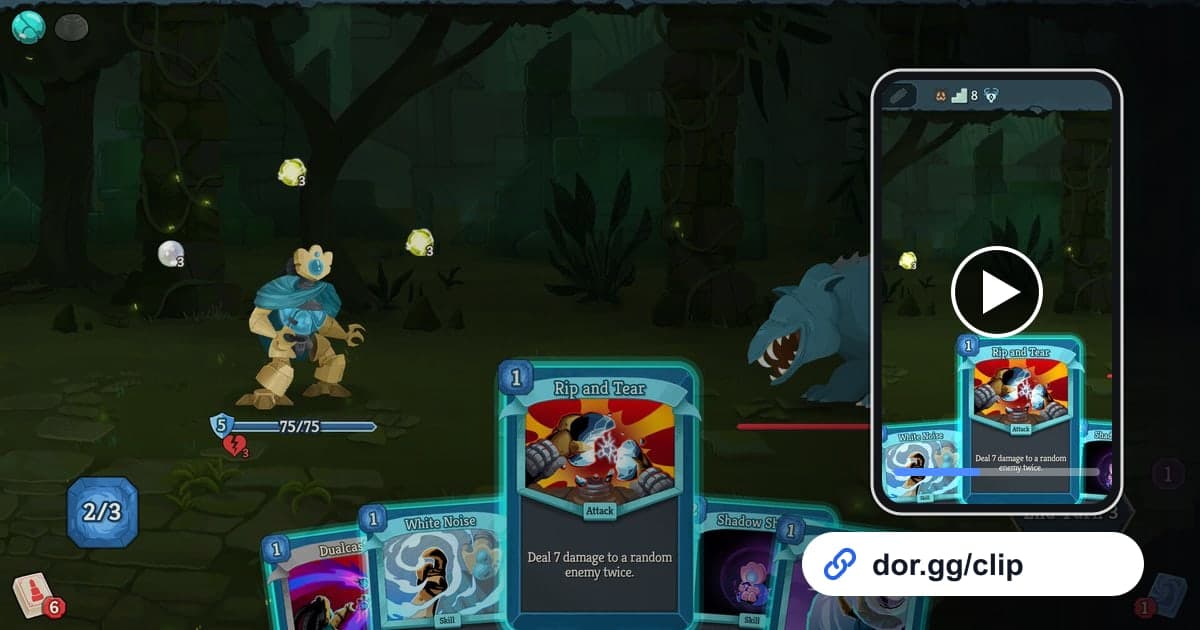
Slay the Spire 2 is Mega Crit's roguelike deckbuilder: you collect cards into a deck of your own, pick up relics, and climb the Spire. The fun of the genre lives in the process more than the result, so a line like 'these three cards chained together and erased the boss in one turn' lands much better as a video than as a message. This guide explains how to record a whole run with DOR, cut out just the few turns worth bragging about, and send them to a friend as a link.
How to rescue a few turns from a long run
DOR records this game from launch to exit as one video rather than match by match. A long run, or several runs back to back, makes the recording just as long. So the rule is to note which act, which fight and which turn it was ahead of time, and keep only the stretch from the first card of the combo to the enemy falling. Checks that keep a long session from breaking partway are collected in how to record long gameplay sessions without stutter.
Turning one run into one link
- 1Install DOR and launch Slay the Spire 2Install DOR, a free Windows desktop app, and launch the game; DOR detects it automatically and starts recording. If you also want to keep your muttering while you agonize over card picks, have a microphone ready. Game sound and mic are recorded together.
- 2Write down the time when a big moment is comingWhen a hand that sets up a combo arrives, or you walk into a boss fight, glance at the clock and note the time. Turn-based games do not change much on screen, so scrubbing through a long recording to find a moment is actually harder than in an action game.
- 3Leave your deck on screen briefly after the runWin or lose, keep this run's deck on screen for a few seconds before you close the game, and that view ends up in the recording too. When a friend asks 'what was the deck?', you will not need a separate screenshot.
- 4Close the game and open the libraryWhen you quit, everything from launch to exit is saved as one mp4 in the DOR library. Jump near the time you wrote down, find the fight, and look before and after the start of that battle.
- 5Cut the combo turn with the trim toolIn the library's trim tool, set the start where the turn begins and the end where the last card effect and the enemy's death animation finish. If the long stretch of deliberating stays in, viewers lose interest, so for turns where you thought for a while, start at the first card played. Use 16:9 by default so the card text is readable.
- 6Join the boss kill and deck shots (optional)If you cut the combo turn, the boss kill and the deck view separately, open DOR Studio in a browser with no install and merge them into one run recap. Add text with the character and Ascension level so friends who play the game recognize it at a glance.
- 7Send the dor.gg linkWhen trimming is done, a dor.gg link is created. Paste it into the group chat or Discord where you talk about the game, and your friend plays it straight in the browser. No zipping big files or uploading them anywhere.
Moments worth saving from a run, and how to cut them
| Moment | From where to where | Ratio that reads well |
|---|---|---|
| One-turn combo | From the start of the turn with your hand visible until the last card effect resolves | 16:9 (hand and enemies both on screen) |
| Boss kill | From the start of the turn when the boss is low until the victory screen | 16:9 |
| Ascension clear | From the final turn of the last boss fight to the clear screen | 16:9 |
| Showing off the finished deck | A few seconds of slowly scrolling the deck list after the run | 1:1 |
| Team synergy in a co-op run | The turn where your friend's card effects lock in with yours | 16:9 |
Before sending the link
- The first frame of the clip shows my hand for that turn.
- I trimmed in a ratio where card names and numbers are readable (usually 16:9).
- The boss kill clip ends on the victory screen.
- I left out the long stretches where I froze to think.
- For a co-op run, I asked the friend I played with whether sharing the video is okay.
- My disk has 20GB or more free so the next run records too.
How DOR recording works in Slay the Spire 2
DOR is a free Windows app that detects supported games on its own when they start and records them. Slay the Spire 2 is captured with Full Session Recording, so launch to exit becomes one mp4, and there are no per-fight or per-run highlights or automatic clips. It is a game you tend to keep playing once it is open, so files grow quickly, and recording stops automatically when free disk space falls below 20GB. For ways to clean up when space runs short, see the Steam game recording low disk space fix. On NVIDIA graphics cards, NVENC hardware encoding is the default. The screen for adding text or music to trimmed moments is covered in detail in the DOR browser clip editor article.