Street Fighter 6 has one of the deepest training modes in the genre, which is great until you open it for the first time and face a wall of menus.
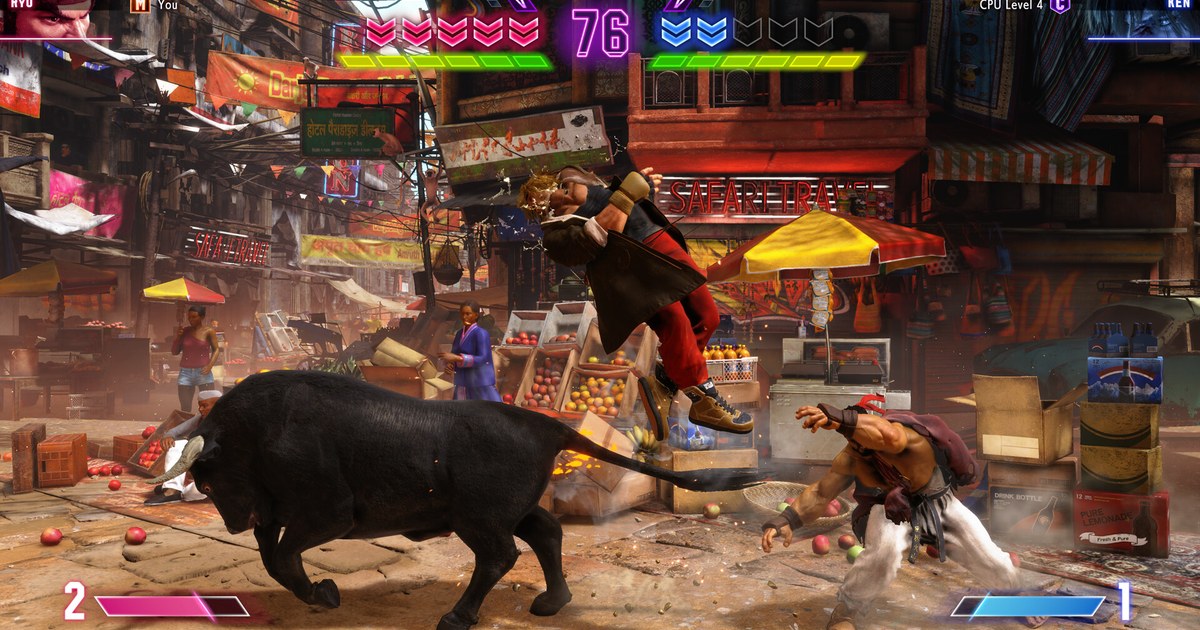
For combo practice you only need a handful of them: input display, which lists the directions and buttons you pressed; the frame meter, which draws startup, active and recovery frames as colored blocks; attack data, which shows combo damage; and dummy recording, which makes the dummy do what you tell it.
This guide is for anyone searching for SF6 training mode settings or how to turn on SF6 input display, and it walks through where each one lives and the order to use them in, based on the PC version on November 10, 2026.
Menu labels can look slightly different between patches and languages, but the layout is the same. The last part covers keeping your best attempts as a video with your inputs visible. What DOR can record in this game is collected on the Street Fighter 6 game page.
What to turn on first, and what to add later
When you are still learning a combo, input display and attack data are enough. Input display tells you right away whether a motion was dropped or a button came out early, and attack data tells you how many hits landed and how much damage the combo did.
Attack data keeps showing your highest combo damage, and the update on May 22, 2024 (the same day Akuma arrived) added an option to reset that number, which makes comparing routes much easier. Once the combo feels natural, turn on the frame meter.
It splits startup, active and recovery frames into differently colored blocks, and the meter works out frame advantage from the gap between both characters. You can literally see where a link falls apart.
If you want to practice real answers rather than just execution, that is where dummy recording and the reversal settings come in. Record the opponent mashing an invincible move after your combo, and you will know immediately whether your ender is safe.
How to practice combos in SF6 training mode and keep them on video
- 1Open training mode from Fighting GroundPick Training from Fighting Ground on the main menu and choose your character and the dummy's character. For combo practice, set the dummy to a character you meet often in ranked so the routes you learn carry over.
- 2Turn on input display and the frame meterFrom the pause menu, open the settings, go to the display section and switch input display on, then the frame meter if you want it. With input display on, your input history is baked into any recording, so you can spot a late input just by watching the clip later. If you want a keyboard overlay outside the game instead, see how to show key inputs on gameplay videos.
- 3Set your shortcuts before anything elseIn the shortcut settings of the training menu, put reset, start recording, playback and save state on buttons you can reach easily. Since the September 2023 update you can assign shortcuts without holding the function button, which helps a lot on pad or leverless controllers.
- 4Use dummy recording to rebuild the situationPress your start recording shortcut and you take control of the dummy. Input the string or okizeme you want to practice against, stop recording, then hit playback and the dummy repeats it. Turn on repeat playback to loop it automatically, and load several recordings with different play rates so you never know which option is coming.
- 5Reset combo damage and compare routesReset combo damage in attack data, land route A a few times, reset again, land route B and compare the highest numbers. Switch the reset position to the corner and you can test corner routes the same way. Trim the successful attempts out of your recording so you can revisit them later.
SF6 training mode settings that matter for combo practice (as of November 10, 2026)
| Setting | What it does | How to use it for combos |
|---|---|---|
| Display: input display | Shows the directions and buttons you pressed as a scrolling list on the side of the screen. | Catch dropped motions, button order and timing. It also shows up in any recording. |
| Display: frame meter | Draws startup, active and recovery frames as colored blocks and calculates advantage. Invincible frames are marked too. | Find where links break and check advantage after a combo |
| Attack data (combo damage) | Shows hit count, damage and your highest combo damage. A reset option exists since May 2024. | Compare damage between routes |
| Recording settings | Lets you control the dummy, record actions and play them back, with repeat playback and play rates for several recordings. | Rebuild an opponent's pressure or okizeme and drill the answer |
| Reversal settings | Sets the move or recording the dummy uses after blocking, on wakeup or after getting hit. | Check whether your combo ender is safe |
| Save state and reset position | Saves and reloads the current situation, and starts resets from the center or either corner. | Corner combos and specific setups on repeat |
| Simple training settings | Beginner presets such as anti-airing and dealing with Drive Impact, and you can save your own. | Beginner drills, one concept at a time |
Quick checks before you start a training session
- Pick one combo for today. A single route makes it easy to compare inputs and video afterward.
- Make sure input display is on. If you plan to keep the session on video, the input list has to be on screen to diagnose drops later.
- Set reset, recording and playback shortcuts first so you spend less time in menus.
- Reset combo damage before comparing routes so the highest number starts clean.
- If you use DOR, set the recording frame rate to 60fps. The free plan lets you choose 1080p at 60fps, so tight links stay smooth when you review them.
Keep your clean combos with DOR and share them with inputs visible
DOR is a free Windows game recording app. It detects Street Fighter 6 when you launch it and records the whole session from launch to exit as one video, so your training mode time is captured as well.
Recordings land in My Clips in the app, so after practice you can pick the attempts where the combo went through and trim them to 16:9, 9:16 or 1:1 right in the app.
If the in game input display was on, the trimmed clip shows your input history too, which explains how the combo is done without a single word. In DOR Studio (dor.gg/studio) you can put attempt 1 next to attempt 20, add text, and export an mp4 or send a dor.gg link to your training partner. The steps for sending clips to friends are in share Street Fighter 6 clips, and turning them into Shorts is covered in how to make a vertical game video.