On Windows 11, you can trim a video by opening it in the Photos app, selecting Trim, moving the start and end sliders, and saving with Save as Copy. If you need to remove a middle section or cut the video into several pieces, continue with Edit in Clipchamp video editor and use Split and delete there. The steps below follow Microsoft support pages as checked on October 6, 2026, and the menu names are the English labels from those pages, so your screen may differ slightly with another display language. If your source is a long game recording, how to trim game clips covers that case in more detail.
Decide first: ends only, or the middle too
If you only need to remove the beginning and the end, the Trim tool in the Photos app is enough. If you need to cut out a middle part or divide the clip into several pieces, Split and delete in Clipchamp is the better fit. Either way, whether the original survives is decided at the save step, so if the file is your only copy, think about saving a copy first. To look at other editors as well, see free video editors for gaming clips.
Steps from the Photos app to Clipchamp
- 1Open the video in the Photos app — Open the Photos app and select the video you want to shorten. The official page uses English labels, so names may look different in another display language.
- 2Set the start and end with Trim — Select Trim (shortcut Ctrl + E), then drag the sliders at the bottom so they sit at the start and end of the part you want to keep.
- 3Save with Save as Copy — Save as Copy stores the edited video separately and leaves the original untouched. Choosing Save from the drop-down next to it overwrites the original, so be careful if you have no backup.
- 4Switch to Clipchamp for middle cuts — With the video open, select Edit in Clipchamp video editor, which the support page lists for more advanced editing. The video is placed on the timeline there.
- 5Split, then delete what you do not need — Select the video on the timeline, move the seeker to the cut point, and press the split button (scissors icon) or the S key to get two assets. Select an unwanted piece and press delete or backspace. For simply shortening the ends, the same support page also describes dragging the handles on either side.
- 6Save the result with Export — Use the Export button in the corner of the editor, and choose from the options shown on the export screen according to where you will upload and the original resolution.
Trimming methods and their steps
| Method | Steps (Microsoft pages / DOR feature scope) | Worth knowing |
|---|---|---|
| Photos app Trim | Open the video, select Trim (Ctrl + E), adjust the sliders at the bottom for start and end, then Save as Copy | The drop-down Save option overwrites the original, so check which one you press |
| Clipchamp trim handles | Select the clip on the timeline and drag the handles on either side to change its length | If you trim too much, dragging the handle back recovers the footage |
| Clipchamp Split and delete | Place the seeker, use the split button (scissors icon) or the S key, then select a piece and press delete or backspace | If video and audio are separate, hold Shift to select both before splitting |
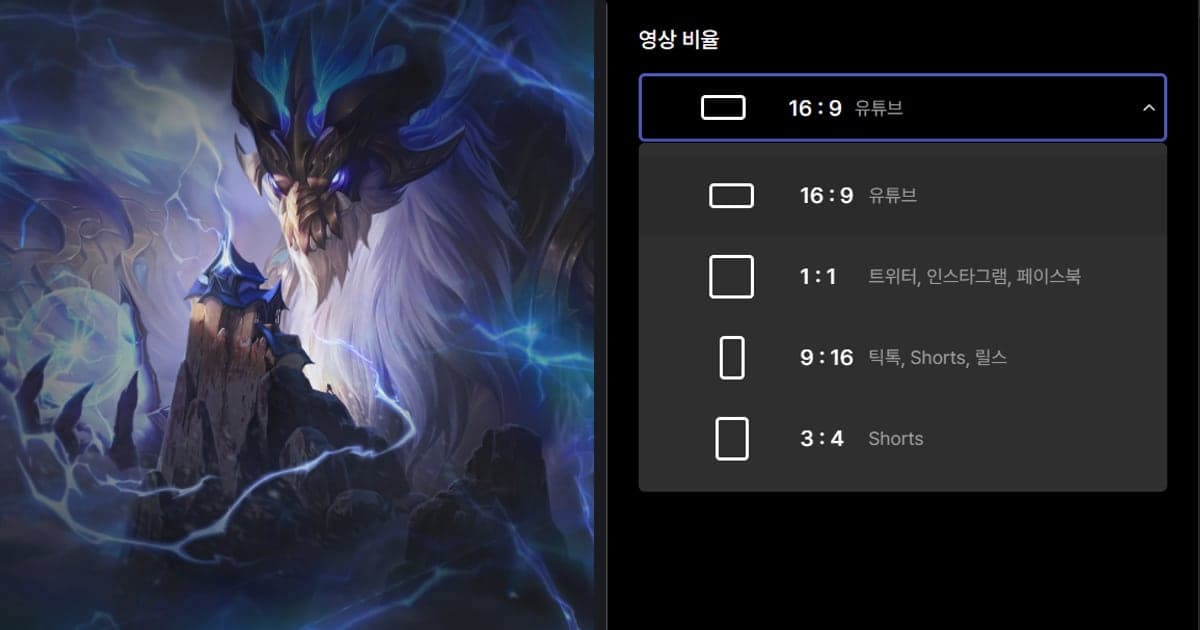
| DOR app library trim | Set a start and an end on a video in the app library and choose an output ratio (16:9, 9:16 or 1:1) | Can be shared as a dor.gg link, and works on videos in the app library |
| DOR Studio (browser) | Adjust length and combine several videos with no install, then download an mp4 or share a link | Editing happens in the browser |
Before and after you trim
- Copy the original file to another folder before you start
- Double-check whether you are pressing Save or Save as Copy right before saving
- Play the result from start to finish and confirm the first and last frames are what you wanted
- If video and audio show up as separate assets in Clipchamp, select both with Shift before splitting
- Check where you plan to upload and the original resolution before picking an export option
DOR for keeping only part of a recording
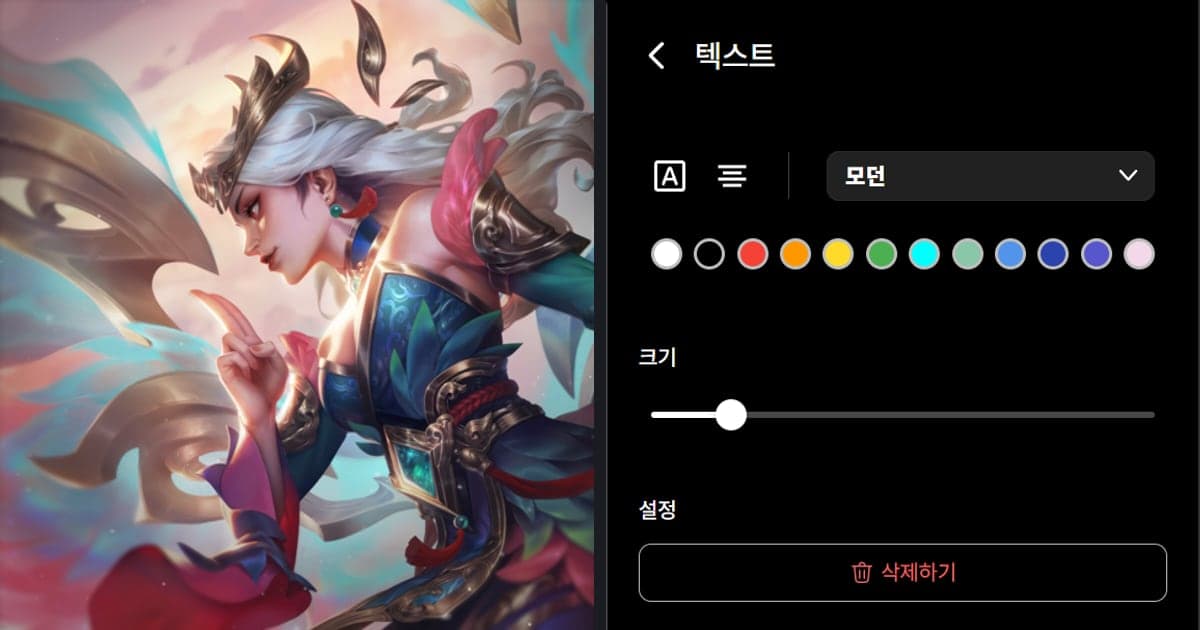
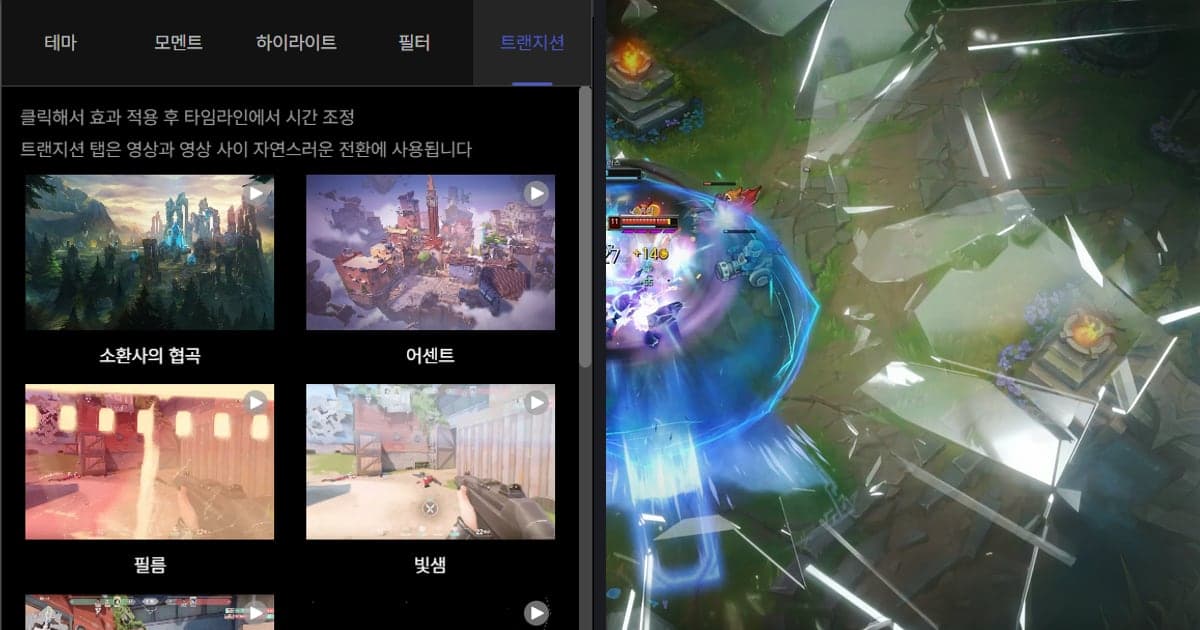
Before you can trim anything, you need a source file. DOR is a free Windows app: leave a supported game running and the whole match is recorded automatically as an mp4 and saved to the app library. Seven games, including VALORANT and League of Legends, also get automatic highlight clips such as kills, while the other supported games are recorded as full matches that you trim yourself. In the app library you can set a start and an end, then choose a 16:9, 9:16 or 1:1 output ratio, and DOR Studio in the browser lets you change length, combine videos, add text and background music with no install, then download an mp4 or share a link. The walkthrough is in the DOR browser clip editor guide. On an NVIDIA graphics card, NVENC hardware encoding is the default, and since game sound and microphone are recorded together, you can listen back to a long match while choosing where to cut.
Official sources (checked October 6, 2026)
The Photos app Trim steps come from Microsoft Support: Edit photos and videos in Windows, splitting in Clipchamp from How to split or cut videos and audio assets, and the handle-based method from How to trim videos, images, or audio assets. Menu layout and names can change with the app version and display language, so compare your screen with the official pages.