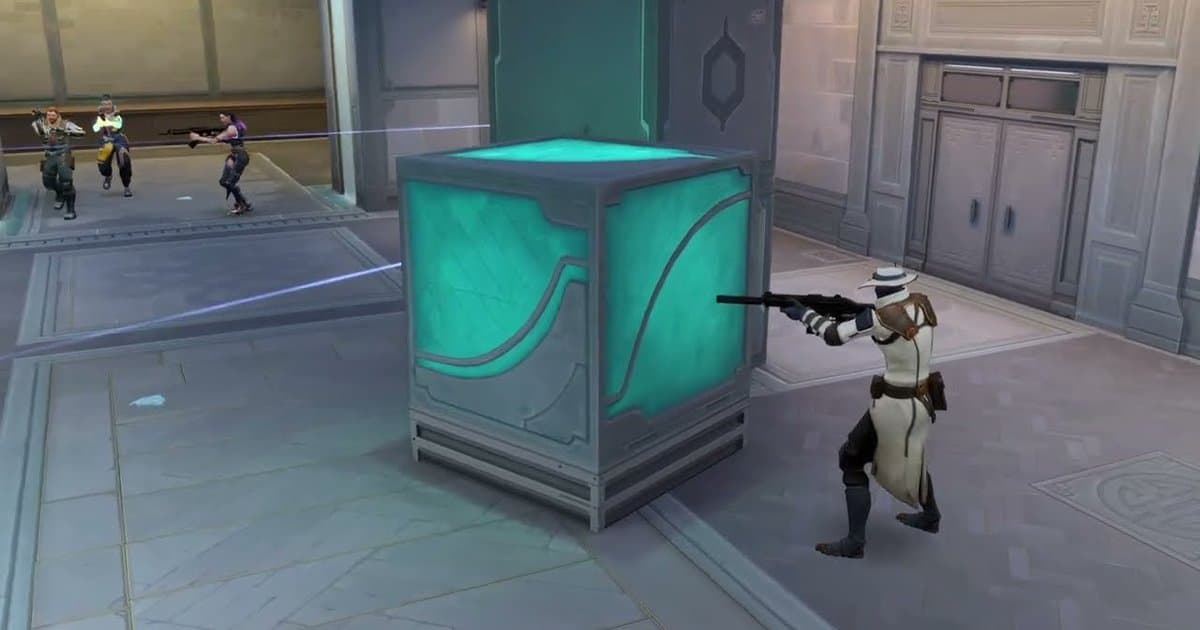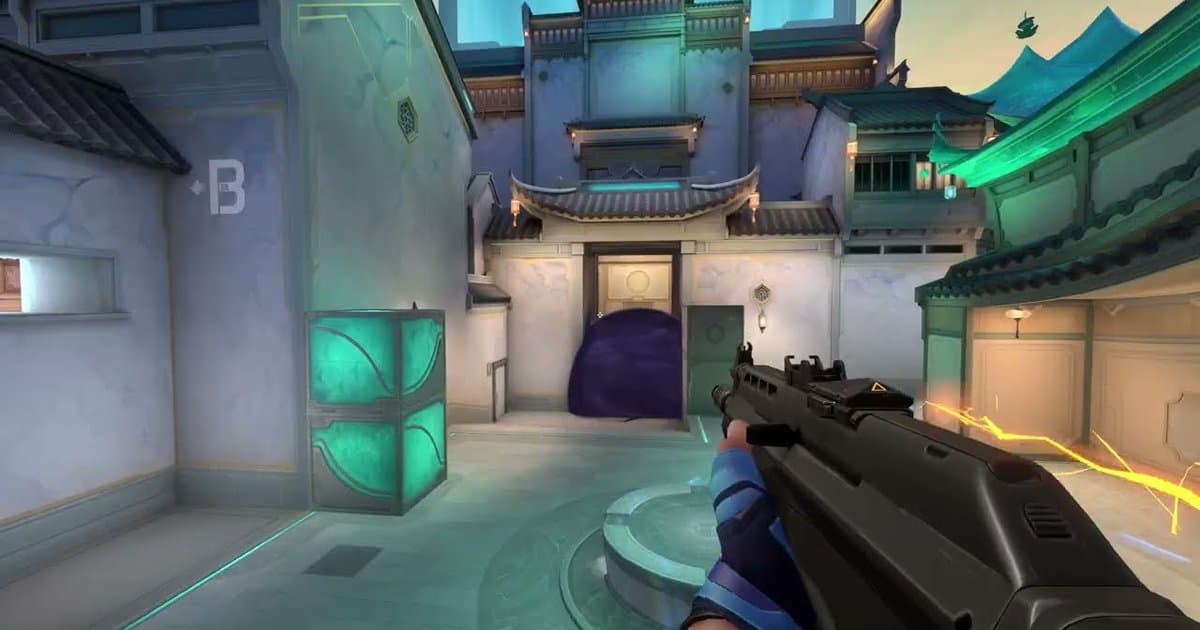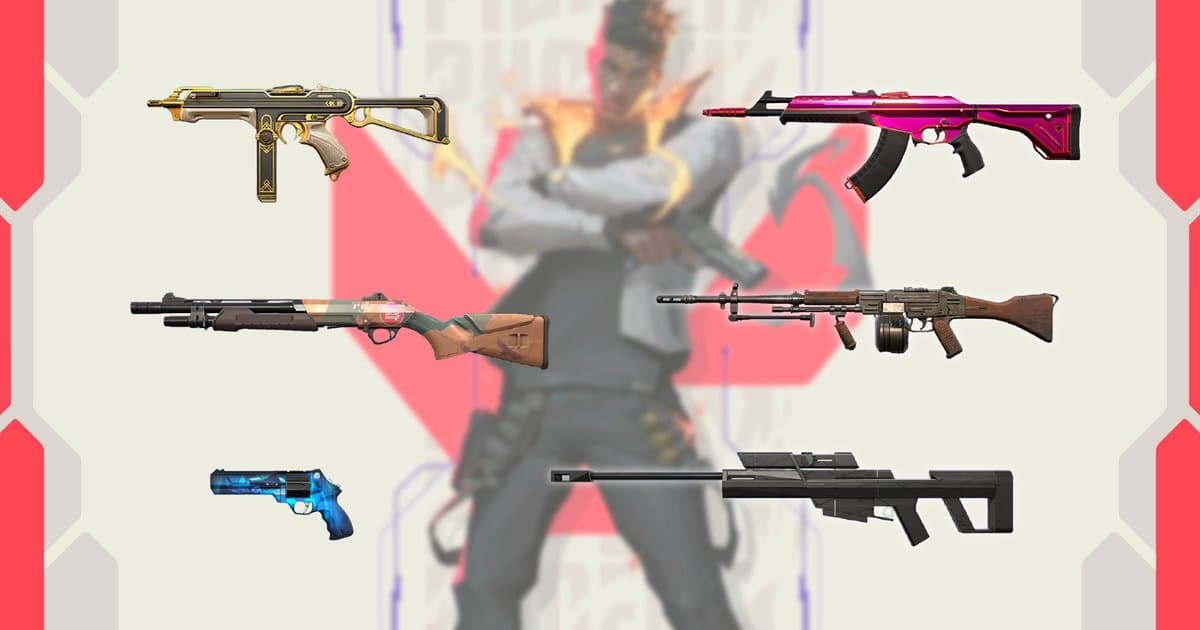
A PC bang is a Korean gaming café, and playing VALORANT at one comes with perks you do not get at home. When you log in at a Riot Premium PC bang, that month's PC bang benefits apply while you play there, and Riot announces them every month in a notice on the Korean-language VALORANT website. That is why the answer to “what are the PC bang benefits?” or “which skins are free at PC bangs this month?” keeps changing. Rather than copying one month's list that will be out of date in a few weeks, this guide covers the checks that keep working whenever you go: where to find the current benefits and free skins, where the separate PC bang VAL Pieces event is announced, how to confirm that your seat actually qualifies, and how to keep a good match you played there so you can watch it after you leave. If you are meeting friends at a PC bang for a five-stack, that last part matters most. PC bang computers are shared, so even with DOR on the seat, any video you have not saved to your account is deleted once the PC shuts down. These perks belong to PC bangs in Korea; if your own region runs an internet café program, check your region's official VALORANT announcements for the details. Benefit items and periods in this guide were checked against Riot's official notices on October 16, 2026.
Bottom line: check the month's notice and your Collection, and save the match before the PC shuts down
PC bang benefits are not something you look up once and remember. A new notice goes up every month, and in the two most recent notices the period switched over at 11:00 a.m. Korea time near the end of the month. The reliable approach is to check two things together. First, open this month's PC bang benefits notice in the announcements section of the Korean VALORANT website and read the period and the list. Recent notices through October 2026 have repeated the same core: every agent free to use, an XP boost, and free gun skins that rotate every month, with the exact boost and that month's skin list spelled out in each notice. Second, launch the game and see whether this month's PC bang skins appear in your Collection and whether you can pick agents you do not own on the agent select screen. The notices are written for Riot Premium PC bangs, so if the perks are missing, ask the front desk whether the café and your seat have Premium benefits before you start troubleshooting the client. The VAL Pieces event, which is what most people mean by the “PC bang event,” is announced separately for each act. You collect VAL Pieces by playing at a Premium PC bang and spend them in an exchange shop or on raffle entries, and each act's notice sets its own eligibility rules and dates. If you are looking for someone to go with during the benefit period, our duo finder guide covers how to match rank goals and roles. For video, the answer is simple. If DOR is installed on the PC bang seat, match clips are created automatically. To watch them after you leave, sign in and save the clips you want to your account; anything you do not save is deleted when the PC shuts down.
Save a match at the PC bang, then watch it again at home
- 1Check that your seat has the benefitsLog in to VALORANT, open your Collection to see whether this month's PC bang skins are there, then check on agent select whether you can pick agents you do not own. If neither works, ask the front desk whether your seat is covered by Riot Premium PC bang benefits. The current VAL Pieces event notice also tells players to confirm that the seat has Premium benefits applied, so if you are after the event, do this check first.
- 2See whether the seat has DORWhether DOR is installed varies from one PC bang to another. If it is on your seat, it detects VALORANT and records your matches without you pressing a record button. Depending on the seat PC's specs or memory load, automatic recording may be turned off or may skip a match, so check that clips appeared after your first game. At a Korean PC bang, the app may be shown in Korean.
- 3Play as usualOnce the match starts, DOR turns your kills and deaths into clips automatically (30 seconds by default, running until 3 seconds after the event). In Competitive, Unrated and Swiftplay, kills chained into one clip are labeled from Double Kill up to Quadra Kill and Ace; in Deathmatch they are labeled as kills. When it applies, the last kill clip of a round your team won gets an Ace or Clutch tag. For a moment that is not one of your own kills or deaths, press F8 right after it to save the last 30 seconds.
- 4Pick the moments to keepAfter the match, open it in the DOR app on the seat. Round sections and kill and death markers let you jump straight to the moment you want. You will not have time to rewatch everything at the PC bang, so pick just the few clips you want to see again. Uploading a full match video to your account is a DOR Pro feature, so on a free account, save clips rather than the whole match.
- 5Sign in and press Mobile SaveOpen the clip you want to keep and press Mobile Save. To upload several clips at once, select them and press Cloud Save. If you are not signed in and save a single clip, a prompt appears telling you to log in to save your video, with a Login button; on a PC bang seat it also says you can watch it anytime, even after you leave. The upload continues as soon as you finish signing in. If you are selecting several clips, sign in first.
- 6Confirm the upload before you shut downWhen you see “Upload complete!” and a note that the video has been saved to your account, or the progress indicator at the top of the app changes to “Video saved successfully,” you are done. If the upload fails, press Retry. Shutting down before the upload finishes may leave it incomplete, and, as the app warns, anything you did not save is deleted when the PC shuts down. Because the PC is shared, also make sure you have signed out of DOR and your Riot account before you leave.
- 7Watch it again at homeOnce the upload is done, you can bring up a QR code for checking your saved videos in the DOR mobile app. Videos saved to your account can be watched again with the same DOR account after you leave the PC bang. To record your matches at home the same way from the next game on, see the DOR section below.
Where to check VALORANT PC bang benefits, events and clips (checked October 16, 2026)
| What to check | Where to look | Good to know |
|---|---|---|
| This month's PC bang benefits (period and items) | The monthly PC bang benefits notice in the announcements on the Korean VALORANT website | A new notice goes up every month. In the last two notices, the period changed at 11:00 a.m. Korea time near the end of the month. |
| Free PC bang gun skins | The in-game Collection, plus the skin list in that month's notice | The skins rotate monthly. The notices describe them as free to use. |
| Every agent free to use | The agent select screen | If you can pick agents you do not own, the benefit is active on your seat. |
| PC bang VAL Pieces event | The separate event notice posted for each act, and My Page on the event site | It is separate from the monthly benefits notice. Check that notice for eligibility and the exchange and raffle dates. |
| Whether your seat has Premium benefits | The PC bang front desk | Both the benefits and the event are for Riot Premium PC bangs. If nothing shows up, ask the staff first. |
| Your clips recorded by DOR | The DOR app on the seat, then your DOR account once saved | Videos not saved to your account are deleted when the PC shuts down. Uploading a full match video is a DOR Pro feature. |
Before you leave the PC bang
- I checked the period in this month's PC bang benefits notice; at the end of the month the perks switch to the next month's set.
- This month's PC bang skins showed up in my Collection, and I could pick agents I do not own.
- If I am taking part in the VAL Pieces event, I checked my points history on My Page.
- I picked the clips I want to rewatch and pressed Mobile Save (or Cloud Save for several at once).
- I saw “Upload complete!” or “Video saved successfully” before shutting down; anything not saved is deleted when the PC turns off.
- I signed out of DOR and my Riot account.
Install the same auto-recording on your home PC
The DOR app that recorded your match at the PC bang is a free Windows app you can install on your own PC too. Once it is installed, it detects VALORANT when you launch it, records the full match, also split round by round, once a real match starts, and turns your kills and deaths into clips. The multi-kill labels in Competitive, Unrated and Swiftplay, the Ace and Clutch tags on rounds you won, and the round sections with kill and death markers work the same way you saw at the PC bang. The difference is that your videos stay on your own PC. They are not deleted when you shut down, and automatic file management (30 GB by default) is on, so when your recordings pass that limit it clears the oldest videos first while keeping the ones you liked. Recording defaults to 1080p at 30 fps; 1440p and above or 120 fps and above are Pro features. Resolution, frame rate and clip length cannot be changed while recording, so set them before you queue. The clip key is F8, and you can choose a length of 15, 30, 45 or 60 seconds. The black box is on by default, so pressing F8 saves the moment that just passed even when no match is being recorded. Your microphone and Record All Sounds are also on by default, which records Discord voice along with the game on a single track; turn off Record All Sounds if you only want the game window's sound and your mic. If you want to combine the same match from each friend's point of view into one video, see how Party Clip works. Download and install it with the button below, and it records from your next match.
 #Valorant