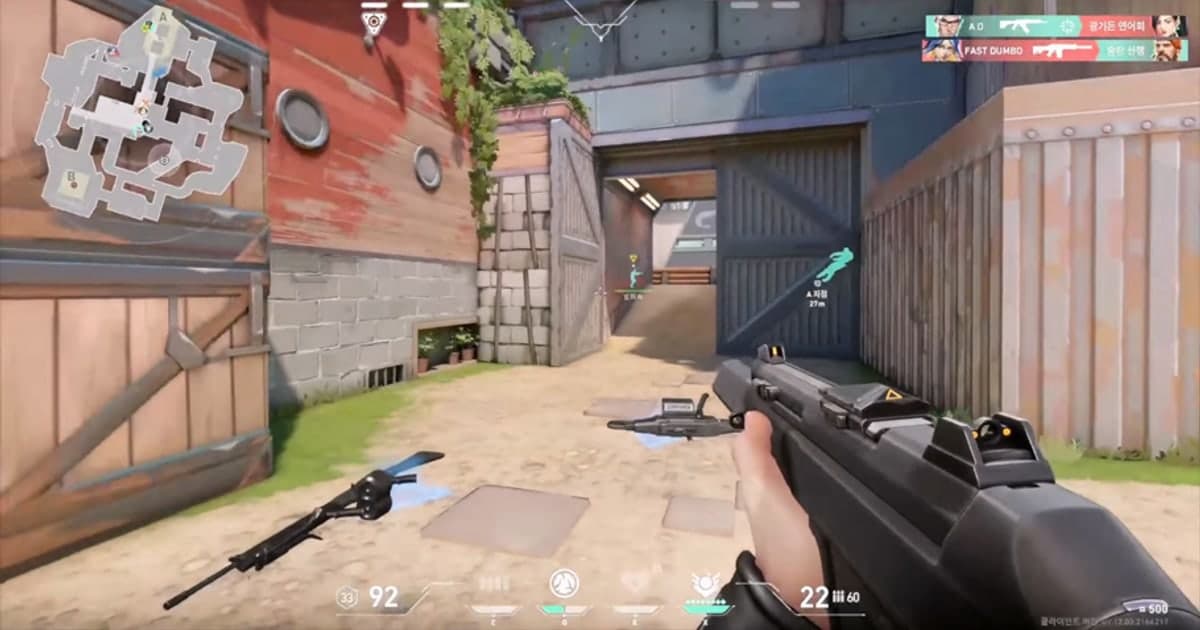
Want to rewatch a match from your duo partner's or 5-stack teammate's side of the map? Since VALORANT patch 12.10 went live on May 27, 2026, you can. Riot added Replay Friend Sharing, which lets you open a friend's Career page from your friends list, pick a match, and download and play the replay the same way you would one of your own. It works in every eligible mode: Competitive, Unrated, Swiftplay, Premier, and Custom. Once the replay is open, you are not limited to your friend's screen; you can switch to the first-person view of any of the 10 players in that match. The limits are just as clear, though. Replays only play inside the game client, the downloaded file can't be watched on other clients or platforms, and a replay expires when the next patch arrives or after 21 days. This guide focuses on friend replays and on keeping the matches you played together. For the basics of opening your own replays and reviewing them, see How to Watch VALORANT Replays. For game-specific recording and clip info, see the VALORANT page. Below you will find the short answer first, then the steps for watching a friend's replay, a comparison table, a checklist, and an alternative for keeping your friends' POVs as video.
Short answer: friend replays are enough for rewatching together; keeping video needs everyone to record
If you want to see what your friend saw in a round, or you each want to review a match you played together, friend replays cover it. Your friend doesn't need to send you anything. You grab the replay yourself from their Career page and switch to their view inside it. If your goal is to keep your friend's POV as a video file, show it through a link to someone who doesn't play VALORANT, or post it as a Short, a replay alone won't get you there. The replay can't be opened outside the client, and it doesn't last long. That leaves two options. One is to screen-record the replay playback with a recording program while the replay still exists, which means playing back and capturing each moment one by one. The other is to have everyone in your party run DOR while you play from the next match on, so each person records their own POV, and then use DOR Party Clip after the match to merge everyone's moments into one highlight video. Party Clip works in VALORANT Competitive, Unrated, Swiftplay, and Custom games; Premier is not included. You need to have recorded that match with DOR, at least two people including you need to have been in the same party, and each friend who adds a POV needs to have recorded that match with DOR too.
How to watch a friend's replay
- 1Open your friend's Career page from the friends listIn the VALORANT client, find the friend whose replay you want in your friends list and open their Career page. Since patch 12.10, you can reach your friend's match replays directly from this page. The other player has to be on your Riot friends list, so if you partied up with someone but never added them, send a friend request first. These steps are based on the PC client.
- 2Pick the match and download itChoose the match you want to rewatch from your friend's match list and press the Download button. When the download finishes, the button changes to Play, and pressing it opens the replay. It is the same process as downloading one of your own replays. Eligible modes are Competitive, Unrated, Swiftplay, Premier, and Custom; matches in modes outside that list are not covered.
- 3Switch to your friend's view inside the replayDuring playback you can switch to the first-person view of any of the 10 players in the match, or use a third-person free observer camera to look around the map. Press Space to play or pause, and use the left and right arrow keys to jump back or forward 5 seconds. Press V to toggle the camera mode and use the number keys to follow a specific player. You can also toggle ally and enemy outlines and projectile tracking, and choose a playback speed from 0.1x to 8x. Replays show gameplay only; chat is not included.
- 4For Custom games, turn on recording before the matchIn Custom games with friends, a replay only exists if the lobby owner turns on recording in the Custom options menu before the game starts. The setting does not carry over, so it has to be turned on again for every new game. If you are running several Custom games in a row, have the lobby owner check that recording is on each time.
- 5Watch it before it expiresReplays are only available for the length of a patch cycle, so they expire once the game updates, and they are deleted after 21 days. Replays from an older patch are not compatible with the new game version, so they won't open. Downloaded replays are saved on your PC, but they only play through the client, so watch the matches you care about in time and delete the ones you no longer need from the client or the /demo/ folder.
- 6Have everyone record the matches you want to keep with DORIf you want to keep your friends' POVs as video, have each party member leave DOR running on their PC and queue up together from the next match on. DOR detects supported games automatically and records the full match, so nobody has to press a record button. After the match, pick it from the Party Clips tab on the DOR app's clip screen, and have each person upload one moment of 3 to 30 seconds to merge into a highlight video.
Friend replays vs. recording on your own (Party Clip)
| Item | Friend replay (12.10) | Each player's DOR recording + Party Clip |
|---|---|---|
| Where you watch | Download it from your friend's Career page and play it inside the VALORANT client. | Each player's match is recorded to their own PC as an mp4, and the finished Party Clip video is saved as an mp4 on the creator's PC. |
| Which views | Any of the 10 players' first-person views plus a free observer camera. | Only the POVs of party members who recorded with DOR. Players who were not in your party can't be added. |
| Eligible modes | Competitive, Unrated, Swiftplay, Premier, and Custom (when the lobby owner enables recording). | Party Clip works in Competitive, Unrated, Swiftplay, and Custom. Premier is not included. |
| How long it lasts | Expires with the next patch and is deleted after 21 days. | Recordings are saved as mp4 files in your DOR save folder, so they keep playing regardless of patches. |
| How to show others | The replay file can't be watched on other clients or platforms, so each friend who wants to see it has to download it in their own client. | Post the finished video to the DOR feed and share the dor.gg link, or upload the mp4 file wherever you like. Opening the invite link in a PC browser shows each uploaded clip without logging in. |
| What you need | Just a friend on your list and a match in an eligible mode. No extra software. | You recorded the match with DOR and at least two people including you were in the same party. Uploading and creating happen in the DOR desktop app. |
Check before watching a friend's replay
- The player whose replay you want is on your Riot friends list.
- The match was Competitive, Unrated, Swiftplay, Premier, or Custom.
- For a Custom game, the lobby owner turned on recording before it started (it has to be turned on again every game).
- No new patch has come out since the match, and 21 days have not passed.
- For matches you want to keep as video, everyone in the party runs DOR and plays in the same party.
- The match you want to turn into a Party Clip is Competitive, Unrated, Swiftplay, or Custom (not Premier), and at least two people including you were in the same party.
Keep the matches you play together with DOR, one POV per player
DOR is a free Windows desktop app. When you launch VALORANT, it detects the game automatically and records the matches you play as full-match mp4 files, using NVENC hardware encoding by default on NVIDIA GPUs. Game audio and your microphone are recorded together. In VALORANT, DOR automatically creates kill and death clips plus round recordings, and each match gets a POTG, the one clip that represents that match. In Competitive, Unrated, and Swiftplay, kill clips are labeled double kill, triple kill, and so on based on how many kills you chained, and when your team wins a round with an ace or a clutch, the last kill clip of that round gets an Ace or Clutch tag. You can also save any moment yourself with a hotkey. For details on how clips are saved, see How to Clip VALORANT. The clips that pile up on each player's PC can then be combined with Party Clip. Each party member trims one of their own clips from that match to 3 to 30 seconds and uploads it. Before uploading, you can use Change Scene to pick from three recommended scenes that DOR ranked by score. Once at least one person has uploaded, you can press Create, choose a 16:9, 1:1, or 9:16 ratio, set the video order, and pick background music from the DOR music list to make one highlight video, with name cards added automatically so viewers can tell whose POV each clip is. If your party was split across two teams, as in a Custom game, team tabs let you view each side separately. The finished video is saved as an mp4 on the creator's PC, and posting it to the DOR feed gives you a dor.gg link to share. Uploading and creating are done in the DOR desktop app, and unlike a replay, the video file on your PC keeps playing after a patch.
 #Valorant