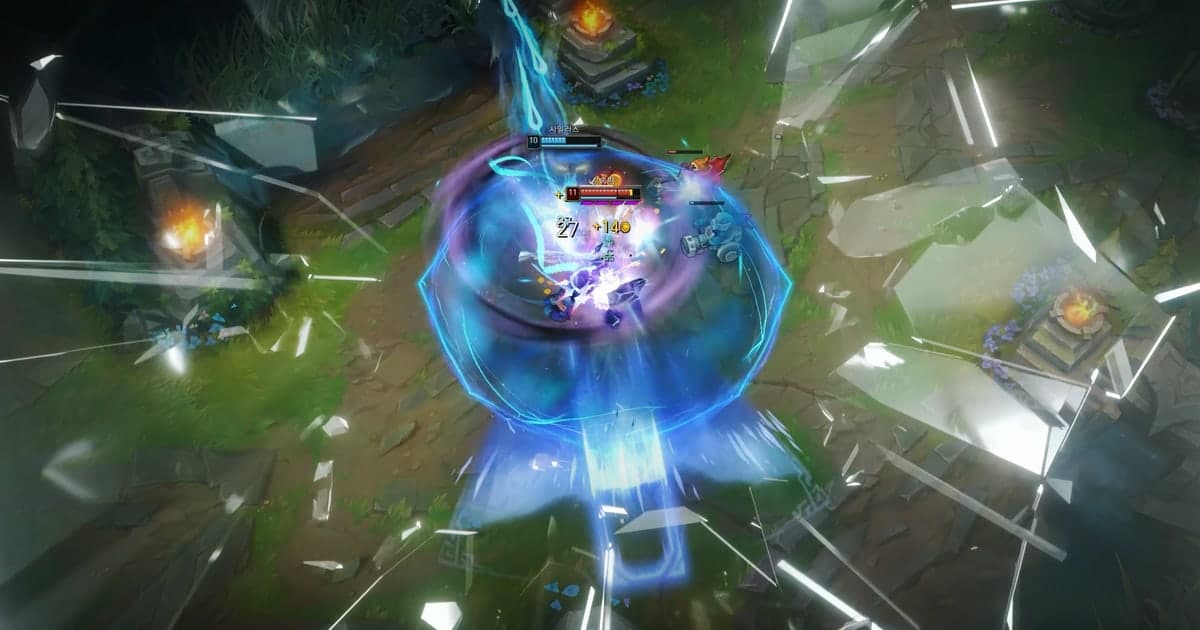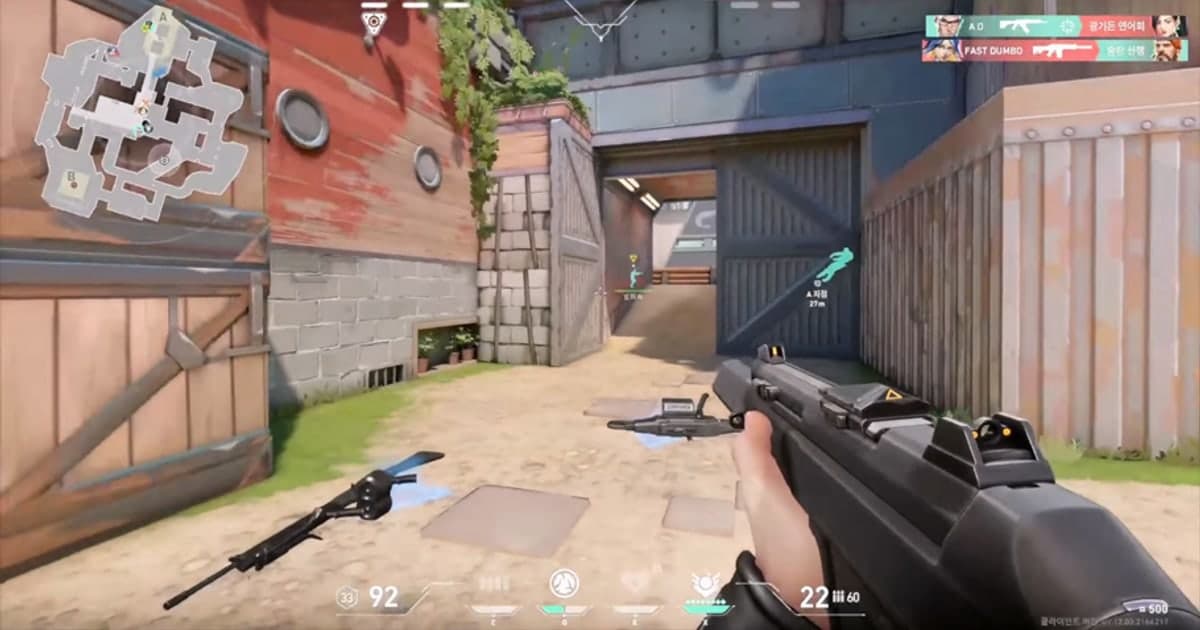
Can friends who missed it rewatch a game moment you showed over Discord Go Live? According to Discord's help center, Go Live is for showing your screen live to people in the same voice channel. To watch, a friend joins the voice channel where someone is streaming; joining another voice channel disconnects them from the Go Live session, and each viewer can watch only one stream at a time. The help article doesn't describe any way to watch a stream again after it ends. So if you want friends who weren't online to see the play, someone has to record it, separately from the screen share. In short, watching together right now is a job for screen sharing, watching later is a job for a recorded highlight, and seeing one match from several players' POVs is a job for gathering everyone's own recordings. This guide uses games people often play with a Discord call open, like Valorant and League of Legends, to walk through which option fits which situation, how to save a highlight step by step, and what to keep in mind before you record a friend's screen share.
Bottom line: screen share for friends watching now, a highlight for friends watching later
Two questions decide it: is the viewer there right now, and how many players' POVs do you need? If your friends are in the same voice channel and you want to watch your screen together while you talk, screen sharing is enough. You can start it straight from the voice channel, and as of October 2026 Discord's help center says all users can stream up to 720p/30fps, while Nitro and Nitro Classic subscribers can stream up to 4K/60fps. Screen sharing doesn't help friends who weren't in the call, were in another channel, or want to watch tomorrow. For them, record the match and send just the moment as a link or a file. It also doesn't fit when you want one match from each friend's POV: a screen share only plays live and doesn't keep or combine anyone's POV, and per the help center a viewer watches one stream at a time, so collecting each player's own recording after the match works better. Screen sharing and recording don't replace each other, so you can use both. Go Live to watch together now, and keep a recording running on your own PC at your own recording settings, so friends who missed it can see it later. For setting up a local recording alongside a stream, see our guide to recording settings for streamers. You can also record a friend's screen share on your end with screen recording software, but it won't come out better than the quality that was streamed, and you need the streamer's permission. Getting the clip from your friend's own recording is usually the cleaner route.
How to save a highlight for friends who missed it
- 1Decide who will watch, and whenIf your audience is just the friends gathered in the voice channel right now, screen sharing covers it. If you also want friends who aren't there, friends in other servers, or friends who will watch tomorrow to see it, or you want several POVs, set up recording before the match. A match you didn't record has to be recovered some other way, such as an in-game replay, so make this call before you queue up.
- 2Make sure recording is running before the matchScreen sharing only sends your screen live, so to keep anything, a recorder has to be running on your PC. If you use a recording app, check that it is on before the match starts and that the save folder has free space. DOR detects supported games when you launch them and records the full match as an mp4 automatically, so there is no record button to forget each match.
- 3Mark the moments during the matchFinding a moment in a full-match recording later takes time. If your recorder can save a clip with a hotkey, press it the moment you think the group needs to see this. DOR lets you save a clip with a hotkey in supported games, and in League of Legends and Valorant it creates event clips such as kills and deaths automatically, which makes the moment easier to find after the match.
- 4Trim just the moment after the matchA friend who missed it rarely wants to watch the whole match. Keep only a few seconds before and after the play so it is quick to watch. In the DOR app library, the trim tool lets you set the start and end points and choose a 16:9, 9:16 or 1:1 output ratio. Pick the ratio by where your friends will watch it: a chat window on PC or a phone.
- 5Send it as a link or a fileSend the trimmed clip as a link or an mp4 file. When a trim in DOR finishes, you can share it as a dor.gg link, which also plays in a mobile browser. Paste the link into your Discord chat or any messenger, and friends who weren't in the voice channel can open it whenever they like. If you send a file instead, check the upload rules of the place you are sending it to first.
- 6Use Party Clip when you want several POVsTo include the POVs of friends who played the same match, you need the clips each of them recorded on their own PC. In Valorant (Competitive, Unrated, Swiftplay and Custom) and League of Legends (matches you played, not replays or spectating), DOR Party Clip lets each party member upload one clip of 3 to 30 seconds and turns them into one highlight video. You need to have recorded that match with DOR with at least two people, you included, in the same party, and every friend who adds a POV also needs a DOR recording of that match.
- 7From the next match, show it and save it at the same timeScreen sharing and recording don't replace each other. Go Live for friends in the voice channel now, keep recording on your PC, and you can send the moment to friends who missed it later. Recording on the player's PC, not the viewer's, also means the clip is saved at your own recording settings rather than at whatever quality the stream ran at.
Which to use: watching now vs. watching later vs. gathering several POVs
| Situation | What fits | Good to know |
|---|---|---|
| Your friends are in the same voice channel right now | Discord screen share (Go Live) | Per Discord's help center, viewers have to join the same voice channel, and a stream allows up to 50 concurrent viewers. All users can stream up to 720p/30fps, Nitro and Nitro Classic subscribers up to 4K/60fps. |
| A friend wasn't there (another channel or another time) | Trim a recorded moment and send it as a link or file | The Go Live help article doesn't describe any way to rewatch a finished stream. Recording has to be on before the match. |
| You want one match from each friend's POV | Gather each player's own recording after the match (DOR Party Clip in Valorant and LoL) | A screen share plays live and doesn't keep or combine POVs, and per the help center a viewer watches one stream at a time. For Party Clip, every friend adding a POV needs a DOR recording of that match. |
| You want to keep a moment from a friend's screen share | Ask your friend for the clip from their own recording | Recording the stream on your end won't beat the quality that was streamed. Get the streamer's permission before saving or posting it. |
| You want to show it now and keep it for later | Screen share and record at the same time | Screen sharing shows, recording keeps, and one doesn't replace the other. Run the recording on the PC of the person playing. |
| You need a vertical video for Shorts or Reels | Record, then trim to 9:16 | Screen sharing is a live feed, so you need a recorded source to edit. Both DOR's trim tool and Party Clip can output 9:16. |
Before you screen share or save a highlight
- You know whether your audience is in the voice channel now or will watch later.
- In a server, screen sharing requires the Video permission on that channel, and you have it.
- For a match worth keeping, recording is on before the match starts and there is enough free space.
- You can find the moments you want to show through hotkey clips or automatic clips.
- You trimmed each moment to a few seconds before and after, and picked the ratio for where it will be watched (16:9 landscape, 9:16 vertical).
- You have your friends' permission before posting anything that shows their screen or voice somewhere else.
- If you want several POVs, the friends adding theirs are recording the same match on their own PCs.
Show it now and keep it for later with DOR
DOR is a free Windows desktop app. It detects supported games when you launch them and records the full match as an mp4, using NVENC hardware encoding by default on NVIDIA GPUs, and it records game audio and your mic together. Automatic highlight clips are made in seven games: in League of Legends you get clips for kills, multikills, assists, deaths, objectives, turrets and the game end; in Valorant you get kill and death clips and round recordings; and in both games a POTG, that match's featured clip, is picked every match. Other supported games are recorded as full matches, and you can also save any moment yourself with a hotkey. In the app library, the trim tool lets you set a start and an end and pick 16:9, 9:16 or 1:1, and when it finishes you can share the clip as a dor.gg link that also plays in a mobile browser. For friends who weren't in the voice channel, leave that link in the chat. To gather your friends' POVs of the same match in Valorant (Competitive, Unrated, Swiftplay and Custom) and LoL (matches you played), use DOR Party Clip. Each party member picks one of their own clips from that match and uploads 3 to 30 seconds of it. Once at least one person has uploaded, Create lets you set a 16:9, 1:1 or 9:16 ratio, the order and the music, and turns the clips into one highlight video. The finished video is saved as an mp4 on the creator's PC, and if you post it to the DOR feed you can share it as a dor.gg link. Friends who open the invite link in a PC browser can watch the clips already uploaded without installing DOR. For how clips are saved in each game, see How to Clip Valorant and How to Record League of Legends. DOR isn't a tool for recording Discord screen shares or for streaming; it records the game on the player's PC so the moment is kept.
 #Valorant