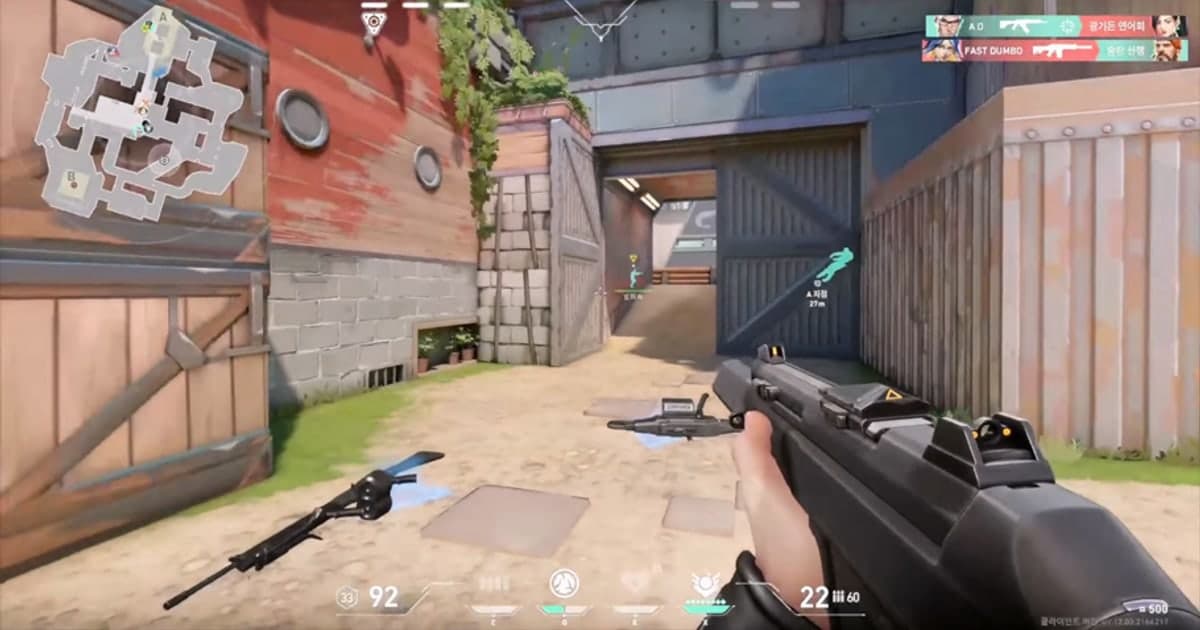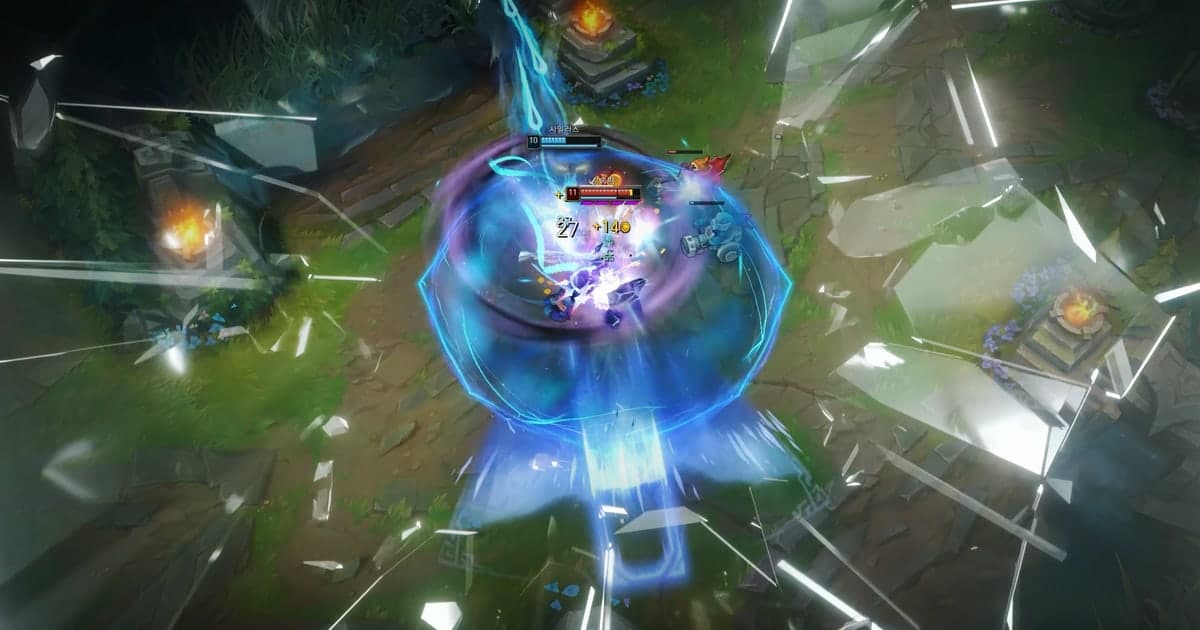
To put both POVs in a duo highlight video, you first need both players' recordings of the match. From there you pick one of two formats: split screen, which shows the same moment side by side in one frame, or a sequence that plays one POV after the other. The fun of duo play usually lives in the moments you set up together: your support's engage and your ADC's cleanup in the same teamfight, or one player opening a site with utility while the other swings in for the kills. Your own recording only keeps your half of that. What your duo saw, and when they moved, is only on their screen. This guide uses League of Legends and Valorant duos as the example and compares three ways to get both views into one video: trading recordings and joining them in an editor, split screen, and DOR Party Clip. It also covers how to structure a duo highlight, whether you show the same play from two angles or each player's best moments in turn. It does not cover finding a duo partner or general editing of one person's clips; the focus is only on keeping one match you played together from two POVs.
Bottom line: split screen for the same moment, back-to-back POVs for each player's plays, and Party Clip if you both recorded LoL or Valorant with DOR
Which method fits depends on what you want to show and what each of you recorded with. If you want viewers to see the same moment through both players' eyes at once, such as a teamfight or a 2v2, split screen is the right format. One person has to collect both original files and build it in an editor that can stack video tracks, and you need to line up both videos to the frame. DOR has no split-screen feature, so this format belongs to other editing software. If you want to show plays from different points in the match in turn, or replay one moment from one POV and then the other, joining the clips back to back is enough. In that case, if you played LoL or Valorant as a duo and both recorded the match with DOR, DOR Party Clip lets you do it without trading recordings: each of you uploads one 3 to 30 second clip from your own PC, and the clips are joined in order into one video with music and name cards. If it's a different game, one player's moment runs longer than 30 seconds, or the moment you want isn't among the scenes DOR recommends, trade recordings and join them yourself in an editor. The basics of putting clips in order and adding transitions are covered in How to Merge Multiple Game Clips, and cropping landscape footage into a vertical video is covered in How to Make a Vertical (9:16) Game Video.
How to make a two-POV duo highlight
- 1Make sure both of you record the matchEvery two-POV video starts with two recordings. After the match, the replay is all that's left for getting back what your duo actually saw, so agree before you queue that both of you will have a recorder running. With DOR, supported games are detected when they launch and the full match is recorded automatically, so nobody has to remember a record button, and in LoL and Valorant moments such as kills are also saved as automatic clips. To use Party Clip as well, both of you need to record with DOR. In Valorant the match must be Competitive, Unrated, Swiftplay or Custom; in LoL it must be a match you queued into together from the same lobby and actually played (replays and spectated games don't count). If only one of you recorded a match that's already over, you can still re-record your duo's view from the replay.
- 2Choose the structure: one moment from two POVs, or each player's playsDuo highlights fall into two structures. The first shows the same moment from both POVs. For a bot lane duo, that means the engage from the support's screen followed by the cleanup from the ADC's screen in the same teamfight; in Valorant, it's one player opening the angle with utility and the other swinging in for the kill. The second strings together each player's plays in match order. For a jungle and mid duo, you might use the jungler's POV for an early gank and the mid laner's POV for a late-game carry; alternating between moments from different points in the match tells the story of the whole game in one video. The same-moment structure suits split screen or back-to-back cuts, while the each-player structure suits joining clips in sequence.
- 3Pick the moments and line up the two POVsOnce the structure is set, each of you picks the moments to use from your own recording. If you are using the same moment, you need to find that instant in both videos, and the on-screen game clock is your reference. LoL shows the game time in the top-right corner and Valorant shows the round timer at the top center, so find the same time in both videos. A short, sharp cue such as a kill notification popping up or an ability sound makes it easier to line things up to the frame. Some editors can align two videos automatically by their audio waveforms (DaVinci Resolve's Auto Align Clips, for example), but two players' recordings don't hear exactly the same sounds, so the result can be off; check it again against the on-screen clock. In DOR Party Clip, the match timeline in the editor, which shows while you hold Tab over the video, marks where each uploaded clip falls, by minute in LoL and by round in Valorant, so you can see right away whether the two of you picked the same moment.
- 4Join the two POVs with DOR Party ClipIf you played LoL or Valorant as a duo and both recorded with DOR, open the Party Clips tab on the clips screen of the DOR app, pick the match and press Create Party Clip to open a room. If a pop-up suggests a match you played together in the last four days when you launch the app, you can start from there instead. If your duo isn't in the room yet, press Invite to send a DOR DM (if they have linked their Riot account to DOR), or press Copy invite link and paste the link into your chat app. Each of you then signs in to DOR and uploads one clip of your own from that match on your own PC. Use Change Scene to choose among the three recommended scenes DOR picked based on their scores, trim the part you want to between 3 and 30 seconds, and press Upload Mine. You can't change a clip after uploading, so check that it fits the structure you chose earlier. Create becomes available once at least one clip is in, but to get both POVs, wait until your duo has uploaded too. Then choose the ratio (16:9, 1:1 or 9:16), drag the clips if you want a different order than match time, and pick a track and section from DOR's music list. Each clip gets a name card automatically, so viewers can tell whose POV it is.
- 5Use an editor for split screen or to join the files yourselfWhen Party Clip doesn't fit, or when you want the same moment side by side, collect both recordings on one PC. Full-match files are large, so trim just the parts you need first and send them through a cloud drive or similar to save time. Split screen is built in an editor that can stack video tracks, such as DaVinci Resolve, Premiere Pro or CapCut. Put the two videos on separate tracks, line up their start using the reference point you found earlier, then resize, reposition or crop each one to place them side by side or one above the other. Splitting a 16:9 frame left and right either shrinks both views or cuts off their sides, so for Shorts, stacking two landscape videos top and bottom in a vertical 9:16 frame often works better. For audio, leaving both tracks on makes the same sounds play twice, so pick one player's game audio as the main track and turn the other down or off.
- 6Label each POV and export in the right ratioThe first thing viewers get confused about in a two-POV video is whose screen they are watching. In an editor, put each player's name and role (for example, support or ADC) as text at the start of each POV or in a corner of the split screen; Party Clip adds name cards automatically. When you replay the same moment from the second POV, starting it a second or two earlier gives viewers time to catch up with the situation. Export in 16:9 for regular YouTube videos and in 9:16 for Shorts, Reels and TikTok. A finished Party Clip is saved as an mp4 in the match's folder inside the DOR save folder on the creator's PC, and when it is done, the DOR feed post window opens so you can mention your duo, post it and share it as a dor.gg link.
Ways to get both POVs into a duo highlight
| Method | What you get and what you need | Things to watch for |
|---|---|---|
| Edit from your recording only | A highlight from your POV alone. You just need your recording and an editor. | Your duo's play only shows as much as your screen caught, so half of every play you set up together is missing. |
| Trade recordings and join them | A video that plays the two POVs one after the other. You need both recordings, a way to send files and an editor. | Full-match files are large and slow to transfer, and you find, trim, order and label every moment yourself. |
| Side-by-side split screen (16:9) | Both POVs of the same moment side by side in one frame. You need both original files and an editor that can stack video tracks. | You have to line up both videos to the frame, and each view shrinks to half or loses its sides, so small text and the minimap get hard to read. |
| Stacked vertical video (9:16) | A Shorts-style video with the two POVs stacked top and bottom in a vertical frame. You need the same things as for side by side. | Lining up the two POVs works the same way, and you need a title or names ready for the space left around the two videos. |
| Re-record your duo's POV from the replay | If your duo didn't record, you re-record their view from the replay. You need the game client and a screen recorder. | Replays play only inside the game client and stop working after a patch, so record soon. The replay is a spectator view and may not match the screen your duo actually saw. |
| DOR Party Clip | Each player's chosen 3 to 30 second clip is joined into one video with name cards and music. Both players need the DOR desktop app and a DOR recording of that match. | It works only in LoL and Valorant (four queues), each player uploads one clip that can't be changed afterwards, and since it joins clips in sequence, it doesn't do split screen. |
Check before you start
- Both of you recorded the match (both with DOR, if you want to use Party Clip).
- You chose the structure, one moment from two POVs or each player's plays, and agreed on which moments each of you will use.
- If you are using the same moment, you found a reference point in both videos, such as the game clock or a kill notification.
- If you want split screen, you have both original files and an editor that can stack video tracks.
- Each POV is labeled with a name or role so viewers know whose view they are watching.
- The audio is based on one side, and you picked 16:9 or 9:16 for where it will be posted.
Keep your duo matches from both POVs with DOR
DOR is a free Windows desktop app. It detects supported games when you launch them and records the full match as an mp4, using NVENC hardware encoding by default on NVIDIA GPUs, and it records game audio and your mic together. In LoL, kills, multikills from double kills up to pentakills, assists, deaths, objectives, turrets and the game end are saved as automatic clips; in Valorant you get kill and death clips and round recordings. In both games DOR also picks a POTG, the match's featured clip, every match, and you can save any moment yourself with a hotkey. If you and your duo each run DOR and play in the same party, you can join both of your POVs into one video with Party Clip after the match. The requirement is a match you recorded with DOR that at least two people, you included, played in the same party, so a duo qualifies as is. A friend who opens the invite link in a PC browser can watch the clips already uploaded without installing DOR, but adding their own POV takes the DOR desktop app and a DOR recording of that match. The full Party Clip workflow and how it works for a 5-stack are covered in Multi-POV Highlights With Friends. Party Clip and DOR Studio have no split-screen feature, so to place the two POVs side by side in one frame, use another editor as described in the fifth step above.
 #League of Legends