
Your game closes with an out of memory message, or a heavy release drops you to the desktop halfway through a loading screen. The advice that shows up first in every thread is to increase virtual memory.
Then you open Task Manager, the memory graph says you are only using about 70 percent of your RAM, and the advice sounds wrong. It is not, and the reason is that Windows tracks memory with two different numbers.
This guide takes what Microsoft's own documentation says about the page file, as checked on November 10, 2026, and turns it into a short troubleshooting order for game crashes. It also explains why we do not hand you a magic number.
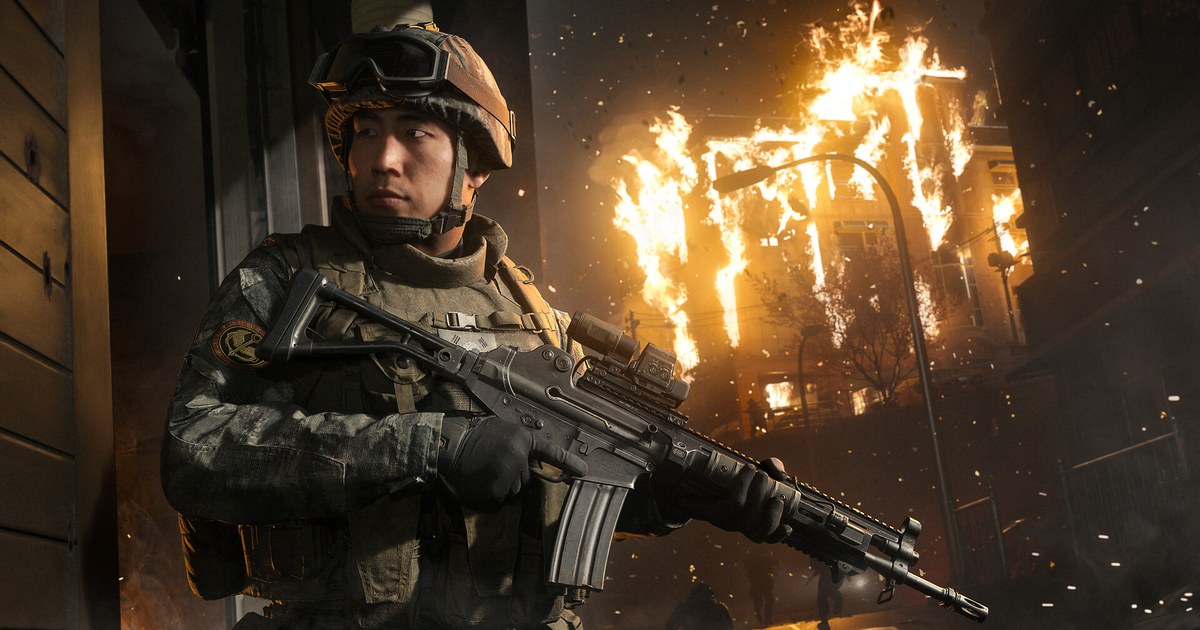
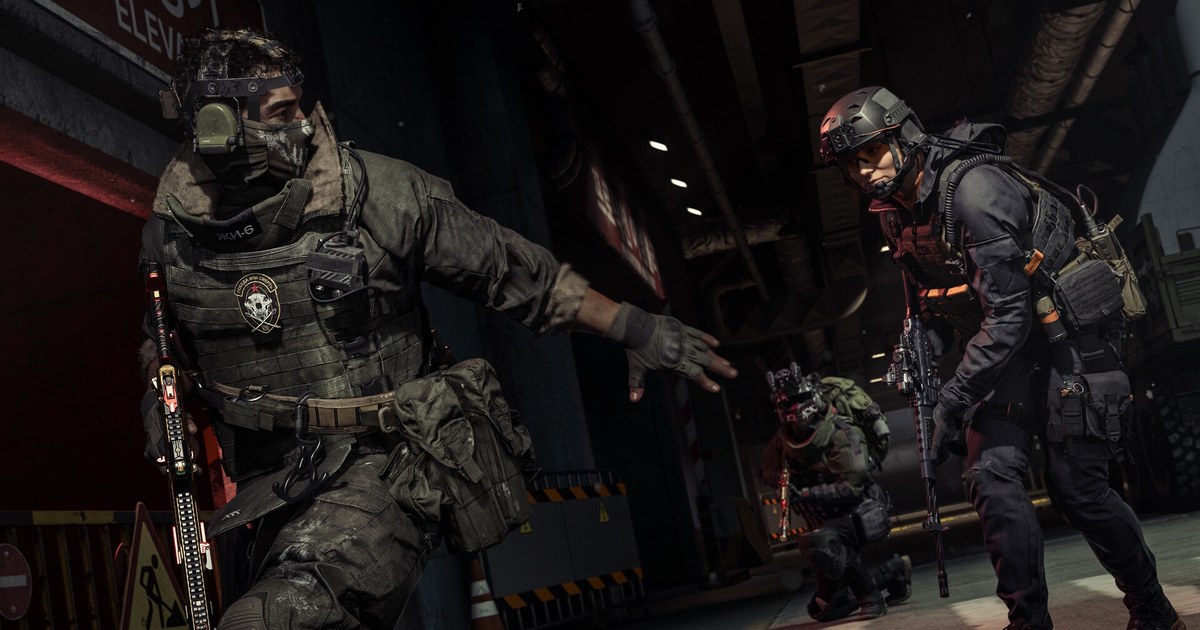
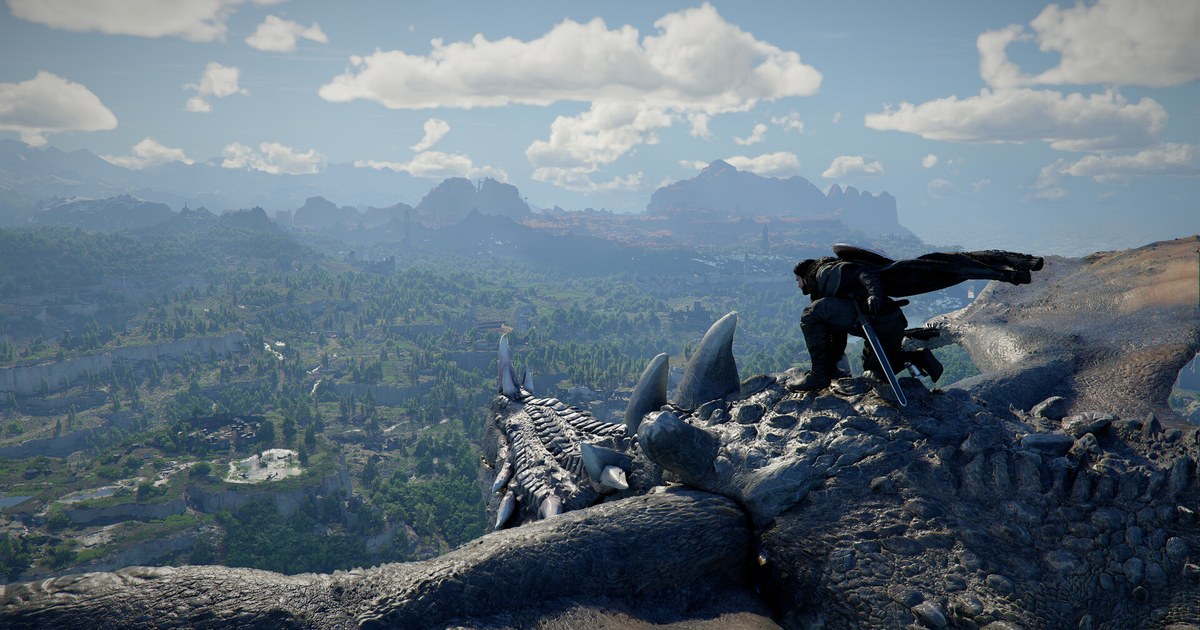
For reference, Call of Duty: Modern Warfare 4 lists 8 GB of RAM as the minimum and 16 GB as recommended on Steam, while Crimson Desert asks for 16 GB at both tiers plus an SSD (Steam store pages, November 10, 2026).
The closer your PC sits to those lines, the sooner a browser, Discord and a recorder running beside the game will push you into the limit. This article only covers page file settings. Whether to buy more RAM is a separate call.
Symptom checker: where to look first when a game crashes out of memory
| Symptom | Check first | What to do |
|---|---|---|
| Windows warns that memory is low, then the game closes | Whether the first number under Committed in Task Manager is touching the second one, the limit | Restore the system managed size, close heavy background apps and replay the same section. |
| RAM usage sits around 70 percent but the game still crashes | The commit limit, not the usage percentage | Watch whether Committed climbs to around 90 percent of the limit during play. |
| You set No paging file after reading an optimization guide | Without a page file the limit is slightly below installed RAM | Turn automatic management back on and restart. |
| You locked a small custom size | A low maximum stops the limit from growing | Go back to automatic, or raise the maximum well above your highest commit value. |
| Drive C is almost full | The managed page file has no room to grow | Clear temp files, unused games and old recordings, or add a page file on another SSD. |
| No dump file appears after a blue screen | The page file is too small or missing to back the dump | Keep the page file on and leave it system managed. |
| Crashes only happen while recording | Memory and GPU shared by the recorder and the game | Lighten the recording settings first, following game crashes while recording. |
Why you can run out of memory with RAM to spare: the commit limit
When a program asks for memory, Windows first promises it that amount. The total of those promises is the commit charge, and the most Windows can promise is the commit limit.
According to Microsoft, the commit limit is physical RAM plus all page files combined, and when the commit charge reaches it, the system and running programs may fail to get memory, which can cause freezing, crashing and other malfunctions.
The RAM usage figure on the first Task Manager graph only counts what is physically sitting in RAM, so it can look lower than the commit charge. That is how you end up with free RAM and an out of memory crash at the same time.
The page file moves rarely used data off to disk so RAM can serve the data you use often, and it also raises the commit limit. With no page file at all, the limit ends up slightly below your installed RAM.
In the default system managed mode, Windows grows the page file once the commit charge passes 90 percent of the limit, and it keeps growing it up to three times your RAM or 4 GB, whichever is larger.
That ceiling is capped at one eighth of the drive, and it assumes the drive has free space to grow into. With 16 GB of RAM the math says 48 GB, but if Windows lives on a single 256 GB SSD, one eighth works out to roughly 30 GB.
Note that the oft quoted 3x figure is the ceiling automatic management can reach, not a recommendation. Because the page file sits on disk, it is far slower than RAM, so enlarging it will not raise your frame rate. It is a safety net against commit limit crashes.
Microsoft also states that page file size depends on crash dump settings and peak commit charge, differs even between identical systems, and cannot be generalized. That is why this guide puts restoring the system managed size first.
Page file checks that stop out of memory crashes
- 1Read the commit values in Task ManagerPress Ctrl+Shift+Esc, open the Performance tab and select Memory. Under Committed you will see two numbers such as 12.4/24.0 GB. The first is the current commit charge, the second is the limit. Run your usual setup, the game plus Discord, a browser and your recorder, play up to the point where it usually crashes and see how close the first number gets to the second. If it nearly touches the limit, the page file is the likely culprit. If there is plenty of headroom and it still crashes, look elsewhere.
- 2Open the Virtual Memory windowGo to Settings > System > About and select Advanced system settings, or press Win+R and type sysdm.cpl. On the Advanced tab of System Properties, select Settings under Performance, then on the Advanced tab of Performance Options select Change under Virtual memory. The bottom of the window shows the minimum allowed, recommended and currently allocated sizes, so note your current state before changing anything.
- 3Restore the system managed sizeTick 'Automatically manage paging file size for all drives' at the top. If it was unticked and drive C showed No paging file or a small custom size, that may well have been the cause of your crashes. Select OK and restart if Windows asks you to. For most people the fix ends here. A system managed page file grows as the commit charge rises and also sizes itself to hold a crash dump if Windows hits a blue screen.
- 4Free up space on drive CAutomatic management only works if the drive has room to grow. Games now ask for so much storage, 115 GB on an SSD at launch for Modern Warfare 4 and 180 GB for Crimson Desert, that a full drive C is common. Clear temporary files under Settings > System > Storage, uninstall games you no longer play and delete old recordings. If your recordings pile up on drive C, move them to another drive with our guide to changing the recording save location.
- 5Add a page file on another SSD or set a custom sizeIf drive C is small enough that the one eighth cap bites, untick automatic management, leave drive C as it is, pick another SSD with free space, choose System managed size and select Set. When several page files exist, the one that responds first is used, so the faster drive sees more use. If you insist on numbers, set the maximum comfortably above your highest commit value from step one minus your RAM, so the limit sits well above your peak. Afterwards, replay the same section and check Committed again.
After you change it, confirm these
- The second number under Committed in Task Manager, the limit, is larger than before.
- Automatic management is ticked, or your custom maximum sits comfortably above your highest commit value.
- The drive holding the page file still has free space to grow into.
- Drive C is not left on No paging file.
- You replayed the section that crashed under the same conditions, including the apps you normally keep open.
Keep the moments right before the crash on video
Out of memory crashes are hard to pin to an exact moment, and the only way to know whether a settings change worked is to replay the same section.
DOR is a free Windows game recording app that detects supported games when they launch and records the whole match, or the whole session from launch to exit, collecting the recordings in My Clips inside the app.
For Modern Warfare 4 it detects the campaign and multiplayer separately and records each full session. When the game closes, that session's video ends there too, so the last part of the recording shows exactly where you were when it crashed.
Trim the part you need in the app at 16:9, 9:16 or 1:1, then export it as an mp4 or share a dor.gg link from DOR Studio (dor.gg/studio) to attach to a support ticket or a forum post.
A recorder uses memory as well, so when you measure Committed in step one, keep recording on as you normally would to match real conditions. Recordings are only cleaned up, oldest first, once they exceed the full gameplay storage share (5 GB by default), and recent recordings and liked videos stay.
On supported NVIDIA graphics cards such as the RTX series, DOR records with NVENC hardware encoding. For settings that keep long recordings stable, read how to record long gameplay without stutter.