The short answer is four changes in this order. Set Overall Quality to Custom, turn VSync off, disable Global Illumination, and lower Reflections. On most PCs those four alone are noticeable, and if you still need frames, move on to upscaling, shadows, and effects.
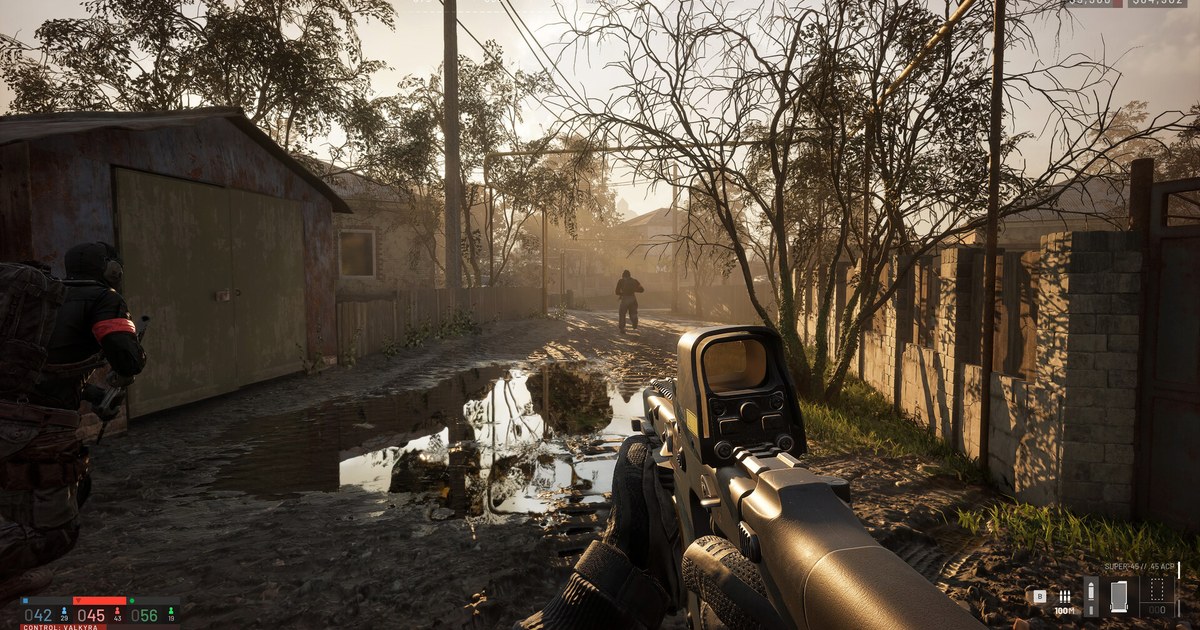
WARDOGS throws vehicles, helicopters, and destructible terrain at your GPU in big 100-player matches, so the cleanest method is to change one thing at a time and measure again in the same place. To put an FPS counter on screen, see how to show FPS in games.
Option names here follow the English in-game menu and the values that several guide sites agree on. Menus can change with updates, so this is current as of November 24, 2026.
The answer: switch to Custom and lower the three expensive options first
According to the Steam store page, the minimum spec is a GTX 1660 or RX 590 with 16 GB of RAM, aimed at 1080p Low at 60 fps with upscaling on. The recommended spec is an RTX 3070 or RX 6700 XT, aimed at 1440p Medium at 70 fps or more at native resolution.
If your PC sits near the minimum, that target assumes upscaling, so turn on DLSS or FSR at Quality from the start.
Among the options, several guides agree that disabling Global Illumination, dropping Reflections to the lowest step, and turning off Picture-in-Picture Scope, which draws an extra view through magnified optics, matter most for frame rate.
Keep Textures on High if you have roughly 8 GB of VRAM or more, and drop to Medium or Low if you do not. The exact gain differs from PC to PC, so no single number can be promised.
How to change settings when your FPS is short
- 1Set your measuring baseline firstNote your average and lowest frame rate in the same area at the same moment. Measure during a big fight, since that is where it matters. For the on-screen counter, follow how to show FPS in games.
- 2Switch to Custom and turn VSync offOverall Quality must be Custom before you can adjust options one by one. Turn VSync off and turn on NVIDIA Reflex if your card supports it. For display mode, choose fullscreen or borderless windowed, whichever you prefer.
- 3Turn on upscaling at QualityUse DLSS on RTX cards and FSR on other graphics cards, set to Quality. Drop to Balanced only if you need more frames, and avoid Performance and Ultra Performance because distant enemies get blurry. Frame Generation raises the frames you see but can add latency, so stabilize your base frame rate first and then decide.
- 4Lower the three expensive optionsDisable Global Illumination, set Reflections to the lowest step, and turn off Picture-in-Picture Scope. Turning off motion blur, depth of field, lens flare, and bloom also reduces load and keeps your view clean.
- 5If it is still short, lower things in this orderUpscaling to Balanced, View Distance to Medium, Shadows to Low, then Effects and Particle Spawn Rate to the lowest. Touch Textures and resolution scale last. Because the game has many long range fights, some players prefer keeping View Distance on High if they have headroom.
- 6Cap the frame rate only if it stuttersLeave the frame limit off by default, and only if frames swing and stutter, try capping near your monitor refresh rate. If stutter comes from shaders recompiling, check how to clear the shader cache.
Recommended WARDOGS values by option
| Option | Recommended value | Why |
|---|---|---|
| Overall Quality | Custom | Presets like Overkill lock several options at maximum and block individual tuning |
| VSync | Off | Cuts input delay. Manage G-Sync or FreeSync from your monitor and GPU settings |
| NVIDIA Reflex | On (supported NVIDIA cards) | Reduces latency on supported RTX cards |
| Upscaling | DLSS Quality or FSR Quality | Go down to Balanced if needed; Performance and below make distant enemies hard to see |
| Global Illumination | Disabled | One of the most expensive options, so turn it off first |
| Reflections and Particle Spawn Rate | Lowest step (Potato) | Cuts cost you barely notice during fights |
| Picture-in-Picture Scope | Disabled | Removes the extra view drawn when you use magnified optics |
| Textures | High if you have about 8 GB of VRAM or more | Drop to Medium or Low if VRAM runs short |
Check before you finish
- Overall Quality is Custom and VSync is off
- Upscaling started at Quality and you did not use Performance or lower
- You lowered Global Illumination, Reflections, and Picture-in-Picture Scope first
- You changed one option at a time and re-measured in the same place
- You picked Textures to match your VRAM
Compare matches before and after your settings change with DOR
DOR is a free Windows game recording app. When you launch WARDOGS it detects the game automatically and records the whole session from launch to exit, and recordings collect in My Clips.
Record one match before and one after changing settings in the same area and you can compare on video whether the stutter dropped. Recording quality is free at 720p and 1080p with 30 or 60 fps, and the default is 1080p at 30 fps.
On supported NVIDIA graphics cards such as the RTX series, it records with NVENC hardware encoding. You can trim a recording in the app and save it as 16:9, 9:16, or 1:1, or combine several videos in DOR Studio and export an mp4, and you can also share a dor.gg link without a watermark.
If stutter shows up while recording, check the encoder and bitrate in how to fix game recording stutter. To send your squad only the fight moments, see how to share WARDOGS gameplay videos.