
The short answer to AMD ReLive vs NVIDIA ShadowPlay is simple: use the one that comes with your current graphics card. Each tool runs on its own company's hardware encoder, so you cannot turn on ShadowPlay on a Radeon card or AMD recording on a GeForce card.
That means the real choice is not which tool, but how to use the one you have. The points worth comparing are how far back the replay buffer reaches, how high manual recording quality goes, whether newer encoders such as AV1 work on your card, and whether big moments are saved for you automatically.
This guide puts those differences in one table using official AMD and NVIDIA information as of November 29, 2026. For ShadowPlay compared with OBS, see OBS vs NVIDIA ShadowPlay, and for turning on the AMD side and its hotkeys, see how to use AMD Instant Replay.
First, the takeaway: keep your brand, check the encoder and highlights
You do not need a different graphics card just to record. Start with the names. AMD ReLive (Radeon ReLive) is now the Record & Stream feature inside AMD Software: Adrenalin Edition, and the name Radeon ReLive survives in the default folder where recordings are saved.
NVIDIA ShadowPlay still carries the ShadowPlay name inside the NVIDIA app, which replaced GeForce Experience. The real differences come down to three things. First, the encoder.
AMD supports AV1 encoding on RDNA 3 and RDNA 4 cards (RX 7000 and RX 9000 series), and NVIDIA supports AV1 recording on the RTX 40 and RTX 50 series. At the same quality, AV1 makes smaller files. Second, the manual recording ceiling.
NVIDIA lists up to 4K HDR at 120 fps or 8K HDR at 30 fps, while AMD's official guide (updated November 2024) lets you choose resolutions up to 2160p or in game resolution, with 30 fps or 60 fps. Third, automatic saving.
NVIDIA Highlights saves kills and match deciding plays on its own in supported games, while AMD offers separate save options such as Instant GIF and In Game Replay. Check which games work with Highlights in NVIDIA Highlights supported games.
AMD Record & Stream (formerly ReLive) vs NVIDIA app ShadowPlay (as of November 29, 2026)
| Item | AMD Record & Stream (formerly ReLive) | NVIDIA app ShadowPlay |
|---|---|---|
| Where it lives | Full install of AMD Software: Adrenalin Edition | NVIDIA app (successor to GeForce Experience) |
| Save the last moments | Instant Replay, up to 20 minutes, adjustable in 15 second steps | Instant Replay, length set in overlay settings |
| Manual recording quality | 360p up to 2160p or in game resolution, 30 fps or 60 fps | Up to 4K HDR at 120 fps or 8K HDR at 30 fps |
| AV1 recording | RDNA 3 and RDNA 4 (RX 7000 and RX 9000 series) | RTX 40 and RTX 50 series |
| Other save options | Instant GIF (1 to 30 seconds), In Game Replay | NVIDIA Highlights (auto saves big moments in supported games) |
| Things to watch | Cannot record alongside Xbox Game DVR; OpenGL games only via windowed desktop recording | Needs a supported GeForce card; Highlights only in supported games |
| Default save folder | Radeon ReLive inside your Videos folder | Open the file location from the overlay gallery |
What to check before you choose
- Did you confirm in Task Manager whether your card is Radeon or GeForce?
- If you use AMD, did you install the full AMD Software package?
- Did you check whether your card generation supports AV1 recording?
- Are you avoiding running AMD recording and Xbox Game Bar recording at the same time?
- Does the drive with your save folder have enough free space?
How to start built in recording on the card you have
- 1Check your graphics card brandOpen Task Manager, go to the Performance tab and click GPU; the card name appears at the top right. If it says Radeon, use the AMD tool, and if it says GeForce or RTX, use the NVIDIA tool. On laptops with both integrated and dedicated graphics, pick the tool for the dedicated card that runs your games.
- 2On Radeon, turn on Record & StreamOpen AMD Software, type Record into the search box and open Record & Stream Settings. The first time, a setup wizard asks about your microphone and recording quality; after that, turn on Instant Replay and set its length with the slider. Recording is part of the full install of AMD Software, so if the menu is missing, first check that you installed the full package.
- 3On GeForce, turn it on from the NVIDIA app overlayInstall the NVIDIA app, press Alt+Z in game to open the overlay and turn on Instant Replay. Choose length and quality in the overlay settings; NVIDIA Highlights only works in supported games. The full steps and save location are in how to turn on NVIDIA Instant Replay.
- 4Pick an encoderIf your card supports AV1 (AMD RX 7000 and RX 9000, NVIDIA RTX 40 and RTX 50 series), AV1 gives the smallest files at the same quality. If not, choose HEVC, and if the file will not open on the receiving device or in your editor, choose AVC (H.264), which has the widest compatibility. AMD's own guide also says HEVC gives higher quality and smaller files than AVC.
- 5Save a short test and check the folderPlay for about 10 seconds, press the save key and check that a file appears. On AMD, files go to Radeon ReLive inside your Videos folder by default; on NVIDIA, open the file location from the overlay gallery. If saving fails on AMD, work through AMD recording not working fixes in order.
No time to press save? DOR records automatically on any brand
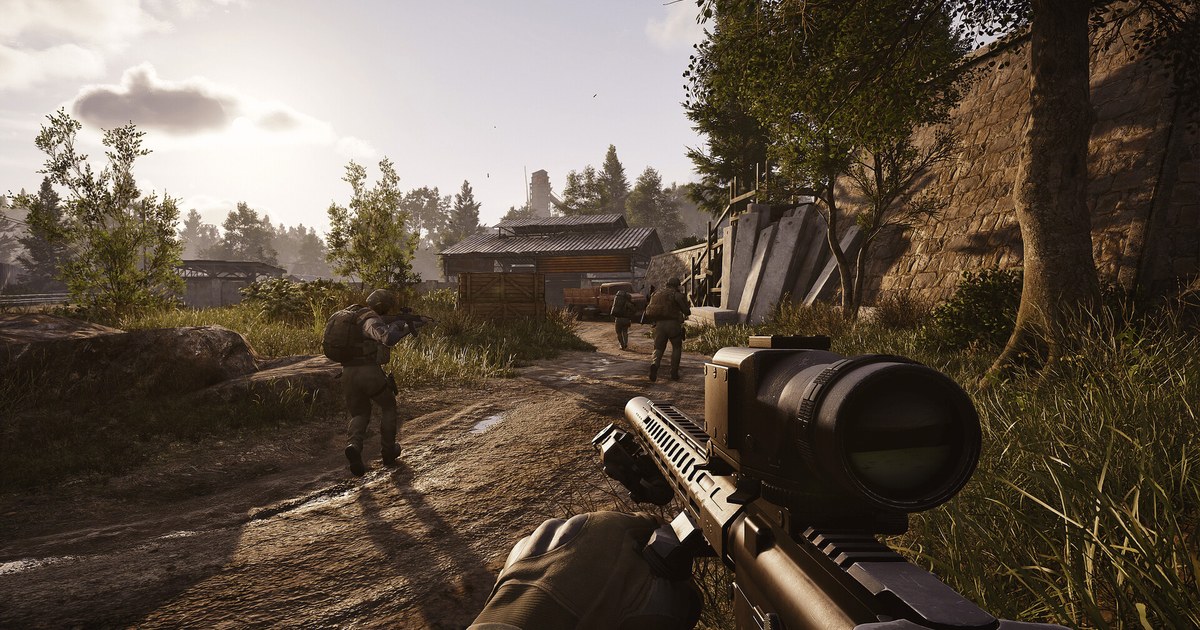
Instant Replay in both ReLive and ShadowPlay needs you to press a save key after the moment ends. DOR is a free Windows game recording app: on Radeon or GeForce, launch a supported game and it detects it automatically, records the whole match and gathers recordings in My Clips in the app.
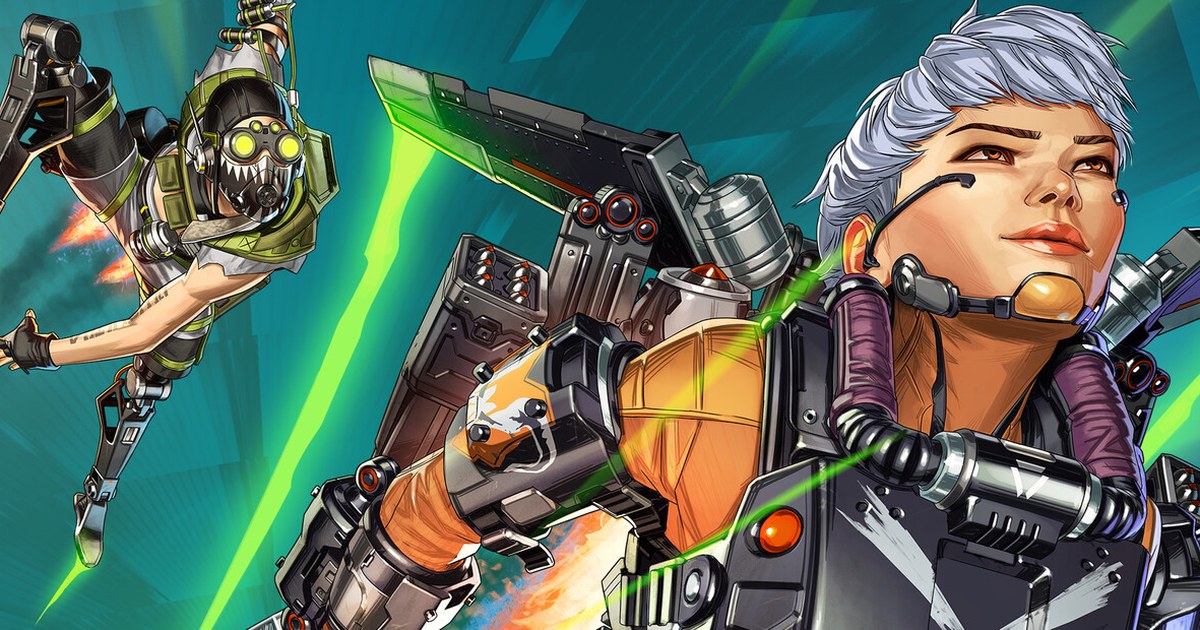
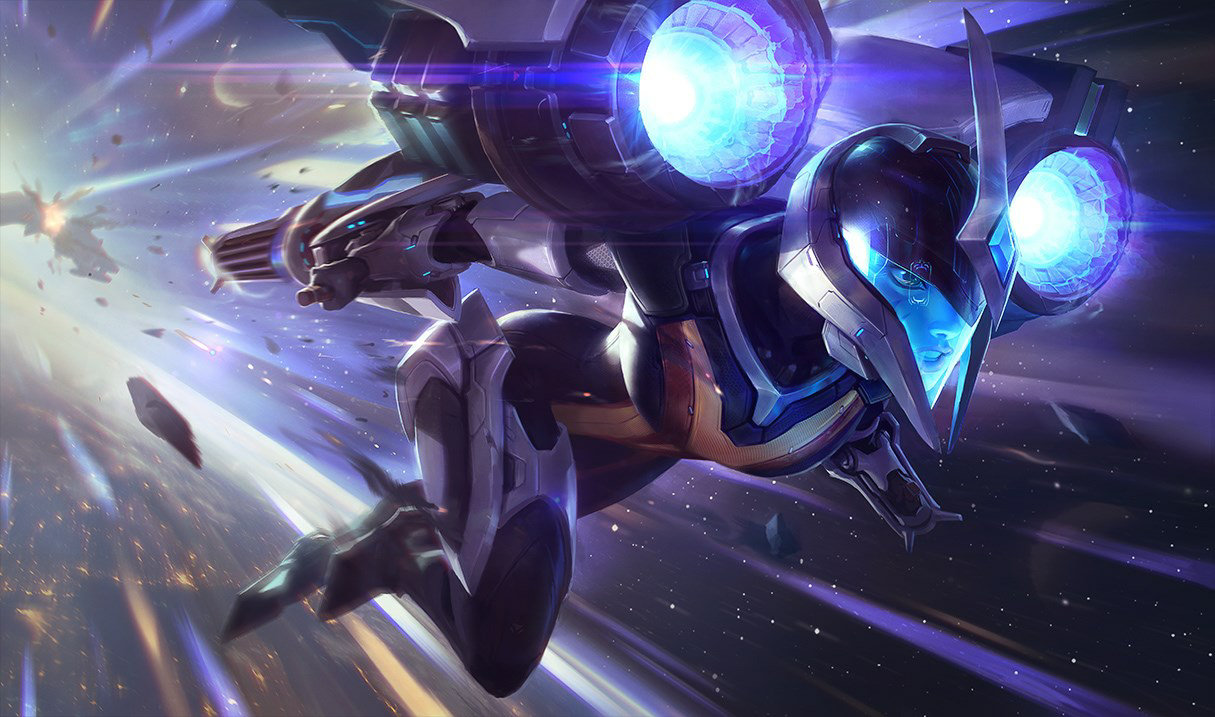
On supported NVIDIA graphics cards such as the RTX series, it records with NVENC hardware encoding. In League of Legends, kills, multikills and objectives are also saved as automatic clips, and in games outside auto clipping such as Apex Legends, you simply cut the moment you want from the recorded match.
Export cuts in 16:9, 9:16 or 1:1, and in DOR Studio (dor.gg/studio) you can merge several clips, add text, BGM and effect templates, then share as mp4 or a dor.gg link. Results carry no watermark, and recording up to 1080p at 60 fps is free. For a closer look at built in tools versus DOR, see ShadowPlay alternatives.