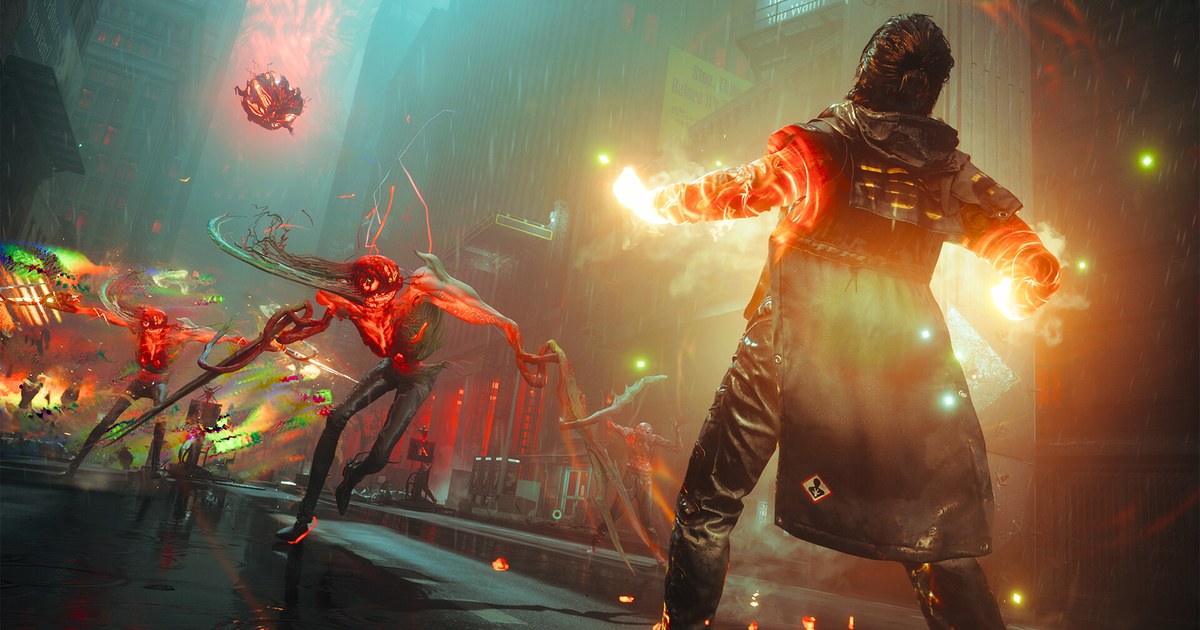
Here is the short answer: the minimum for running Control Resonant at 1080p is a GTX 1070 class graphics card, and the recommended spec for 1440p at 60 FPS is an RTX 3060 Ti class card. Either way you need 16GB of RAM, 64 bit Windows 10 or 11, and 120GB of free SSD space.
The numbers in this guide come from the Steam store page and the tier table Remedy published, compared on November 24, 2026. The store page only lists a minimum and a recommended column, while the resolution, frame rate targets, and ray tracing tiers appear in Remedy's separate table.
The GPU and CPU names matched in both places. Control Resonant launched on PC on September 24, 2026. Below you will find how to place your own PC in a tier, and what to watch for if you want to record your sessions while you play.
The answer: GTX 1070 minimum, RTX 3060 Ti recommended, 120GB SSD
If your GPU is a GTX 1070, RX 5600 XT, or Arc A580 or better, you are in the minimum tier aimed at 1080p and 30 FPS. An RTX 3060 Ti, RX 6700 XT, or Arc B580 or better puts you in the recommended tier aimed at 1440p and 60 FPS.
The CPU is a Core i5 8500 or Ryzen 5 3500 at minimum, and a Core i7 10700 or Ryzen 7 3700X for recommended. Video memory is listed as 6GB at minimum and 8GB for recommended.
The minimum figures assume the Low preset with Quality upscaling, and the recommended figures assume the Medium preset with Balanced upscaling.
The official table has no separate 1080p at 60 FPS row, so if your PC sits between the two tiers, adjust the preset and upscaling level until it holds the frame rate you want. Recording quality and bitrate settings are laid out in a table in best game recording settings.
Control Resonant PC requirements by tier
| Tier and target | Graphics card | CPU and memory |
|---|---|---|
| Minimum, 1080p 30 FPS (Low, Quality upscaling) | GTX 1070, RX 5600 XT, Arc A580 (6GB VRAM) | Core i5 8500 or Ryzen 5 3500, 16GB |
| Recommended, 1440p 60 FPS (Medium, Balanced upscaling) | RTX 3060 Ti, RX 6700 XT, Arc B580 (8GB VRAM) | Core i7 10700 or Ryzen 7 3700X, 16GB |
| High end, 2160p 60 FPS (High, Performance upscaling) | RTX 3080, RX 6800 XT (10GB VRAM) | Core i7 10700 or Ryzen 7 3700X, 16GB |
| Ray tracing minimum, 1080p 30 FPS | RTX 2060 SUPER, RX 6600, Arc A580 (8GB VRAM) | Core i7 8700K or Ryzen 5 3600X, 16GB |
| Ray tracing recommended, 1440p 60 FPS | RTX 4070 Ti, RX 9070 (10GB VRAM) | Core i7 10700 or Ryzen 7 3700X, 16GB |
| Path tracing, 2160p 60 FPS | RTX 5080 (12GB VRAM) | Core i7 10700 or Ryzen 7 3700X, 16GB |
Check before you install
- Your graphics card is at or above the model for your target tier
- Your CPU and 16GB of RAM meet the tier
- The install drive is an SSD with at least 120GB free
- You are on 64 bit Windows 10 or 11
- You have separate space for your recordings
How to match your PC to the table
- 1Check your graphics card and CPU namesThe Performance tab in Task Manager shows your CPU and GPU names and your memory size. Find your card on the same row as the models in the table; within the same family, the higher number is the faster card.
- 2Pick a tier from your target resolution and frame rateIf a 1080p screen at 30 FPS is enough, the minimum tier is your reference; if you want 1440p at 60 FPS, use the recommended tier. Ray tracing raises the GPU bar by a tier, so decide first whether you will turn it on.
- 3Free up 120GB on an SSDThe game needs 120GB of free SSD space, and a hard drive does not meet the requirement. If your install drive is short on space, move to another SSD, and keep recordings on a different drive from the game. You can set the recording location and automatic cleanup in how to change the DOR recording location.
- 4Tune the preset and upscaling to hit your frame rateStart from the same preset as the table, and if frames fall short, step upscaling down from Quality to Balanced to Performance. If you have headroom, raise the preset one step. The goal is no stutter moments, not just a good average.
- 5Turn recording on and check your framesIf you plan to keep footage, record a short stretch first and watch how your frame rate changes. If it stutters or shows a black screen, work through how to fix game recording lag and black screens.
Keep your Control Resonant sessions with DOR
DOR is a free Windows game recording app. You can capture a game screen such as Control Resonant with DOR's screen recording (default hotkey F7), and recordings collect in My Clips. On supported NVIDIA graphics cards such as the RTX series, it records with NVENC hardware encoding.
Free recording covers 720p and 1080p at 30 or 60 FPS, with 1080p at 30 FPS as the default, while 1440p, 4K, and 120 or 144 FPS are in DOR Pro. Audio from the game and your mic goes into a single track.
Older videos are only cleaned up when you exceed the Full Gameplay storage share (5GB by default), and recent recordings and liked videos stay.
Trim a boss fight or any other moment in the app, then join clips in DOR Studio, add text and BGM, and export an mp4 without a watermark or share a dor.gg link.