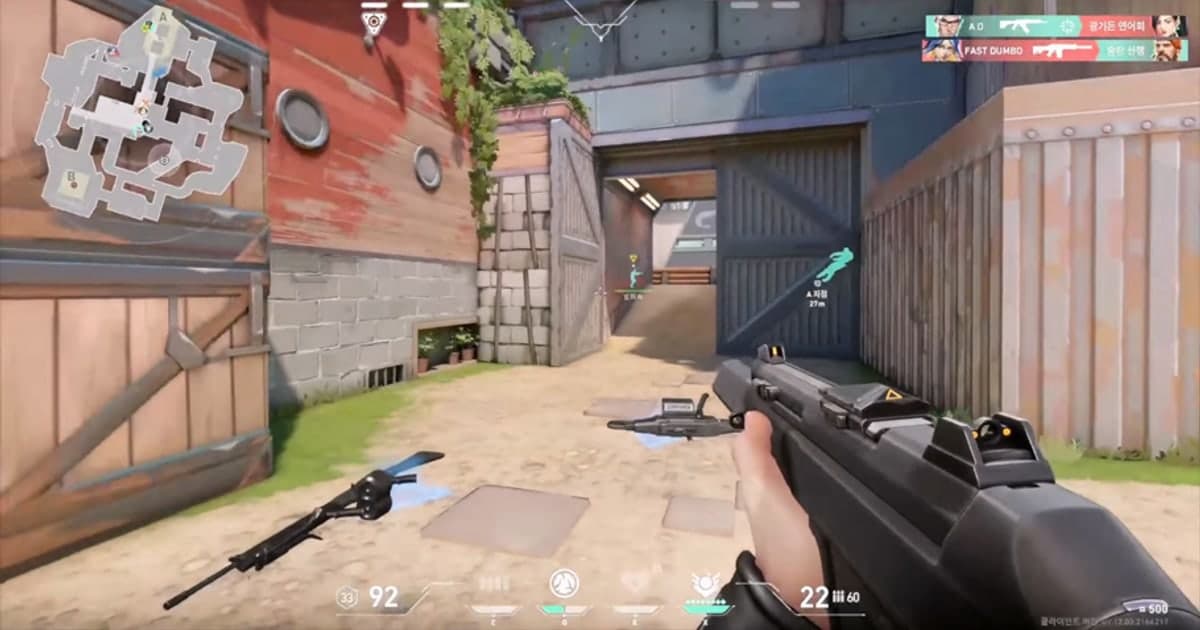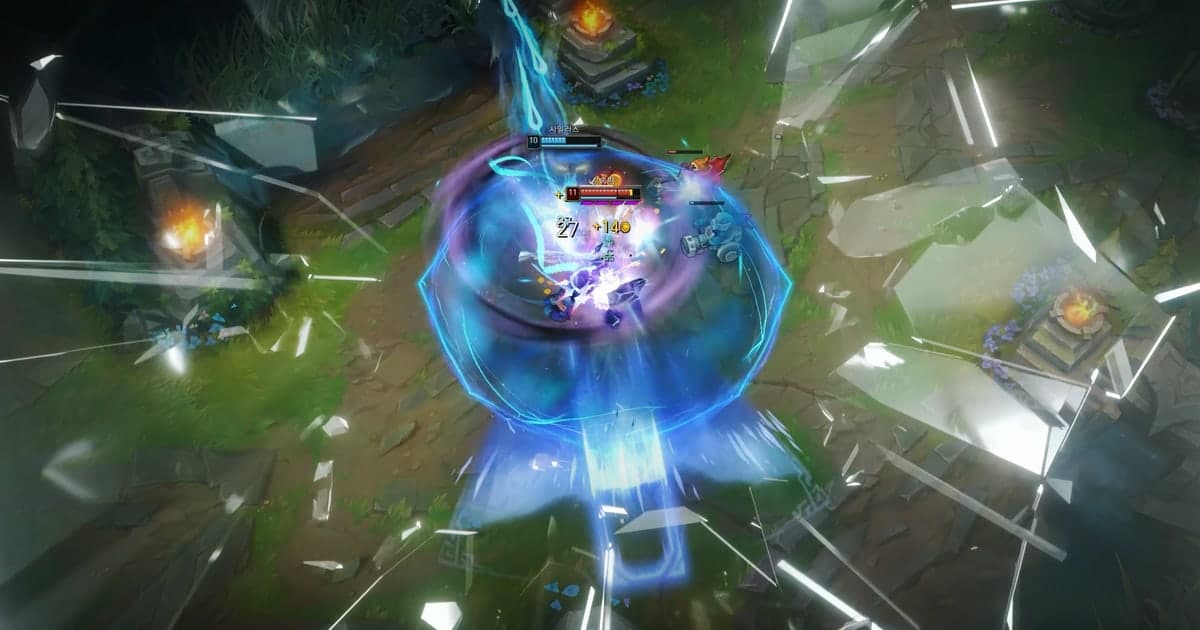
If your team plays Valorant Premier or League of Legends Clash, every match leaves you with something to post on the team channel or your socials. The trouble is that a team play rarely fits on one screen. The player who opened the site and the one who closed out the round, or the jungler and mid laner collapsing on the same fight from opposite sides: moments built by five people in five places only make sense when you put five POVs together. This guide is for a set five-player team that plays on a regular schedule and wants to gather the POVs each player recorded into one highlight video after every match. Here is the short answer first. League of Legends Clash matches can be turned into a DOR Party Clip, while Valorant Premier matches aren't covered by Party Clip, so you merge each player's recorded clips in DOR Studio instead. This guide covers only how to build the team highlight after the match, not schedules or entry rules. Check Premier and Clash schedules and requirements in the game client and official announcements.
Bottom line: check the Party Clip list for LoL Clash; merge Valorant Premier in DOR Studio
DOR Party Clip lets players who played a match in the same party each upload one clip from their own POV and joins them into one highlight video. It works in Valorant and League of Legends. In Valorant, though, only four queues are covered, Competitive, Unrated, Swiftplay and Custom, so Premier matches don't show up in the Party Clip list. In LoL, Party Clip doesn't pick specific queues the way it does in Valorant; it covers matches you actually played (not replays or spectating), so Clash matches aren't excluded, and the teammates who were in your lobby before the match starts count as your party. That splits the job by match type. For LoL Clash, everyone records with DOR, and after the match each player adds one 3 to 30 second moment through Party Clip. For Valorant Premier, DOR still records the match itself, so each player picks a clip file of their moment and sends it to one editor, who joins them in DOR Studio in the browser. If your Premier team scrims in Custom games, or the same five queue Competitive together, those matches are covered by Party Clip. General tips for ordering several clips and adding transitions are in How to Merge Multiple Game Clips, and the browser screen for trimming and merging without installing anything is covered in The DOR Browser Editor. Both routes are for making a highlight to post on the team channel or socials, not for going back over the whole match.
How to make a team highlight
- 1Have everyone run DOR and check the recording settings before the matchEvery teammate who will add a POV needs the DOR desktop app running on their own PC when the match starts. DOR detects supported games automatically and records the full match, so nobody has to press anything mid-game. The first time, open Mode-Specific Recording in DOR's settings and make sure Premier under Valorant and Special Mode under LoL are on. Both are on by default, and Summoner's Rift Clash is recorded under Special Mode. ARAM Clash is recorded under the ARAM item, which is also on by default. If someone has switched these off, their POV won't be saved.
- 2Pick one editor and decide who brings which momentA team highlight comes together quickly if you've already decided who collects the clips and who finishes the video. Choose one editor, and agree briefly on what each player will bring after the match. In Valorant, that might be each player's part in the round that decided the map; in LoL, each player's view of the deciding teamfight. Party Clip allows one clip per player, and it can't be changed after uploading, so settling who covers which moment in advance cuts down on duplicates and missed plays.
- 3LoL Clash: create the Party Clip room and invite your teamAfter the match, open the Party Clips tab on DOR's clips screen. Pick the Clash match from the list of party matches saved on this PC and click Create Party Clip to open a room. There is one room per match and party, so if a teammate already made it, just join theirs. Under Invite, teammates who linked their Riot account to DOR can get a DOR DM, and for anyone marked Not on DOR, click Copy invite link and paste it into your team Discord or another messenger. If the match doesn't appear in the list, take the same route as Valorant Premier and merge in DOR Studio. A Valorant scrim played as a Custom game follows the same steps from here on.
- 4Each player uploads one 3 to 30 second clip, then someone clicks CreateOn their own PC, signed in to the DOR app, each teammate trims one of their clips from that match to between 3 and 30 seconds and clicks Upload Mine. DOR picks three suggested moments from your clips based on a score, and before uploading you can use Change Scene to switch to another one of them. You can move on to Create once at least one person has uploaded, but only the clips uploaded at that point go in, so if you want all five POVs, check that everyone has uploaded first. Choose 16:9, 1:1 or 9:16; the order follows match time by default, and you can drag to change it. Pick music from DOR's music list and set the section to use, and each clip gets the player's name card automatically. The finished video is saved as an mp4 in that match's folder inside the DOR save folder on the PC of whoever clicked Create.
- 5Valorant Premier: each player sends their clip file to the editorPremier matches aren't grouped by Party Clip, so you collect the files yourselves. Each player picks their moment from that match's kill clips or round recordings in the DOR app and sends the mp4 file from their DOR save folder to the editor through a cloud drive such as Google Drive or a messenger. Each video you add to DOR Studio must be at least 3 seconds long and no larger than 500MB, so send moment clips or round recordings rather than full-match files. Putting your in-game name at the start of the file name makes it easier for the editor to put the clips in order.
- 6Merge the five POVs in DOR StudioThe editor opens DOR Studio (dor.gg/studio) in a browser and adds the files; nothing needs to be installed. On the timeline, trim each clip, set the cut points and line them up in the order you want to show them. Unlike Party Clip, Studio doesn't add name cards automatically, so use the text tool to show each player's in-game name or the team name. Choose 16:9, 9:16 or 1:1, balance the background music and volume, and if you like, use effect templates such as Punch Zoom, Shake Zoom or the Glitch transition where one moment cuts to the next. Download the finished video as an mp4 or share it as a link. If your team played several Clash matches in one day, you can join the Party Clip mp4 from each match the same way to make a highlight of the whole day.
- 7Post it in the format your team channel needsChoose the aspect ratio for where it's going: 16:9 for regular YouTube videos or a team Discord announcement, and 9:16 for YouTube Shorts, TikTok and Instagram Reels. When a Party Clip finishes, the DOR feed post window opens so you can post it right away and mention your teammates, and the feed post can be shared as a dor.gg link. You can also upload the mp4 itself to YouTube or X. If you attach the file on Discord, keep in mind that Discord caps attachment size; check its official help center for the current limit, and share a link if the file goes over. Writing the team name, the map or team comp, and the match date in the same format in every post makes the team's videos easier to find later.
How to make the highlight, by match type
| Match type | Covered by Party Clip? | How to make the highlight |
|---|---|---|
| Valorant Premier match | No. In Valorant, Party Clip covers only four queues: Competitive, Unrated, Swiftplay and Custom. | Each player picks a moment clip from their DOR recording and sends it to the editor, who merges them in DOR Studio. |
| Valorant Custom game (team scrim or practice match) | Yes. | Make it with Party Clip. If party members were split across two teams, a team tab appears in the editor. |
| Valorant Competitive, Unrated or Swiftplay with the same five players | Yes. | Make it with Party Clip. Also handy for keeping a warm-up game before Premier. |
| LoL Clash | Covered if you played it yourself. LoL isn't limited to specific queues the way Valorant is, and the teammates in your lobby before the match count as your party. | If the match shows up in the Party Clips list, use Party Clip; if it doesn't, merge in DOR Studio. |
| LoL five-player Flex or custom game | Yes, if you played it yourself (replays and spectating are excluded). | Make it with Party Clip. |
| A video for reviewing the full match | Not what Party Clip is for (one 3 to 30 second clip per player). | Watch each player's full-match recording or the game's replay separately. |
Check before you post
- Every teammate adding a POV played the match with the DOR desktop app running.
- In DOR's Mode-Specific Recording settings, Premier under Valorant and Special Mode under LoL (ARAM for an ARAM Clash) are on.
- You've checked whether this match is covered by Party Clip: Valorant Premier isn't, and for LoL Clash you've looked for the match in the Party Clips list.
- You've picked one editor and agreed who brings which moment (Party Clip allows one 3 to 30 second clip per player, and it can't be changed after uploading).
- Each file going into DOR Studio is at least 3 seconds long and 500MB or smaller.
- You've picked the aspect ratio for where it's going (16:9, 9:16 or 1:1), and if you used Studio, you've added player names as text.
Record team matches and keep the highlights with DOR
DOR is a free Windows desktop app. When you launch a supported game, it detects it automatically and records the full match as an mp4, using NVENC hardware encoding by default on NVIDIA GPUs. Game audio and your mic are recorded together. In Valorant, kill and death clips and round recordings are created automatically; in League of Legends, you get kill clips, multikills from double kill to pentakill, assists, deaths, objectives, turrets and end-of-game clips. In both games, DOR picks a POTG, the one clip that represents that match. You can also save any moment as a clip with a hotkey. Premier matches are recorded by default under Premier in Mode-Specific Recording. Party Clip, which gathers the POVs of the players you partied with, is available from desktop app v1.4.0 and works in Valorant Competitive, Unrated, Swiftplay and Custom, and in LoL matches. Teammates who open the invite link in a PC browser can watch the individual clips already uploaded without installing DOR, but uploading their own clip and running Create need the desktop app. For matches Party Clip doesn't cover, DOR Studio merges several videos, adds text, background music and effect templates, and lets you download an mp4 or share a link. What to watch for when posting match footage and music on a team channel is covered in the copyright guide for game footage and BGM.
 #Valorant