DLSS Frame Generation uses AI to generate extra frames and boost performance, and as checked on September 30, 2026 it is supported only on GeForce RTX 50 and RTX 40 series GPUs. DLSS Multi Frame Generation, which generates several frames per rendered frame, is RTX 50 series only, and RTX 30 and 20 series cards cannot use Frame Generation at all. The downsides people usually search for, such as latency and image-quality figures, are not published in NVIDIA's documents, so only the documented constraints are covered below. NVIDIA says frame generation works together with NVIDIA Reflex to keep responsiveness high; for other ways to cut input lag itself, see how to reduce input lag in games. This guide sticks to what NVIDIA's own documents state: the concept, a supported-GPU table, the order for turning it on, and what to check when it does not work.
Bottom line: what NVIDIA documents and what it does not
The short answer is that RTX 40 series cards get Frame Generation, RTX 50 series cards get Frame Generation plus Multi Frame Generation and Dynamic mode, and RTX 30 and 20 series cards get neither. Many people search for the downsides, but NVIDIA's documents do not publish figures for added latency or image-quality loss, so this guide does not invent any. The constraints NVIDIA does document are three. First, the game must have the feature integrated by its developer. Second, Dynamic mode is currently not compatible with frame rate limiters and V-Sync. Third, Multi Frame Generation cannot be used on RTX 40 series. Note also that an FPS drop that starts after you begin recording is best checked separately from DLSS, in fixing FPS drops while recording games.
Order for turning it on
- 1Confirm your GPU series and the game — First check that your graphics card is a GeForce RTX 40 or 50 series. The feature only works when the game developer has integrated it, so look for your game on NVIDIA's RTX games, engines and apps list (marked by NVIDIA as last updated September 29th, 2026). This guide does not copy the table from that page, so check it directly.
- 2Update the driver and NVIDIA App — NVIDIA states that DLSS 4.5 Dynamic Multi Frame Generation and the 6X mode (released March 31, 2026, RTX 50 series only) need GeForce Game Ready Driver 595.97 WHQL or later and the latest NVIDIA App. To receive beta updates, opt in under Settings > About > Opt In in the NVIDIA App.
- 3Turn on Frame Generation in the game — NVIDIA's instruction is to have Frame Generation set to ON in the game. Option names and locations differ from game to game, so this guide does not list per-game menu paths. Look for the DLSS-related entries in the game's graphics settings.
- 4Set the override in the NVIDIA App — In the NVIDIA App, open the Graphics tab, choose Program Settings for one game or Global Settings for all compatible games, then pick DLSS Override - Frame Generation Mode. Dynamic lets you target Max refresh rate or Custom (a maximum frame rate you enter yourself), while Fixed lets you select a multiplier. Dynamic and Fixed are Multi Frame Generation modes, so they apply to RTX 50 series only, and the game must be on NVIDIA's supported list. Separately, the Frame Generation model upgrade from the August 18, 2025 NVIDIA App update is for RTX 50 and 40 series and only applies when Frame Generation is already on in the game.
Support by GPU series (checked September 30, 2026)
| GPU / feature | Frame Generation | Multi Frame Generation and Dynamic / notes |
|---|---|---|
| GeForce RTX 50 series | Supported | Supported (4X in compatible games, up to 6X in some games that use the latest Frame Generation .dll) |
| GeForce RTX 40 series | Supported | Not supported |
| GeForce RTX 30 series | Not supported | Not supported (Super Resolution, Ray Reconstruction and DLAA are available) |
| GeForce RTX 20 series | Not supported | Not supported (Super Resolution, Ray Reconstruction and DLAA are available) |
| Smooth Motion (separate feature) | Not applicable (not a DLSS feature) | A driver-based AI model for RTX 40 and 50 series; infers one extra frame between two rendered frames in games without native DLSS Frame Generation support |
What to check when it does not work
- Confirm the card is a GeForce RTX 40 or 50 series. RTX 30 and 20 series do not support Frame Generation.
- If you are looking for Multi Frame Generation or Dynamic, confirm you have an RTX 50 series card. RTX 40 series does not support them.
- Confirm the game has Frame Generation integrated and appears on NVIDIA's supported game list.
- For Dynamic or 6X, confirm Game Ready Driver 595.97 WHQL or later and an up-to-date NVIDIA App.
- If you use Dynamic, confirm you are not also using a frame rate limiter or V-Sync, which NVIDIA currently lists as not compatible.
If you record games on an NVIDIA graphics card
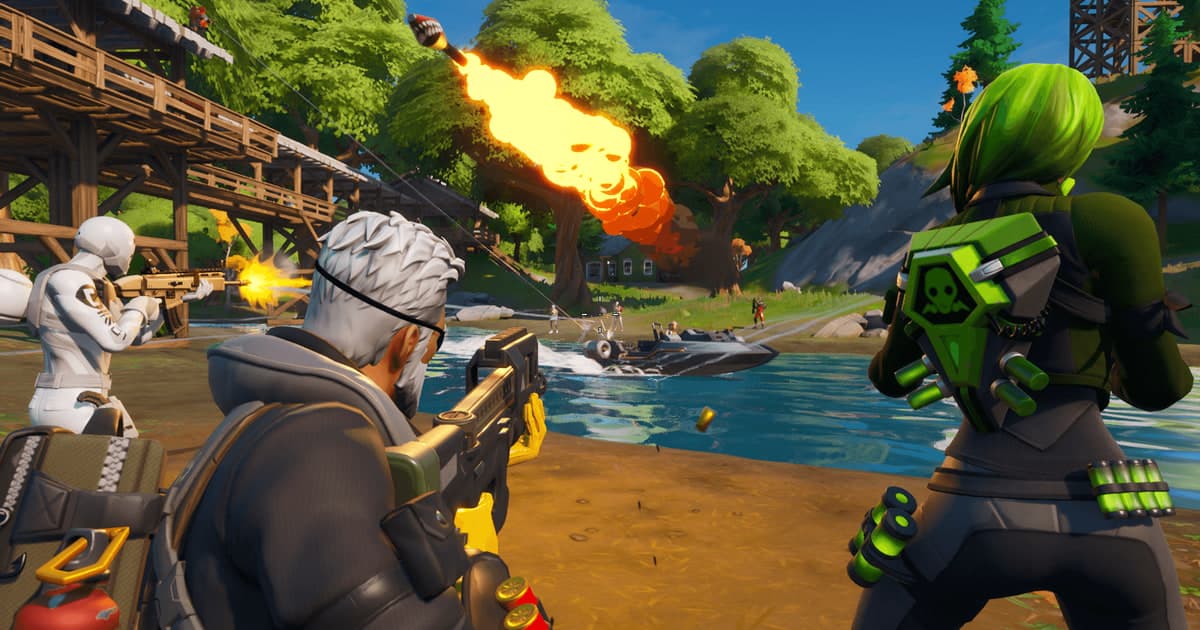
DLSS Frame Generation concerns the frames a game draws, while DOR is a free Windows app that records that picture, so DOR does not turn on DLSS or generate frames. The one place the two meet is that on an NVIDIA graphics card DOR records with NVENC hardware encoding by default. NVIDIA has published no official figures on how recording performance changes with DLSS on, so this guide makes no claim about the result. If you play Fortnite on an RTX card, DOR records the full match automatically and saves kill and death moments as automatic clips, though this guide could not confirm whether Fortnite supports Frame Generation. DOR can also capture game sound and your microphone together, which is handy if you want to talk through a settings comparison, and for the encoder side see NVENC vs x264.
Official sources (checked September 30, 2026)
The main supported GPUs, driver requirement and menu path in this guide were checked on September 30, 2026 against these NVIDIA documents: the NVIDIA DLSS technology page, the DLSS 4.5 Dynamic Multi Frame Generation and 6X release notes, and the NVIDIA guide to upgrading games to Dynamic Multi Frame Generation. Supplementary points such as Smooth Motion and the August 18, 2025 model upgrade are based on NVIDIA's official news articles. Supported games and version numbers can change, so recheck the latest documents before you apply anything.