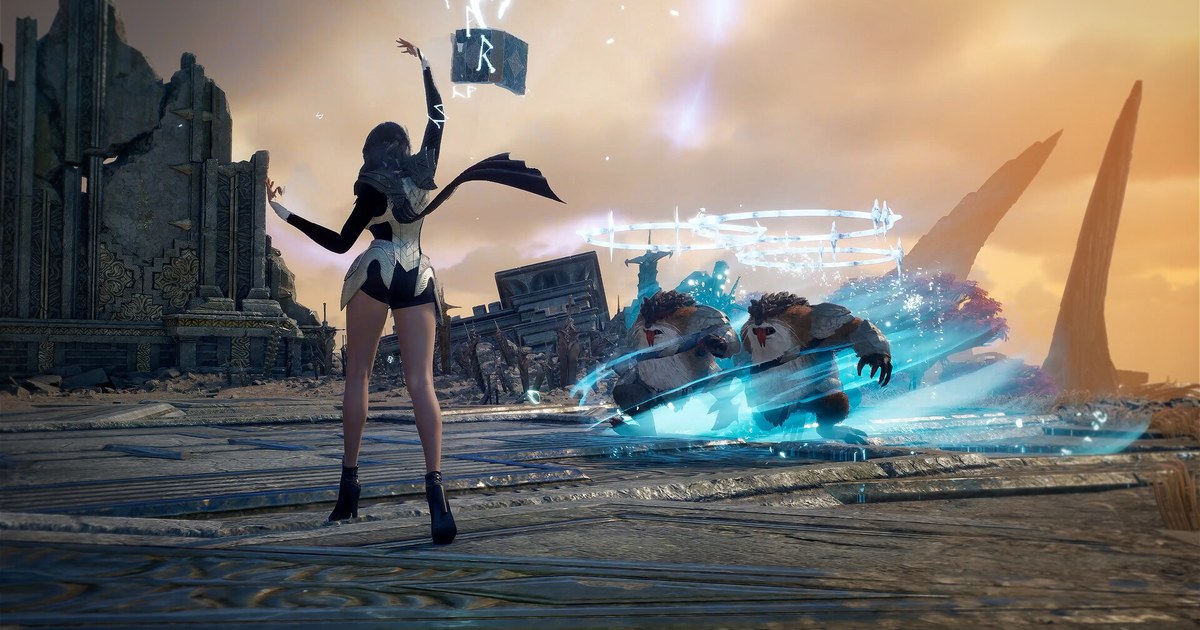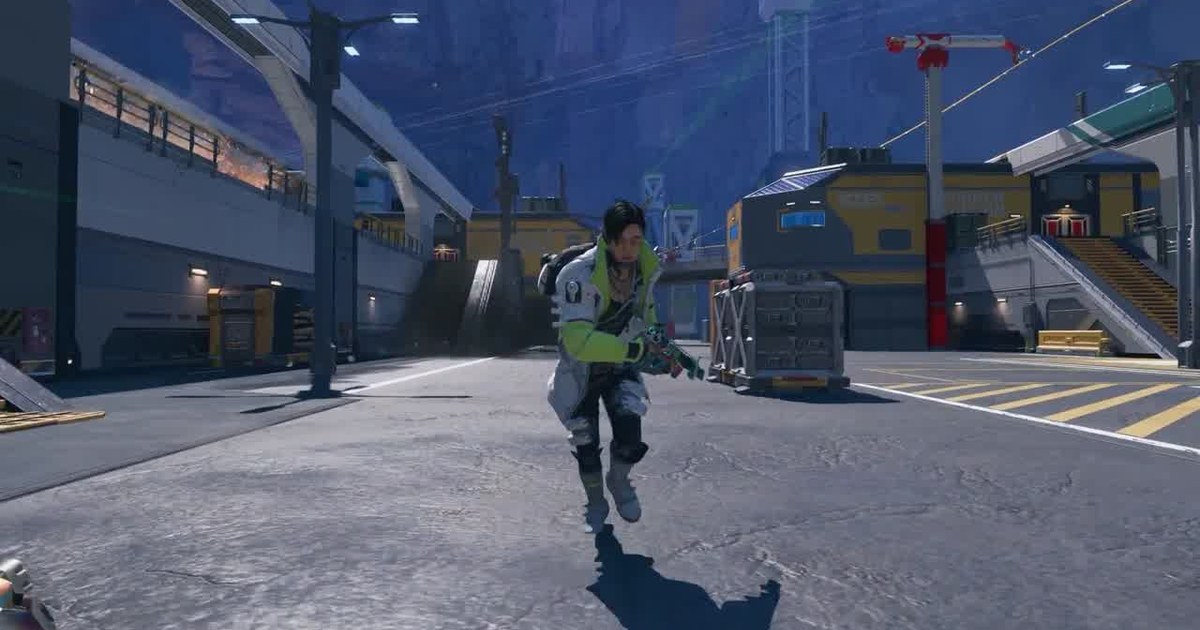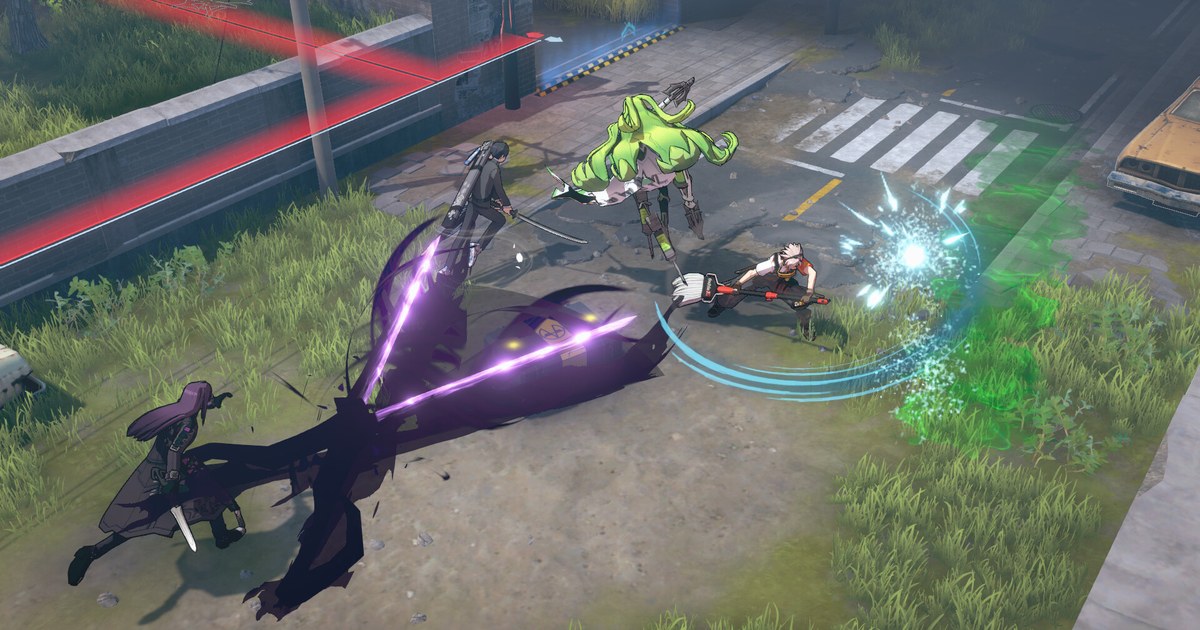
Here is the short answer: recording Eternal Return starts with installing DOR and launching the game. DOR detects supported games automatically, records the match, and collects the footage in My Clips. You do not press anything during play.
Once the match ends, trim only the fight you won or the moment your team survived to the end and save it. Eternal Return has you farm and grow on Lumia Island until the restricted zone shrinks and fights pile up, so a match runs long and it is hard to predict when the good moment will happen.
The surest way not to miss it is to record the whole match first and choose later. The basics of cutting a range are covered in how to trim game clips, and this guide only walks through the path from first install to your first uploaded clip.
Bottom line: leave it on, play, then trim the best moments
A single Eternal Return match strings together farming, traveling, fights, and zone management, so it is hard to know in advance which moment will be the highlight. Let DOR handle recording match by match, and after the match watch the footage and pick only the ranges worth keeping.
A trimmed range is saved to My Clips separately from the original, and the full match stays put so you can trim other moments later. Recording quality is free at 720p and 1080p, at 30fps and 60fps, with 1080p at 30fps as the default.
The game is relatively light, but if your PC struggles, set things up with the low end PC recording guide first. Recording at 1440p, 4K, or 120 and 144fps is available in DOR Pro.
From auto recording to saving a range in Eternal Return
- 1Install DOR and launch Eternal ReturnDOR is a free Windows app. After installing it, launch Eternal Return and it is detected as a supported game and starts recording the match. There is no record button to press.
- 2Play a match as usualDo not worry about the screen, just play. When the match ends, the footage is saved to My Clips in the app. Old footage is cleaned up oldest first only when you exceed the full gameplay footage share (5GB by default), and recent recordings and liked footage are kept.
- 3Open the match in My Clips and find the momentIn My Clips, open the match you just played and jump to the part with the fight. Jotting down a rough time right after the match, while you remember it clearly, cuts down the time you spend searching.
- 4Trim the range and choose a ratioUse the app's range trimming to set a start and end, then save. Pick 16:9, 9:16, or 1:1; 9:16 is convenient for short form. Tips on making a vertical video are in making vertical game videos.
- 5Combine or share with a linkIf you have several moments, combine them in DOR Studio (dor.gg/studio), add text or BGM, and export an mp4. The combining steps are in merging game clips, and a dor.gg link is the fastest way to show one clip.
Eternal Return moments and how to save each one
| Moment | How to save it | Suggested ratio |
|---|---|---|
| Team fight win | Trim from just before the fight starts to the last enemy down | 16:9 |
| Outnumbered comeback | Trim from the moment you fell behind to the cleanup | 16:9 or 9:16 |
| Last second zone escape | Trim a short range from the zone closing in to your escape | 9:16 |
| Wildlife or boss hunt | Trim from the start of the hunt to the kill | 1:1 or 16:9 |
| Final survivor win | Trim the last fight through the result screen | 16:9 |
| Send it to a friend | Share the trimmed range as a dor.gg link | Any |
Check before recording your first match
- Did you install DOR and confirm recording starts when you launch Eternal Return
- Did you start with the default 1080p 30fps quality
- After the match, can you see that match in My Clips
- Did you trim the start and end of the moment and save it separately
- Did you pick 16:9, 9:16, or 1:1 to fit where you will post
Auto record Eternal Return with DOR and save only the best moments
DOR is a free Windows game recording app. It detects supported games automatically, records the match, and collects the footage in My Clips. Eternal Return is part of that auto recording, so focus on the match and save the moments you want with range trimming afterward.
Trimmed clips can be used without a watermark, and you can combine several moments in DOR Studio, add effect templates, text, and BGM, then export an mp4 or share a dor.gg link. This guide is current as of November 24, 2026.