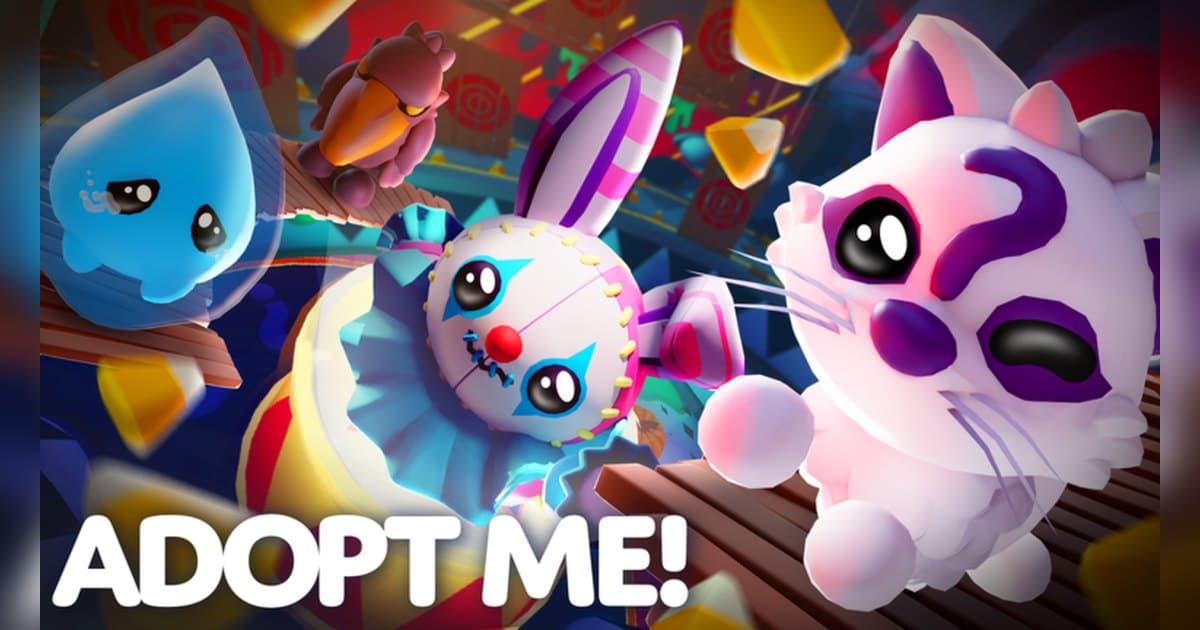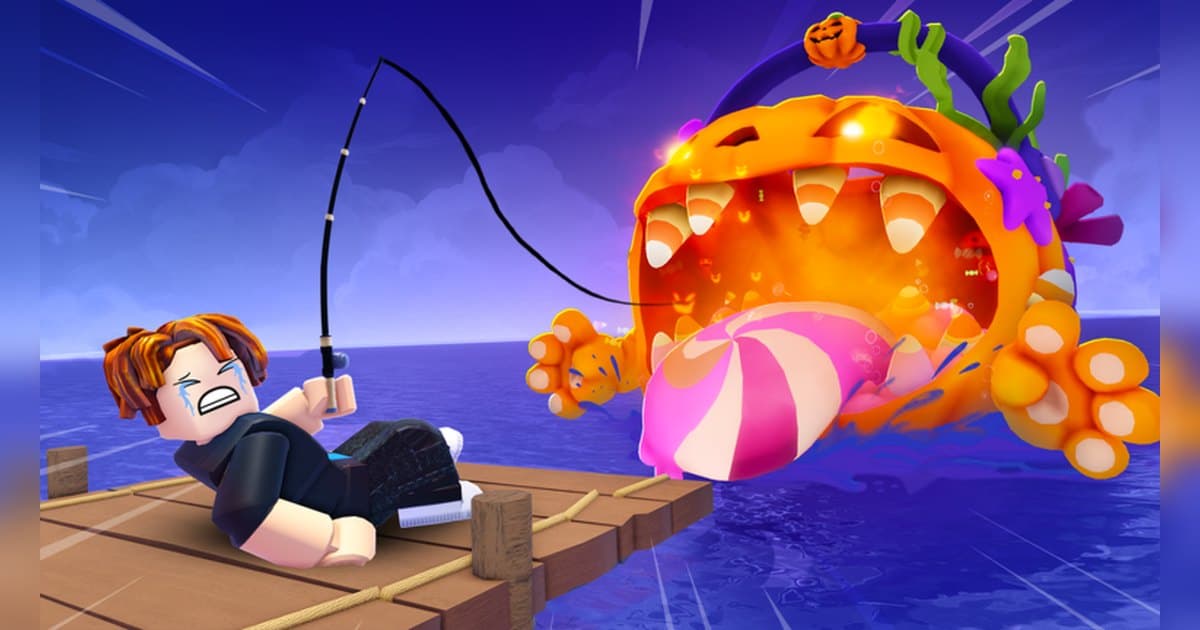
Fish It! is one of the busiest fishing experiences on Roblox right now. It was made by the group Fish Atelier on 21 October 2024 and was still shipping updates on 19 October 2026, the day the numbers in this guide were checked. The official description sells it simply: collect from more than 1,000,000 variations, fish with your friends, or just sail the seas and explore. The starting area is Fisherman Island, named in the welcome badge, and a server holds up to 20 players, so you and your friends can fish the same water. On the check date the experience was running around 80,000 concurrent players, with roughly 4.8 billion visits and about 1.29 million favourites. Those figures and whatever event is live will move with each update. This guide sticks to the progression the official description and badge list confirm, leaves rates and prices to the in-experience index and shop, then spends the rest of its time on the part most guides ignore: which moments in Fish It! are worth keeping, and how to keep them with sound on a PC. General recording setup lives in how to record Roblox gameplay on PC, so here we only cover what you touch while playing Fish It!.
The short answer: two clicks to fish, a full-session recording to catch the rare ones
Mechanically, Fish It! asks very little of you. The official description spells the whole input out as click to charge up, then click as fast as you can, so the skill ceiling is reached in your first session. What keeps players coming back is the goal list, and the badge list is the honest version of it: selling your first fish, catching Shiny, Mutated and BIG fish, catch counts at 50, 250, 1,000, 10,000, 50,000, 100,000, 250,000 and 500,000, displaying a SECRET, displaying a FORGOTTEN, maxing out your aquarium, visiting another player's aquarium, and clearing the obbies at Starfall Gardens and Arcadia. In other words this is a game about volume and about display at the same time. Which species appears at which rate, and what anything sells for, changes with every update, so check the in-experience index and shop for the current terms. For keeping the moment, the choice depends on your platform. Roblox's own capture lives in the in-experience menu under Capture, and per the official help article what it saves is up to 30 seconds of picture. Since half of a rare catch is the sound effect and your own reaction, a PC recorder running in the background is the simpler route. Fisch is the other big fishing experience and its reeling system works differently, so it has its own write-up in Fisch rare fish guide, and if what you enjoy is the one-shot result screen itself, Sol's RNG aura guide covers an experience built entirely around that feeling.
Your first Fish It! session, from launch to finished clip
- 1Decide how you are recording before you joinThe best material in Fish It! is a rare grade on the result screen, and that arrives without warning, so settle the recording question before you load in. Roblox's built-in capture is in the in-experience menu under Capture, saves videos of up to 30 seconds into the Roblox app storage, and exports to your PC's Videos folder; per the official help article what lands in those videos is the picture. For the reel-in sound effect in the file, start a recorder on your Windows PC first and then join.
- 2Find the right Fish It! and launch itSearch Roblox for Fish It! and confirm the creator reads Fish Atelier before you join. The title carries a rotating event tag, which on the check date read [UPD] Fish It!, so the creator name is the reliable way to tell it apart from the several similarly named fishing experiences. If you plan to record on PC, run Roblox from the copy you downloaded at roblox.com.
- 3Learn the two-click castThe official instructions are two lines long: click to charge up, then click as fast as you can. All you are learning in the first hour is how far to charge and how fast to spam, and the result screen then shows you the species together with any grade it rolled. You start on Fisherman Island, and the official description explicitly invites you to sail out and explore rather than stay on the first dock.
- 4Memorise the grade namesThe grades the badges confirm are Shiny, Mutated and BIG, and the two collection tiers with their own display badges are SECRET and FORGOTTEN. On the check date the official description announced a Hallows Eve update adding 15 fish and a new FORGOTTEN, alongside an earlier expansion that added 12 fish and a skin crate with five animated rods. Knowing the words means you recognise a keeper on the result screen fast enough to hit your clip hotkey.
- 5Split your catches between selling and displayingSelling a fish is a badge, and so is maxing out your aquarium, which tells you the intended loop: common species fund your upgrades, rare ones go behind glass. Because displaying is the badge condition for SECRET and FORGOTTEN, check twice before you sell anything from those tiers. There is also a badge for visiting another player's aquarium, so a tour of your friend's collection is content in its own right.
- 6Work through the areas and the live eventThe places the badges confirm are Fisherman Island, the Starfall Gardens obby and the Arcadia obby, where the badge text warns you about falling blocks. The official description adds boss battles, an alien invasion event, a pixel pet egg and a crate of animated rods. The same description asks players to join the group and send feedback, so the group is where you watch for what the next update changes.
- 7Cut the session down when you log offWith a full-session recording you choose your moments afterwards. Find the rare result screens, the boss fight, the obby clear and the aquarium tour from the table above, and trim with a few seconds of air on either side so the context survives. Export 9:16 for Shorts, Reels or TikTok and 16:9 for a normal YouTube upload. To put several sessions' rare catches into one video, stitch them in the browser-based DOR Studio and add text and background music before downloading the mp4.
Moments worth keeping in Fish It!, and how to keep them
| Moment | Why it is worth keeping | How to keep it |
|---|---|---|
| Reeling in a SECRET or a FORGOTTEN | Display a SECRET and Display a FORGOTTEN are separate badges, which tells you these are the top of the collection ladder. The reveal animation and sound pass in seconds. | Keep the full-session recording running while you fish, then press your clip hotkey right after the result screen appears to save the last 30 seconds separately. |
| A result screen with Shiny, Mutated or BIG on it | The same species reads completely differently with a grade attached. It is the clearest on-screen proof of the official line about more than 1,000,000 variations. | The result screen is short, so drop your clip length to 15 seconds and you get the grade reveal with nothing padded around it. |
| Boss battles and the alien invasion event | Both are named in the official description as event content, and they pull a crowd into one spot, so the screen and the audio are at their loudest. | These run for minutes, so cut the fight out of the full-session recording and stitch longer sequences together in the browser studio. |
| A maxed-out aquarium, and touring a friend's | Max out your Aquarium and visiting another player's aquarium are both badges, which makes display a real half of the game. Everything you collected reads in one shot. | This is a slow pan, so record it long, export 16:9 for the full tour, and cut the same footage again at 9:16 for a short. |
| Clearing the Starfall Gardens or Arcadia obby | The Arcadia badge description is literally about avoiding the falling blocks. A clear only lands with an audience if the near-misses are in frame too. | You will retry this a lot, so build the clip around the successful run from the full recording and tag a couple of short failures onto the front. |
| You and a friend hooking something at the same time | A server holds 20 players, so friends can fish the same spot, and the overlapping reactions are what makes the clip land. | Record with game sound and mic captured together, and tell whoever is on voice before you post the video anywhere. |
Check this before you record Fish It!
- Roblox is running from the PC build you downloaded at roblox.com.
- Your recorder is already open before you join, so the session is captured from the moment you enter.
- Your clip hotkey (F8 by default) and clip length are set, and the key sits clear of your in-experience controls.
- Your mic is live and you have tested that your voice and your friends' reactions land in the file.
- You have left 30GB or more free so a long session has room to land.
- You know the grade words on sight, so a SECRET or FORGOTTEN on the result screen gets a clip instead of a screenshot.
Recording a whole Fish It! session, sound included, with DOR
DOR is a free Windows PC app that detects the Roblox build you installed from roblox.com. Recording starts by itself when you enter an experience and stops when you leave for the home screen or close Roblox. It ships switched on and you can manage it under the Full Game Recording setting. Genre and creator make no difference, so Fish It! lands in your library like anything else: one experience, one mp4. Open Roblox first and then join, and the session is captured cleanly from the moment you enter. When a rare fish comes up and the result screen appears, press F8 and the previous 30 seconds are saved as its own clip, with 15, 30, 45 and 60 seconds available as lengths. The hotkey works while a recording is running inside an experience, and F8 itself can be remapped. Game sound and your mic are recorded together into one track, so the reel-in effect and whoever is shouting on voice both land in the file; the mic is on by default with noise suppression. Video defaults to 1080p at 30fps and you can raise it to 60fps, and resolution, frame rate and clip length are all worth setting before the recording starts. Leave 30GB or more free and a long fishing session has plenty of room. Afterwards the app library trims a section between a start and an end point and exports it at 16:9, 9:16 or 1:1, with text available on the 1:1 output, and shares it as a dor.gg link. DOR Studio runs in the browser and joins several clips into one video with text, background music and effect templates before you download the mp4. For another experience where the keeper moment is a single reveal, see Pet Simulator 99 huge pets, and if you want the update announcements as they land, how to find a Roblox group walks through that.
 #Roblox