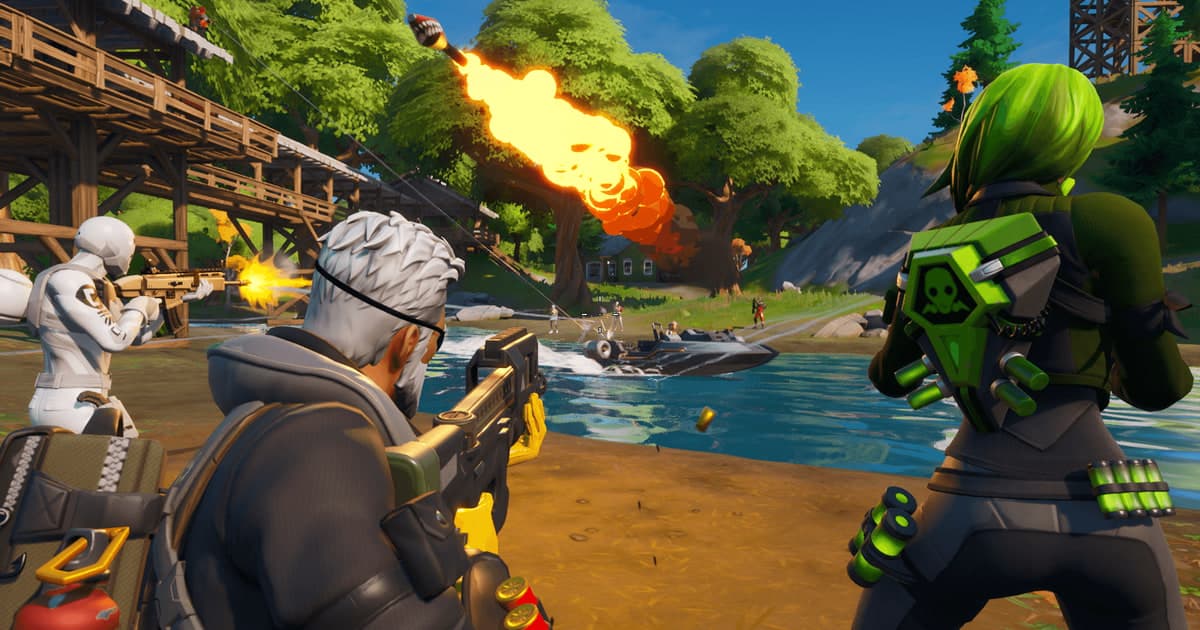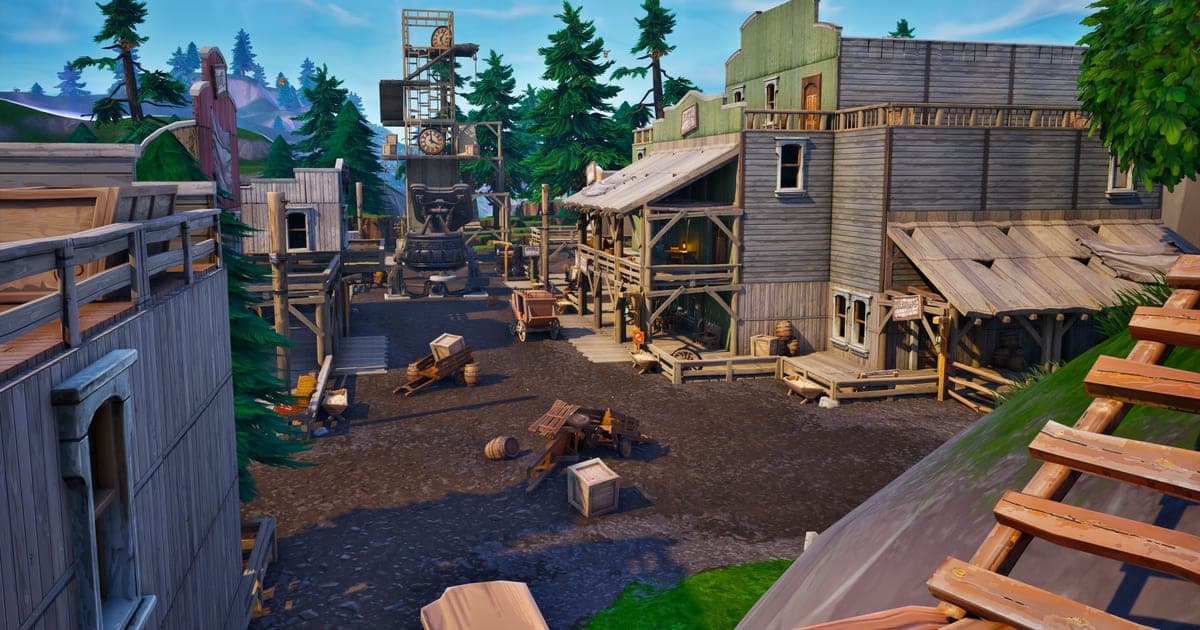
The three key options Epic's article covers for Fortnite FPS on PC are switching Rendering Mode to Performance - Lower Graphical Fidelity, keeping your graphics driver current with the Windows power mode set toward performance, and turning V-Sync off in game. That is the flow in Epic Games' official support article 'Troubleshooting low frame rate (FPS) in Fortnite', and this guide covers only what that article says, checked on September 30, 2026, for the PC version. If you want to look at FPS drops from outside the game as well, see why FPS drops while recording games and how to fix it. Epic's article gives no level-by-level values for textures, shadows, or view distance, so this guide does not invent any.
Bottom line: Performance mode is the first change to make
The order is simple. Lower the graphics load with Performance mode first, then check PC-side causes such as drivers, power mode, background programs, and heat, and only then adjust the NVIDIA Control Panel values and V-Sync. Epic's own article says the improvement can be small or even nonexistent depending on your hardware, so no option here guarantees a higher frame rate. If the picture looks smooth but your inputs feel sluggish, that may be a latency problem rather than a frame rate problem, and how to reduce input lag in games covers it separately. Anything that Epic's article does not mention gets no recommendation here, so change those options one at a time and compare frame rate in the same spot.
Order of changes
- 1Verify the game files — In the Epic Games Launcher library, click the three dots next to Fortnite (or right-click the icon) and choose Manage, then Verify. It takes a few minutes depending on the game size, and you press Launch when it finishes. This clears file problems before you touch any setting.
- 2Switch Rendering Mode to Performance mode — Start Fortnite, click the menu icon, and under Display change Rendering Mode to Performance - Lower Graphical Fidelity. Press Apply and restart Fortnite. That label is the wording in the article we checked, so it may read slightly differently in the current client. If you cannot turn the mode on or off, GameUserSettings.ini in C:\Users\[username]\AppData\Local\FortniteGame\Saved\Config\WindowsClient may be read-only. Right-click it, open Properties, uncheck Read only, and apply.
- 3Consider unchecking high resolution textures — In the Epic Games Launcher, open Library, click the three dots next to Fortnite, choose Options, and uncheck Use High Resolution Textures. Epic's article presents this as an option to use alongside Performance mode; check the resulting install size in the Launcher yourself. This is a storage choice and does not promise a higher frame rate.
- 4Cool the PC and close background programs — Epic's article treats cooling the computer as its own check. Clear dust from the fans and vents, close every background program that has nothing to do with the game, and launch again.
- 5Update the driver and set the Windows power mode — If you are not sure whether your graphics hardware is from NVIDIA, AMD, or Intel, find out with the DirectX Diagnostic Tool and install that maker's latest driver. Then move the Windows power mode slider toward performance, following Microsoft's 'Change the Power Mode for your Windows PC' page.
- 6Apply NVIDIA Control Panel values, then turn V-Sync off — On an NVIDIA graphics card, close Fortnite and set these values in the NVIDIA Control Panel: Antialiasing - Gamma correction: On, CUDA - GPUs: All, Low Latency Mode: Ultra, Power Management mode: Prefer maximum performance, Shader Cache: On, Texture Filtering - Anisotropic sample option: On, Texture Filtering - Negative LOD bias: Allow, Texture Filtering - Quality: High Performance. Then turn V-Sync off in the game settings. AMD and Intel control panel options are not in the article, so they are not covered here.
Option by option: what it does and which way to set it
| Option | What it does | Direction and source |
|---|---|---|
| Rendering Mode: Performance - Lower Graphical Fidelity | A mode meant to keep frames smooth on lower scalability settings or lower-performance hardware. | Turn it on when frame rate is short. Click Apply and restart Fortnite. Source: Epic Games' official article. |
| Use High Resolution Textures (Epic Games Launcher) | Decides whether the high resolution textures are installed. | Can be unchecked when you use Performance mode. Check the resulting install size in the Launcher yourself. |
| V-Sync | The vertical sync option in the in-game settings. | Turn it off. Epic's article says to do this in game after finishing the NVIDIA Control Panel changes. |
| Windows power mode | The power mode slider in Windows. | Move it toward performance. Epic's article points to Microsoft's help page 'Change the Power Mode for your Windows PC'. |
| Graphics driver and background programs | Keep the driver current and close programs unrelated to the game. | Find the manufacturer (NVIDIA, AMD, or Intel) with the DirectX Diagnostic Tool and install the latest driver. Source: the same Epic article. |
| NVIDIA Control Panel items (NVIDIA graphics cards) | Match the values the article lists, such as Low Latency Mode, Power Management mode, and Shader Cache. | Change them after closing Fortnite. The full list is in the last step above. |
Checklist after applying
- Rendering Mode is Performance - Lower Graphical Fidelity, and you pressed Apply and restarted Fortnite
- You ran Verify on the game files in the Epic Games Launcher
- You identified the manufacturer with the DirectX Diagnostic Tool and updated the graphics driver
- The Windows power mode slider sits toward performance
- You cleaned dust from the fans and vents and closed background programs
- On an NVIDIA card, you matched the Control Panel values and turned V-Sync off in game
If you also want to record after lowering settings
Fortnite is a game where DOR offers full-match automatic recording and automatic highlight clips for kills and deaths (see the Fortnite recording page). Once Performance mode has given your PC some headroom, DOR records with NVENC hardware encoding by default on an NVIDIA graphics card, and it can capture game sound and your microphone together. How many frames remain while recording differs from PC to PC, so no figure is promised here, and if GPU load during recording worries you, how to reduce GPU load while recording walks through what to check.
Official source and check date
This guide is based on the Epic Games support article Troubleshooting low frame rate (FPS) in Fortnite, checked on September 30, 2026. The article shows no revision date, and the option names here are its English wording. We did not read the DirectX 11 versus 12 guidance or any level-by-level graphics option advice, so neither is included. Sizes and menu layout can change with updates, so confirm them against your own screen and the article.