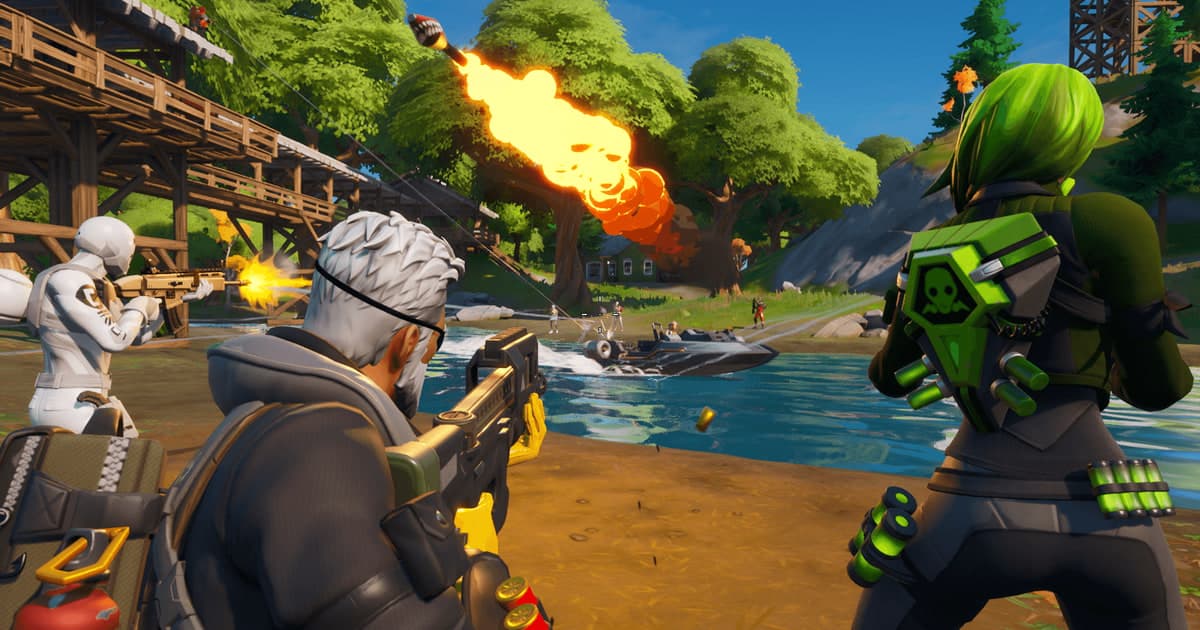
If your Fortnite FPS is stuck at 60 or right at your monitor's refresh rate, or the game just runs poorly, Epic's support pages point to three levers: turn V-Sync off and set Frame Rate Limit to UNLIMITED, use a super resolution option under DirectX 12 so the game renders fewer pixels, and set Rendering Mode to Performance - Lower Graphical Fidelity (performance mode). Epic gives no general figure for how much FPS rises and says results depend on your hardware, so gains may be small or nonexistent (checked October 6, 2026, PC only). This guide adds the Windows settings Epic lists and groups each item by the Epic document it comes from. Menu names can shift after updates, so the screen in front of you wins. If your frames only drop while recording, start with fixing FPS drops while recording games.
Pick the Right Starting Point for Your PC
If your FPS sits flat at 60 or right at your monitor's refresh rate, you may be hitting a cap rather than running out of power, so look at V-Sync and Frame Rate Limit first. On an older desktop or a laptop that struggles everywhere, performance mode is the feature Epic built for players with low frame rates, which makes it the first thing worth trying. With a reasonably recent graphics card, keeping Rendering Mode on DirectX 12 and adjusting a super resolution option is the other route. Whichever you pick, change one thing at a time so you can tell what actually helped. If recording is part of the worry, recording games on a low-end PC covers that side.
Apply Epic's Documented Changes One at a Time
- 1Finish the basic checks first — Epic's Troubleshooting low frame rate (FPS) in Fortnite page lists checks in this order: confirm system requirements, verify game files, performance mode, cooling, graphics driver updates, background programs, the Windows power mode, and NVIDIA Control Panel settings. To verify files, open the Epic Games Launcher library, use the three dots next to Fortnite (or right-click), then Manage > Verify. If trouble appears only after a few hours, Epic treats that as a sign of overheating, so clear dust from fans and vents. Update drivers from NVIDIA, AMD or Intel. The sequence of the steps after this one is this guide's own arrangement.
- 2Turn V-Sync off and lift the frame rate limit — In the lobby, open the profile icon > Settings (gear), and in the Display section set V-Sync to Off and choose a Frame Rate Limit. UNLIMITED removes the cap; apply, then go back. V-Sync holds FPS to your monitor's refresh rate, so with it on you will not climb past that. Lobby FPS is capped at 60 or 120 depending on window mode and rendering mode, so judge the result inside a match. The in-game maximum limit is 360 FPS, and if changing it by hand causes stutter or lower FPS, Epic says to revert to the previous value. Epic publishes no figures on input delay or tearing from lifting the cap.
- 3Tune super resolution and 3D Resolution under DirectX 12 — Set Rendering Mode to DirectX 12 (restart if asked), then scroll the Video tab to Anti-Aliasing & Super Resolution and pick an option. Depending on hardware and settings you may see TSR, NVIDIA DLSS, Intel XeSS, FXAA, SMAA or TAA, and AMD FSR is not offered in-game. DLSS needs an NVIDIA GPU, current Windows, the latest GeForce Game Ready driver and the latest Fortnite. If your chosen method has a quality mode, it affects 3D Resolution, so adjust both together. In the December 2022 notice, Temporal Super Resolution offers Recommended (default), Performance, Balanced, Quality, Native and Custom, and Performance renders at lower resolution to favor frame rate. Epic does not say whether this stacks with performance mode, so pick one route and compare.
- 4Switch Rendering Mode to performance mode — Launch Fortnite, then go to the player icon > Settings (gear icon) > Video tab (monitor icon) > Display section. Use the arrow on Rendering Mode to choose Performance (full label: Performance - Lower Graphical Fidelity), apply, and restart Fortnite. To change it back, pick another option in the same menu. For older PCs Epic suggests running the game from an SSD or having 6GB of RAM or more to reduce stutter and hitching, and says a dedicated GPU is not required. Epic's own examples, in 720p squad matches against the old low setting, show an Intel i5-8265U laptop going from 24 fps to 61 fps and an AMD A10-5745M laptop from 18 fps to 45 fps. Those are two laptop cases, not a guarantee. The DirectX 11 option has been permanently removed.
- 5Remove high resolution textures only if disk space is tight — If you commit to performance mode, open Epic Games Launcher > Library, click the three dots next to Fortnite > Options, untick High Resolution Textures, and apply. Epic's performance mode page says this saves 15GB or more and may help performance by shrinking the install. Other official pages and announcements quote 14GB, 17GB or 18GB, so read it as roughly 15GB or more. If image quality matters on your PC, you can skip this step.
- 6Adjust four Windows settings — These come from Epic's Improve low FPS in Fortnite on PC page. In Settings > System > Display > Graphics, turn on Hardware-accelerated GPU scheduling if it is available, then under Custom options for apps use Browse to add FortniteClient-Win64-Shipping.exe and set Options > High performance. In Settings > Windows Update > Advanced options > Delivery Optimization, turn off Allow downloads from other PCs, and set the power plan to High performance (or Best performance). In Settings > Gaming, turn Game Mode on and Xbox Game Bar off. Follow any restart prompt. Epic gives no FPS gain figures for these.
What Each Option Does and Which Way to Move It
| Setting and path | What it does | Direction and basis |
|---|---|---|
| V-Sync and Frame Rate Limit | V-Sync caps FPS at your monitor's refresh rate (Hz). Frame Rate Limit sets the ceiling. | To lift the ceiling, set V-Sync to Off and choose UNLIMITED. The in-game maximum limit is 360 FPS. |
| Anti-Aliasing & Super Resolution, 3D Resolution | Renders fewer pixels per frame and produces the same output resolution, which improves performance further. Set under the DirectX 12 rendering mode. | TSR, NVIDIA DLSS, Intel XeSS and others appear depending on hardware. AMD FSR is not an in-game option. Temporal Super Resolution Performance favors frame rate over image quality (December 2022 notice). |
| Nanite Virtualized Geometry, Global Illumination, Hardware Ray Tracing | Nanite works only under DirectX 12, while Global Illumination and Hardware Ray Tracing are advanced rendering features tied to Nanite and Lumen. Nanite is on by default at the High and Epic quality presets. | Epic gives no FPS figures, so compare before and after yourself. Hardware Ray Tracing is off by default and needs Nanite plus Lumen High/Epic. |
| Rendering Mode > Performance (full label: Performance - Lower Graphical Fidelity) | Built-in mode for players with low frame rates. You must restart Fortnite after applying it. | Epic says it may increase FPS. Path: player icon > Settings > Video tab > Display section. |
| High Resolution Textures (Epic Games Launcher options) | Removes the high resolution texture pack from the install when you use performance mode. | Epic's performance mode page says it saves 15GB or more, but other official pages give different sizes, so treat the exact figure as approximate. |
| Windows settings (GPU scheduling, per-app High performance, Delivery Optimization, power plan, Game Mode) | The Windows-side checks Epic lists. | Based on Epic's Improve low FPS in Fortnite on PC page. No gain figures are given. Restart the PC if Windows asks. |
| NVIDIA Control Panel (NVIDIA graphics cards only) | Driver-side items listed in Epic's troubleshooting page. | Low Latency Mode Ultra, Power Management mode Prefer maximum performance, Shader Cache On and others. The page gives no FPS effect figures. |
Before and After Checklist
- Note your current values (Rendering Mode, Frame Rate Limit, 3D Resolution) or take a screenshot before changing anything.
- Change one setting at a time and compare FPS in a similar scene inside a match, not in the lobby.
- After changing performance mode or Hardware Ray Tracing, confirm you restarted Fortnite.
- If a manual change causes stutter or lower FPS, put the old value back.
- If it slows down only after hours of play, check fan and vent dust and overheating first.
- If a menu name here differs from your screen, follow the in-game description and Epic's latest wording.
Checking Your Changes on a Recording
Fortnite is a game where DOR auto-detects the match, records the full match to mp4 automatically, and also cuts kills and deaths into automatic highlight clips. If you want to look at the same stretch again after changing a setting, the full-match recording and the kill and death clips waiting in the app library let you replay it. On NVIDIA graphics cards DOR uses NVENC hardware encoding by default, and it records game sound and your microphone at the same time. There is no official figure for how much recording affects FPS, and it varies by PC, so compare the same scene with recording on and off yourself. DOR does not raise your FPS. For the recording steps themselves, continue with how to record Fortnite clips.
Official Sources and What Was Checked
Epic Games official pages, checked October 6, 2026: How do I enable performance mode in Fortnite?, Improve low FPS in Fortnite on PC and How to enable Anti-Aliasing or Super Resolution in Fortnite on PC?. This guide also draws on Epic's Troubleshooting low frame rate (FPS) in Fortnite page, How do I adjust my FPS in Fortnite if it is locked or capped?, the performance mode article on fortnite.com, and the December 4, 2022 Unreal Engine 5.1 announcement. Its option descriptions date from December 2022, so they may differ from the current in-game menu, and the live game screen could not be opened for a side-by-side comparison.