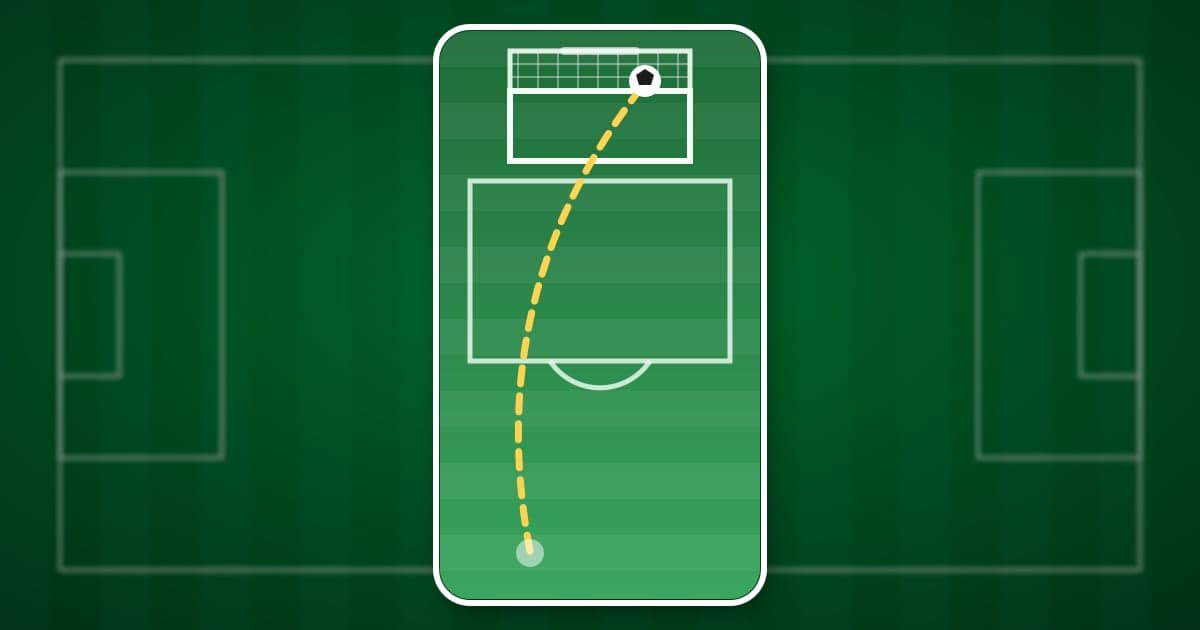
An FC Online (formerly FIFA Online 4) Short comes together in three moves: cut one goal down to 8 to 20 seconds, pick the aspect ratio that goal survives in on a phone screen, and lay the match time and score over it as text. The hard part is the ratio. FC Online films the pitch side-on and wide, so when you fill a 9:16 frame from 1920×1080 footage only a 608-pixel strip, about 32% of the width, remains. That often means the shooter and the goal, or the passer and the finisher, never share the frame. This guide covers which ratio to use for each kind of goal, where the text should go, and what to check on length and music before you post. For the ways to keep goal footage in the first place, see how to save FC Online goal moments.
Which goal, which ratio
Start from the two points the goal cannot do without, such as the shooter and the net, or the passer and the finisher, and ask how far apart they are across the screen. A finish right after a skill move, or a goal from a scramble in the box, plays out in a narrow band, so a 9:16 crop rarely loses anything important. Long shots, big finesse curlers and finishes off a cross or a through ball put those two points far apart horizontally, so they rarely fit in one 9:16 strip; for those, choose 1:1, which keeps about 1.8 times the width of a 9:16 crop. For the general cropping and background options when turning landscape clips vertical, see how to make a vertical 9:16 game video.
How to build an FC Online goal Short
- 1Keep both the goal clips and the full-match recordingInstall DOR and launch FC Online: DOR detects the game, records the whole match as an mp4, and saves each goal as a separate goal clip. The two files do different jobs in a Shorts workflow. Goal clips let you skim the day's goals and pick quickly, while the full-match recording is where you go back, with the trim tool in the library, when a clip is missing the build-up or a comeback needs the equalizer and the winner in context. After a match worth posting, just confirm that the goal clips are there.
- 2Pick the goals that work as ShortsPlay back the day's goal clips in the library and ask whether the first second shows what is special, even with the sound off. A long shot from outside the box, a curler that bends into the corner, a volley struck straight off a cross, a finish after a skill move that leaves a defender behind, or a late comeback winner all pass that test. A plain tap-in from close range is better saved for a full-match highlight video.
- 3Trim the start and end to Short lengthA clip you send to a friend can show the whole build-up, but a Short has to reach the goal before a stranger swipes away, so keep it within 8 to 20 seconds. Set the start 1 to 3 seconds before the shot, or at the first touch of the skill move for a dribbling goal, and save the full passing move for a regular 16:9 video. Cut the end just after the net ripples or on the first move of the celebration.
- 4Decide between 9:16 and 1:1 for each goalChoose the output ratio in the trim tool, then use the preview to confirm that the moment of the shot, the flight of the ball and the net all stay inside the frame. If the ball drifts to the edge in 9:16 or the passer disappears, switch to 1:1. If even 1:1 cuts something important, post that goal as a regular 16:9 video and cut only the finish for the Short.
- 5Add the match time and score as textThe in-game scoreboard is hard to read on a vertical phone screen and can fall outside the crop, so write the match time and score yourself on one line, such as “89' · 2-2 → 3-2”, and add the goal type, like “35m long shot”, if it helps. If you chose 1:1, you can add the text directly in the app's trim tool; for 9:16, use the text tool in DOR Studio. Keep it near the top, away from the bottom and right edges where Shorts and Reels place their buttons and description.
- 6Join several goals in DOR StudioWhen several goals tell the story, such as an equalizer followed by a winner, open DOR Studio in the browser with no install and merge the goal clips in match order. Each project can hold only a limited number of videos, and a Short works better kept tight, so pick the two or three goals that matter. Add just one effect template, such as a punch zoom on the strike, and when you lay background music underneath, leave the original volume high enough that the crowd and commentary still come through. Videos you bring into the studio must be at least 3 seconds long and no larger than 500MB.
- 7Check length and music before you postDownload the mp4 and post it to YouTube Shorts, Instagram Reels or TikTok. According to the YouTube Help Center, how a Short with an active copyright claim, Content ID included, is handled depends on its length, and the rule for Shorts over one minute changed on September 24, 2026, so keep any Short with background or in-game music under a minute or check the current terms before posting. EA's content policy also says it does not grant permission to use third-party content such as music from its games, so on a channel that will earn money, cut the stretches where game music plays and check your server operator's notices as well.
9:16 crop guide by goal type
| Goal type | What happens in a 9:16 crop | Suggested ratio and what to check |
|---|---|---|
| Finish after a skill move | The skill and the shot happen around one player, so most of it stays in one frame | 9:16; check that the move that beat the defender is not cut |
| Scramble or header in the box | Players, ball and goal are packed into a small area, so little gets cut | 9:16; check that the goal mouth stays in frame |
| Long shot | The shooting spot and the goal are far apart, so the goal is often out of frame while the ball travels | 1:1; check that the strike and the net connect in one frame |
| Finesse curler | Where the bend starts and the corner it ends in sit far apart, so the curve barely reads | 1:1; the test is whether you can see the ball bend |
| Finish off a cross or through ball | If the passer and the finisher are far apart horizontally, they never appear together | 1:1; in 9:16, start as the ball reaches the finisher's side |
| Late comeback winner | The in-game scoreboard is small on a vertical phone screen or falls outside the crop, so the picture alone does not say it was a comeback | Ratio by goal type, and always add match time and score text |
Before you post
- The moment of the shot and the net are both visible in the same video.
- For goals made in 9:16, the ball never leaves the frame in the preview.
- For goals built from a cross or pass, I checked that the player who delivered the ball is not cut off.
- The match time and score text sits near the top, away from the bottom and right edges.
- I listened once on a phone speaker to the balance of crowd noise, commentary and background music.
- The video is 3 minutes or shorter, its ratio is 9:16 or 1:1, and if it has music it ends within a minute.
Making FC Online goal Shorts with DOR
DOR is a free Windows desktop app. When you launch FC Online, it detects the game, records the whole match as an mp4, and creates a separate goal clip when it detects a goal. Automatic highlight clips exist for seven games, FC Online among them, and for FC Online the event is the goal. With an NVIDIA graphics card, NVENC hardware encoding is the default, and game sound and microphone are recorded together. In the app library's trim tool you set a start and an end and choose 16:9, 9:16 or 1:1, and in 1:1 you can add text right there. Trimmed videos can be shared as a dor.gg link that plays in a mobile browser. To put text on a 9:16 video or join several goals, open DOR Studio in the browser with no install. It handles length, merging, aspect ratio, effect templates such as punch zoom and shake zoom, text, background music and volume, then lets you download an mp4 or share a link. The browser trim-and-merge flow is walked through in the DOR browser editor article, and before you choose background music, read the copyright guide for game footage and BGM.
 #FC Online