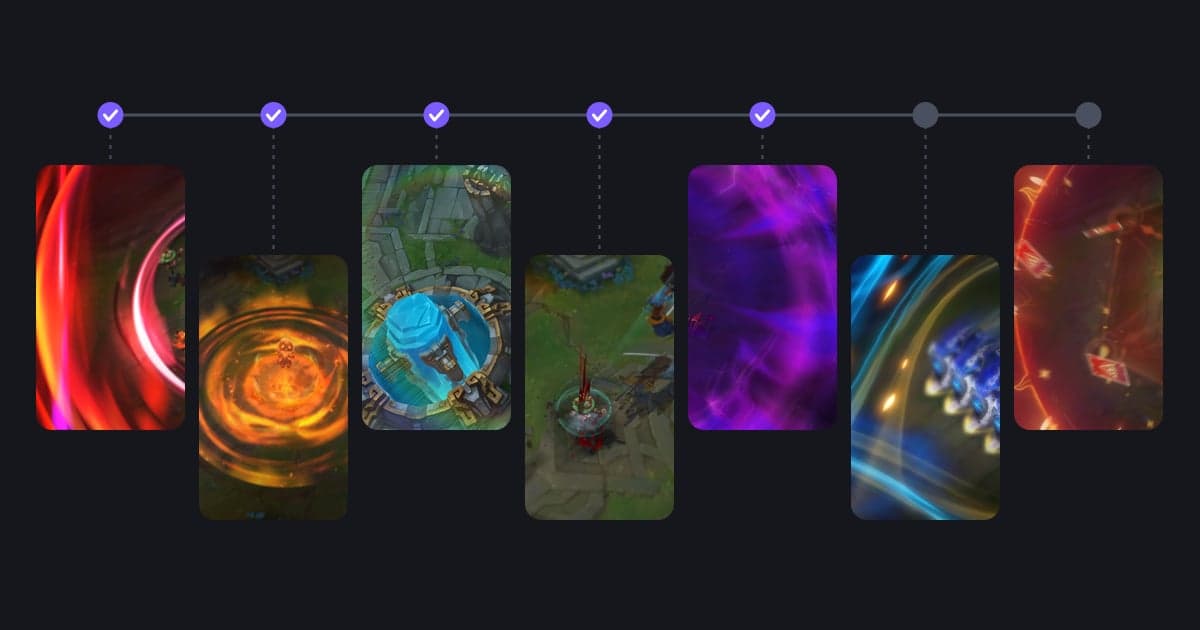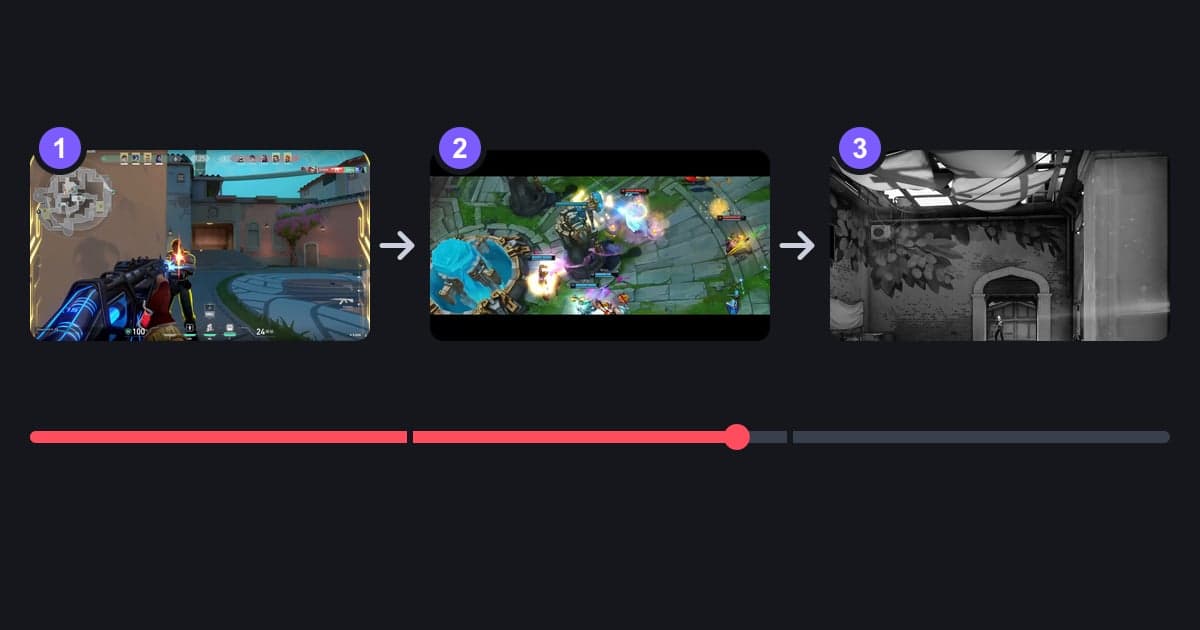
To make a game guide video, give every topic the same three beats (the result first, then a real-match demo, then the same play again broken into steps) and turn each of those blocks into its own YouTube chapter. People who open a gaming tutorial usually want one lineup or one situation, so writing the chapter list before you record also decides how many demo clips you need, where the on-screen labels go and roughly how long the video will run. This guide uses lineup, champion, macro and settings guides as examples and covers only structure, gathering demo footage, step labels and chapters. Basic cutting and music are covered in a beginner's guide to gaming video editing.
In a guide video, the chapter list decides what you record
The first job in a guide video is not recording but writing the chapter list. For a VALORANT lineup video on one map with one agent, that might read: 00:00 what you will learn, lineup 1, lineup 2 … lineup 5, recap, with a target of at least one successful demo per lineup. If each topic runs about 5 seconds of result, 20 seconds of demo and 15 seconds of step-by-step replay, one chapter is around 40 seconds and a five-lineup video lands at about 4 minutes including the intro and recap. Successful attempts do not all happen in one match, so record several matches and cut out only the moments you need. How to set precise start and end points is covered in how to trim game clips.
How to make a game guide video, step by step
- 1Write the chapter list firstThe unit for a chapter depends on the kind of guide. In a lineup guide one lineup is one chapter; in a champion or agent guide one situation such as a combo, the laning phase or a teamfight is one chapter; in a macro guide one phase of the game such as laning, the first objective or the mid-game teamfight is one chapter; in a settings guide one setting is one chapter. Write chapter titles in the order viewers search, for example map + site + agent + ability for a lineup, so the timestamps in the description alone lead people to the play they want. The first chapter is the intro at 00:00, the very start of the video.
- 2Script every chapter as result, demo, replayOpen each chapter with the outcome. For a lineup that is where the ability lands; for macro it is the objective or gold lead the decision earned. Next, show a successful attempt from a real match without cutting away, and finally place the same footage a second time with on-screen text for each step, such as position, aim and execute. For narration, note just the step names instead of reading a full script, so your voice and the text on screen stay in sync.
- 3Record several matches to collect demo footageA perfect lineup or a clean combo does not happen every match just because you want it to. Keep recording, play several matches as usual, and after each one jot down next to your chapter list which match had a successful attempt and roughly when. Keep the failures too: a missed throw of the same lineup or a lost fight in the same situation becomes a what-not-to-do example that explains why the successful version works. Get in the habit of holding your aim still for one or two seconds before you throw, so your position and crosshair placement are readable inside the demo and step labels are easy to add later.
- 4Cut every demo to the same ruleCut each demo from two or three seconds before the setup to two or three seconds after the result is visible, so viewers never lose track of where it started and how it ended. Using the same rule in every chapter keeps the lengths similar and makes the total runtime easy to estimate. Name the files with the chapter number first, such as 03_lineup2_success, and you will not have to reorder anything when you merge.
- 5Label the steps with on-screen textIn the replay section, show one short line at a time with a number and a verb, such as 1 Position, 2 Aim, 3 Execute. Keep the text in the same spot and the same font in every chapter so viewers recognize it as a step label instantly. Choose a spot that does not cover the minimap, kill feed, health or ability indicators, because that part of the UI is often the evidence for your advice. In a settings guide, write the setting name and the new value exactly as they appear, so viewers can pause and copy them.
- 6Join the chapters in order and check the lengthJoin the trimmed segments in the order of your chapter list, then play the edit from the start and note where each chapter begins, for example 00:00 Intro, 00:25 Lineup 1 (map, site, agent, ability), 01:05 Lineup 2. That list becomes the chapter list you paste into the description. The minimum length of a YouTube chapter is 10 seconds, so fold anything shorter into the chapter next to it. If the edit runs longer than planned, trim the talking and text in the replay sections before you touch the demos. The demo is the proof that the advice works, and cutting it makes the guide less convincing.
- 7Add chapters in the YouTube descriptionPer YouTube Help as checked on October 13, 2026, you add chapters manually like this: open YouTube Studio, select Content in the left menu, choose the video, write one timestamp and chapter title per line in the Description field, and click Save. The first timestamp must be 00:00, you need at least three timestamps in ascending order, and every chapter must be at least 10 seconds long. Chapters you add manually take priority over automatic chapters. Chapters are not available if the channel has an active strike or the content may be inappropriate for some viewers.
What demo footage and step labels each guide type needs
| Guide type | Demo footage to collect | On-screen text and chapter unit |
|---|---|---|
| Lineups (VALORANT abilities, PUBG throwables) | A successful throw plus a shot where your position and aim are visible | Position → aim → execute / one chapter per lineup |
| Champion or agent guide (LoL champions, VALORANT agents) | A combo that lands and a favorable trade in lane | Ability order / chapters for combo, laning, teamfight |
| Macro guide (League of Legends) | Footage before and after an objective, and a turret going down | Game time and the reason for the call / one chapter per phase |
| Fights and positioning (PUBG) | A pair: a fight you won and a similar one you lost | Do this vs. not this / one chapter per situation |
| Settings guide | The settings screen plus the same scene before and after the change | Setting name and value / one chapter per setting |
| Fixing mistakes | A death, and the same situation played correctly and won | One line on the cause / one chapter per mistake type |
Guide video check: demos, step labels and chapters
- I wrote the chapter list before recording, and each chapter covers one topic.
- Every chapter has at least one successful demo.
- Each chapter opens with the result shot that serves as its conclusion.
- Step labels use the same position and font in every chapter and do not cover the minimap or kill feed.
- The description chapters start at 00:00, there are at least three timestamps in ascending order, and every chapter is at least 10 seconds.
- I clicked each timestamp in the description to confirm it matches where the chapter starts in the video.
Collecting demo footage and labeling steps with DOR
DOR is a free Windows app: launch a supported game and it detects the game and records the full match as an mp4. Because each match is recorded without you starting a recording each time, you can pick the successful attempt from the library later even if you did not know which match it would come from. Game sound and your microphone are recorded together, so commentary you speak while playing is kept as well. In VALORANT DOR automatically creates kill, death and round clips (with round result tags such as ace and clutch); in League of Legends it creates kill, assist and death clips plus objective and turret clips; in PUBG it creates kill, knockout and death clips, which makes demo candidates easier to find. Automatic clips are created for seven games only, these three plus Fortnite, Counter-Strike 2, Overwatch and FC Online, so a moment that is not a kill, such as a lineup, has to be saved yourself with the clip hotkey at that moment or cut from the full match. The library trim tool lets you set a start and end and choose 16:9, 9:16 or 1:1, but text can be added only in 1:1. Putting step text on the 16:9 main video and joining the chapters in order is done in DOR Studio in the browser, where you can merge several videos, adjust length, add text (with fonts), background music and volume, then download an mp4 or share a link. Basic trimming and merging in the browser are covered in the DOR Browser Editor, and the order for joining demo clips into one video is in how to merge game clips. Videos added to the studio must be at least 3 seconds long and no larger than 500MB, and each project has a limit on the number of videos, so upload the demo segments you trimmed in the library rather than the full-match original.
 #Valorant