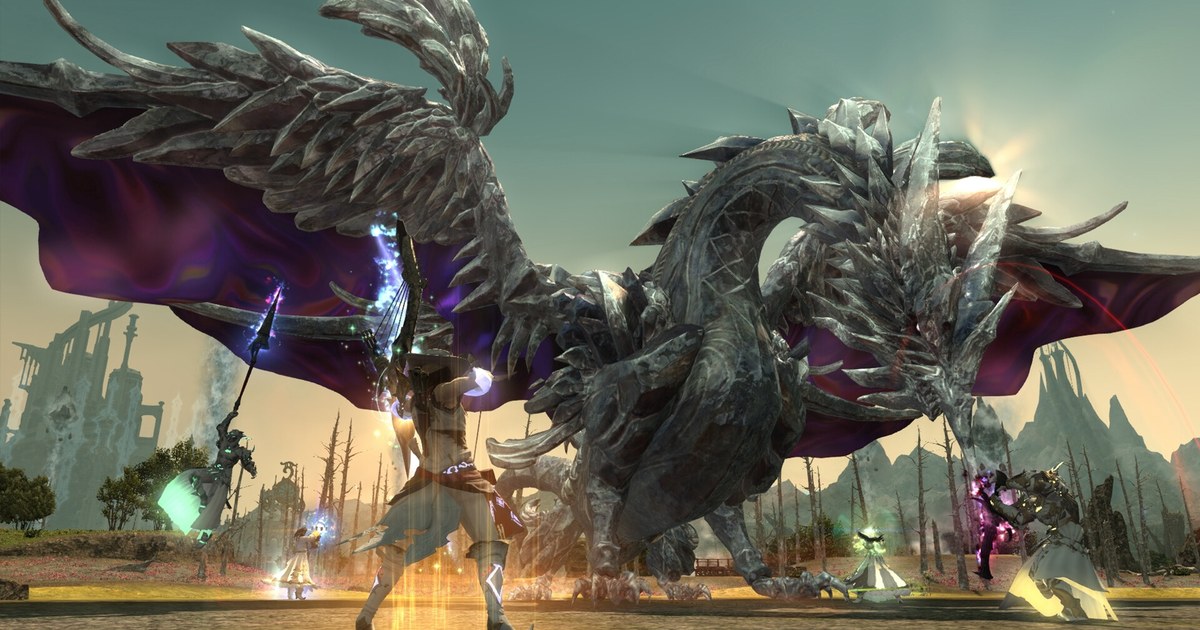
If you are searching for FFXIV recording software, you probably want one of two things: to rewatch a Savage or Ultimate wipe and see exactly which mechanic fell apart, or to keep the pull where your static finally cleared and send it to people who were not there.
FFXIV does ship with its own tool for the first job. The Duty Recorder, which is what most people mean by duty recording, logs a fight so you can replay it later, switch to any party member's camera and skip ahead by chapter.
It also comes with hard limits: playback only happens in an inn room, only three recordings fit at once, only certain duties can be recorded, and every new patch makes older recordings unplayable.
Anything you want to keep past the next patch, watch on your phone or post to Discord needs to be recorded as an actual video file.
This guide shows when to use the Duty Recorder and when to use a screen recorder, how to turn the Duty Recorder on and record a review session step by step, what to check before a long prog night, and how to keep the whole session without pressing record at all. The steps are the same whether you play on NA, EU, OCE or JP data centers.
Short answer: Duty Recorder for reviews within a patch, video for anything you keep or share
The Duty Recorder is built for raid review. During playback you can jump into the tank's or healer's view to see where they were standing, switch speed between 1x, 2x and 4x, and use chapter selection to skip straight to the mechanic that wiped you.
If your static only needs to sit in an inn room and work out what went wrong before the next patch, that is enough.
If you want to keep a clear, watch it outside the game or show it to someone who was not in the party, you need a video recording, because a Duty Recorder file is not a video: it is game data that only plays inside the client and stops working after the next patch. You can also combine the two.
Leave a screen recorder running while you play a recording back in the inn, and the other party members' views you switch to end up in the video as well. Hours of prog on one floor fill a drive quickly, so check the numbers in how much space an hour of game recording takes before raid night.
If your static talks on Discord, recording Discord call audio covers how to keep the voice comms with the gameplay.
A note on plugins: searching for an FFXIV recording plugin usually leads to third-party add-ons that hook into the game client, and Square Enix's position is that third-party tools are prohibited under the User Agreement, so this guide sticks to the built-in Duty Recorder and ordinary recording apps.
Record and review an FFXIV raid in 5 steps
- 1Unlock and enable the Duty RecorderA level 70 or higher Disciple of War or Magic who has finished the main scenario quest The Ultimate Weapon can unlock it by speaking to the Wandering Minstrel in Mor Dhona (X:21.7 Y:8.7). Then open Duty Recorder under Duty in the main menu and set Recording Settings to Enable.
- 2Enter with a full party and run a Record Ready CheckGo into a recordable duty with a party that meets the minimum size, then start a Record Ready Check with /recordready. Recording begins only when every party member accepts, and you need at least 210 MB of free space. The list of recordable duties changes with patches, so check it each time.
- 3Start a screen recorder as wellRecord your screen alongside the Duty Recorder. Windows Game Bar (Win+Alt+R) is fine for short moments, the NVIDIA App (Alt+F9) works on GeForce cards, OBS suits custom scenes, and DOR records without a button. Do a ten-second test first and play it back to confirm the picture, game audio and mic are all there.
- 4Review in the inn from different viewsIn an inn room, open the Duty Recorder, pick a recording and press Play. Use chapter selection to jump to the wipe, then switch between the tank, healer and DPS views to check positioning. Turning off the HUD gives a cleaner picture, and if your screen recorder is running, every view you switch to is saved as video.
- 5Trim the pulls that matter and send them to your staticCut out the clear, or the pulls that broke on the same mechanic. Uploading straight to Discord often runs into the file size limit, so sending a link as shown in sharing clips on Discord is easier. Save any clear you want to keep as a video file before the next patch arrives.
Duty Recorder vs screen recording
| What matters | Duty Recorder (built into the game) | Video recording (DOR, OBS and others) |
|---|---|---|
| Where you can watch | Only inside an inn room | Anywhere: on your PC or in a phone browser |
| How many you keep | Three at a time; the oldest is overwritten unless you lock it | As many as your drive has room for |
| After a patch | Older recordings can no longer be played | The video file stays exactly as it is |
| Which duties | Only the duties set as recordable for the current patch | Anything on screen: dungeons, Savage, Ultimate, the open world |
| What it needs | A party at the minimum size, every member's consent, 210 MB of free space | Just your own PC screen, with no party conditions |
| Camera | Switch between party members, 1x, 2x or 4x speed, chapters, HUD off | Your own view (record a Duty Recorder playback to capture other views too) |
| Sharing | Not a video file; to show it, record the playback separately | Send an mp4 or a link to your static, Discord or a group chat |
Before you record a review session
- Recording Settings in the Duty Recorder are set to Enable, and any recording you want to keep is locked so it is not overwritten
- You know when the next patch lands and have already played back and screen recorded any Duty Recorder file you want to keep
- Your encoder and recording drive are set up for hours of footage, following recording long gameplay without stutter
- Before posting a video publicly where other players' character names are visible, you checked with your party
- A ten-second test recording has the picture, game audio and your mic
Record FFXIV without pressing record: using DOR
DOR is a free Windows app. With the latest version of DOR running, launch FFXIV and your whole session is recorded until you quit, with every recording collected in My Clips in the app.
Check once that FINAL FANTASY XIV Online recording is switched on in DOR's settings, and when you only want a specific stretch, start and stop screen recording yourself (F7 by default).
Because DOR keeps recording for as long as the game is open, every prog pull is saved, and so is any Duty Recorder playback you watch in an inn room, with game audio and your mic in the same video. From a long session, trim just the clear or the wipe in the app and save it in 16:9, 9:16 or 1:1.
In DOR Studio you can join several pulls, add text, background music and effect templates, then download an mp4 or send a dor.gg link that plays right in a phone browser, which is handy for a static's Discord server.
Recordings only start getting cleaned up, oldest first, once they pass the space set aside for Full gameplay recordings (5 GB by default), and your latest recording and anything you liked stay put, so like the clear you want to keep.