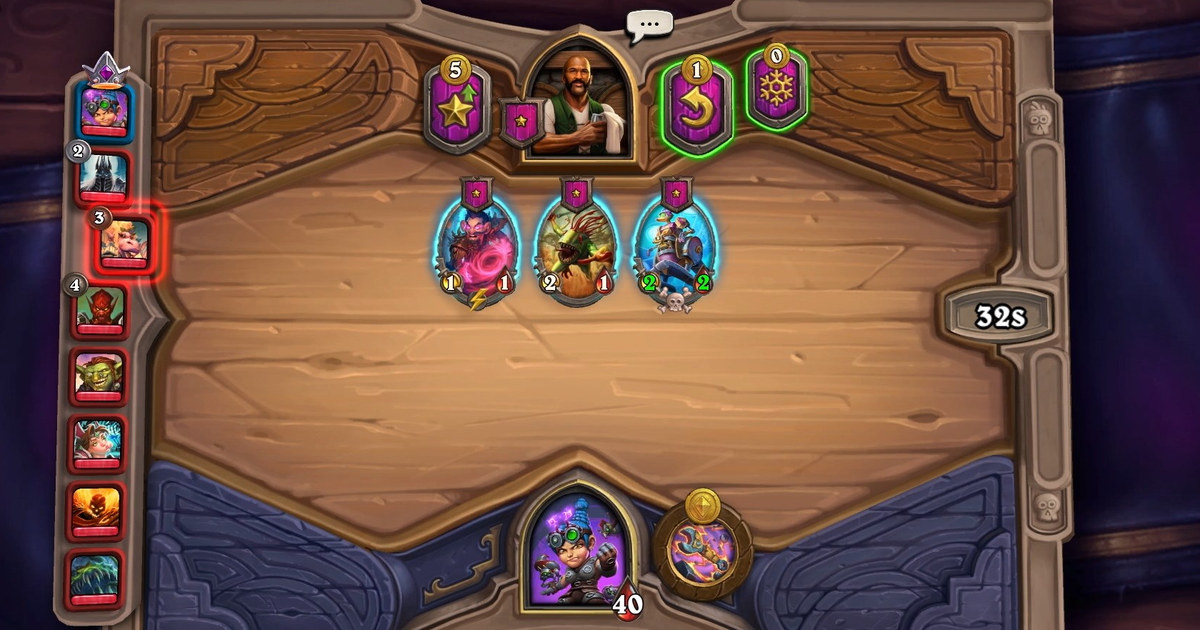
If you searched for a Hearthstone replay, you probably want to see a game you just finished.
Maybe you lost the final Battlegrounds fight and want to check how your board was positioned, maybe you want to know what your Arena opponent was holding, or maybe you finally took first place and want to show your friends on Discord or Reddit.
Here is the short version: the Hearthstone client has no replay menu. Everything people call a Hearthstone replay comes from outside the game. Deck trackers save a record of the match that you can play back on the web, and screen recorders save the actual picture and sound.
This guide compares the three routes, walks through installing Hearthstone Deck Tracker and finding your replays, shows how to pull up your last game, and covers recording Battlegrounds and Arena matches as real video.
The short answer: trackers for reviewing plays, recording for clips you want to share
Pick the tool by what you want from the replay. If you want to review decisions, such as which card went down on which turn or what your opponent's board looked like in each Battlegrounds combat, a deck tracker is the right fit.
On Windows the standard choice is Hearthstone Deck Tracker (HDT) from HearthSim. It uploads your matches to HSReplay.net, where you can step through them turn by turn in your browser.
On a Mac the same team makes HSTracker, and if you already use Overwolf, Firestone does a similar job and adds Battlegrounds battle history. Keep in mind what these replays are: the tracker reads the records Hearthstone writes during a match and redraws the game from them.
You get the sequence of plays, not a video with the game's animations, sound or your commentary. If you want to post a first place finish or a comeback Arena game as a clip, you need to record the screen. To record by hand with the Xbox Game Bar built into Windows, see how to record with Xbox Game Bar.
If starting a recording every match feels like a chore, DOR records on its own as long as it is running. If you want both, run a tracker and a recorder together. One keeps the record of plays and the other keeps the picture, so they do different jobs.
From installing HDT to opening your replays, in this order
- 1Download HDT from the official pageGet Hearthstone Deck Tracker from HearthSim's official download page at hsdecktracker.net/download. The latest installer starts downloading automatically, and the same page links to the GitHub releases and a Hong Kong mirror if it does not. Skip installers from ads, forum attachments or reupload sites. On a Mac, use HSTracker instead, and Overwolf users can get Firestone from the Overwolf store.
- 2Start HDT before HearthstoneOpen HDT first, then launch Hearthstone from the Battle.net app. HDT follows the match by reading the files Hearthstone writes to the Logs folder in its install directory. If cards are not being picked up, the first fix in the official FAQ is to restart both Hearthstone and HDT. When your deck list shows up beside the board in your next match, tracking is working.
- 3Link your HSReplay.net accountOpen the HSREPLAY.NET menu at the top of HDT and choose Login. Linking your account keeps every uploaded replay in one place, so you can find them later under My Replays. As the prompt in HDT's options says, logging in also claims the replays you uploaded before.
- 4Check your upload settingsIn HDT's options, open Replays under HSReplay.net and make sure Upload replays automatically is on. It is on from the start, and Ranked, Casual, Arena, Battlegrounds, Brawl, Spectator and the other modes are all ticked. The per-mode checkboxes only appear after you tick Show Advanced at the bottom of the options menu, so if your Battlegrounds games are missing, check that Battlegrounds is still ticked there. Turn on Show share notification to get a prompt to share the replay when a match ends.
- 5Open your last game from Latest replaysWhen the match ends, it appears under Latest replays in the HSREPLAY.NET menu. Click it to open the replay in your browser and move back and forth through the turns to check cards and boards. For older games, use My Replays or Select from stats.
Three ways to watch a Hearthstone replay, compared
| Option | What you can rewatch | Good to know |
|---|---|---|
| Inside the game | No replays of finished games. You can only spectate a friend's match while it is in progress | A finished game cannot be reopened, so start a tracker or recorder before any match you may want to see again. |
| HDT with HSReplay.net (Windows) | Turn-by-turn playback of past games in your browser, from Latest replays or My Replays | Start HDT before Hearthstone so no match is missed. Automatic upload is on for every mode by default. |
| HSTracker (Mac) | The same kind of match record as HDT | It is HearthSim's official macOS port of HDT. |
| Firestone (Overwolf) | A list of all your past games, played back in the app or in your browser, plus Battlegrounds battle history and odds for each battle | It runs on Overwolf alongside Hearthstone. |
| Screen recording (DOR, OBS, Game Bar) | The actual screen, card animations, game sound and your voice | You get an mp4 you can post to YouTube Shorts, Reddit or Discord. To save a moment after it happens, see saving the last few seconds as a clip. |
| Hearthstone on mobile | Your phone's built-in screen recording | The trackers and recorders above are PC tools, so on a phone, start the device recorder before the match. |
Check these before the match so you never lose a game you want to rewatch
- You know Hearthstone has no replay menu, and a tracker or recorder is running before the match starts
- HDT, HSTracker or Firestone came from the official download page or the Overwolf store
- Automatic upload is on in HDT, with Battlegrounds, Arena or any other mode you want to rewatch ticked
- If you are adding commentary, a ten-second test recording confirmed your mic is in, following recording game audio and mic together
- Hearthstone sessions run long because the client often stays open between games, so you checked free space with how much space an hour of recording takes
- Games you want to keep are trimmed or liked right after they end
Keep Battlegrounds and Arena games as video: recording Hearthstone with DOR
DOR is a free Windows app. Keep DOR running and launch Hearthstone, and recording starts on its own and continues until you quit the game, with every recording collected in My Clips in the app.
Hearthstone recording comes with the latest version of DOR, so if you installed it a while ago, update first and check that Hearthstone recording is switched on in the settings.
Game audio and your mic go into the same video, so if you talk through a Battlegrounds run, your commentary stays in sync with the board. From a long session, trim just the final combat that locked in first place or the turn that saved an Arena run, and save it in 16:9, 9:16 or 1:1.
Tips for cutting a clip down to the part that matters are in how to trim game clips.
In DOR Studio you can join clips from several games, add effect templates such as punch zoom and shake zoom, text and background music, then download an mp4 or send a dor.gg link that plays right in a phone browser, which works well for a Discord server or a group chat.
Recordings only start getting cleaned up, oldest first, once they pass the space set aside for Full gameplay recordings (5 GB by default), and your latest recording and anything you liked stay put.