
Here is the short answer: the easiest way to turn League of Legends clips into Shorts is to stop worrying about saving them. If the whole match is recorded from the start and your kills are collected as clips, all that is left after the match is to pick a scene, set it to 9:16, and export.
Pressing a record hotkey after a great play is usually too late, and replays can become hard to open as time passes, so your saving habit decides how fast you can make Shorts. This guide ties the saving step and the vertical conversion step into one flow.
If you already have clips and only want editing tips, see how to make League of Legends Shorts, and for plays you cannot afford to miss, such as a pentakill, read how to save a League of Legends pentakill clip. Here we focus on which scene to pick, in what order, and how few clicks it takes to reach a vertical video.
The answer: record the full match, pick one scene, export in 9:16
Saving League of Legends clips comes down to three habits. First, let the whole match record automatically once the game starts. Then your hands are free during fights, and if the auto clips fall short you can still cut a scene from the full match video.
Second, put one scene in each Short. A single kill, one multikill, or one teamfight is easy to follow at a glance, and leaving a few seconds before and after makes the cut feel less abrupt.
Third, set the ratio to 9:16 before exporting and check in the preview that the champion and the key action stay inside the vertical frame. The ratio is a setting you choose, so check it for every scene.
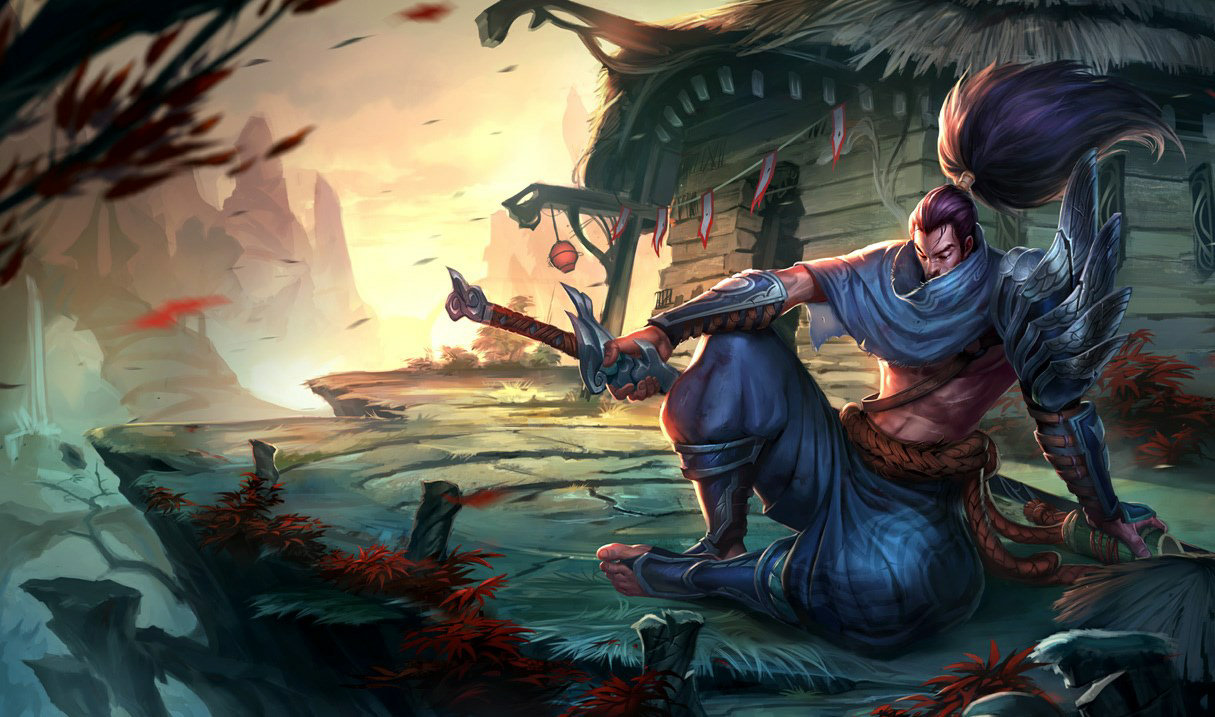
League of Legends is one of the games where DOR detects kills, multikills, and objectives and collects them as clips, so you can use this flow as is. You can see the supported range on the game hub. League of Legends hub
How to turn League clips into Shorts
- 1Keep auto recording on before the match startsInstall DOR and keep it running, then launch League of Legends. The game is detected automatically and the whole match is recorded. You never need a hotkey, so your hands stay free in fights and you stop regretting great plays you did not save. Recordings collect in My Clips in the app.
- 2Gather candidates from My Clips after the matchIn League of Legends, kill, multikill, and objective scenes become clips automatically and collect in My Clips. Skim them right after the match and narrow it down to two or three candidates for a Short. If none of them satisfy you, you can also cut any scene yourself from the full match video.
- 3Pick one scene and leave room on both sidesOne scene fits one Short best. Start a few seconds before the kill and keep a moment after the result so viewers have time to understand what happened. Check the current length limit on the upload screen of the platform you post to and fit the clip to it.
- 4Choose 9:16 in the app's trim toolOpen the clip, trim the range, and choose 9:16 as the ratio. Because the ratio is a setting you pick, use the preview to confirm that the champion and the key action stay inside the vertical frame. Framing tips for turning landscape video into vertical are in how to convert landscape video to vertical 9:16.
- 5Join several scenes in DOR StudioIf you want two or three scenes in one video, join them at dor.gg/studio and add text, BGM, volume, and an effect template. Effects such as shake zoom or punch zoom read better when used once at the kill. The joining steps are covered in how to merge game clips.
From saving a League clip to posting a Short
| Stage | What to do | How to do it |
|---|---|---|
| Before | Keep DOR running | When you launch League of Legends, DOR detects the game and records the whole match automatically |
| After | Open My Clips | Kill, multikill, and objective clips are collected in My Clips next to the full match video |
| Choose | Pick one scene | Pick a single kill or one teamfight that is clear at a glance, with a few seconds of room on both ends |
| Trim | Set a 9:16 range | Choose 9:16 in the app's trim tool and set the start and end points |
| Polish | Use Studio for several scenes | Join videos in DOR Studio and add text, BGM, and an effect template |
| Export | mp4 or a link | Export an mp4 to upload, or share a dor.gg link right away |
Before you upload
- Each Short holds only one scene
- You left a few seconds before and after the scene
- The ratio is 9:16 and the champion and key action are inside the frame in the preview
- You checked the platform's current length limit on its upload screen
- The exported mp4 or dor.gg link plays correctly
Save League of Legends full matches and kill clips together with DOR, then export Shorts
DOR is a free Windows game recording app. When you launch League of Legends it detects the game automatically and records the whole match, and kill, multikill, and objective scenes become automatic clips collected in My Clips.
Original recordings, automatic event clips, DOR Studio edits, and exports have no watermark. While trimming in the app you can choose 16:9, 9:16, or 1:1 as the ratio, so pick 9:16 for Shorts.
To join several scenes, use DOR Studio (dor.gg/studio) for joining videos, changing the ratio, text, BGM, volume, and effect templates, then export an mp4 or share a dor.gg link. For League of Legends, replay and spectate recording is on by default, so playing a .rofl replay records that footage too. Recording quality is free at 720p and 1080p with 30 or 60 fps, and the default is 1080p at 30 fps.