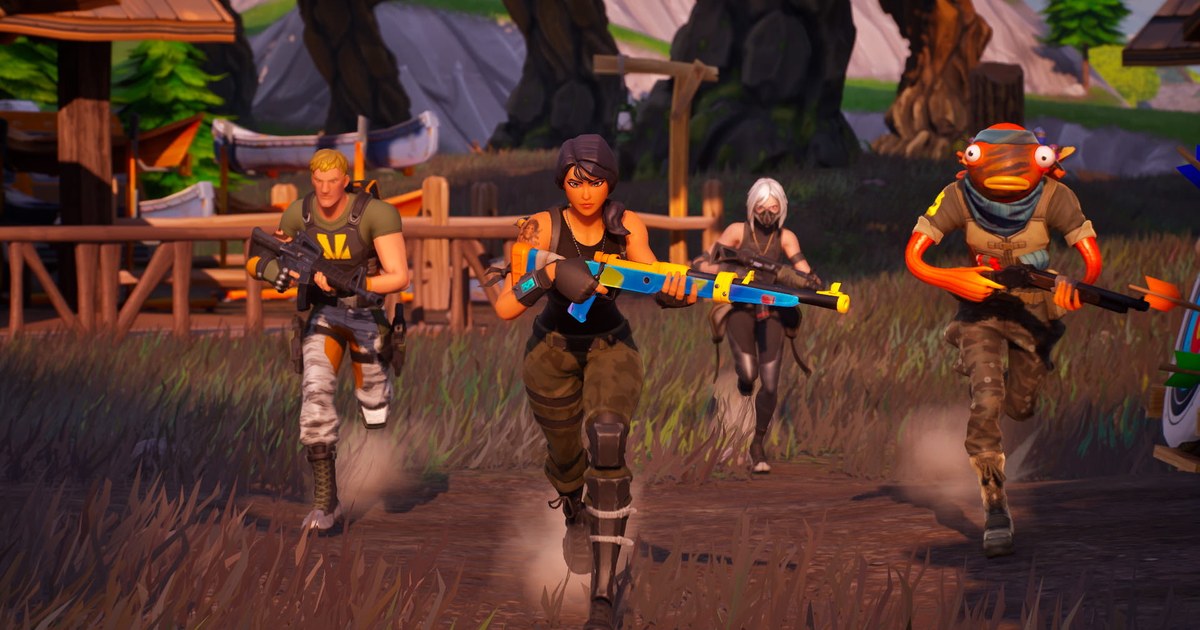
Here is the short answer: the easiest way to save Fortnite clips is not building a habit of pressing a record button, it is setting things up so the game records itself when you launch it.
Once DOR is installed, it detects Fortnite when you start it, records the whole match, and keeps your kill and death scenes as automatic clips in My Clips. When the match ends, you pick the one scene you like best and export it at 9:16, and that file is ready for Shorts.
A Victory Royale match is long and the best moments last a few seconds, so manual recording makes it easy to miss the part that matters. For the basics of vertical video and cropping, see how to make vertical 9:16 gaming videos; this guide covers the flow from saving a Fortnite clip to the point right before you upload.
The answer: record the whole match, pick one clip, export at 9:16
The fastest route to a Fortnite Short has three parts. First, let the whole match record automatically when you launch the game. Second, after the match, choose one scene from the kill and death clips.
Third, set the ratio to 9:16 and export. In a game with automatic clips like Fortnite, the time you spend hunting for a scene drops a lot. If you want to know how automatic clips find scenes, read what is automatic game clip detection.
For scenes that are not in the automatic clips, such as the last edit in a build fight or a storm run just before the win, trim that section out of the full match recording and save it. Either way the full recording is still there, so you do not need to worry about missing a moment.
Steps from saving a Fortnite clip to a Short
- 1Install DOR and launch Fortnite as usualDOR is a free Windows app. After installing, start Fortnite and the game is detected automatically and the whole match is recorded. You do not press a record button, so just play like you normally do.
- 2After the match, browse the automatic clips in My ClipsRecordings collect in My Clips in the app. Fortnite kill and death scenes are caught as automatic clips, so skip scrubbing the long recording and start from the clip list.
- 3Pick only one scene per match for a ShortA Short gets watched to the end when one scene is clear. Choose one fight with a chain of kills, or the single kill you think will land best. For scenes that are not in the automatic clips, trim the section yourself from the full match recording and save it.
- 4Trim the section and set the ratio to 9:16Open trimming in the app, adjust the start and end, and choose 9:16 before exporting. Turning a wide screen into a tall one can cut off the sides or add margins, so scenes where the action sits near the center are safest. For cropping and background fill, see how to convert wide video to vertical 9:16.
- 5Merge several scenes in Studio and uploadIf one scene is not enough, join several clips in DOR Studio (dor.gg/studio), add text or music, then export as mp4 or share with a dor.gg link. The merging order is covered in how to merge game clips.
From Fortnite clip to Short at a glance
| Step | What to do | How to do it |
|---|---|---|
| Set up recording | Install DOR and launch Fortnite | The game is detected automatically and the whole match is recorded |
| Pick a scene | Check kill and death clips | Open My Clips after the match and choose the single most striking scene |
| Trim | Cut the start and end | Keep from just before the fight starts to just after the result |
| Set the ratio | Choose 9:16 | When you trim in the app, set the ratio to 9:16 and export |
| Combine | Merge several scenes if needed | In DOR Studio, join scenes and add text or background music |
| Check before upload | Review length and first shot | Confirm it is under 3 minutes and the strongest moment comes in the first second or two |
What to check before uploading your Short
- The video holds one scene, or only a few
- The ratio is 9:16 and the key action sits near the center
- The total length is under 3 minutes, ideally within 30 seconds
- The strongest moment appears in the first second or two
- You kept the original full match recording
Save Fortnite clips and export at 9:16 with DOR
DOR is a free Windows game recording app. When you launch Fortnite, a supported game, it is detected automatically and the whole match is recorded, with kill and death scenes made into automatic clips that collect in My Clips. In the app you can trim a section and save it at 16:9, 9:16, or 1:1.
In DOR Studio (dor.gg/studio) you can join several videos, change the ratio, use effect templates such as shake zoom and punch zoom, add text, music, and volume, then export as mp4 or share with a dor.gg link. Recordings, clips, and edited results made with DOR have no watermark.
Free recording quality is 720p or 1080p at 30 or 60 fps, with 1080p at 30 fps as the default. Storage is only cleaned up, oldest first, when you go over your default 5GB share, and recent recordings and liked videos are kept.