You can make a gaming video from zero by moving through four blocks in order: record, trim, edit, share, and starting with DOR means you do not have to build scenes or sources first to reach that first video. The condition is a Windows PC and a game that DOR supports; if the game is not supported, the flow never starts. This guide covers only the order of the steps, and the details of the editing screen are left to the DOR browser clip editor article.
The whole thing in one line
Install, launch a supported game, trim the part you want from the automatically recorded full match, polish it in the browser editor, then share a link or download an mp4. For a first video, one trim and one aspect ratio choice are enough to produce something you can post. How to pick the start and end points is explained separately in how to trim game clips.
The order, from nothing to a finished video
- 1Install DOR and choose the game firstDOR is a free Windows desktop app, so install it on a Windows PC. The first job right after installing is not digging through menus but checking that the game you want to film is a supported game. A game outside the supported list is not recorded.
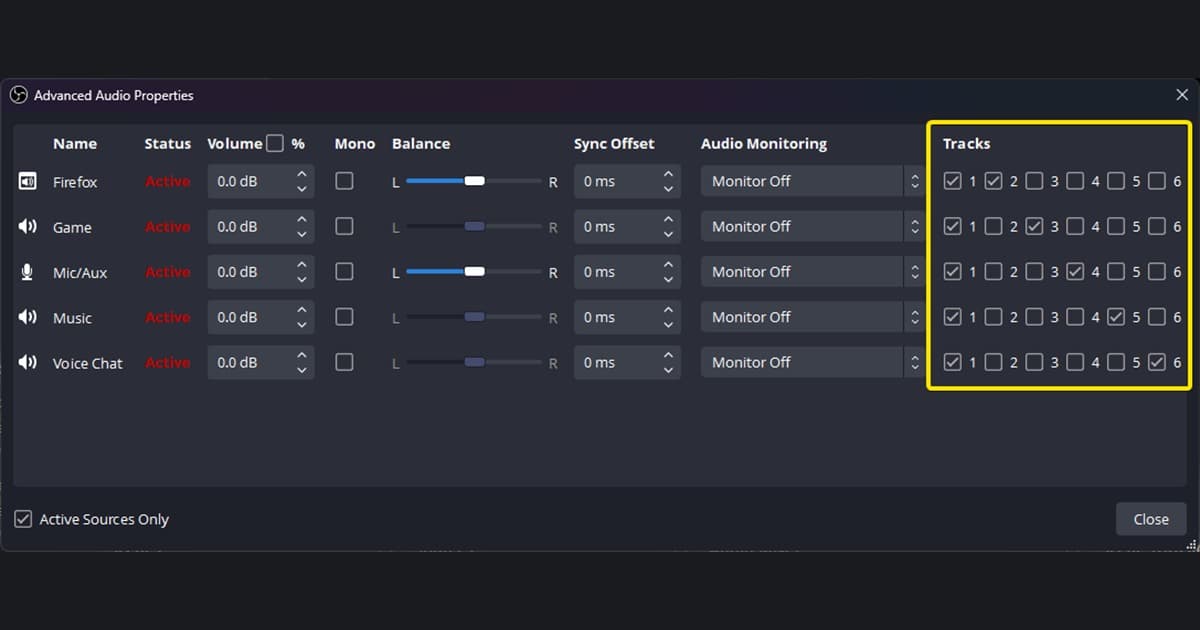
- 2Launch a supported game as usualOnce DOR is installed, start a supported game and DOR detects it automatically. There is no step for building scenes or sources before recording, so a beginner just opens the game and starts a match. If you want to narrate, have a microphone ready; DOR records game sound and microphone at the same time.
- 3Finish a match and confirm the full-match recordingThe recorded full match is saved as an mp4 and appears in the app library. In games with automatic clips, such as VALORANT or League of Legends, highlight clips like kills show up too. First check that the video plays and that you can hear sound.
- 4Trim the part you want in the libraryUse the trim tool in the app library to set a start and an end so only the useful part remains. Choose an output ratio of 16:9, 9:16 or 1:1; the trimmed video can be shared through a dor.gg link and plays in a mobile browser. Even if you stop here, you already have something to send a friend.
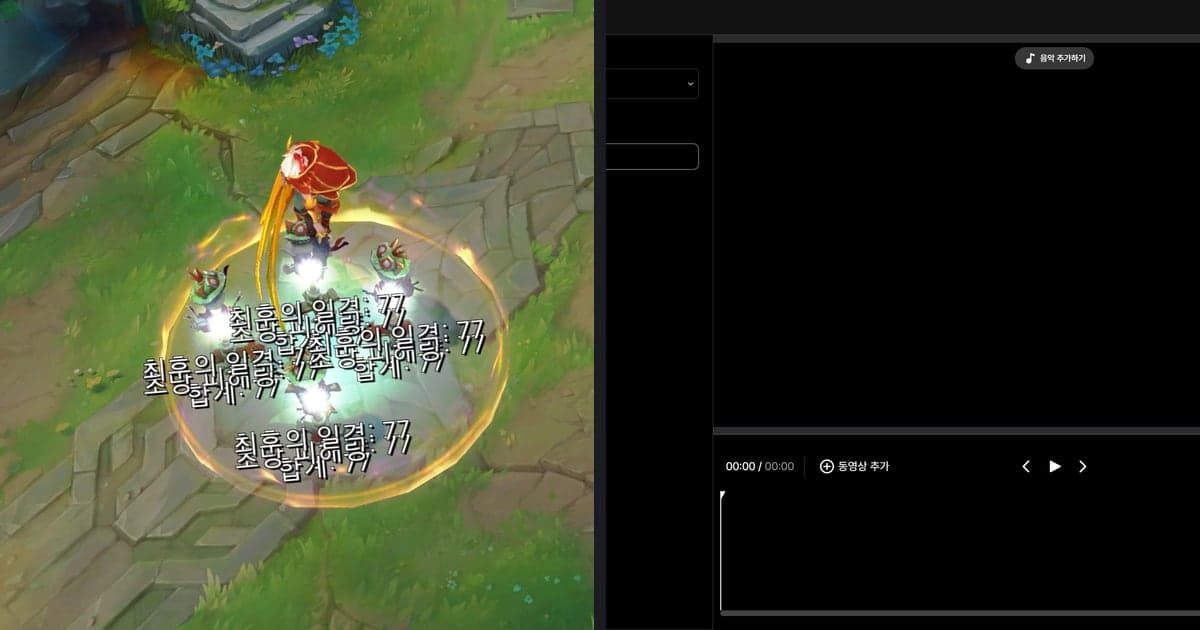
- 5Polish it in the browser studioTo go further, open DOR Studio in a browser with no install. You can pick a ratio that fits the platform, shorten the clip, and merge several videos. Effect templates, text, background music and volume control for the original sound are in the same place.
- 6Download an mp4 or share a linkFrom the studio you can download an mp4 or share a link. If you already know where the video will go, matching the ratio before editing saves re-cutting later. The app saves recordings as mp4. For YouTube's recommended upload encoding (MP4, H.264, AAC), see the official help page linked below.
- 7Check these things before uploading to YouTubeAs checked on October 6, 2026: on a computer, sign in to YouTube Studio, click CREATE at the top right, choose Upload videos, and select your file. You can upload up to 15 videos at once and fill in details through each file's Edit option. You must tell YouTube whether the video is made for kids, and if you close the upload window before setting visibility, the video is saved as private.
What you do in DOR at each stage
| Stage | What happens in DOR | What you need |
|---|---|---|
| Install | Install the DOR app on a Windows PC | A Windows PC and a game DOR supports |
| Record | DOR detects the supported game and saves the full match as an mp4 | A microphone if you want to talk over the footage |
| Trim | In the app library, set a start and end and pick 16:9, 9:16 or 1:1 | One recorded video |
| Edit | In DOR Studio in the browser: trim length, merge videos, effects, text, music and volume | A web browser (no install) |
| Export and share | Download an mp4 or share a link | An aspect ratio that suits where you post |
| Pre-upload check | A step outside DOR, done in YouTube Studio | A YouTube account |
Last look before you post
- I confirmed the game I want to film is supported by DOR.
- The recording plays in the app library and I can hear sound.
- The start and end of my trimmed segment match the moment I want to show.
- I chose a ratio for where it will go (16:9 for a regular video, 9:16 and 3 minutes or less for Shorts).
- I listened once to the balance between game sound, microphone and background music.
- I told YouTube whether it is made for kids and did not close the upload window before setting visibility.
How the flow looks when you start with DOR
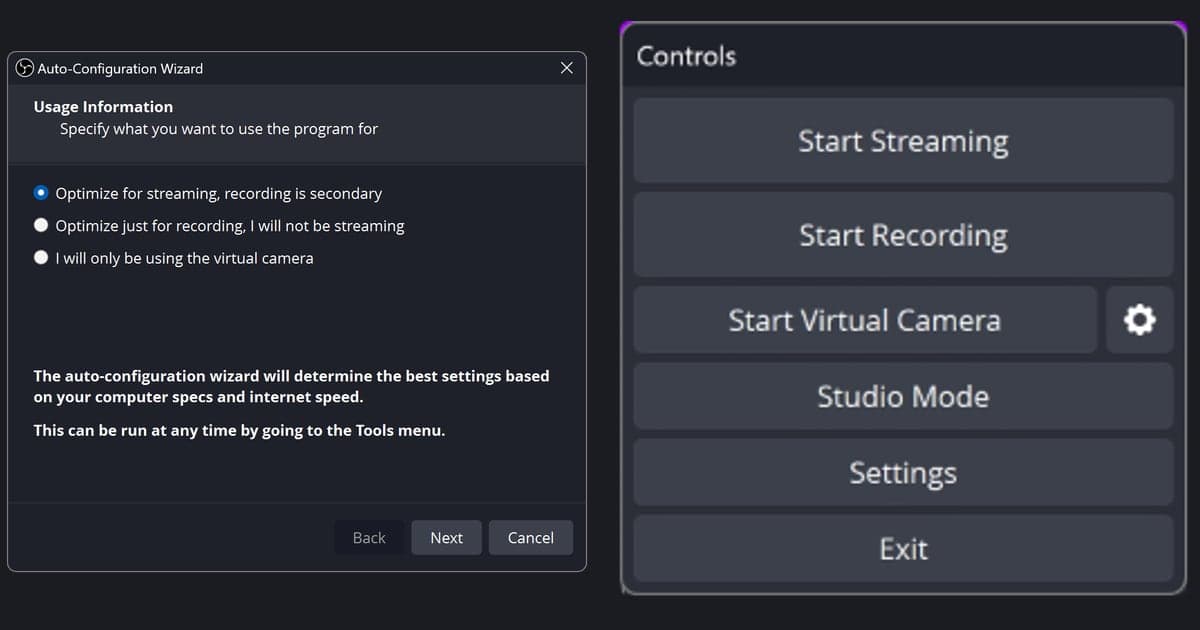
DOR is a free Windows app: launch a supported game and it detects the game and records the full match as an mp4. You can begin without first creating OBS-style scenes, sources or output settings, though that does not mean there are no other conditions. If you have an NVIDIA graphics card, NVENC hardware encoding is the default, and your microphone goes into the same recording as the game sound, so a newcomer who wants to talk through the play gets both from a single session. Automatic highlight clips are created only for seven games: VALORANT (rounds included), League of Legends, PUBG, FC Online (goals), Fortnite, Counter-Strike and Overwatch. Other supported games get a full-match recording only, so you cut the segment yourself. The last checks before you upload continue in the first gaming video checklist.