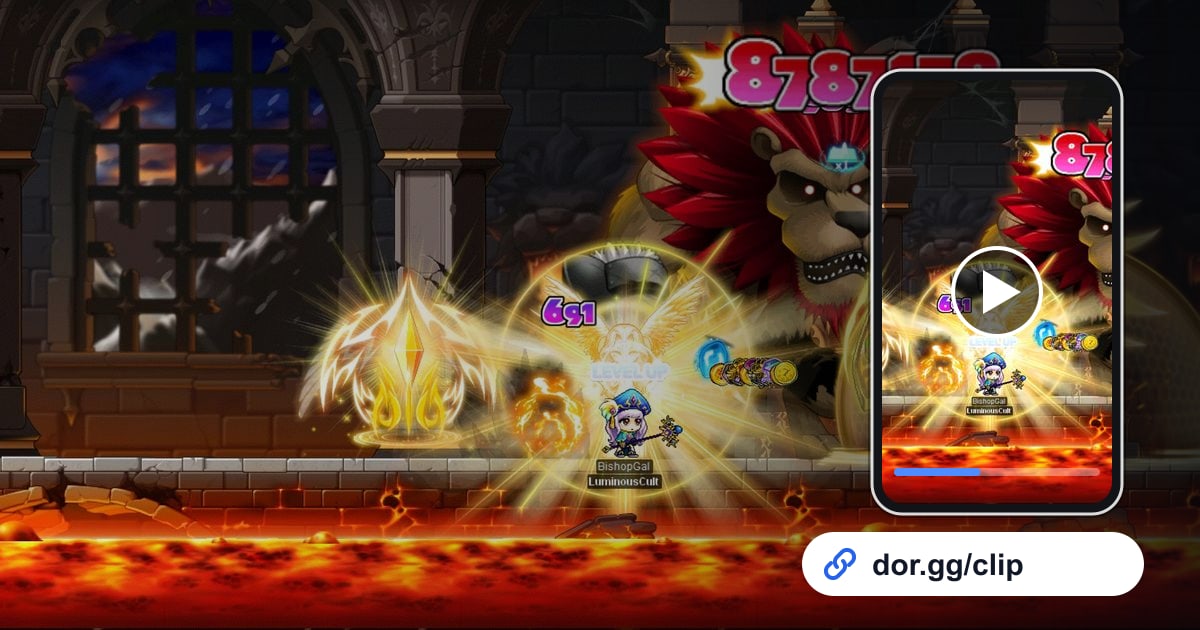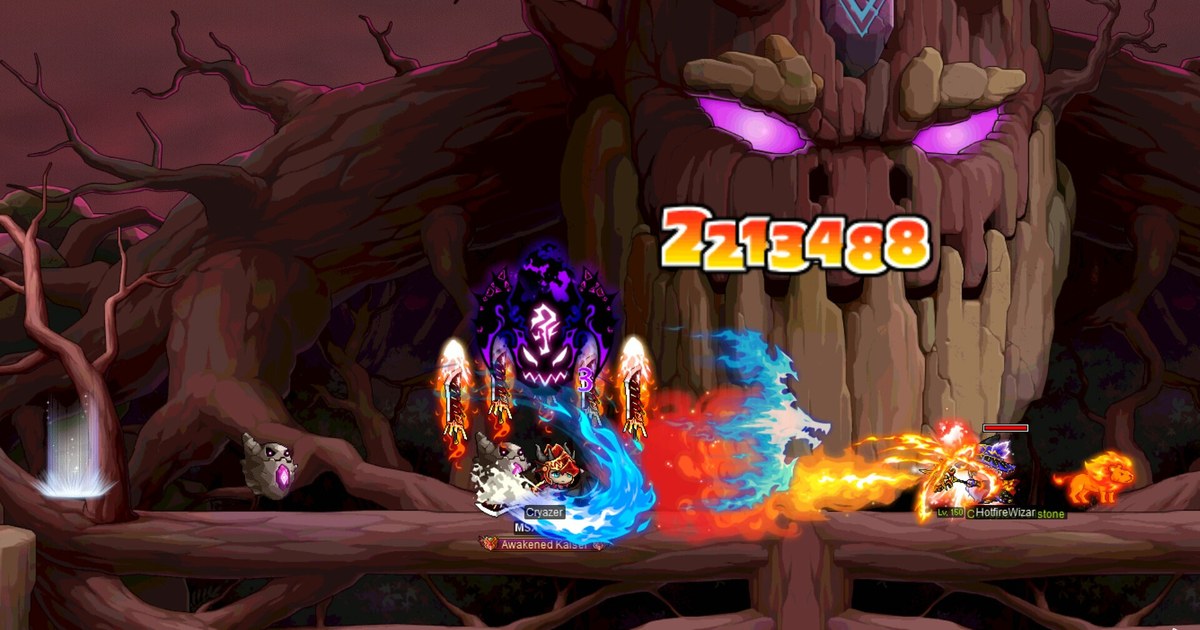

Short answer: to record MapleStory, install DOR before you launch the game and you are ready. DOR is a free Windows app that detects a supported game when you start it and records the whole session from launch to exit. There is no record button to press and no scenes or sources to set up like in OBS.
Whether you grind for hours or run your weekly bosses, you just play and the footage is waiting in My Clips afterward. Think of it as a simple order: record everything automatically, trim the moments you want to post, and export at the right aspect ratio.
This guide walks through that order for first time users, from installing the app to sharing a short boss clear clip with your guild. If you also want the download size and specs, check the MapleStory page first.
Bottom line: record it all, trim only what you post
In an MMORPG like MapleStory you never know when the moment you want to keep will arrive. A boss going down, an enhancement result appearing, or a close finish with your party all pass without warning, so starting a recording by hand tends to miss them.
It is safer to let the whole session record automatically and then pick the exact range you want when you are done. The trimmed result is saved as its own clip, so you never have to scrub through a multi hour video again.
By default 5GB of storage is reserved for full play recordings; only when you go over that are the oldest videos cleaned up first, while recent recordings and liked videos stay. If you are unsure whether your PC can handle the game, see MapleStory system requirements first.
From recording MapleStory to posting a clip
- 1Install DOR and leave it runningDownload and install DOR. It is free and setup is quick. After that you only need to keep the app running; there is no separate recorder to open each time you play MapleStory.
- 2Launch MapleStory as usualStart MapleStory from its launcher or Steam and pick your character. Recording begins once DOR detects the game. After you enter a hunting field, glance at the app once to confirm the recording indicator is on.
- 3Just playChanging maps or channels does not matter. You do nothing special when a boss falls or an enhancement result appears; just remember roughly when it happened so you can find it in the video later.
- 4Close the game and trim in My ClipsWhen you exit MapleStory, the session lands in My Clips in the app. Open the video, set the start and end of the scene you want, and save it as a clip. The details are in how to trim game clips.
- 5Choose an aspect ratio and exportUse 16:9 for guild sharing, 9:16 for shorts and reels, and 1:1 for square posts. To join several scenes or add text and BGM, use DOR Studio.
- 6Save as mp4 or send a linkDownload the finished video as an mp4 or share it as a dor.gg link. People who get the link can watch it right in the browser, which makes it easy to drop into a guild Discord or group chat.
MapleStory recording at a glance
| Item | DOR default | How to use it in MapleStory |
|---|---|---|
| Start | Detects a supported game automatically | Just launch MapleStory and recording begins |
| Range | Whole session, launch to exit | Hunting, bosses and enhancement all stay in one video |
| Quality | Free 720p and 1080p, 30 and 60fps | Default is 1080p 30fps; pick 60fps for fast boss patterns |
| Audio | Game sound and mic on one track | Party voice calls spoken into your mic are captured too |
| Saving scenes | Pick a range and trim it yourself | Choose the seconds around a boss clear or enhancement result |
| Export | 16:9, 9:16, 1:1, mp4 or a dor.gg link | Send a link to your guild Discord, post a 9:16 mp4 to shorts |
Check before you post
- Did you launch the game while DOR was running
- Does the trimmed range start a few seconds before the result appears
- Did you export in the right ratio for where you are posting (16:9, 9:16 or 1:1)
- Did you play it back to confirm your mic and party voice are audible
- Did you like the videos you want to keep for the long term
Auto record MapleStory with DOR and trim what you post
DOR is a free Windows app. When you launch a supported game it detects it automatically and records the whole session, and the recordings collect in My Clips in the app. Recordings have no watermark, and on the free plan you can choose 720p or 1080p at 30 or 60fps.
In MapleStory, play as usual, then pick the range you want to post, trim it and save it, and export in 16:9, 9:16 or 1:1. To merge scenes or add effects like shake zoom, text and BGM, edit in DOR Studio and export an mp4 or share a dor.gg link.