
You hit your clip key after a great round, open Medal, and there is nothing there. Or the clip saved, but it is a black screen, plays back like it is on fast forward, or has no sound.
Medal publishes troubleshooting articles for each of these on support.medal.tv, and this guide lines them up by symptom as of November 12, 2026, using the menu names as Medal's support articles spell them.
Labels can shift between updates, so if a name is slightly different, look for the closest match. If you are still deciding whether Medal is the right tool at all, start with Medal vs OBS.
Where to look first, by symptom (Medal support docs, as of November 12, 2026)
| Symptom | Cause Medal points to | Where to fix it |
|---|---|---|
| Game never shows up in Medal's list | Missing permissions, antivirus or Controlled Folder Access blocking Medal, damaged install | Run as administrator, Windows Security Ransomware protection, Settings > Help & Support > Repair Installation |
| Only a new or indie game is missed | Game is not on Medal's supported list | Add the game manually |
| Game detected but the hotkey does nothing | Hotkey conflict, symbol keys, per game preset mismatch | Settings > Clip Settings > Clipping Hotkeys and Settings > Custom Game Settings |
| Clips are black or stuck on one frame | Another overlay or recorder conflicting, capture mode | Force Window Capture and Advanced Window Capture under Settings > Advanced |
| Clips play back sped up | Not enough resources to encode every frame | Video Encoding in Settings, plus CPU and GPU usage in Task Manager |
| Game stutters or FPS drops while Medal runs | Not enough spare resources to record alongside the game, experimental Auto Clipping | Settings > Quality and Settings > Auto Clipping |
| Game sound or Discord voice missing | Output device mismatch, Recording Audio choice | Settings > Audio, and Discord Voice & Video output device |
Bottom line: sort the symptom first, then follow Medal's order one step at a time
Almost every Medal problem falls into one of three groups. Either Medal never sees the game (it is missing from the game list), or it sees the game but your clip hotkey does nothing, or clips save but come out wrong: black, frozen on one frame, sped up or silent.
Each group has a different first step in Medal's docs. Detection problems start with admin rights and security software. Hotkey problems start with Clip Settings and per game presets.
Bad output starts with capture mode and PC resources. Change one setting at a time and test one match after each change; flipping five toggles at once means you will never know which one worked.
If you are weighing other ways to clip altogether, our Medal alternative guide compares how automatic clipping works in different apps.
Medal's fix order, step by step
- 1Run Medal as administrator and let it past your security softwareRight click the Medal shortcut and choose Run as administrator. Add the Medal folder as an exception in your antivirus, then open Windows Security > Virus & threat protection > Ransomware protection and either turn off Controlled Folder Access or allow Medal. If you use Cloudflare Warp, Medal suggests excluding its domains or turning Warp off.
- 2Repair the install and free up space on C:Go to Settings > Help & Support and click Repair Installation so Medal redownloads its files. Keep at least 1 GB free on your C: drive, and if space is tight, move clips under Settings > PC Storage > Capture Folder Location to another drive.
- 3Add games that are not on the listMost popular games are picked up automatically, but a brand new release or a small indie title may not be on Medal's list yet. Use Medal's manual add option from its support article, register the game, then relaunch it.
- 4Fix the clip hotkey and per game presetsOpen Settings > Clip Settings > Clipping Hotkeys. The default is F8. Medal advises avoiding the period, comma and slash keys and sticking to numbers, letters or F1 to F12. On keyboards with an Fn key, try Fn plus your hotkey, and check that no other program or the game itself uses the same key. Then open Settings > Custom Game Settings and make sure that game's hotkey matches your global one, or delete the preset.
- 5Black clips: close conflicting apps, then change capture modeClose other recorders, crosshair overlays and on screen display tools such as RivaTuner or MSI Afterburner's OSD, then try again. If clips are still black, turn on Force Window Capture (windowed or borderless only) and Advanced Window Capture under Settings > Advanced. Medal also suggests testing your game with Disable fullscreen optimizations both on and off.
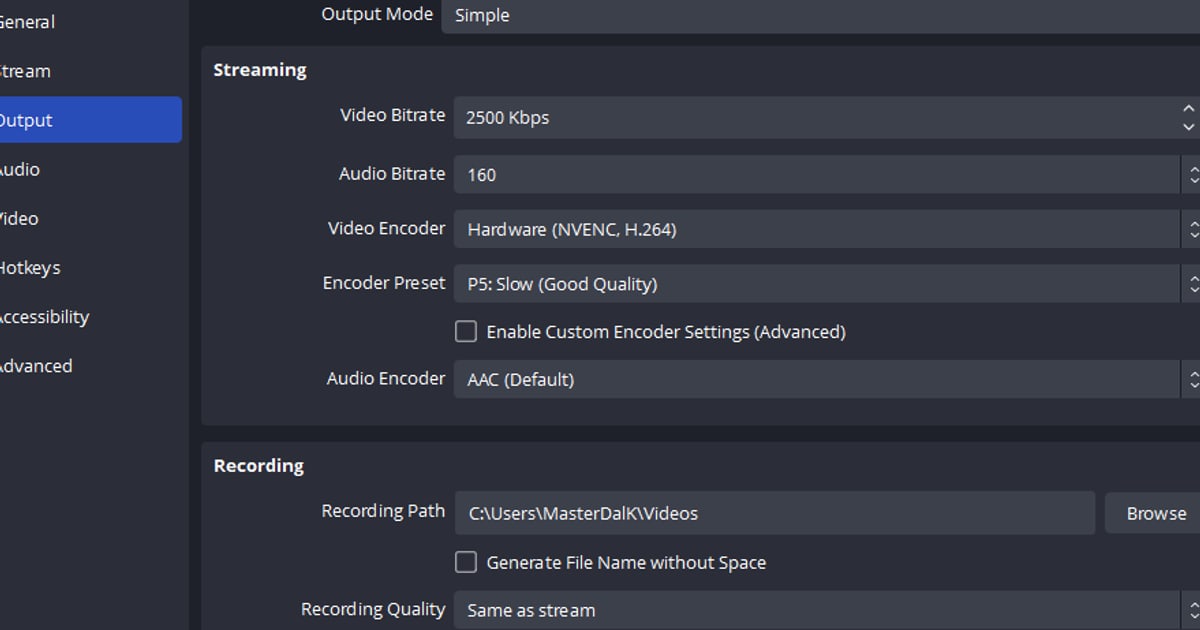
- 6Lag and sped up clips: give Medal room to encodeLower the Quality settings one at a time in Settings > Quality, and turn off Settings > Auto Clipping, which Medal describes as an experimental feature that uses more resources. If clips play sped up, watch CPU and GPU in Task Manager: when CPU is high, switch Video Encoding to a hardware encoder; when GPU is high, switch it to libx.
Before your next match
- Missing game sound: check that Recording Audio in Settings > Audio is set to All PC Audio, or that your game is ticked if you chose Specific Apps.
- Missing Discord voice: make sure the Output Device in Discord's Voice & Video settings is the device Medal records, and turn Discord all the way up under Recording Audio.
- Missing mic: confirm Microphone Input is on and run the mic test (Start Test) with the game closed, since the test does not run while a game is open. For a deeper check, see mic audio not recording.
- Medal notes that turning VSync on or lowering your in game FPS cap leaves more resources for recording.
- Still stuck? Send a ticket through Medal's support site with your Medal logs attached. If clips saved but you cannot find them, check where Medal saves clips first.
Still losing whole matches? Record the full match automatically
A hotkey workflow only saves what you remember to clip, right after it happens. In the middle of a fight that is easy to forget, and the moment is gone.
DOR is a free Windows game recorder: launch a supported game and it detects it and records the entire match, collecting the footage in My Clips inside the app.
Seven games also get automatic highlight clips from in game events, such as kills with ace and clutch tags in VALORANT, and kills, multikills and objectives in League of Legends.
Game sound and your mic are captured together on one track, and on supported NVIDIA graphics cards such as the RTX series it records with NVENC hardware encoding. See how DOR auto highlight clips are made, or check what is supported on the VALORANT and League of Legends pages.