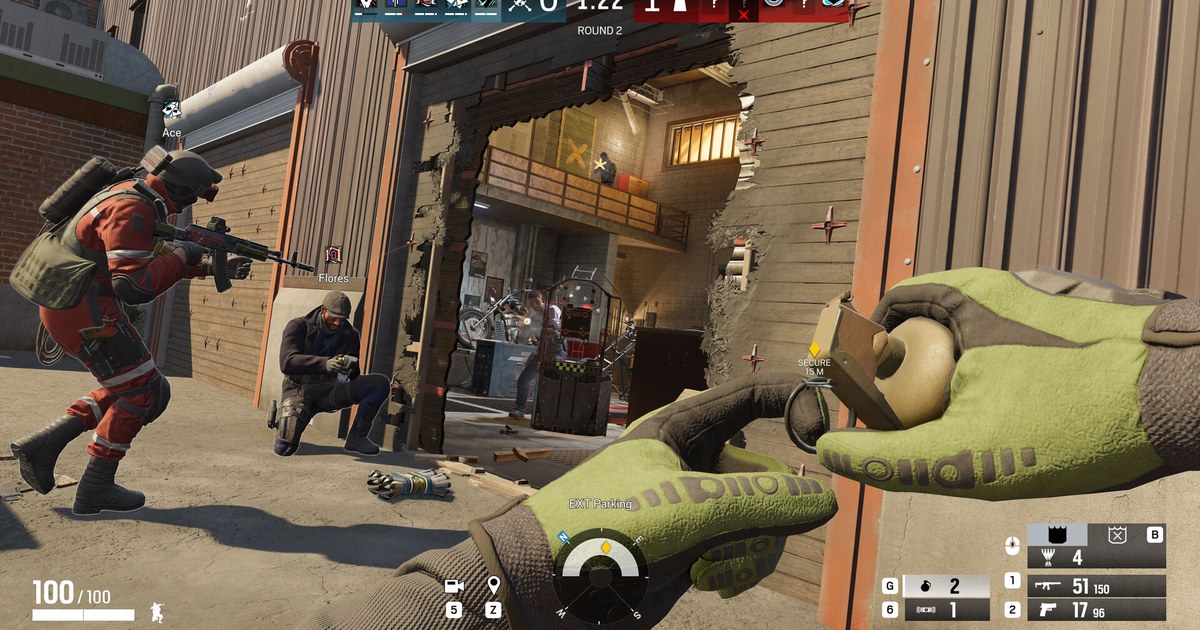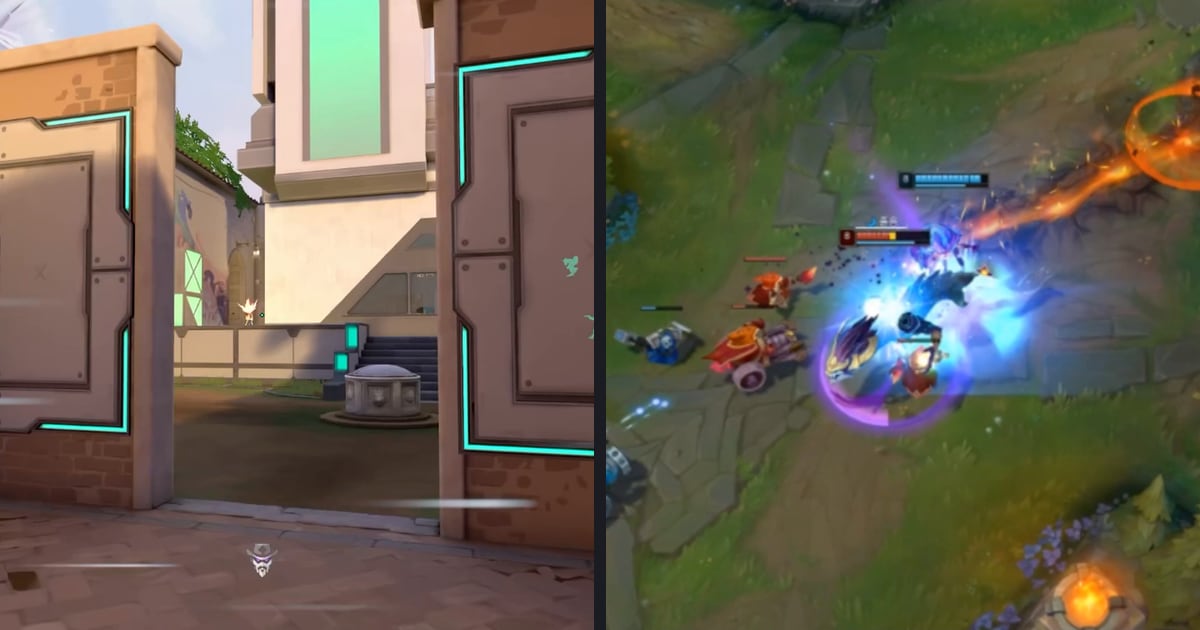
Medal is a PC game clipping app: press a hotkey and it saves the moment that just happened. The defaults work, but sooner or later you want longer clips, sharper video, or a save folder that is not quietly filling your C drive.
That is when the settings screen gets confusing, because options are spread across Recording, Quality, Cloud & Storage and Custom Game Settings.
This guide walks through each one using Medal's own help center articles: the settings overview, the custom game presets guide and the recommended quality guide.
You will find where to change clip length, what quality, fps and encoder values make sense, how to move your capture folder, how hotkeys work and how to give each game its own setup. Menu names change with app updates, so everything here reflects the help center as of November 12, 2026.
Short answer: two clip hotkeys, High 1080p at 60 fps, and move the capture folder
Three changes cover most people. First, add two clipping hotkeys with different lengths under Recording > Clipping Hotkeys, for example 30 seconds for a quick fight and 2 minutes for a full round.
Each hotkey can be set anywhere from 15 seconds to 5 minutes, or to a custom length, so you choose the clip size at the moment you press it. Second, pick High (1080p) under Quality and set FPS to 60.
Medal's recommended quality guide lists 15M to 20M bitrate for 1080p with H.264 and strongly recommends the GPU encoder when your system supports it. Third, point Capture Folder Location under PC Storage at a drive with plenty of space and set a Storage Limit.
If you would rather keep whole matches than short clips, turn on Automatically Record Entire Game Session and Medal records from game start to end. Still deciding between tools? Read Medal vs OBS first.
How to change your Medal settings
- 1Open settings from the gear iconOpen Medal and click the gear icon in the lower left corner. The sidebar lists Recording, Cloud & Storage, Custom Game Settings and the other sections covered below.
- 2Set a length for each clipping hotkeyUnder Recording > Clip Settings, make sure Capture Clips is on, then use Add Hotkey under Clipping Hotkeys. Each hotkey gets its own length, from 15 seconds to 5 minutes or custom. For help choosing a length, see how to save just the last few seconds.
- 3Choose a quality preset and fpsPick Low (360p), Standard (720p), High (1080p) or Custom under Quality Presets. Custom unlocks resolution up to 4K, FPS of 24, 30, 60, 120 or 144, bitrate from 3M to 100M and a GPU or CPU encoder. If you change the codec, adjust the bitrate to match.
- 4Pick the capture folder and a storage limitUnder Cloud & Storage > PC Storage, click Capture Folder Location and choose where clips are saved. Storage Limit offers 1GB up to 500GB or custom; with Only Delete Full Length Recordings to Free Up Space turned on, only full session recordings are deleted to stay under that limit.
- 5Create custom game presetsIn Custom Game Settings, click + Add a custom game setting, choose the game, then set its mode to Clips, Session or Off. Edit settings next to the title changes that game's clip length, resolution and frame rate. Games without a preset follow your General Recording defaults.
Where each Medal setting lives and what to pick (as of November 12, 2026)
| Setting | Where to find it | Suggested value |
|---|---|---|
| Clip length | Recording > Clipping Hotkeys | Two hotkeys, 30 seconds and 2 minutes, or a custom length |
| Quality preset | Quality > Quality Presets | High (1080p), or Standard (720p) on a weaker PC |
| FPS | Quality > Custom > FPS | 60 for shooters; options are 24, 30, 60, 120 and 144 |
| Encoder and bitrate | Quality > Custom | GPU encoder, 15M to 20M for 1080p H.264 |
| Save folder | Cloud & Storage > PC Storage > Capture Folder Location | A drive with free space, plus a Storage Limit |
| Full session recording | Recording > Automatically Record Entire Game Session | On if you want whole matches |
| Per game setup | Custom Game Settings | Clips, Session or Off, with its own quality and length |
Check these after changing settings
- Play one match to confirm your clip hotkey does not clash with an in game bind or a Discord shortcut.
- Medal notes that 1440p and 4K clips may be compressed on upload, so 1080p is the safe pick for clips you plan to share.
- Auto Upload under Cloud & Storage offers Instantly, When Game Closes or Never; choose Never if you want clips kept on your PC only.
- If your game's frame rate drops while recording, lower resolution or bitrate one step at a time.
- Want to compare other ways to clip? See Medal alternatives.
Prefer recording that starts on its own?
Medal shines when you want fine control over hotkeys, quality and per game presets. If you would rather not build a preset for every game, DOR may suit you better.
DOR is a free Windows game recorder: launch a supported game and it detects it and records the whole match, collecting the footage in My Clips inside the app. In seven games, including League of Legends, VALORANT and PUBG, it also creates highlight clips automatically from events such as kills.
Recording defaults to 1080p at 30 fps, and 60 fps is available for free. Trim the part you want in the app at 16:9, 9:16 or 1:1. See how DOR auto recording works and the VALORANT hub.